Pastor teaching software
Features built for
Bible teaching
Verse slides, maps, photos, outlines, and study tools in one document — each with a live demo of how it works on Sunday.
Verse slides
From passage to projector in one click
Sunday prep often means copying a reference into PowerPoint, pasting the text, fixing the font, then realizing you grabbed the wrong verse range.
Every handoff between Bible software and slide software is a chance to introduce typos, lose the translation you studied in, or burn the hour you meant for the sermon itself.
Open SnappyBible beside your notes, select the passage, and create a verse slide that already carries the translation, reference, and formatting you teach with. The manuscript and the deck stay in the same document.
Turn any verse into a sermon slide without leaving the Bible reader.
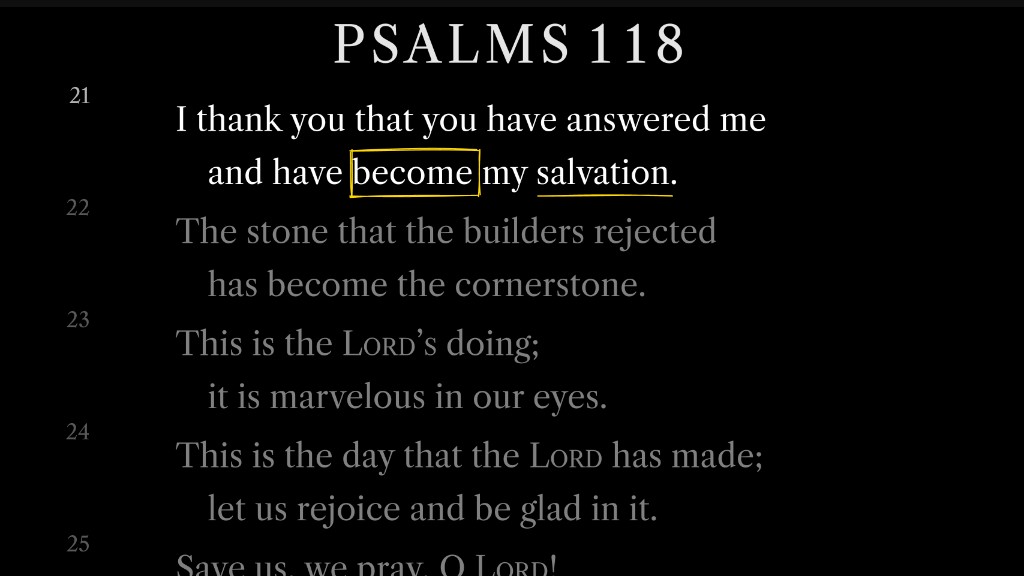
Annotation
Mark the text the way you preach it
The insight is in the text — a repeated word, a contrast, a command — but the room only sees a flat block of verses.
Without visual emphasis, people track the wrong clause. You end up saying “look at that word” while they scan three lines ahead, and the moment is gone.
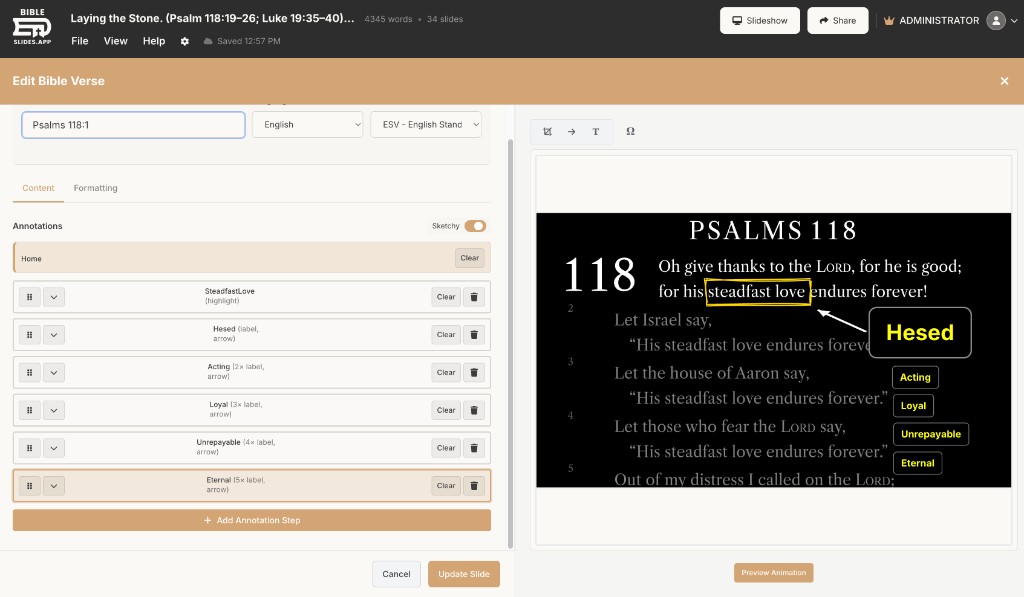
Draw highlights, underlines, and callouts as presentation steps on the verse itself. Advance the deck and the markup builds with your argument — no second app, no screenshot edits.
Highlight, underline, and call out the words you will land on.
Geography
Put the journey on the screen, not just the place name
Premium“Paul sailed from Troas to Macedonia” is a sentence. For most rooms it is also an abstraction — flat, forgettable, and easy to skip.
Static maps force you to point with a laser or narrate distances nobody can feel. The geography that shaped the text never shapes the sermon.
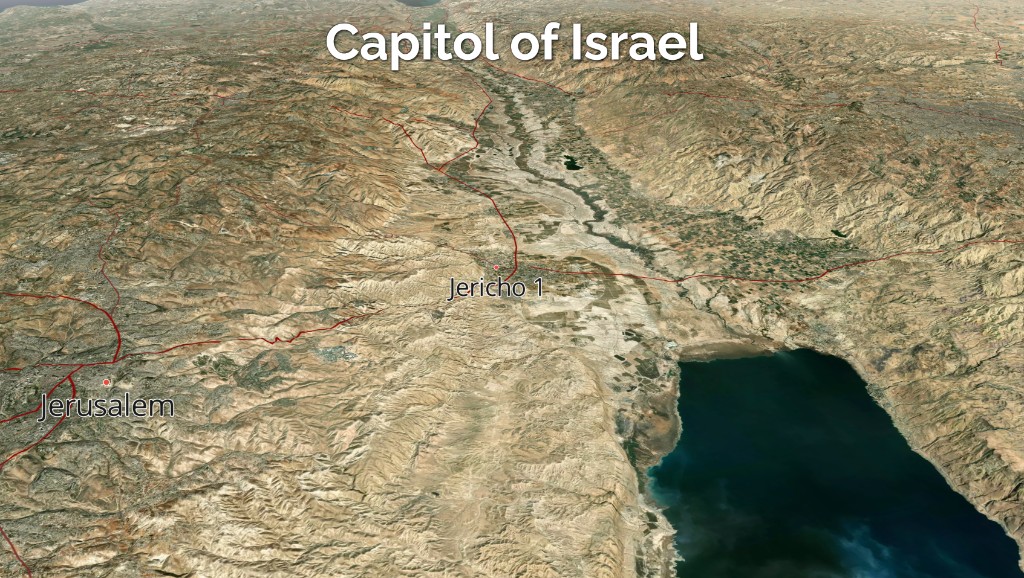
Drop a 3D Bible map into the deck, pin the places, and animate the route over real terrain. The congregation watches the journey unfold while you keep teaching from the same document.
Fly over terrain and trace biblical journeys in 3D. Premium — try free for 30 days.
Sites & structures
Walk the site without leaving the sermon
PremiumTemple courts, fortresses, and city gates show up in the text constantly — but a single photo cannot show how the space worked.
You either over-explain architecture or skip it. Either way the passage stays two-dimensional when the original audience lived in three.
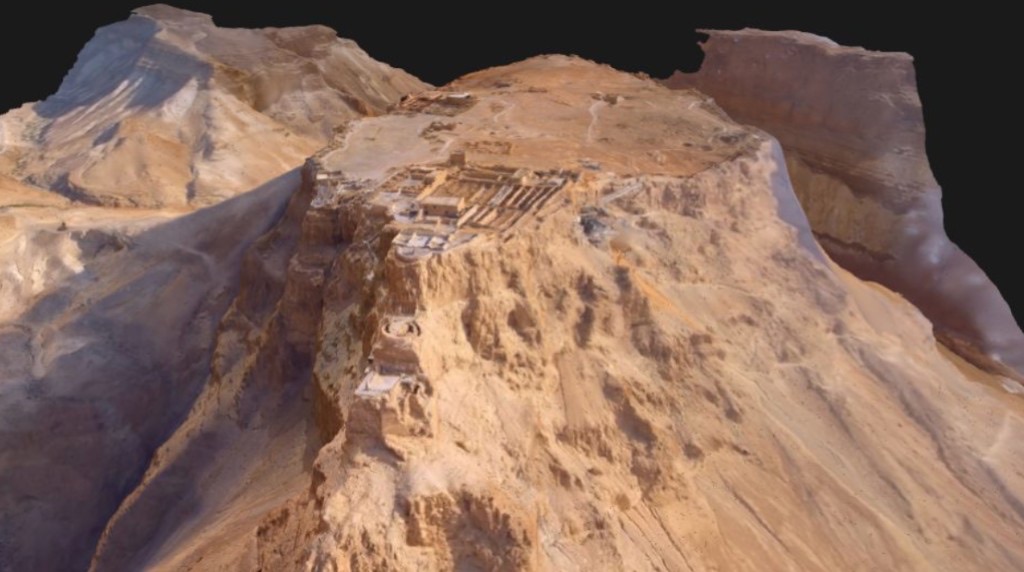
Insert a stepped 3D model, orbit the camera, and advance through stops that match your outline. Masada, Jerusalem, and other sites become teaching props instead of footnotes.
Rotate and step through detailed models of biblical sites. Premium — try free for 30 days.
BiblePlaces photos
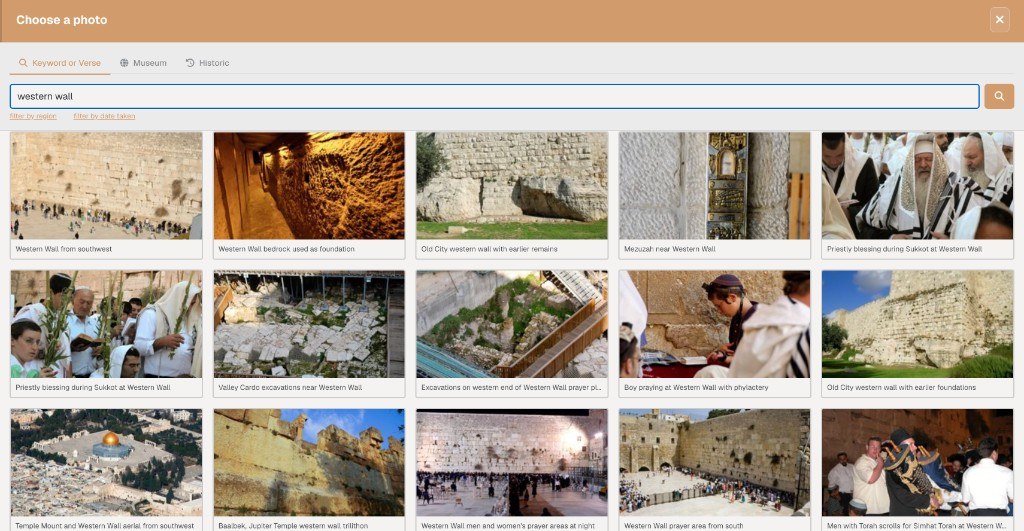
Show the land the text is talking about
PremiumBiblical place names are easy to say and hard to picture. Without a credible image, “Capernaum” is just another proper noun.
Generic stock photos break trust. Hunting licensing on Saturday night steals prep time and still may not match the verse.
Search BiblePlaces photography by verse or keyword, drop a Todd Bolen photo into the deck, and keep teaching. The image is already framed for Scripture, not tourism.
60,000+ Todd Bolen photos from BiblePlaces.com, paired with a verse or keyword. Premium — try free for 30 days.
Original languages
Bring Greek and Hebrew into the room without a whiteboard scramble
Word studies live in your software. The projector still shows English only — so the insight stays in your notes.
Switching to a lexicon window mid-sermon breaks eye contact. Skipping the language work leaves the congregation one step removed from the text you labored over.
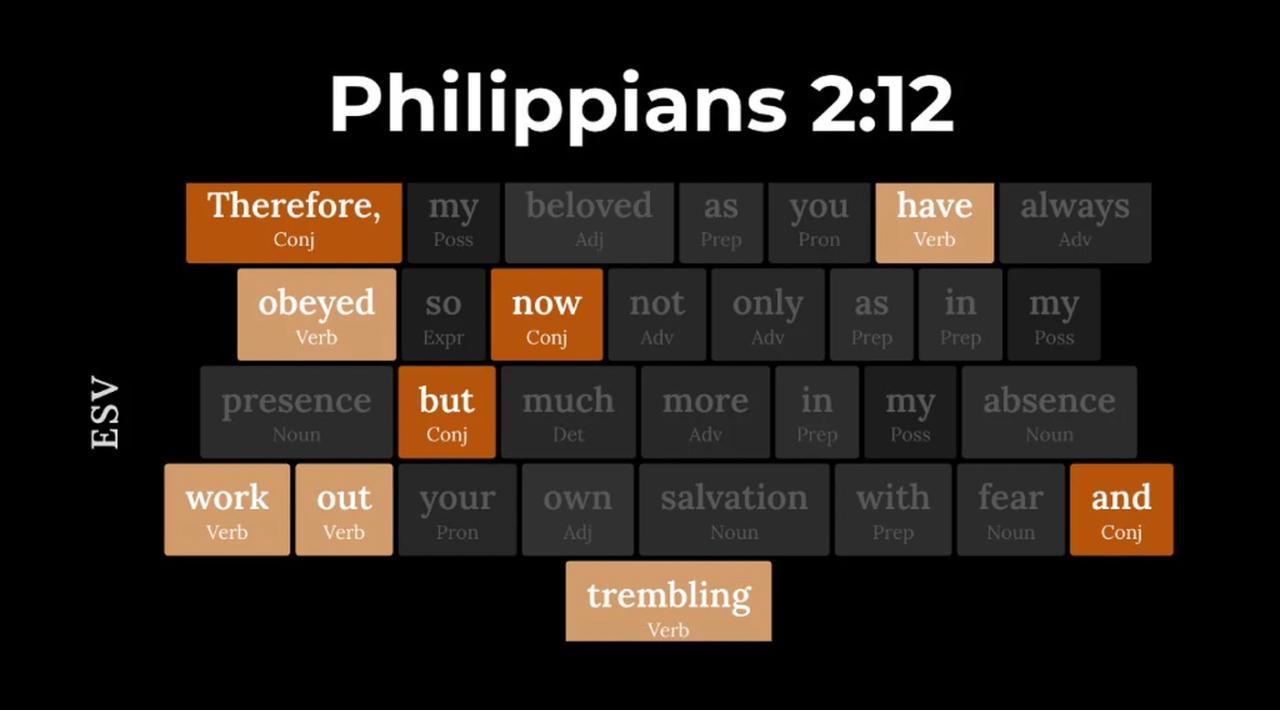
Flip the verse slide into a color-coded interlinear: original word, transliteration, gloss, and parsing. Step through the forms as you teach so the room sees what you see.
Color-coded original words, glosses, and parsing on the verse slide.
Lexicon
Define the word before you build the point
Key terms get waved at — “blessed,” “repent,” a Strong’s number — without a clean definition the whole room can hold.
Verbal definitions are uneven. Screenshots from a lexicon look like homework. The word that carries the sermon never gets its own frame.
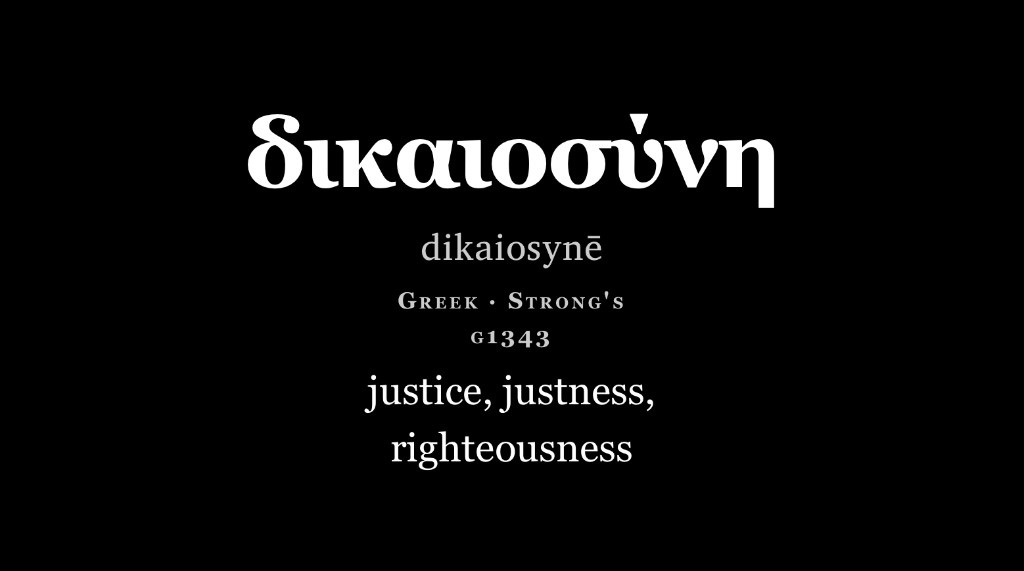
Create a definition slide from English, Greek, or Hebrew lexicon data. Present the sense, then advance into the verse that depends on it.
Dictionary-style English, Greek, or Hebrew definitions as teaching slides.
Structure
Let the outline breathe with the sermon
Dumping every point on screen at once invites the room to read ahead — or to photograph the slide and check out.
Static bullet dumps fight your pacing. Hide-all / show-all clickers feel clumsy, and a separate outline app drifts out of sync with the notes.
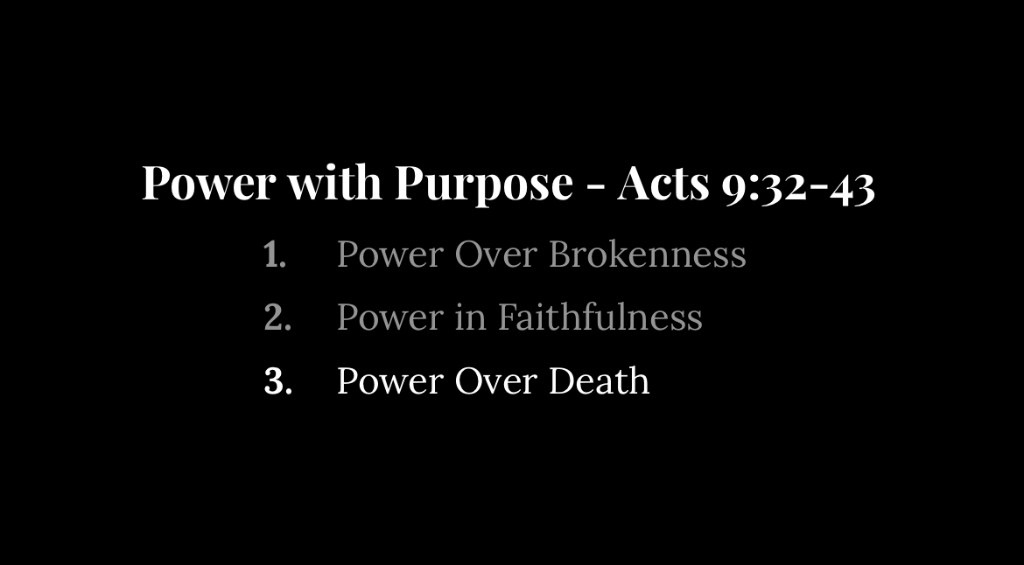
Build the outline in the same document as the verses. Reveal points sequentially, dim prior sections, or focus subpoints so the structure tracks your voice.
Reveal sermon points one step at a time with focus that matches your flow.
Chronology
Show when the story sits in history
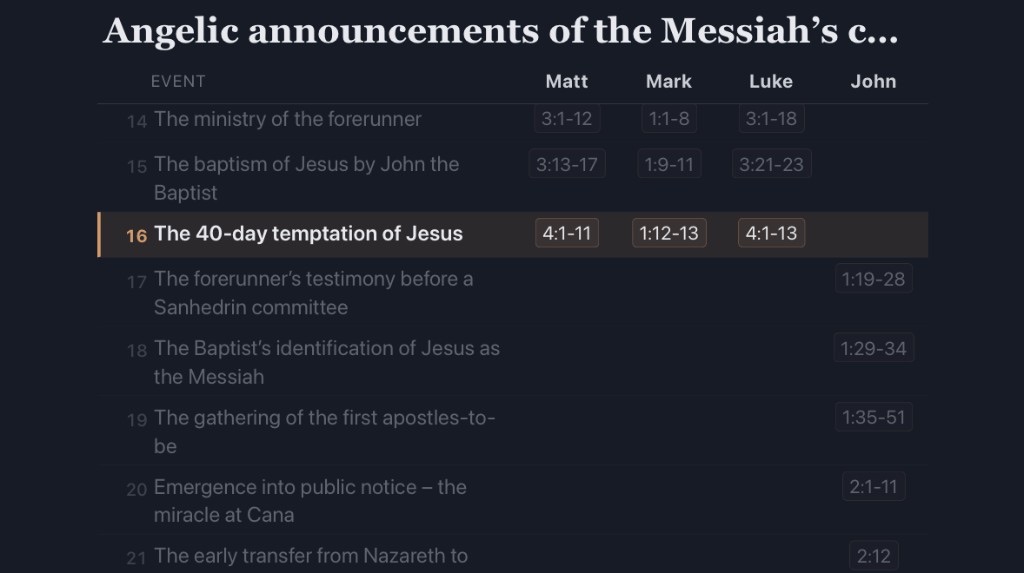
Chronology is the skeleton of many passages — but dates and sequences rarely survive a verbal flyover.
People leave unsure whether something happened before the exile, during the ministry of Jesus, or in Paul’s later letters. Confusion about “when” muddies “so what.”
Drop a timeline slide — Life of Christ, Paul, Kings, Nativity, or a custom axis — and walk the camera along the history your text assumes.
Gospel harmony, Paul, kings, and custom history axes for teaching chronology.
Genealogy
Make the family relationships visible
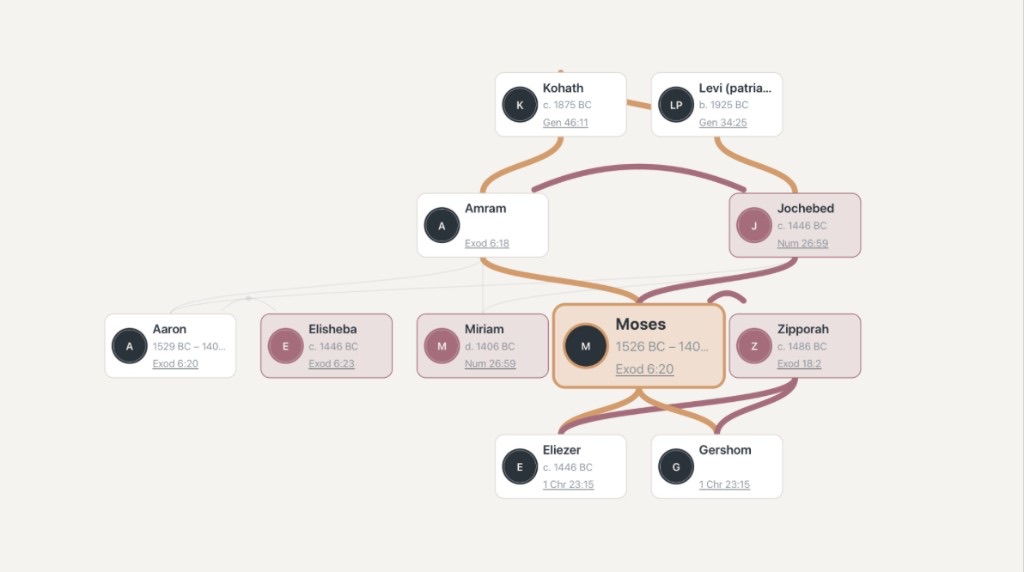
PremiumGenealogies and kinship plots (Judah and Tamar, David’s house, the Herods) collapse into a fog of names.
Without a graph, people lose the relational stakes that make the narrative bite. You end up narrating a family tree nobody can hold in working memory.
Insert a family-tree slide, focus one person at a time, and let the camera stop on each relationship as you teach. The graph carries the names so you can carry the point.
Biblical kinship graphs with a camera stop for each person. Premium — try free for 30 days.
Motion
Keep the clip inside the sermon, not in another window
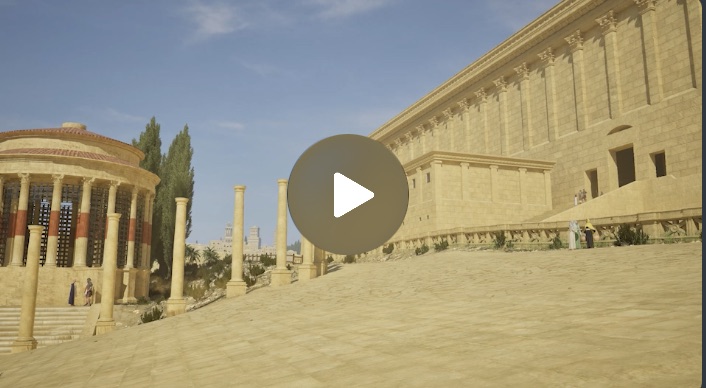
Illustration videos usually mean alt-tabbing to a browser or a second deck — and praying the audio routing behaves.
Every tool switch is a seam the room can feel. Lost focus, wrong tab, or a login wall turns a 45-second clip into a two-minute stall.
Embed the video as a slide in the same document. Advance into it like any other step, then continue into the next verse without leaving BibleSlides.
Play teaching clips inside the same deck as your verses and notes.
Attention
Direct the eye before you make the point
A full-bleed photo is rich — and busy. The detail that matters is easy to miss from the back row.
Laser pointers shake. Verbal “look at the upper left” wastes seconds. If attention lands on the wrong part of the image, the illustration works against you.
Add focus-box steps on image and model slides. Dim the rest of the frame, zoom the teaching detail, and advance the focus as the explanation deepens.
Draw focus windows on photos and models so the room looks where you look.
Custom canvas
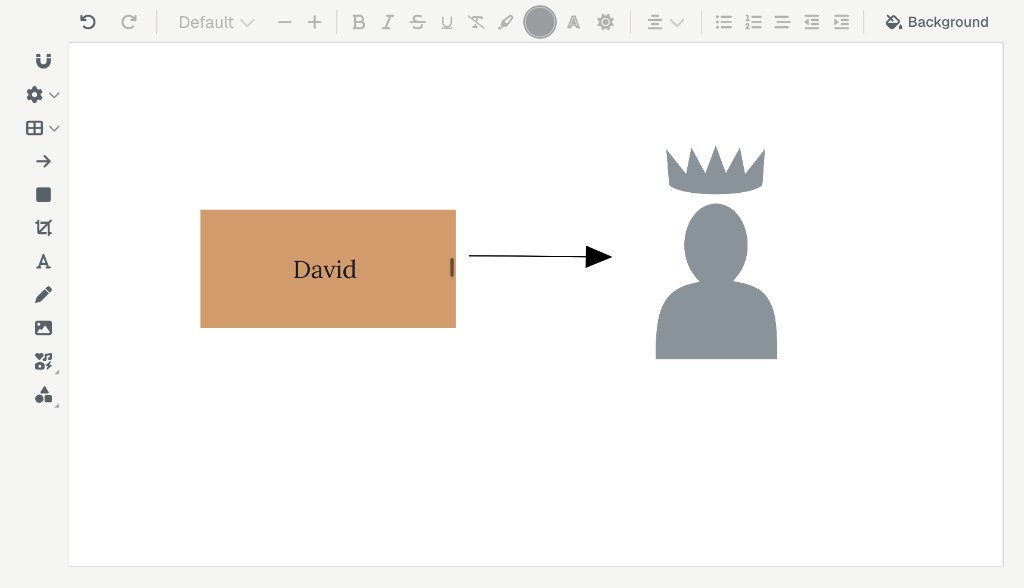
Build the diagram the template library does not have
Some teaching moments need a one-off visual — a simple diagram, a labeled sketch, a contrast of two ideas — that no stock slide type covers.
Exporting to another design tool breaks the “one document” workflow. Hand-drawn whiteboard shots look inconsistent next to polished verse slides.
Open a drawing slide and place text, shapes, and images on a blank canvas. Keep the custom visual in the same deck, themed and stepped with everything else.
Freeform text, shapes, and images on a blank canvas for custom diagrams.
Workflow
Reshape the deck as fast as you reshape the outline
Sermon structure changes late — a point moves, an illustration swaps, a verse belongs earlier.
In rigid slide tools, reordering means hunt-click-cut-paste across a filmstrip that is detached from your manuscript. The deck drifts from the notes you will actually preach.
Grab a slide in the notes document and drop it where the argument now lives. Notes and slides stay welded together because they are the same file.
Reorder slides in the notes document the way you reorder the sermon.
Study → slides
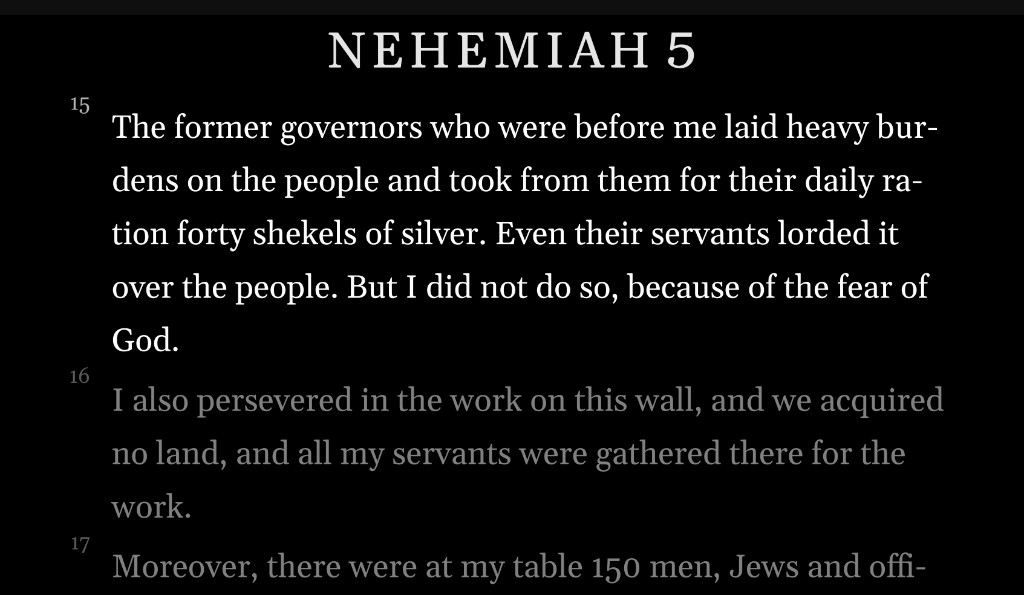
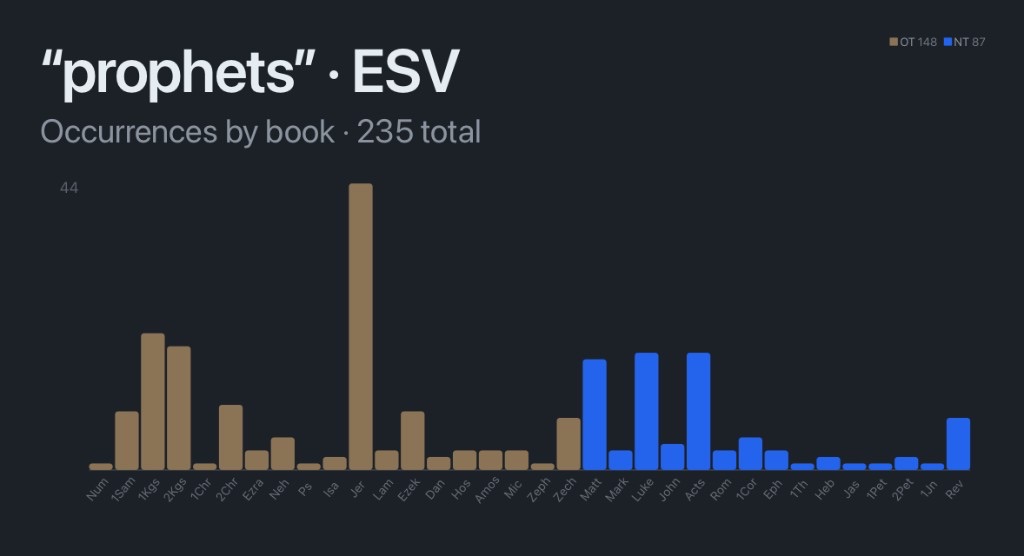
Study stats that turn into teaching moves
You notice a word repeating in a chapter, but proving the pattern — and turning it into a slide — takes a scavenger hunt across tools.
Without quick frequency and related-slide cues, hunches stay hunches. The room never sees the repetition that convinced you in private study.
SnappyBible surfaces word stats and related-slide suggestions beside the text. Spot the pattern, create the slide, and preach the evidence you already found.
See word frequency and related-slide suggestions while you study in SnappyBible.
Ready to build this week's sermon in one document?
Create a free account — no card required. New accounts include 30 days of Premium so you can try maps, photos, models, and family trees on a real Sunday.