Let the room see who is speaking — Christ's words in color
Christ's words in color sits under Reading in Settings on a Bible Verse slide in BibleSlides. It starts off. Turn it on and the words the translation already marks as Christ's take a color. The default is #c41e3a. Christ's words color changes it. Done writes that choice onto every verse slide in the open sermon. The editor, projector, tablet, follow-along, and slide exports read the same switch. The color follows the marks the translation supplies. NASB, NIV, the stored ESV, a church-key ESV, and a church-key NLT include them when that edition marks Christ's words. NET and any text without the marks stay one color.
Matthew 5. The narrator sets the hillside, and then Jesus begins. The room loses the seam when every line is the same white. You are about to read the Beatitudes. The back row should be able to see where his voice starts.
Christ's words in color in BibleSlides is that seam. It starts off. Turn it on, and the words the translation already marks as Christ's take a color. The rest of the verse stays the body color. The passage stays the passage. The tool gets out of the way.
The color answers who is speaking. Every line is still the text you came to preach.
How to create a Bible Verse slide covers the reference, the translation, and a highlight. This article is the color on Christ's words, and the week you will leave the switch off.
When the seam helps
| Moment | What the color is for |
|---|---|
| The Sermon on the Mount | The narrator's line and Jesus' line share a paragraph. The color shows where his voice starts. |
| A parable with dialogue | The farmer, the servant, and the master can share a verse. The color marks the lines that are his. |
| An "I am" saying | John 6, John 10, John 14. The claim is his sentence inside a conversation. The color keeps that sentence visible while you explain it. |
| A Gospel, verse by verse | The same switch is on every Bible Verse slide in the sermon, so the cue holds through the chapter. |
Leave the switch off when the room should see one ink. Some pastors do that on purpose: every line is God's Word, and a second color can look like a rank the text did not ask for. Leave it off when the translation on the slide has no marks for Christ's words. Leave it off when the red disappears into the wall.
Where the switch lives

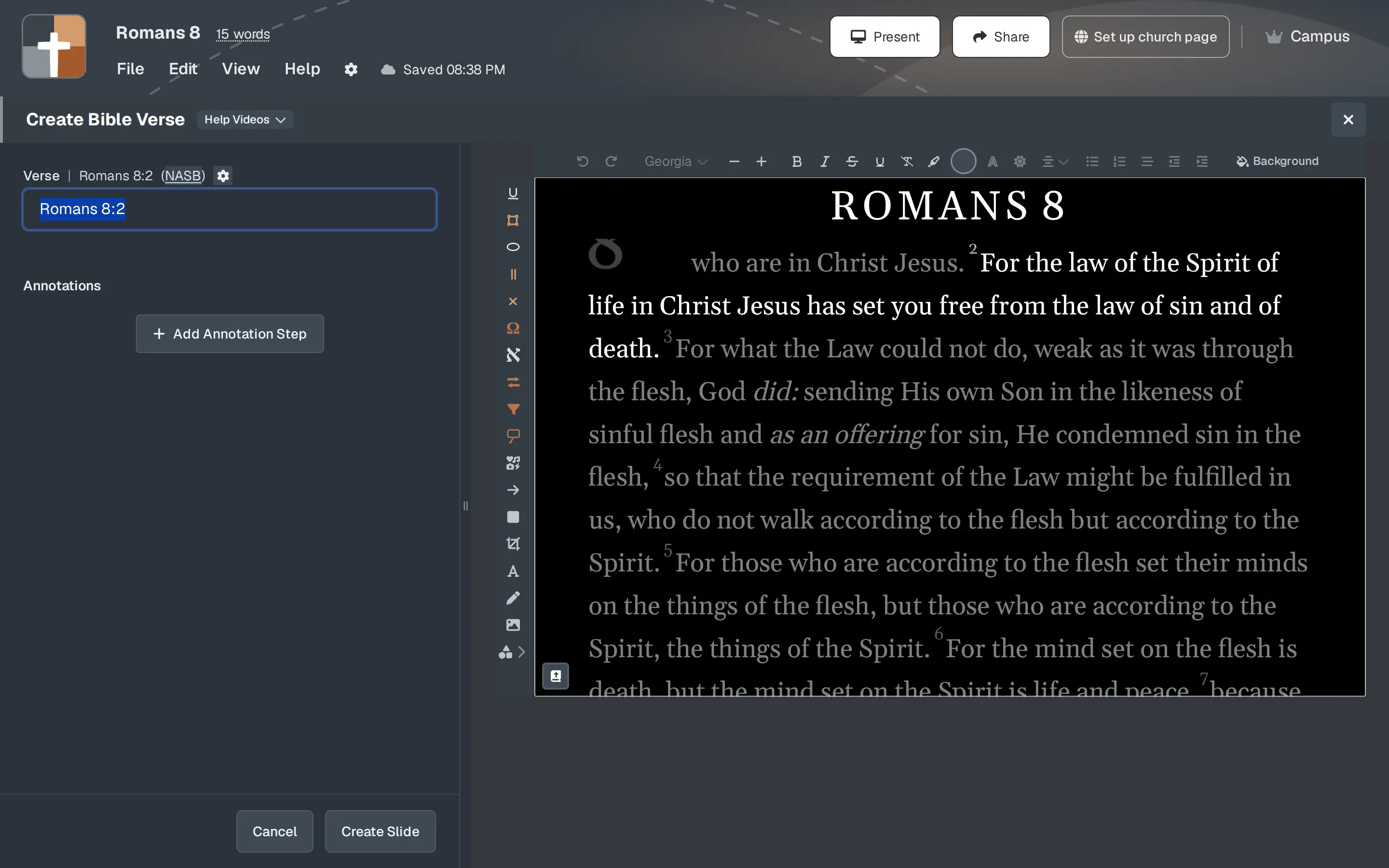
- Open the Bible Verse slide. The window title is Create Bible Verse or Edit Bible Verse. The field is Verse.
- On that row, after the reference and the translation abbreviation, is a gear. The hover note is Settings.
- The window title is Settings.
- Under the heading Reading, the note beside the heading reads All verse slides.
- The switch is Christ's words in color. It starts off.
- With the switch on, Christ's words color appears under it. The swatch's hover note is Christ's words color (click for more). The default is
#c41e3a, a deep red. - Done closes Settings.
The verse you have open shows the color in the preview as soon as you flip the switch. Every other Bible Verse slide in the document takes the same switch and the same color when you press Done, or when you save the verse slide. The next Bible Verse slide you add uses it too. The choice is saved on your account. A sermon you do not open keeps the switch already stored on its slides.
The translation block in that window is marked This slide only. The color change leaves each slide on the Bible you chose for it.
Restore defaults turns Christ's words in color off, puts the color back to #c41e3a, and also resets the other formatting in Settings — text size, colors, font, and the rest. Turn the switch off when you only want the words back in the body color.
Which words take the color
The color follows marks already in the text BibleSlides loaded. With the switch off, those marks stay hidden. The line on the screen is the verse, in the body color. With the switch on, a marked word takes Christ's words color. An unmarked word stays with Body.
| Text on the slide | With the switch on |
|---|---|
| NASB | Christ's words are marked in the copy every account uses. |
| NIV | Christ's words are marked in the local copy, on a slide set to NIV. |
| ESV from the stored file | The stored file includes the marks. That file is what an account still reads when it was created before 21 October 2026, 12:00 a.m. America/Chicago, and already qualified (a campus plan, an admin grant, a Cypress org, or a platform admin). An admin grant of ESV, or ESV allowed at signup, unlocks the same file. |
| ESV from a church Crossway key | The key's text is read without those marks. The verse stays one color. |
| NLT from a church Tyndale key | The key's text is read without those marks. The verse stays one color. |
| NLT still loaded as Bible text | Colored only where that text includes a words-of-Jesus mark. |
| NET | NET arrives as plain text. The verse stays one color. |
| Another translation | Colored only where the loaded text includes a words-of-Jesus mark. |
Turn the switch on and watch the verse. If the color does not appear, that text has no marks. Preach it in the body color, or choose a translation whose copy includes them.
Marked words in the verses outside the passage take the same color, at the dim already set on the slide. Dim context is that dim. It lives under Context in the same Settings window.
A step on the interlinear columns shows the original-language grid. Christ's words color applies on the verse view.
On the fly starts with the switch off. A Bible Verse slide in the deck is where the color is stored.
The same color everywhere the room looks
The switch and the color are stored with the verse slides. The editor, the slideshow, the tablet, and follow-along on a phone read that same choice. The booth URL is that slideshow, so the house screen matches the tablet.
File → Export pictures the verse slide as it renders: Export to PDF, Export to PowerPoint, Export to HTML, Export Offline Slideshow, and Export Slide Images. The color is in the picture.
Highlights, boxes, and underlines stay where you drew them. The color is the ink of the marked words. The highlight is still the phrase you will explain.
For the wall you actually have
The default verse background is black, and the default body text is white. #c41e3a is a deep red on that black. Read it from the back row before you leave it.
| The room | What to do |
|---|---|
| The default black slide, and the red reads from the back | Leave #c41e3a. |
| A light background, or a photo behind the verse | Open Christ's words color. The swatch opens the theme colors, a Custom color control, and a Hex field. Pick a red the wall can hold. |
| A washed projector | Red fails first. Choose a darker red, or turn the switch off and let the body color carry the verse. |
| One ink for the whole passage | Turn Christ's words in color off. Every verse slide in the open document follows. |
Body, under Text colors, is the color of the rest of the verse. Christ's words color is only the marked words. When those two colors match, the seam is gone. Move one of them.
Sunday-morning checklist
- Open Sunday's Bible Verse slide. Gear, hover Settings, then Reading, Christ's words in color.
- Confirm the translation. The color follows the marks that edition supplies. NASB, NIV, the stored ESV, a church-key ESV, and a church-key NLT include them when the text marks Christ's words. NET, or any other text without a words-of-Jesus mark, stays one color.
- Put the passage on the projector. Read a marked line from the back row. Change Christ's words color once if the red fails, then stop.
- Open the same deck on the tablet. If the congregation follows on a phone, open that view too. The color should match the projector.
- Leave the switch off for the week when the room should see one ink. Done writes that to every Bible Verse slide in the document.
FAQ
Where is the switch?
On a Bible Verse slide, the gear, hover Settings, heading Reading. The label is Christ's words in color. The note beside Reading reads All verse slides.
What is the default color?
#c41e3a. It is used while the switch is on. Christ's words color changes it. The field is hidden while the switch is off.
Does this change one slide or the sermon?
Every Bible Verse slide in the document you have open. The next verse slide you add uses the same choice. A sermon you do not open keeps what is already stored on its slides. Each slide keeps its own translation.
The switch is on and the verse stayed one color. What happened?
That text has no marks for Christ's words. A church Crossway ESV key, a church Tyndale NLT key, and NET are in that group. So is any other translation whose loaded text has no words-of-Jesus mark. The verse stays the body color.
Does On the fly use it?
On the fly starts with the switch off. Put the passage on a Bible Verse slide when the room should see the color.
Do my highlights stay?
Yes. Highlights, boxes, and underlines stay where you drew them.
Will the tablet and the export match the editor?
The tablet, the slideshow, follow-along, and the slide-picture exports read the switch stored on the verse slide.
Related guides
See BibleSlides features
Notes and slides in one document, Bible Verse slides, stepped markup, Verse Analysis, 3D maps, BiblePlaces photos, and tablet presenter apps — built for pastors who teach Scripture.