Preaching the Gospels: show the harmony without flipping a book on the pulpit
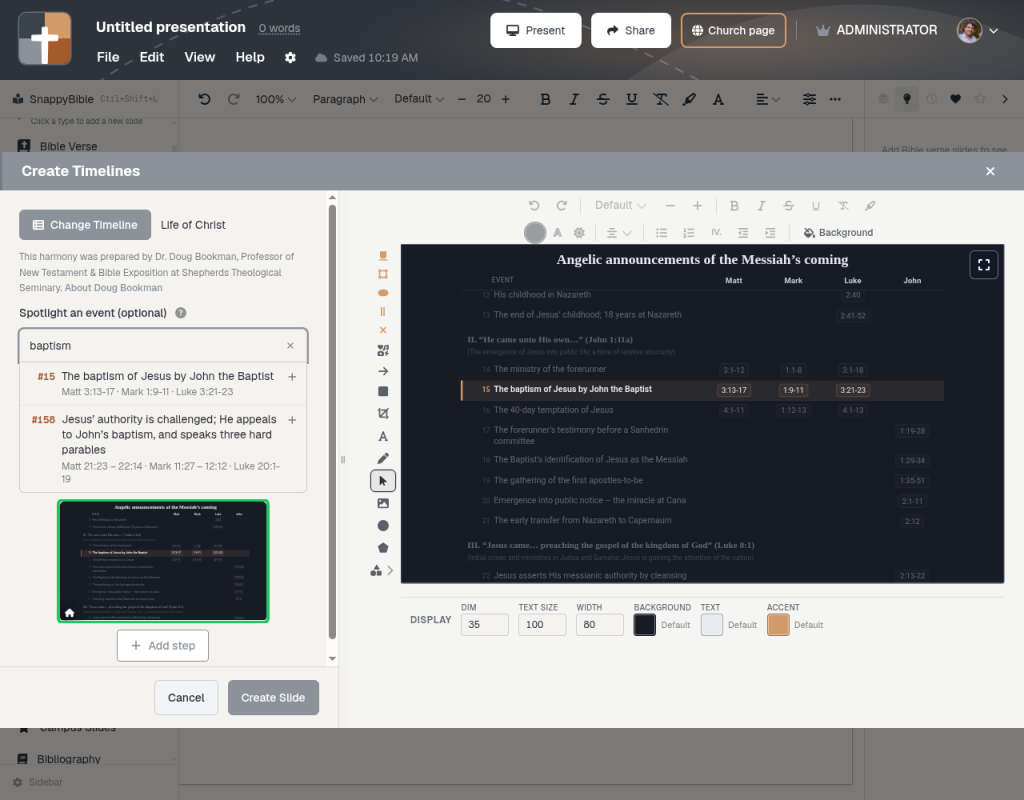
Synoptic exposition stalls when ‘this also appears in Luke’ means a pulpit shuffle. BibleSlides Gospel Harmony slides search 211 events, put parallel references on screen, and step through the event in sermon order.
Gospel exposition has a problem other genres do not: the same event lives in more than one book, with different details, order, and emphasis. You are preaching Mark’s pacing, but the room needs to see that Matthew includes the extra line you are about to explain — without you rifling a harmony chart while the clicker sleeps.
Paper harmonies and Logos layouts help you on Tuesday. They almost never survive as a clean sanctuary slide.
BibleSlides Gospel Harmony is a slide type for that teaching moment: search a 211-event harmony, drop the event as a step, and advance parallels while you preach.
A harmony that only exists in your study app is still private. If the congregation cannot see the parallel, you are asking them to trust a citation they cannot check.
The pastor’s problem: “also in Luke” is not a slide
What usually happens:
- You mention a parallel and keep talking — guests never look it up
- You paste four references into a bullet list — no text, no sense of which Gospel you are in
- You screenshot a harmony table — unreadable, and you cannot step one event at a time
None of that matches how you actually teach: “Mark says X. Matthew adds Y. John is silent here.”
What the Gospel Harmony slide does
In the editor you search events by title or reference (for example baptism, Gethsemane, feeding). Each event in the built-in harmony has the Gospel citations attached.
You add event steps to a minimap rail — the same stepped-teaching pattern as verse annotations and maps:
- Step 1: the event as Mark records it (your preaching text)
- Step 2: Matthew’s distinctive line
- Step 3: where Luke orders it differently
Pick the translation the room is used to seeing on your Bible Verse slides so the harmony does not suddenly switch versions.
You are not replacing sequential exposition of one Gospel. You are putting the comparison beat on a slide you can advance, then returning to the verse slide.
When to use it (and when not to)
| Situation | Use Gospel Harmony? |
|---|---|
| Book study in Mark; one “Matthew adds…” moment | Yes — one event step, then back to the verse |
| Passion Week series that must show sequence across Gospels | Yes — several event steps in teaching order |
| Every verse of the sermon | No — it becomes a data dump |
| Harmony as the outline instead of the text | No — preach a passage; use the slide as a support |
Pair geography when place is the point: a Bible Photo or 3D map after the harmony beat, not stacked on the same click.
Notes keep the comparison in sermon order
Write the spoken line under the slide: “Matthew alone has the fulfillment citation — that’s why we linger.” If you cut that illustration next week, delete the step; the rest of the exposition does not have to be rebuilt in PowerPoint.
How to add a harmony beat this week
- Open the Gospel sermon in Projects
- Insert Gospel Harmony next to the Bible Verse slide for your pericope
- Search the event; add it as a step
- Add only the parallel you will actually say out loud
- Advance it from the tablet like any other teaching step
Related guides
See BibleSlides features
Notes and slides in one document, Bible Verse slides, stepped markup, Verse Analysis, 3D maps, BiblePlaces photos, and tablet presenter apps — built for pastors who teach Scripture.