Let the room read the hymn — Song slides in the sermon deck
Song in BibleSlides puts a hymn in the same document as the sermon. More slide types opens it. The editor is titled Songs. Search songs, or Import a SongSelect file (.txt or .usr) or a ChordPro file (.cho, .chopro, or .pro). Parts are Verse, Chorus, Bridge, Refrain, Pre-Chorus, and Tag. A file may mark them Estrofa, Coro, Puente, or Etiqueta. Order is the sung roadmap, such as V1 C V2. Add chorus/verse sings an existing chorus again. Duplicate step copies the words into a new part. CCLI number and Copyright sit on the slide. Save and insert splits a part longer than four lines. Background is a black card until you choose a color, a photo, or Use document theme. A light solid color turns the words black. iPhone, iPad, and Android hide songs until Show song slides is on.
A small church, one deck. The pastor, or the one volunteer who also runs the projector, needs the hymn and the passage in the same file. The tablet is already in hand for the sermon. The wall should show the next stanza, then the text, without a second program and a second clicker.
Song in BibleSlides is that hymn. It lives in the sermon document, under the same notes, on the same tablet. The room reads the words. You preach the passage that follows. The slide gets out of the way.
The hymn belongs in the document when the same person is carrying both the singing and the sermon.
How to create a bible slide is the menu of slide types. This article is the hymn: where to open it, how the sung order works, and the Sunday when a booth should keep the music set somewhere else.
When the hymn belongs here
| Sunday | Where the words belong |
|---|---|
| One person runs the tablet and the projector | A Song slide in this document. Turn Show song slides on so the tablet and the wall match. |
| A hymn before the reading, then the passage, then a closing verse | The same document. The notes stay under the song. The next slide is the text. |
| A full music set: several songs, motion backgrounds, more than one screen, a volunteer on the lyrics | ProPresenter, or the lyric software the booth already trusts. BibleSlides carries the sermon. |
| The booth already shows this deck on the house screen | The song frames in this document go out with the rest of the deck. Publish the booth URL, or drop that address into ProPresenter as a Web fill. |
A copyrighted song still needs the church’s own permission. Many churches already hold a CCLI license for that. BibleSlides prints the song number and the copyright line you supply, so the wall can show them. Public-domain hymns in the list are marked Public Domain.
Where Song lives
Song stays off the sidebar until you pin it.
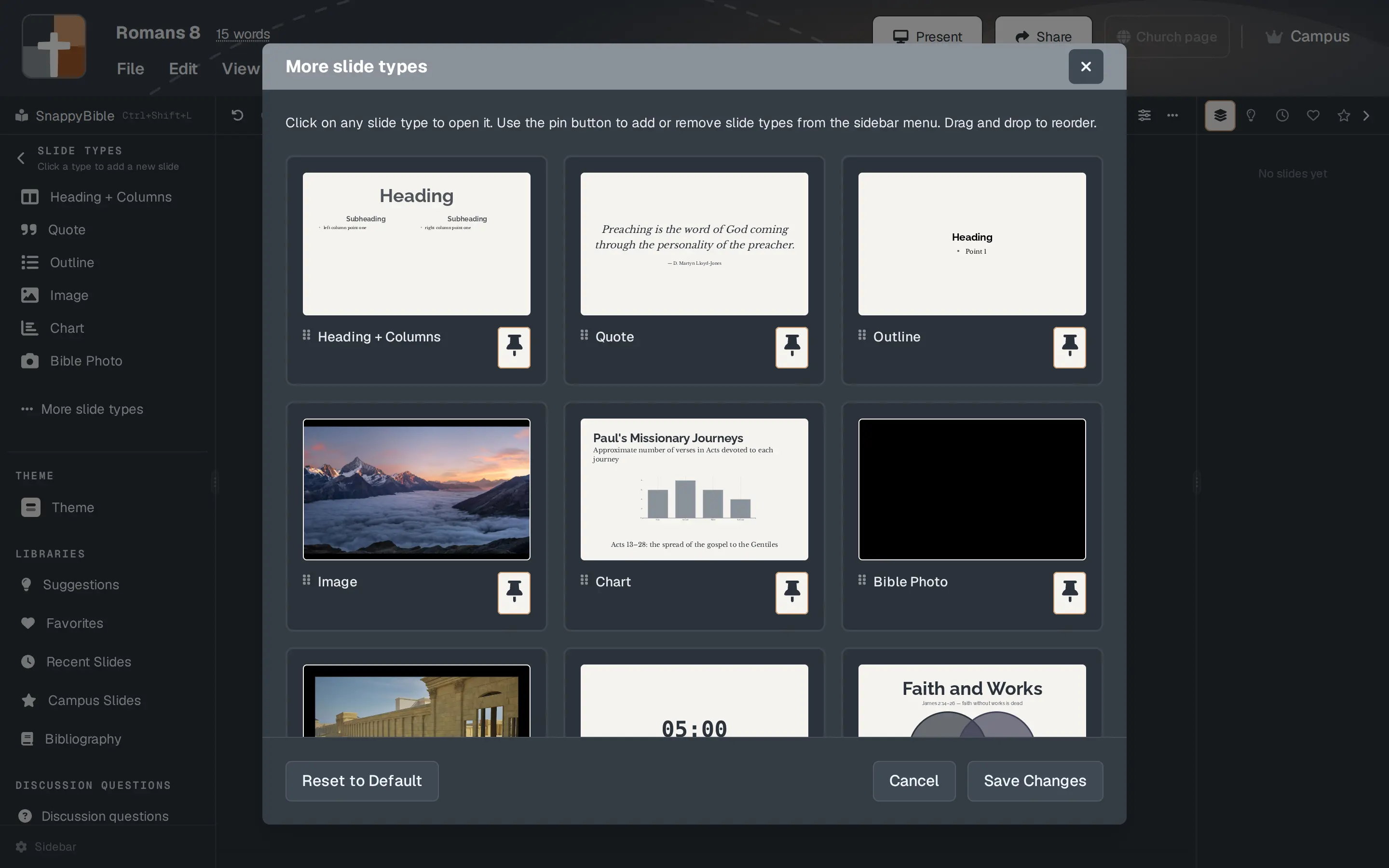
- In the left sidebar, under SLIDE TYPES, click More slide types. The note in that window reads: “Click on any slide type to open it. Use the pin button to add or remove slide types from the sidebar menu. Drag and drop to reorder.”
- Click Song.
- The pin’s hover note is Pin to sidebar. That puts Song on the sidebar for next time. Clicking the card already opened the window.
The editor is titled Songs. The list opens on top of it.
Pick a hymn, or bring the file you have
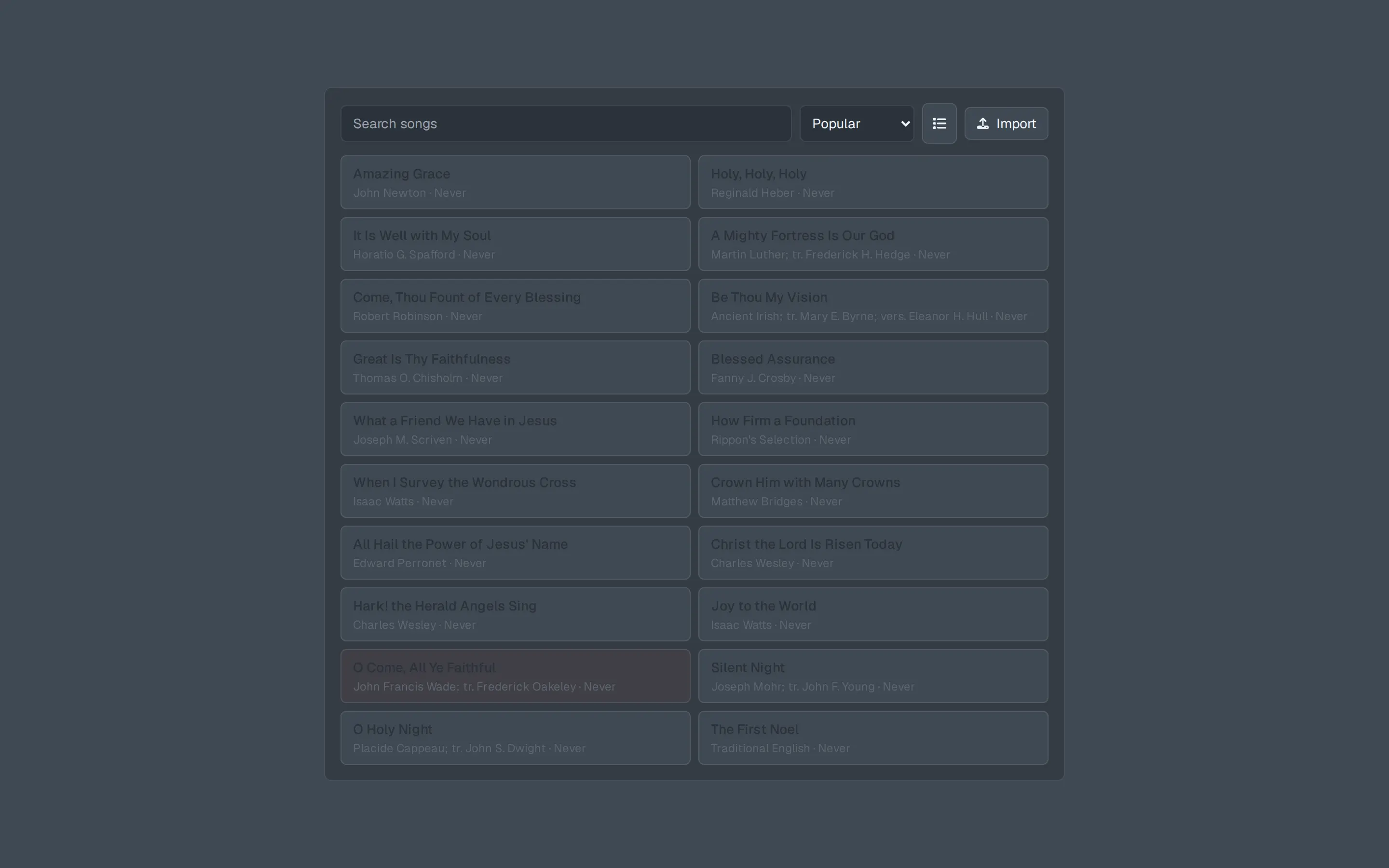
The list has Search songs. The sort menu starts on Popular. The other choices are Last sung, Alphabetical, and Author. Search looks at the title, the author, the CCLI number, and the copyright line. Amazing Grace (John Newton) and Holy, Holy, Holy (Reginald Heber) are in the list. A song you have not put on the screen yet reads Never under the author. After the booth has shown it, that line reads Today, Yesterday, or the date.
Import takes a SongSelect lyrics file or a ChordPro file. The chooser accepts .txt, .usr, .cho, .chopro, and .pro.
A SongSelect text file starts with the title, then the author, then the parts:
Amazing Grace
John Newton
CCLI Song # 22025
Public Domain

Verse 1
Amazing grace! how sweet the sound
That saved a wretch like me!
I once was lost, but now am found,
Was blind, but now I see.
A SongSelect .usr file is the import file with [File], Type=SongSelect Import File, a [Song] block, a section such as [Verse 1], and an [Order] block. An order line such as V1 C V2 C B Tag is the sung roadmap. BibleSlides sings that order. V1 is Verse 1, C is Chorus, B is Bridge, and Tag is Tag.
A ChordPro file uses {title: Amazing Grace}, {artist: John Newton}, and {start_of_verse: Verse 1}. Chord symbols in brackets are dropped, so Amazing [G]grace! How sweet the [C]sound is stored as Amazing grace! How sweet the sound. A {chorus} line with nothing after it sings the chorus again. A tab block is skipped.
A file BibleSlides cannot read shows This file isn't a SongSelect lyrics file. A file that is too large shows This song file is too large to import.
Click a hymn, or import, and the words open on the preview. The field on the slide is Lyrics. Under the preview: Title, Author, CCLI number (digits only), and Copyright. Copyright starts as Public Domain on a song you type yourself. Save and insert puts the song in the document and saves it on the account, so next week it is in the list.
Click the dimmed area outside the list and a blank Verse 1 is underneath, ready to type. New song, on the editor, opens the list again.
The order you will actually sing
Order is the roadmap, as short chips: Verse 1 is V1, Chorus is C, Bridge is B, Refrain is R, Pre-Chorus is Pre, Tag is Tag. Drag a chip to move it. The hover note names the part, then “drag to reorder.” Click a chip to select it. Click it again to clear the selection.
+ at the end of Order opens Parts. The hint reads Drag into order. Each part is listed once. Drag it into the order, or click it. The hover note names the part, then “drag into order to repeat.” That sings the same words again. Change the chorus once, and every time it comes around uses those words.
Add chorus/verse is the button under the steps. It opens Verse, Chorus, Refrain, Bridge, Pre-Chorus, and Tag.
| What you press | What you get |
|---|---|
| Verse | A new verse. The first one is Verse 1. The next is Verse 2. |
| Chorus, Refrain, Bridge, Pre-Chorus, or Tag, when that part is already in the song | The same part, sung again, after the selected chip. With nothing selected, it goes at the end. |
| The same buttons, when that part does not exist yet | A new part. The first chorus is named Chorus. |
| Duplicate step on a lyric step | A copy, with the next name. Chorus becomes Chorus 2. The words start the same, and you can change that copy on its own. |
Duplicate step is the control on the lyric step. Blank frames do not have it. Use it when the second chorus is different. Use Parts, or Chorus from Add chorus/verse, when the second chorus is the same.
A lyrics file can name the parts in Spanish. Estrofa, Coro, Puente, and Etiqueta are read as Verse, Chorus, Bridge, and Tag. Estribillo is Refrain. Pre-coro is Pre-Chorus. With View → App language set to Español, the buttons read Estrofa, Coro, Estribillo, Puente, Precoro, and Tag. The name stored on the step stays the English one until you type over it in the step list.
Intro, Ending, Outro, and Coda are read from a file. They are not buttons in Add chorus/verse.
What the wall sees
The song is one slide in the document. The frames are steps on that slide. The notes for the whole hymn stay under that one slide.
Save and insert keeps four lines on a frame. Thomas Ken’s doxology fits on one:
Praise God, from whom all blessings flow;
Praise Him, all creatures here below;
Praise Him above, ye heavenly host;
Praise Father, Son, and Holy Ghost.
A part longer than four lines splits. The first frame keeps the name. The next is Verse 1 (cont.). A line that is only --- starts a new frame where you put it. A line longer than 90 characters breaks at a word. In the song window you still edit the whole part. The projector and the presenter filmstrip advance the frames. Open the song again and the words are one part.
Settings, above Order, starts closed. Open it for the black frames:
| Checkbox | Where it starts |
|---|---|
| No blank slide | Off |
| Blank slide before song | Off |
| Blank slide before song with CCLI | Off |
| Blank slide after song | On |
The last advance of the song is a black frame labeled After, then the sermon. No blank slide turns the blank frames off. The step list shows Before, CCLI, and After for those frames.
The credit line sits on the first lyric frame. If Blank slide before song with CCLI is on, the credit sits on that black CCLI frame instead. With a CCLI number filled in, the line is the title, the author, and CCLI # plus the number, separated by middle dots. Amazing Grace from the list is stored with number 22025 and copyright Public Domain, so the wall reads Amazing Grace · John Newton · CCLI #22025. Clear the number and the Copyright field prints instead.
The song starts as a black card with white words. Background, on the lyric tools, opens a window titled Background. The note under the title reads “Color, your images, or the photo library.”
| Choice | What the room sees |
|---|---|
| Leave it | Black card, white words. |
| Color | A solid fill. A light color turns the words black. A dark color keeps them white. Theme bg is the theme’s background color, used as a solid fill on this song. |
| My Images | A photo you uploaded. Words stay white unless you set a lyric color. |
| Photo Library, including Random | A stock photo. Words stay white unless you set a lyric color. Zoom and Opacity sit on that photo. |
| Use document theme | The sermon theme shows through, including a theme photo or pattern. Word color follows that theme’s background: black on a light theme, white on a dark one. |
| Remove background | The black card again. |
Done closes the background window. A color you set on the lyric tools stays. Clear formatting resets those tools, including the color, so the automatic black or white comes back.
Under the preview, Lyrics is the word size. It starts at 64, and it runs from 30 to 100. Attribution is the credit line.
On the tablet and on the projector
The projector advances one frame at a time: Verse 1, then the next stanza, then After if that frame is still on. The presenter filmstrip lists those frames under the song title. Stepping from one frame to the next does not ask you anything.
iPhone, iPad, and Android hide song slides until you turn them on. A desktop browser, and the Mac and Windows apps, show them. On the tablet, the gear is Display Settings. Under Tablet View Options, the switch is Show song slides. The note reads: “On this device only. Tablets hide songs unless you turn this on.”
Turn it on when this tablet is advancing the hymn. The lyric frames are then on the tablet, in step with the wall.
Leave it off when someone else is running the lyrics and this tablet should stay in the sermon. While the house is inside the song, the tablet keeps the sermon slide from just before it, and a line at the top reads Song: Amazing Grace (the hymn’s title).
Leaving the song for a sermon slide asks, with the hymn’s title filled in: We're in a song — Amazing Grace. Advance to the sermon? Stay keeps you there. Advance moves on. The ask is the same when the tablet is showing the lyric and when it is only watching the booth move through a hidden song.
Present from the tablet is the rest of that stage: notes, the tap to advance, and Display Settings for type size.
Sunday-morning checklist
- More slide types, then Song. Search the hymn, or Import the file.
- Read Order against the roadmap you will sing. Repeat a chorus from Parts. Duplicate step only when the words change.
- Open Settings if you want the black After frame off, or a CCLI frame before the first lyric.
- Background. Leave the black card, or pick a light Color if the words should be black. Use document theme when the hymn should look like the rest of the sermon.
- Save and insert. Advance in practice. A long part arrives four lines at a time.
- On the tablet that will run the hymn, gear, Display Settings, Show song slides.
- Leave the song for the passage only when you mean to. Stay if the last stanza is still up.
FAQ
Where is Song?
More slide types, then Song. Pin it if you want it on the sidebar. The editor is titled Songs. The list opens on top of it.
Repeat the chorus, or duplicate it?
Parts, or Chorus under Add chorus/verse, sings the same chorus again. Duplicate step copies the words into Chorus 2, which you can edit on its own. Verse always makes a new verse.
The file was in Spanish. Why does the step say Verse 1?
Estrofa, Coro, Puente, and Etiqueta are stored as Verse, Chorus, Bridge, and Tag. Type the name you want on that step. With the app in Español, the buttons read Estrofa, Coro, Estribillo, Puente, Precoro, and Tag.
Why is the credit a CCLI number when the hymn is public domain?
A filled-in CCLI number is what the slide prints. Amazing Grace in the list includes 22025, so the line is Amazing Grace · John Newton · CCLI #22025. Clear the number and Copyright prints. On that hymn, Copyright is Public Domain.
Does this cover our CCLI license?
The church still needs its own permission for a copyrighted song. BibleSlides stores the number and the copyright line and prints them on the slide.
The tablet skipped the hymn.
Show song slides is off on that device. The gear, Display Settings, Tablet View Options. A desktop browser already shows songs.
Will a long verse fit?
Save and insert puts four lines on a frame. The next frame is marked (cont.). A line of --- breaks earlier.
Related guides
See BibleSlides features
Notes and slides in one document, Bible Verse slides, stepped markup, Verse Analysis, 3D maps, BiblePlaces photos, and tablet presenter apps — built for pastors who teach Scripture.