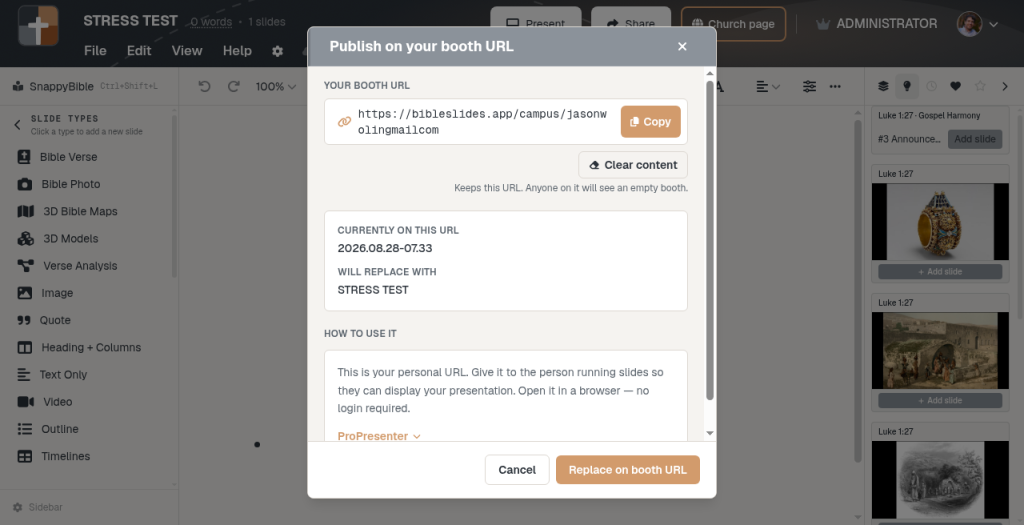
When AV runs the house screen — publish on your booth URL
One permanent link for the tech booth or ProPresenter Web fill. Publish this week’s teaching deck; they open the URL with no login — the house stays on Scripture.
Some Sundays you advance from the tablet. Other Sundays AV owns the house screen — ProPresenter already fills the program, or the booth PC is the only cable to the projector. You still need this week’s teaching deck on that screen without handing over an account password or rebuilding the sermon as lyric text slides.
BibleSlides booth URL is that handoff: a permanent personal link. You publish the finished project to it. The booth opens the same URL every week. No login at the console. The room sees the teaching slideshow; you keep studying and preaching.
One URL for the booth. One publish tap for this Sunday’s deck. The Word stays on the house screen without a USB stick.
The pastor’s problem: the booth already has a workflow
Tablet presenting is excellent when you hold the stage control (Present Sunday from a tablet). Many rooms still need AV in the loop:
| Room reality | What breaks without a booth URL |
|---|---|
| ProPresenter (or similar) already drives lyrics and outputs | Teaching gets forced into generic text cues, or someone signs into the editor on the booth machine |
| Volunteer advances from the tech booth | You do not want to share your BibleSlides password every week |
| Same booth PC every Sunday | Opening a different project each week invites “wrong file” |
| Pastor on stage with notes; house on a separate computer | Two jobs — control and display — need a clean split |
The media laptop still builds and practices the deck (church media laptop checklist). Booth URL answers a narrower question: how does the booth display my teaching deck without becoming my account?
What the booth URL is (and is not)
Every account gets a personal slideshow URL shaped like bibleslides.app/campus/{your-slug} (older links may still use /pp/{slug} — both work). Publish a presentation onto that slot and the URL shows that deck’s interactive slideshow — keyboard, click, pens, and tablet sync, same family as Present / Slideshow in the browser.
It is not:
- The tablet presenter UI (notes stay on the tablet or manuscript — the booth page is the audience/booth display)
- Publish to church page (public hub listing for after the service)
- Campus QR follow-along (phones tracking the live deck)
- A second copy of the file on a USB stick
Clear content empties what the URL shows; the URL itself stays yours. Publish again next week and the booth still bookmarks the same link.
View-only room logins do not publish slideshow URLs. Every other account does.
How to publish this week’s deck
You can reach Link to my page from either place:
- Projects — open the project card’s menu and choose Link to my page
- Editor → Present — open the Present menu and choose Link to my page (“Associate this slidedeck with my personal page.”)
The window is titled Link to my page.
| Control | What it does |
|---|---|
| Your web address + Copy | Permanent link for the booth PC or ProPresenter Web fill |
| Link to my page | Put this presentation on the address. If another deck is already there, the window shows Currently on this web address and Will replace with |
| Clear content | Leave the address in place; anyone on it sees an empty booth |
The address does not change next week. You publish again.
Give the copied URL to AV once. After that, your Friday habit is publish — not “re-send the link.”
How the booth uses it
Browser on the booth PC
- Open the booth URL in a normal browser (Chrome / Edge / etc.)
- Fullscreen the page on the sanctuary output
- Advance with keyboard or click — or keep a paired tablet in sync if that is your room’s habit
No BibleSlides login on that machine. If nothing is published yet, the page says the booth is empty or waiting — publish from your account, then refresh if needed.
ProPresenter Web fill
When worship already runs in ProPresenter, keep lyrics there and drop the teaching deck in as a live webpage. Full walkthrough (with video): Connect ProPresenter to BibleSlides.
- Open the Slide Editor on the slide where the teaching should appear
- Add a Shape (rectangle) and scale it to cover the slide
- In the inspector, set Shape Fill Type to Web
- Paste the booth URL — ProPresenter renders the live page as the fill
That is the same “two tools, two jobs” split as BibleSlides and ProPresenter: production owns the show file; BibleSlides owns the teaching document. The Publish on your booth URL modal also expands ProPresenter with this same video so AV can watch the steps in place.
Booth URL vs other Sunday paths
| Need | Use |
|---|---|
| You advance on stage with notes in hand | Tablet presenter |
| Laptop signs in and clicks Slideshow | Media laptop booth setup |
| AV / ProPresenter must show the deck without your login | Booth URL |
| Phones follow the live teaching slides | Campus QR follow-along |
| After-service public listing | Church publishing hub |
You can still practice on Friday with practice mode, then publish the same project to the booth URL before the call to worship.
When to leave it alone
Booth URL earns its keep when display is not in your hand. If you are already presenting from the tablet to the house, you do not need a second publish step — Present is enough.
Do not treat the booth URL as a manuscript archive or a share-for-editing link. Collaborate with Share / invite. Teach the room with Present or the booth slot. Publish the hub when the series should live on the church page.
A quiet Sunday habit
- Finish the deck in the cloud project (same document you studied)
- Publish on your booth URL from Present or the project menu
- Confirm AV still has the permanent link bookmarked or pasted in ProPresenter
- Preach. If next week’s deck is different, publish again — the URL does not change
BibleSlides stays a quiet servant: the booth keeps one bookmark, you keep one personal URL, and the sanctuary stays on the passage you meant to teach.
See BibleSlides features
Notes and slides in one document, Bible Verse slides, stepped markup, Verse Analysis, 3D maps, BiblePlaces photos, and tablet presenter apps — built for pastors who teach Scripture.