Trim the clip to the second you mean — Video slides for a sermon
Add a Video slide in BibleSlides. Trim a testimony or a site walk with start and stop, mute when the board is not ready, and choose Blank or Last frame when the clip should not keep playing.
A testimony runs twelve minutes. The sentence you need is forty seconds in the middle. A walk around the Temple Mount is beautiful, and the room only needs Robinson’s Arch. The clip is a servant of the paragraph. The whole video is not the sermon.
BibleSlides Video is the slide type for that beat. The window is Create Video. Pick a clip, mark where it starts and where it stops, and decide whether it should roll by itself when you land on the slide.
A clip that only lives in a browser tab is still private. If the congregation cannot see the second you mean, you are asking them to imagine a place, or a testimony, they cannot check.
How this differs from a Bible Photo or a 3D Model
You may already use Bible Photos for one honest still of a place, and 3D Models when the room needs to orbit a reconstruction. Museum objects live inside Bible Photo as stills. Video is the moving clip: a testimony, a walk through the courts, an archaeology film tagged to the passage.
| Need | Use |
|---|---|
| One accurate place photo, then back to the verse | Bible Photos |
| Orbit Masada, the temple courts, or a site model | 3D Models |
| Miles of road and elevation | 3D Bible Maps |
| A testimony, a site walk, or a short film of the place the text describes | Video |
Same family of teaching tools. Add Video when this minute of motion carries the point. Leave it closed when a still, or the verse already on screen, already does.
The pastor’s problem: the whole video is not the point
What usually happens:
- You hand the booth a YouTube link and hope someone hits pause on the right second
- The clip opens on the intro, or runs on after you have already turned back to the text
- The sanctuary sound board is live, and a surprise soundtrack talks over you
None of that matches how you teach it. “Listen to this sentence.” Then the verse again.
What Video is
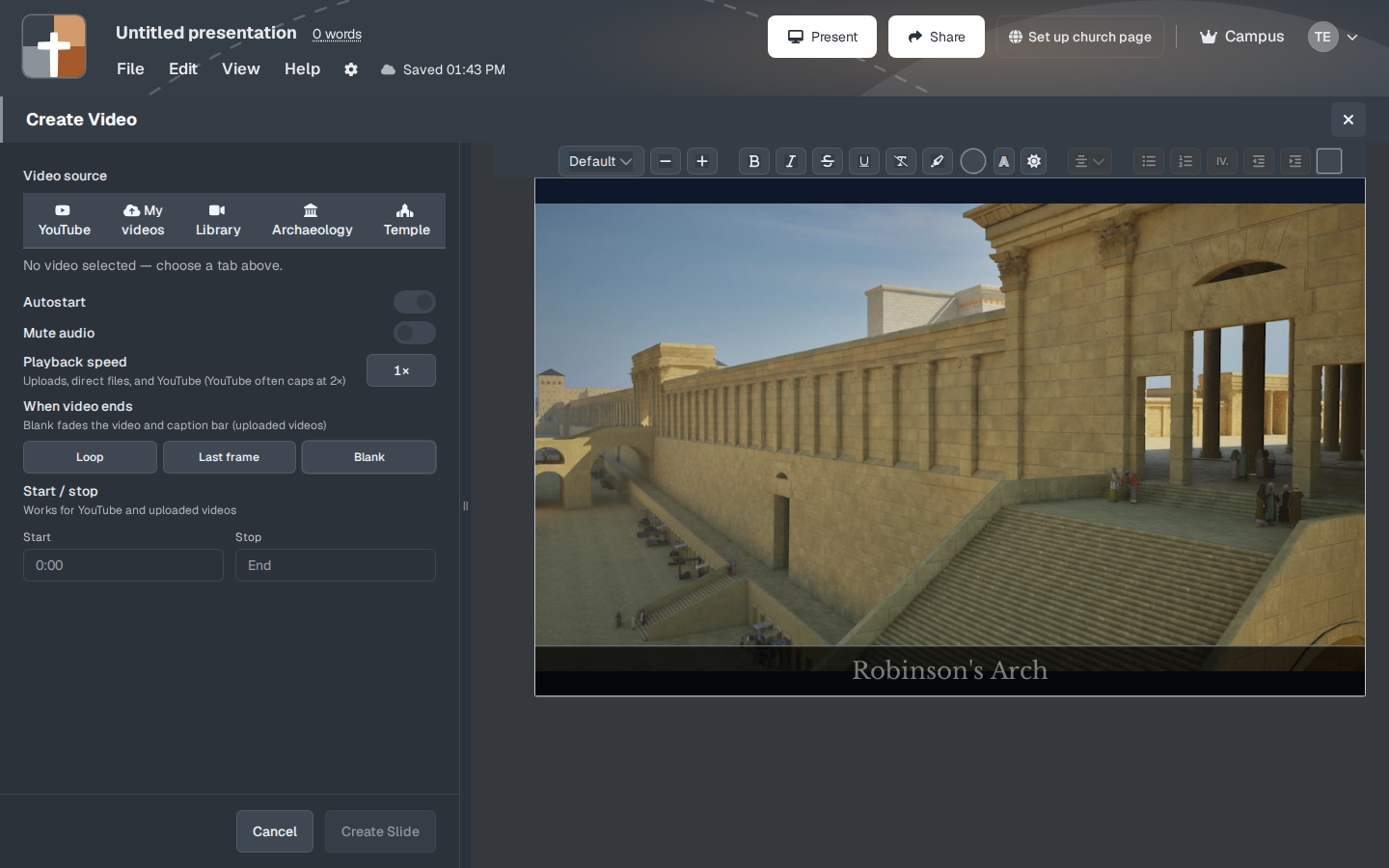
In the editor, add a Video slide. New accounts have it pinned with the other teaching types. Create Video opens before a clip is chosen. Until you pick one, the window says “No video selected — choose a tab above.”
Video source has five tabs. Choosing a tab opens Choose a video. Continue brings that clip back into Create Video. Create Slide stays off until a video is selected. Cancel closes the window.
| Tab | What you will find |
|---|---|
| YouTube | Search, or paste a YouTube, Vimeo, or embed address and press Enter |
| My videos | Files you upload — mp4, webm, or m4v. You can drag a file onto the window |
| Library | Stock clips from Pexels. The search box suggests nature or worship |
| Archaeology | Joel Kramer’s Expedition Bible films. Search by title or Bible reference. They are tagged so a matching verse can suggest one |
| Temple | Jeremy Park’s Bible Scenes reconstructions of Herod’s Temple Mount, shared CC BY 4.0. Mount of Olives, Robinson’s Arch, the Court of the Women, the Holy Place. Search by title or reference |
Archaeology clips are YouTube films of real sites: Caesarea, Capernaum, the Exodus, Bethel, and the rest of that catalog. Temple clips are video files of the reconstruction, hosted with BibleSlides, in two groups — Herod’s Temple Mount, and shorter info videos of the same mount. Library is general stock. It is the wrong tab when the text needs the place the passage names.
Start on the second you mean
Start / stop sits under the playback controls. The note under it says the points work for YouTube and for uploaded videos. Type 1:30 or 90. Stop can stay empty — the placeholder reads End — when the clip should play through. Clear start / stop appears once either point is set.
Cue it the way you would cue a reader:
- A testimony: start where the sentence begins, and stop before the thanks and the music
- A site walk: start when the camera is on the gate or the arch the verse names
- A long Expedition Bible film: you are assigning the minute that serves this paragraph
Temple clips play as video files, the same kind of player as an upload, so the same in and out points apply there. A Vimeo-style embed plays the full clip. The speed control stays off for that kind of embed too.
Playback speed is offered for uploads, direct files, and YouTube. The button cycles from 0.5× through 3×. 1× is normal speed. The note under it says YouTube often caps at 2×. Leave it at 1× unless a slow pass helps the room see a gate, a court, or a line of stones.
Autostart, mute, and what the room sees when it ends
Autostart starts on. If this document already has saved Video settings, the window restores the last Autostart, mute, speed, and in and out points you used. Leave Autostart on when the testimony should roll the moment you land on the slide. Turn it off when you need to introduce the clip first: the picture is up, you say why it is there, then you start it.
Mute audio stays off until you turn it on. Turn it on when the sound board is not ready, or when you will narrate a silent walk through the courts. Picture without sound is often the kinder choice in a live room.
When video ends is Loop, Last frame, or Blank. A new slide starts on Blank unless you have already saved another choice. The note under the control says Blank fades the video and the caption bar for uploaded videos. On a file you uploaded, or on a Temple clip:
- Loop replays from your start point
- Last frame holds the picture at the stop point
- Blank fades the picture and the caption bar
On a YouTube clip, Loop is the choice that sets the embed to replay. Last frame and Blank do not loop it. The fade itself is the uploaded-video behavior. Set a stop point before the film’s own ending so the projector is not left sitting on a YouTube end screen while you return to the verse.
A short caption on the bar can name the place or the person. Then stop. The clip serves the outline. It does not become the outline. Keep speaker notes under the slide in the same document.
When suggestions are on, a verse in the notes can offer Archaeology videos and Temple 3D if the catalog has a clip tagged to that passage. You can still open the tabs and search by the reference yourself.
Plans
Video is not crowned the way Bible Photos, maps, Family Tree, Ancient Units, and 3D Models are. Free can open a Video slide.
Pasting or searching YouTube needs a paid plan or the trial. An Archaeology film is a YouTube address, so it uses that same gate. The message reads: “Adding a YouTube video slide is a premium feature.” Monthly, annual, the trial, and Campus can paste or search. During the 30-day trial the account is treated as a paid plan for this gate.
Uploading your own file uses the same paid rule as other media uploads. The message reads: “Uploading your own images and videos is a premium feature.”
Browsing your church’s own YouTube channel is a different control. It lives in Presentation details, and it is a Campus connection. It is not a tab inside Create Video. Monthly and annual plans still paste an address on the Video slide.
Temple files and the Pexels library are not YouTube addresses, so that YouTube gate does not block them. After the trial, Free is 7 slides, 3 presentations, and a watermark. See the Free plan write-up.
A quiet Sunday workflow
- In sermon prep, decide whether the room needs this minute of motion as much as the next verse.
- Add a Video slide and choose YouTube, My videos, Library, Archaeology, or Temple.
- Set Start and Stop to the seconds you will actually use. Watch those points yourself before Sunday.
- Leave Autostart on only when the clip should roll as soon as you land. Mute it when the board is not ready.
- Choose Blank or Last frame when the room should settle. Use Loop only when you mean to replay.
- On Sunday, advance from the tablet, then return to the Bible Verse slide for the argument of the text.
When to leave it closed
- The verse on screen already carries the point
- One honest place photo is enough — use Bible Photos
- The room needs to orbit a model, or walk a route on the land — use 3D Models or 3D Bible Maps
- You have not watched the in and out points. Cue the clip in rehearsal, the way you would cue a reader
BibleSlides stays a quiet servant: Scripture first, a clip when the minute serves the Word, then out of the way.
Related guides
See BibleSlides features
Notes and slides in one document, Bible Verse slides, stepped markup, Verse Analysis, 3D maps, BiblePlaces photos, and tablet presenter apps — built for pastors who teach Scripture.