Put one figure on the wall — Animated Number slides for Sunday
Add an Animated Number slide in BibleSlides — one figure and an optional label, played as Count, Zoom, Slide, Scroll, or Multi-Zoom — so the room can see the number the text names, then return to the verse.
Seventy times seven. Forty years. One hundred and fifty-three fish. Twelve baskets left over. The study already knows the figure. The third row is still trying to hold it in the air while you move on to the next verse.
BibleSlides Animated Number is the slide for that beat. One figure, a short line under it if the room needs the name, and a brief motion when the slide appears. Leave it up while you say what the number is for, then go back to the text.
A number that only lives in your notes is still private. If the congregation cannot see the figure, you are asking them to remember a size they cannot check.
How this differs from a chart, a clock, and a calendar
You may already use Chart when several amounts need to be compared, traced over time, or split into parts of a whole. Ancient Units is the slide when the parable names a talent, a cubit, or a denarius and you want that measure turned into something familiar. Event Countdown puts DAYS, HOURS, MINUTES, and SECONDS on the wall until a date — Easter, VBS, the hour the service starts. Tablet timers and % left live in the tablet header so you can pace the message. The congregation never sees them.
Timer is its own slide. The window is Create Timer. You set Minutes and Seconds for a discussion, a prayer, or a testimony, and you can turn on Auto-start when slide is displayed. That clock belongs to the room. It is a duration, not a single figure from the text.
Animated Number is one figure. It plays once when the slide appears, then it sits still. It does not tick with the clock, and it does not draw a second amount beside the first.
| Need | Use |
|---|---|
| “How do these amounts compare, change, or divide a whole?” | Chart |
| “Ten thousand talents — how large is that?” | Ancient Units |
| “How long until Easter / VBS / 10:00?” | Event Countdown |
| “Give the room three minutes for this question” | Timer |
| “How much of my message is left?” | Tablet timers and % left |
| “Show this one number, then move on” | Animated Number |
Same sermon document. Add an Animated Number when the passage names one figure the room should see, then return to the verse.
The pastor’s problem: the number stays in your mouth
What usually happens:
- You say “seventy times seven” and the back row is still on the verse you left
- You build a chart for a single total, and a comparison you do not have eats the wall
- You stack five big numbers in a row, and none of them is the point
None of that matches how you teach it. Name the figure. Say what it is. Stop.
What Animated Number is
In the editor, the sidebar heading is SLIDE TYPES, with the hint “Click a type to add a new slide.” Animated Number is not in the default pinned row (Bible Verse, Bible Photo, maps, and the other pins). Open More slide types. That dialog reads: “Click on any slide type to open it. Use the pin button to add or remove slide types from the sidebar menu. Drag and drop to reorder.” The pin control is Pin to sidebar. The shortcut is Ctrl+Shift+4 on Windows and Linux, Cmd+Shift+4 on a Mac.
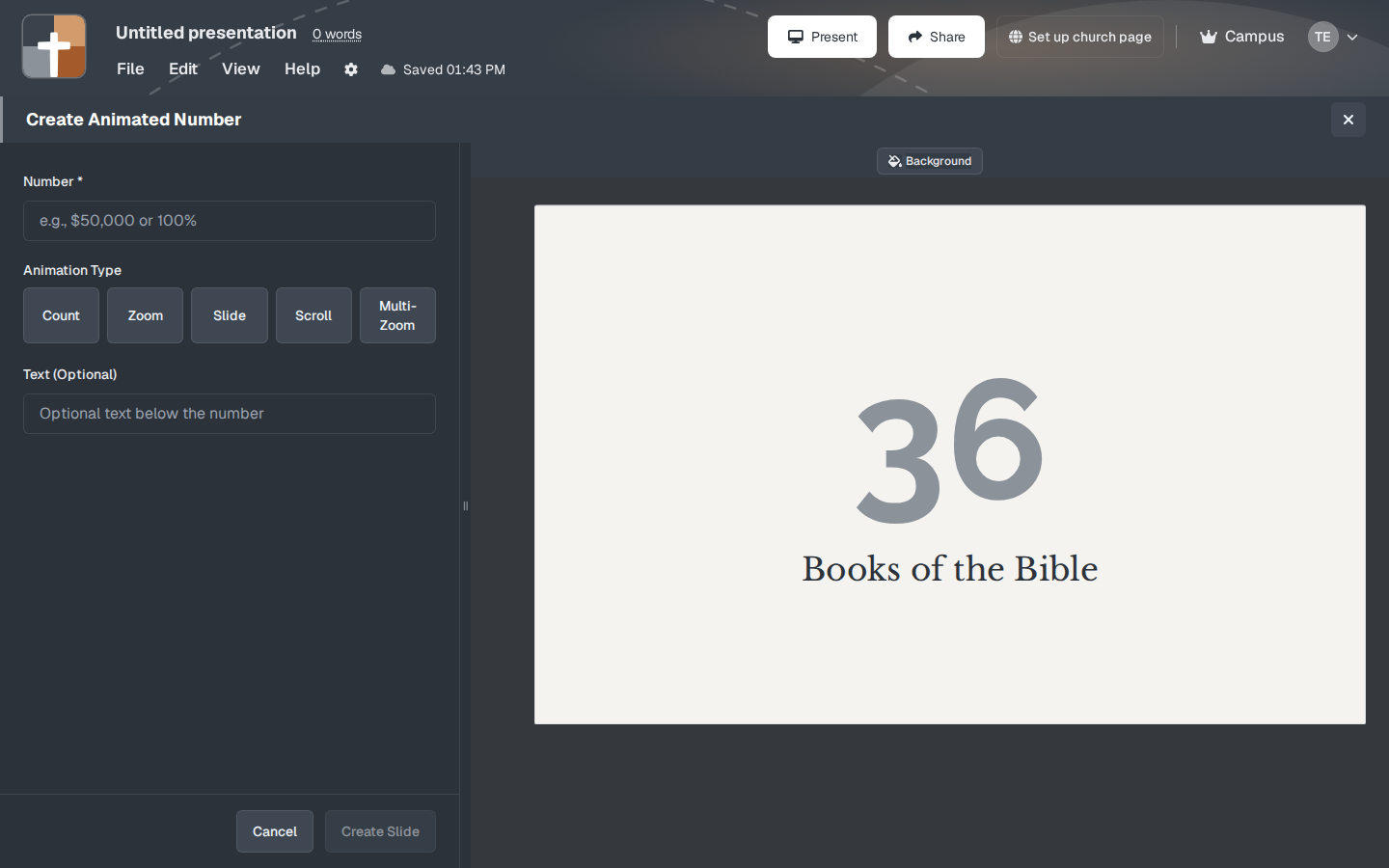
The catalog name is Animated Number. The card shows the same sample as the create window: 66 with Books of the Bible under it. The modal title is Create Animated Number. Create Slide saves the slide. Cancel closes the window. Create Slide stays disabled until Number has something in it. If you submit an empty number, the window says “Please enter a number.”
After the slide is in the deck, the window is Edit Animated Number and the button reads Update Slide. You can still change the animation.
The sample you replace before Sunday
The preview, while Number and Text are still empty, uses 66 and Books of the Bible, with Count selected. The fields themselves start blank. The preview is the shape. It is not saved until you type it.
| Field | What you see first |
|---|---|
| Number | Empty. Placeholder “e.g., $50,000 or 100%”. The preview shows 66 until you type. |
| Animation Type | Count |
| Text (Optional) | Empty. Placeholder “Optional text below the number”. The preview line is Books of the Bible. |
Type the figure you will actually say. A slide that still reads “Books of the Bible” on a sermon about the loaves will be believed, because you typed that line. The preview will not type it for you.
What you fill in
Number — required. This is the figure on the slide. Type it the way the room should read it: 490, 153, 40, $50,000, 100%. The field is text, so a dollar sign, commas, and a percent sign can stay in the figure. An expression such as “70 × 7” belongs in the line under the number, with 490 in Number, if four hundred ninety is the figure you want counted.
Size and color sit on the Number label. Leave the size alone and the figure is stored at 250% of the title size. The style slider only runs from 30% to 200%, so the control shows 200% while that stored size is still 250%. Move the slider when you want a size inside that range; the number you land on is what gets saved. Leave the color alone and the number follows the theme accent.
Animation Type — five buttons: Count, Zoom, Slide, Scroll, and Multi-Zoom. A new slide opens on Count. The note on the label says: “Choose how the number animates when the slide appears. Options include counting, zooming, sliding, scrolling, and multi-zoom effects.”
Text (Optional) — the words under the number, such as “Seventy times seven” or “Fish in the net.” Size starts at 100%. The style slider is the same 30% to 200% range. Leave the color alone and the line follows the theme text color.
Background — the toolbar button opens a window titled Background, with the line “Color, your images, or the photo library.”
A number with no line under it is a puzzle from the back row. A line with no number belongs on a Text Only slide.
If you highlight a plain number in the notes — digits, with an optional decimal, such as 153 or 12.5 — and Animated Number is still among your slide types, the selection menu offers Create Animated Number Slide. That inserts Count with that figure and no line under it, at a larger size than the opening figure in Create Animated Number. Open the slide and add the label before Sunday.
Count, Zoom, Slide, Scroll, Multi-Zoom
The motion runs when the slide appears, in the editor preview and on the projector. It plays once. It does not loop, and there are no steps.
Count — the note says “Numbers count up from zero to the target value.” The roll takes about two seconds. In-between frames are whole numbers. A dollar sign, commas, or a percent sign in what you typed stays on the figure. When the roll finishes, the slide shows the string you entered. If the field has no digits, Count does not invent a roll. The figure just appears. Count always moves up from zero. This slide has no count-down control.
Zoom — about one second. The note says “Number zooms in from small to large.”
Slide — about one second. The note says “Number slides in from the side.”
Scroll — about one second. The note says “Number scrolls into view.”
Multi-Zoom — about one second. The note says “Number zooms in multiple times for emphasis.”
Count is the right animation when the size of the number is the surprise: how many years, how many people, how many fish. Zoom or Slide is enough when the room already knows the figure and you only need it to arrive cleanly. Scroll and Multi-Zoom are the same job with a different entrance. One figure, then back to the text.
While you present
Projector and tablet show the same figure. Speaker notes stay in the document under that slide. Read the number, say the one sentence the line is for, and advance.
A few places this earns the wall:
- Matthew 18. Number
490, text “Seventy times seven,” Count. The size is the surprise. Then return to the verse about forgiveness. - John 21. Number
153, text “Fish,” Count. Say the count once. The net is the point, not a second chart. - The wilderness. Number
40, text “Years,” Count or Zoom if the room already has the number in mind from the reading. - An announced total. Number
$50,000, text “This year’s offering,” Count, when that one figure is the announcement and you are not comparing years. Several years belong on a Chart.
Do not stack five animated numbers in a row. The fifth figure teaches the room to wait for the next animation.
Free, and the slide limit
Animated Number is on the Free plan. It does not show a crown. It is not in the insert gate that blocks Bible photos, 3D maps, Family Tree, Ancient Units, and 3D models. New accounts include 30 days of Premium with no card. After that, Free still includes this slide type.
Free still limits a presentation to 7 slides and the account to 3 presentations, and a watermark is added to slides. An animated number is one of those seven, next to the verses. See the Free plan write-up.
A quiet Sunday workflow
- Decide whether the room needs this one figure as much as the next verse.
- Add Animated Number from More slide types, from the sidebar if you have pinned it, or with Ctrl+Shift+4 (Cmd+Shift+4 on a Mac).
- Leave Count, or choose Zoom, Slide, Scroll, or Multi-Zoom.
- Type the figure in Number. Type the line under it. The preview’s 66 is not your slide until you type it.
- On Sunday, show the figure, say what it is, then advance to the Bible Verse slide.
When to leave it closed
- The verse already on screen carries the number, and your notes are enough for you
- The point is several amounts — Chart
- The point is a biblical measure — Ancient Units
- The point is a date on the calendar — Event Countdown
- The point is minutes for a discussion or a testimony — Timer
- The point is how long you have left — tablet timers
- You would have to type the preview line because you have not decided the sentence. Wait until the figure and the label are the words you will say
BibleSlides stays a quiet servant: Scripture first, the figure when it serves the Word, then out of the way.
FAQ
Does the number keep moving?
No. It plays when the slide appears, then it holds. Count takes about two seconds. Zoom, Slide, Scroll, and Multi-Zoom take about one second. There are no steps.
Will the preview’s 66 be saved if I only change the animation?
No. The fields start empty. Create Slide stays off until Number has a figure. Type the number you will say. Add the line under it. A bare number is hard to read from the back.
Can it count down, or run for three minutes?
Count rolls from zero up to the figure you typed. A discussion clock is Timer. A date is Event Countdown. The clock only you should see stays in the tablet header.
Tablet and Free?
The tablet shows the same figure. Adding the slide is included on Free, inside the 7-slide limit. It does not show a crown. See the tablet presenter guide.
Try it on the passage you are already teaching
Open the sermon and put one figure on the wall — the count the text names, with a line short enough to read while you are still talking. Then go back to the verse. The number serves the sentence you came to preach.
Related guides
See BibleSlides features
Notes and slides in one document, Bible Verse slides, stepped markup, Verse Analysis, 3D maps, BiblePlaces photos, and tablet presenter apps — built for pastors who teach Scripture.