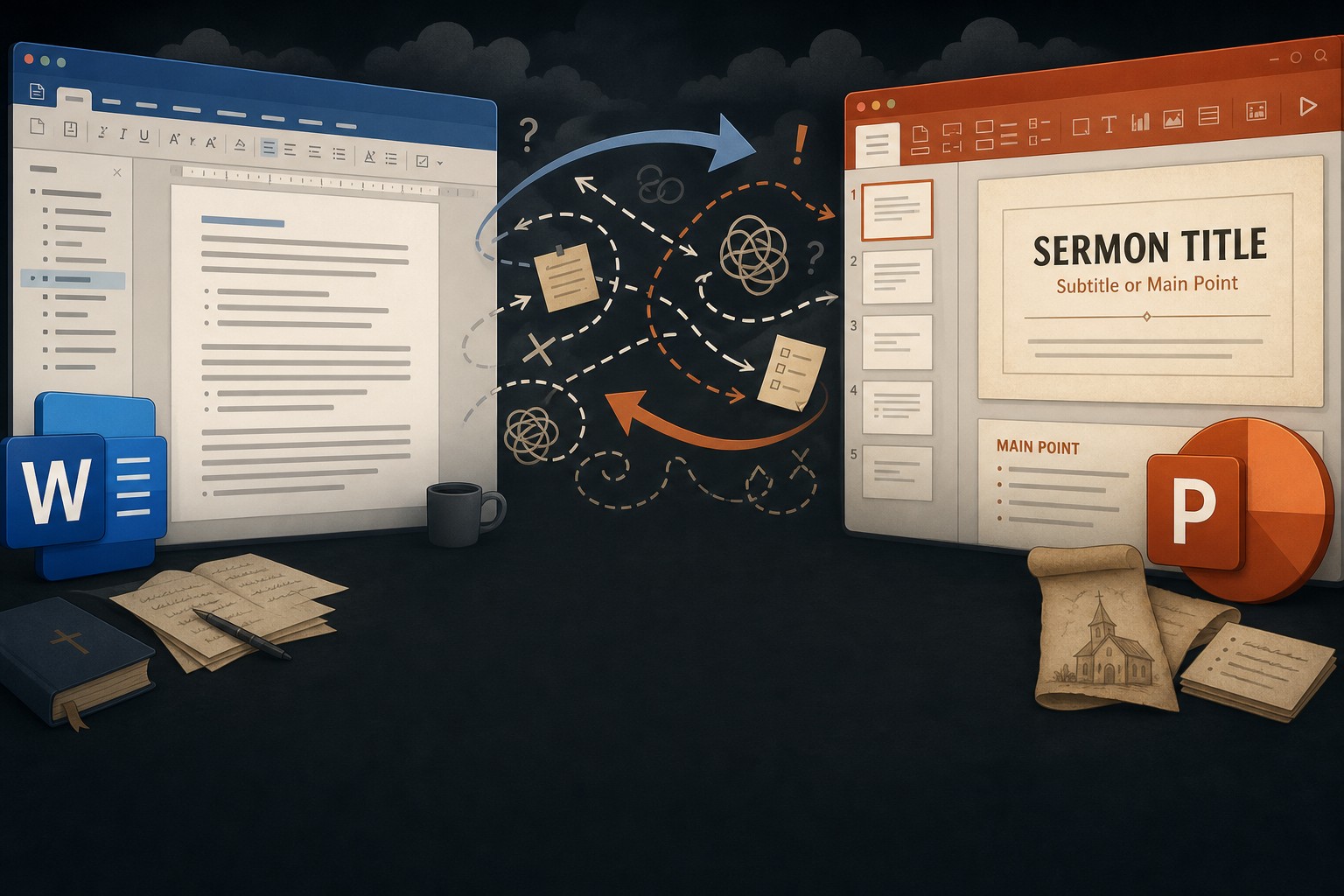
Import PowerPoint into BibleSlides — keep speaker notes, convert or keep as pictures
Bring an existing .pptx into BibleSlides: import every slide as an image for layout fidelity, or convert outline/quote/picture slides one at a time — with speaker notes under each slide for Sunday.
You already have a finished PowerPoint for Sunday. The question isn’t “start from a blank project?” — it’s how to bring that deck into BibleSlides without losing speaker notes or rebuilding every slide by hand.
Import should serve the sermon you already prepared. The tool stays small so Christ and the text stay large.
Where to start: File → Import → Import PowerPoint
In the web editor:
- Open File → Import → Import PowerPoint
- Choose how to bring in the
.pptx - Choose Create new document or Insert into current document
- Select your PowerPoint file
Speaker notes from PowerPoint are placed under each imported slide in the same sermon document — so your manuscript and slides stay together after the move.
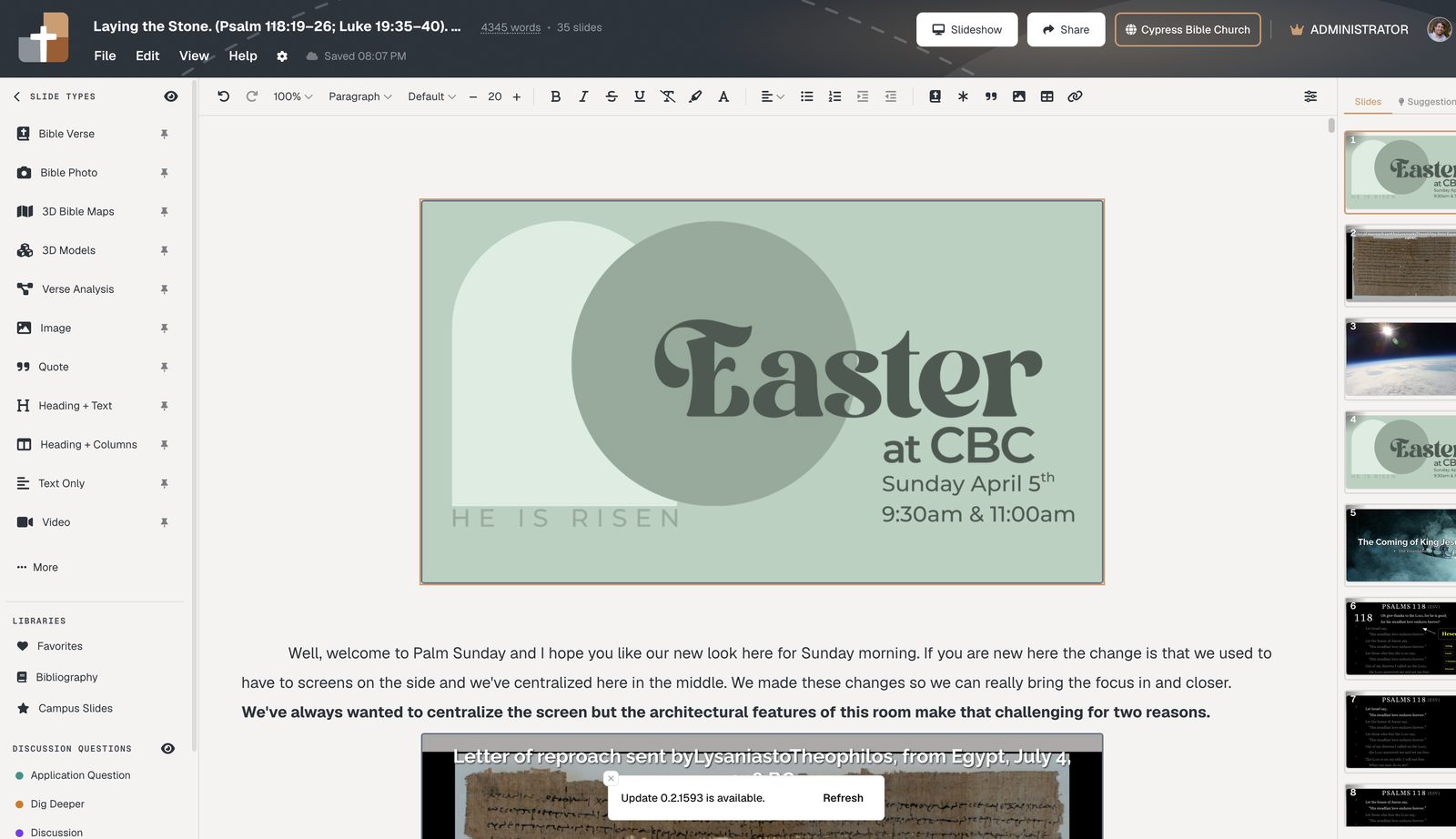
Two ways in
| Mode | What it does | Best when |
|---|---|---|
| Import as images | Keeps every slide as a picture | Layout must match PowerPoint; you need it fast |
| Convert to slides | Review one slide at a time; map to Outline, Quote, or Picture | You want editable BibleSlides types for teaching |
Both paths accept .pptx only. Legacy .ppt isn’t supported — save as .pptx in PowerPoint first. You’ll need to be signed in to upload.
Import as images — fidelity first
Choose Import as images when the board layout, fonts, and design must look like the file you already built.
- Slides convert in the background (batches of a few at a time)
- A toast tracks progress (
Converting slides…/Imported N of T…) - You can keep editing; use Cancel if you need to stop (slides already imported stay)
- Stay in the destination presentation until the import finishes
Each slide becomes an image slide. Speaker notes become notes HTML under that slide.
Convert to slides — review, then approve
Choose Convert to slides when you want BibleSlides types instead of a wall of pictures.
You’ll review one slide at a time with:
- Original PowerPoint preview on one side
- A suggested type and confidence on the other
- Actions: Approve, Skip, Use picture, Done
Selectable converted types are Outline, Quote, and Picture. If a slide can’t convert cleanly, fall back to Use picture so Sunday still has something on the projector. Closing the wizard keeps slides you’ve already approved.
Import into: new document or current presentation
| Destination | Use it when |
|---|---|
| Create new document | This deck becomes its own project (title comes from the filename) |
| Insert into current document | You’re appending into Sunday’s open presentation (open a presentation first) |
Only one background image-import can run at a time. If a large deck times out, retry or split the PowerPoint into smaller files.
Speaker notes land under each slide
This is the quiet win for pastors: PowerPoint notes don’t stay trapped in a separate outline. After import, notes sit under the matching slide in the same document — the same pattern as building a sermon in BibleSlides from scratch.
That means you can:
- Preach from the tablet with notes interleaved under slides
- Keep editing the message without bouncing between Word and PowerPoint
- Add Bible Verse slides, annotations, or maps around what you imported
Practical constraints (so Sunday isn’t a surprise)
.pptxonly — resave older.pptfiles first- Stay in the destination until import or convert finishes
- Free plans still have presentation/slide caps — a huge import can bump into those limits after slides land; trim or upgrade if needed
- Import itself isn’t a premium export feature — it’s for bringing teaching decks in
- Don’t confuse import with offline export — exporting an offline slideshow is a separate, premium path
After import: keep teaching in one document
Once the deck is in BibleSlides, treat it like any other sermon project:
- Add Bible Verse slides where the text needs to lead
- Use stepped annotations instead of fighting PowerPoint pens
- Present from a tablet with the latest cloud deck
Import is the bridge. The destination is notes and Scripture slides in one place — not another file to babysit on a USB stick.
Set it up this week
- Save Sunday’s deck as
.pptx - In BibleSlides: File → Import → Import PowerPoint
- Pick Import as images for layout fidelity, or Convert to slides if you want Outline / Quote / Picture review
- Choose Create new document (or insert into the open presentation)
- Wait for the import to finish in that destination, then open notes under a few slides to confirm
- Add any verse slides or markup the room still needs
Related guides
See BibleSlides features
Notes and slides in one document, Bible Verse slides, stepped markup, Verse Analysis, 3D maps, BiblePlaces photos, and tablet presenter apps — built for pastors who teach Scripture.