Import your Word sermon manuscript into BibleSlides
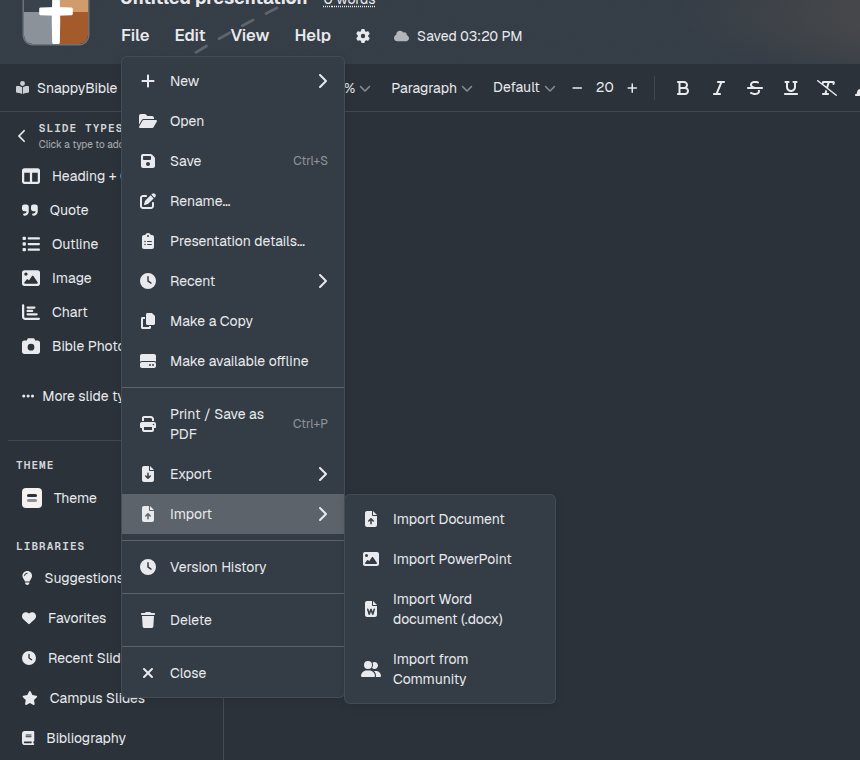
Write this week's manuscript in Word, then File → Import → Import Word document (.docx). The notes land in the editor so you can add Bible Verse slides where you will teach them.
Saturday still starts in Microsoft Word for a lot of pastors. The outline, the illustrations, the sentences you will actually say — they already live in a .docx. Sunday needs those notes in the same document as the verses the room will see.
BibleSlides can take that file in. File → Import → Import Word document (.docx) turns the manuscript into editor notes. You then add a Bible Verse slide in the place where you will teach that line. The text stays in charge. The tool gets out of the way.
Bring the manuscript you already wrote. Put the verse on the screen yourself, in the spot where you will say it.
Where to start
In the web editor:
- Open File → Import → Import Word document (.docx)
- Choose Create new document or Insert into current document
- Select the
.docx
The window is titled Import Word document. The line under the title reads: “Bring sermon notes in from a .docx file. Headings, lists, links, and pictures become editor notes.”
Import into has two choices:
| Choice | What it does |
|---|---|
| Create new document | Starts a presentation. The title is the file name, with underscores turned into spaces. Sunday_Notes.docx becomes Sunday Notes. |
| Insert into current document | Adds the notes at the end of the presentation you already have open, and moves you there. |
If nothing is open, Insert into current document is unavailable and the hint reads “(open a presentation first).” When a presentation is open, that choice is selected for you. Switch to Create new document when this manuscript should be its own project.
The file row is labeled Select Word document. It accepts a .docx only.
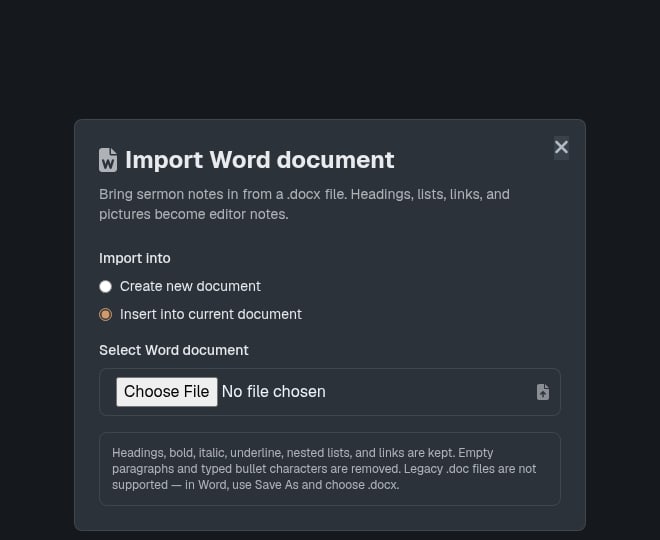
The note at the bottom of the window is the short version of the rules: headings, bold, italic, underline, nested lists, and links are kept. Empty paragraphs and typed bullet characters are removed. A legacy .doc file is turned away — in Word, use Save As and choose .docx.
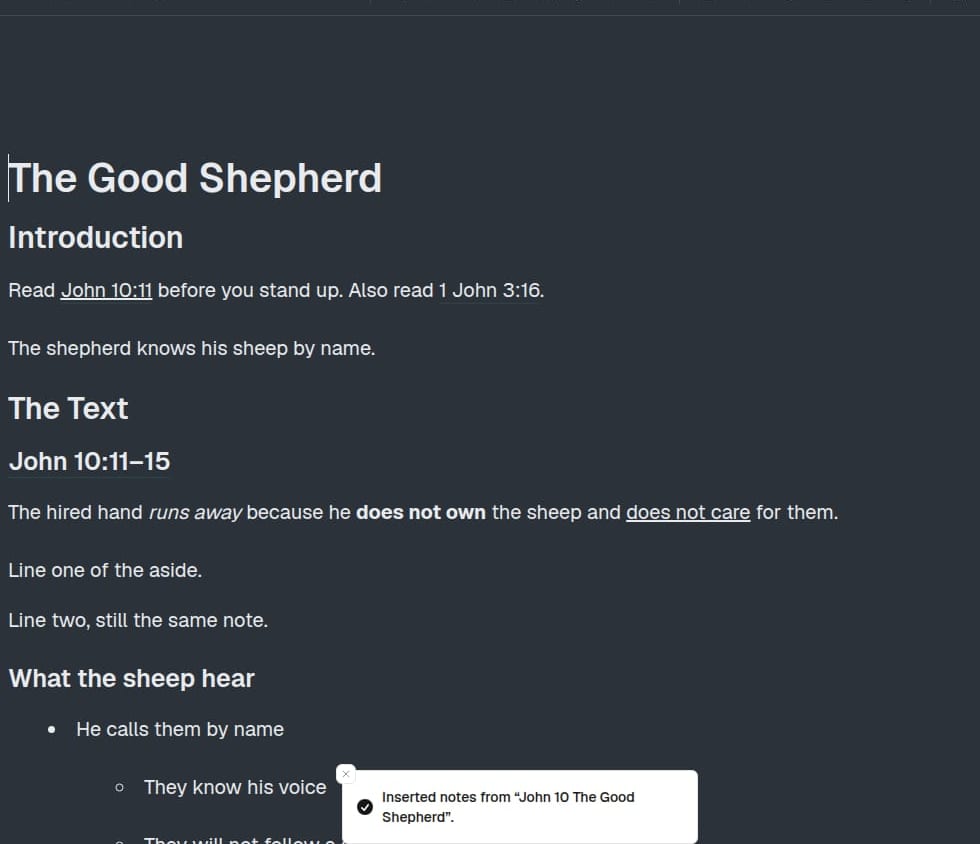
While the file is read you will see Reading Word document…, then Creating presentation… or Inserting notes…. A new document confirms with Imported “Sunday Notes” from Word. An insert confirms with Inserted notes from “Sunday Notes”.
What comes through cleanly
The body of the manuscript becomes notes. These pieces stay:
- Headings 1–3, including a Word Title (top heading) and Subtitle (second-level heading)
- Bold, italic, and underline
- Bullet lists and numbered lists, including a list nested under another list
- Links that are a web address (
httporhttps) or an email address (mailto) - Tables
- Pictures that are PNG, JPEG, GIF, or WebP, each under 1.5MB
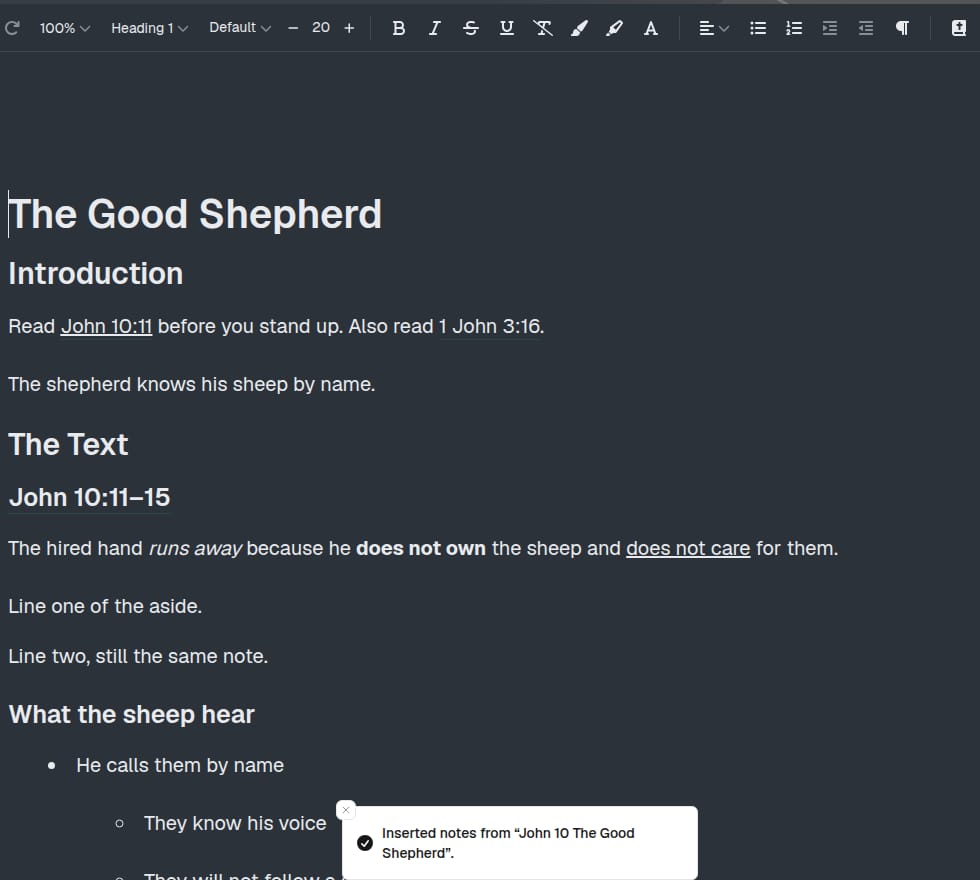
A picture lands in the notes, in the paragraph where it sat in Word. Turn it into a Bible Photo slide later if the room needs it on the projector. A table stays a table. A link you can open in a browser stays a link. The words of a link that is not a web or email address stay in the notes, and the link itself is dropped. A short note tells you when that happens.
What the import tidies on the way in
Word manuscripts collect habits that make ugly notes: blank lines between every paragraph, two spaces after a period, and a bullet character typed by hand. Those are cleaned up.
- Empty paragraphs go away
- Runs of spaces collapse to a single space
- A typed bullet character (• and the other glyphs Word uses as bullets) is removed once the line is a real list
- Several dashed or numbered lines in a row become a real list
A line that already starts with a bullet character becomes a bullet even when it stands alone. A line you typed with a dash or an asterisk becomes a bullet when two or more of those lines sit together. One dashed line stays a sentence.
Numbered lines follow the same “two or more” rule, with one important exception for Scripture.
A line like “1. John 3:16” stays a sentence. The “1” is the book, not the start of a list. “2. Peter 1:3” stays a sentence for the same reason, even when it sits on the next line. A lone numbered line that is not a verse — “1. Corinthians is not a list.” — also stays a sentence, because a numbered list needs at least two numbered lines in a row.
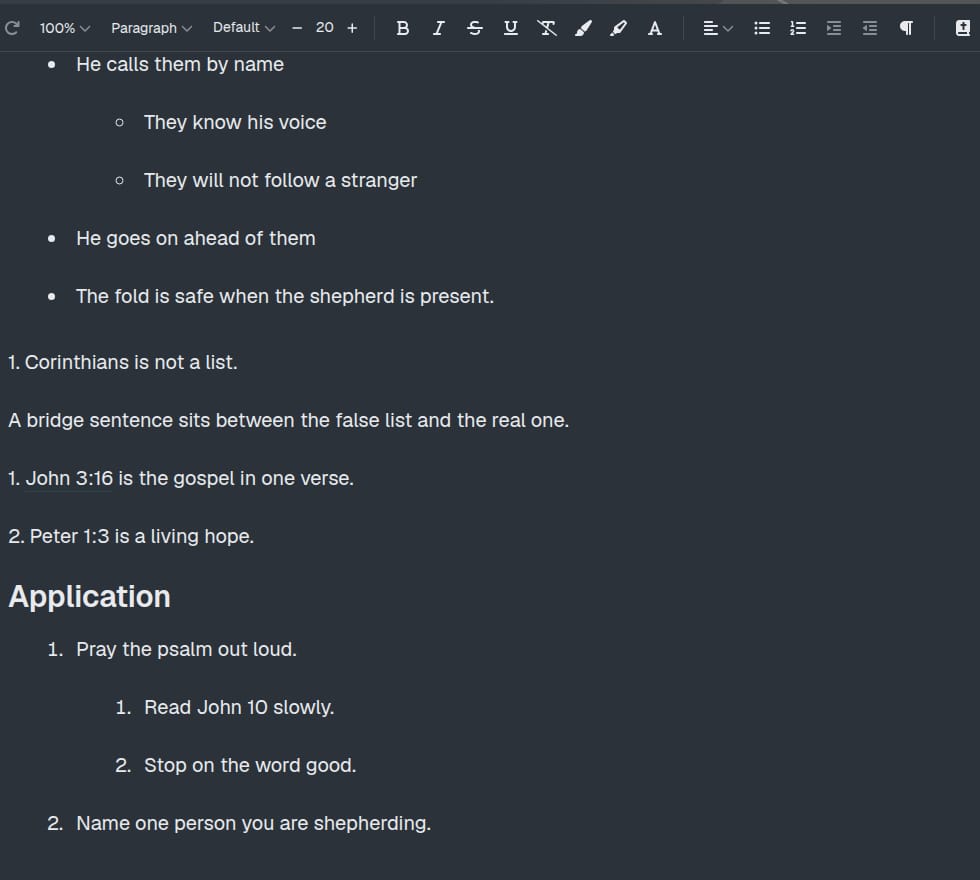
Two or more numbered lines in a row that are not verse references become a numbered list. Nesting is kept. A sub-list that was a, b, c in Word shows in the notes as 1, 2, 3. The order and the nesting stay.
Heading 4 and anything deeper becomes a third-level heading, so a long outline does not grow a fourth size of title in the notes.
What to fix before Sunday
Read the notes once after import. A few things are yours to tidy:
- Save older files as
.docx. A.docfile is rejected, with the message to use Save As and choose.docx. The same message appears when the file cannot be read. A password-protected file asks you to remove the password in Word and import again. - Stay under 30MB. A larger file is rejected.
- Replace pictures that were skipped. A picture over 1.5MB, or one that is not PNG, JPEG, GIF, or WebP, is left out. A stack of pictures also stops once the imported images together pass 8MB. A note tells you how many were skipped. Put a Bible photo or a picture slide in that spot if the room needs the image.
- The notes use the presentation’s type. Bold, italic, and underline stay. Font, size, and color come from the BibleSlides presentation.
- Check the first and last lines. The import reads the body of the document. A line that lived only in a header, a footer, or a comment may be missing. Paste that line into the notes if you still need it.
- Add the verse slides yourself. “John 10:11” in the manuscript stays a note, or a link if you had linked it. Drop the Bible Verse slide in where you will teach the text. Teaching starter is the other way in, when you would rather begin from the passage than from a finished manuscript.
An empty file, or a file with nothing left after the cleanup, stops with “This Word document has no notes to import.”
Create new document counts as a presentation. On the Free plan that means one of the three presentations. Insert into current document adds notes to a presentation you already have, so the presentation count stays the same. Verse slides you add afterward count toward the seven slides on a free presentation. Word import itself is available without the upgrade that PowerPoint import uses.
A Saturday workflow
- Finish the manuscript in Word the way you already do. Save it as
.docx. - In BibleSlides, open File → Import → Import Word document (.docx).
- Choose Create new document for a new week, or Insert into current document to add these notes at the end of the open sermon.
- Read the notes. Restore any skipped picture. Glance at headings deeper than 3, and at any a, b, c list that is now 1, 2, 3.
- Add a Bible Verse slide where you will read the text. Add a map, a photo, or an outline slide only where the room needs it.
- Practice once. Present from the tablet on Sunday.
The point of the import is the hour you do not spend retyping. The point of the document is still the passage.
FAQ
Does import turn the references in my manuscript into Bible Verse slides?
The references stay in the notes. A web link stays a link. You add each Bible Verse slide where you will teach that line. How to create a Bible Verse slide is the next step.
Will “1. John 3:16” become item 1 of a list?
It stays a sentence. The number is the book. Two numbered lines in a row become a list only when they are not verse references. A single numbered line stays a sentence either way.
What if my file is still .doc?
Save As in Word and choose .docx, then import that file. The same step fixes a file the importer cannot read.
Will this replace the sermon I have open?
Insert into current document adds the notes at the end of that sermon. Create new document starts a separate presentation named from the file.
Do I do this on the tablet?
Import from the web editor on your computer. The tablet is for presenting the deck, notes and verses together, once the manuscript is in.
Related guides
See BibleSlides features
Notes and slides in one document, Bible Verse slides, stepped markup, Verse Analysis, 3D maps, BiblePlaces photos, and tablet presenter apps — built for pastors who teach Scripture.