Let the room see the original word — Interlinear columns on a verse slide
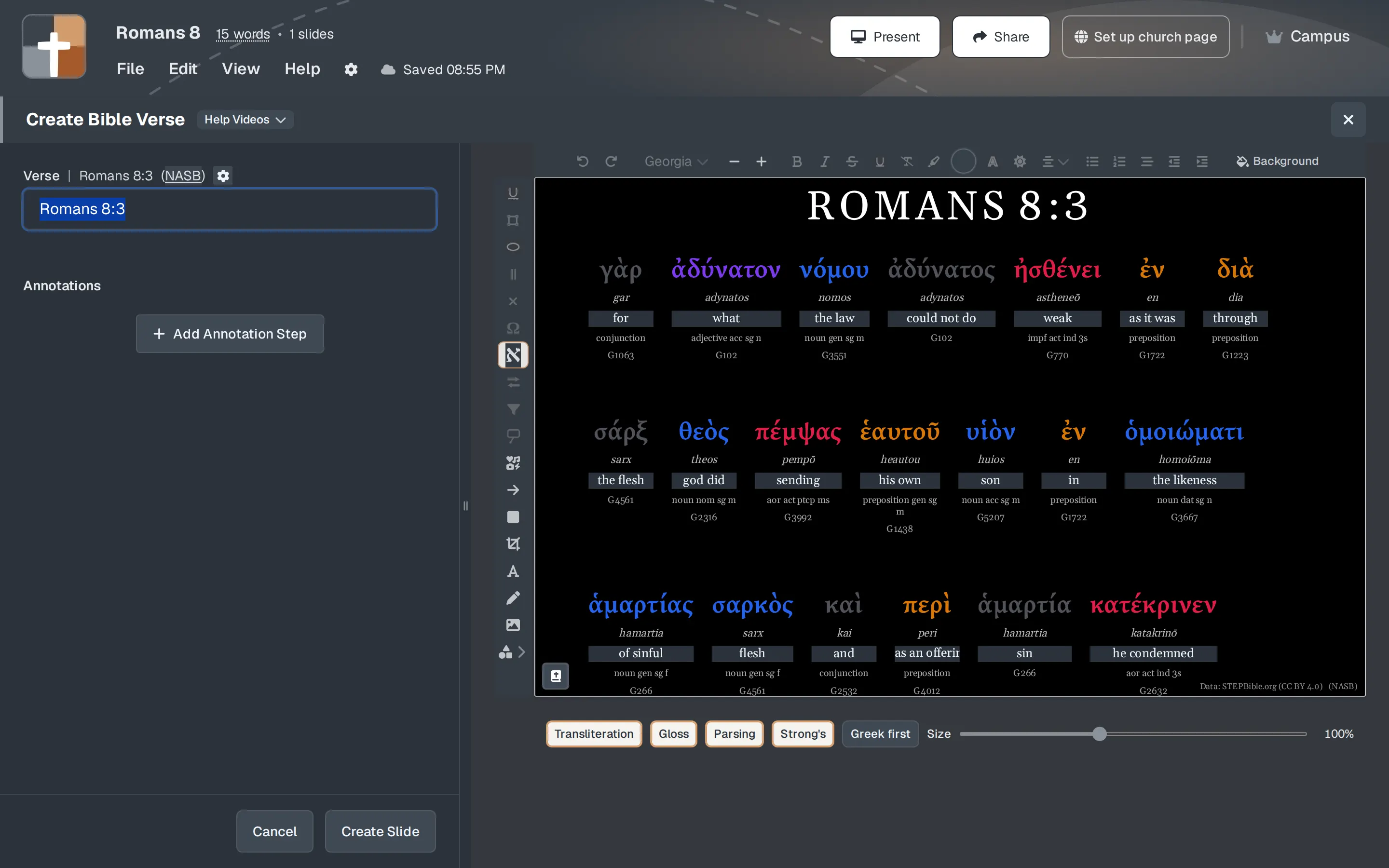
Interlinear sits on the Bible Verse toolbar in BibleSlides, marked with א. It starts off. Turn it on and that step replaces the paragraph with one column per Greek or Hebrew word. The column is as wide as the word, and a long gloss wraps inside it. Greek first or Hebrew first is the large line. English first swaps them. Transliteration, Gloss, Parsing, and Strong's start on. Size runs from 60% to 160%. Create Slide or Update Slide stores the columns on the selected step. The projector, the tablet, follow-along, the notes, and the exports read that step. The button runs on ESV, including a church key, and on NASB, NASB20, NKJV, KJV, ASV, YLT, and ORIG.
John 1:1. You are about to say that the Word is one Greek word, and that the same word comes back at the end of the verse. The wall is still the English paragraph. The back row can hear you. They cannot see where one original word starts and the next one begins.
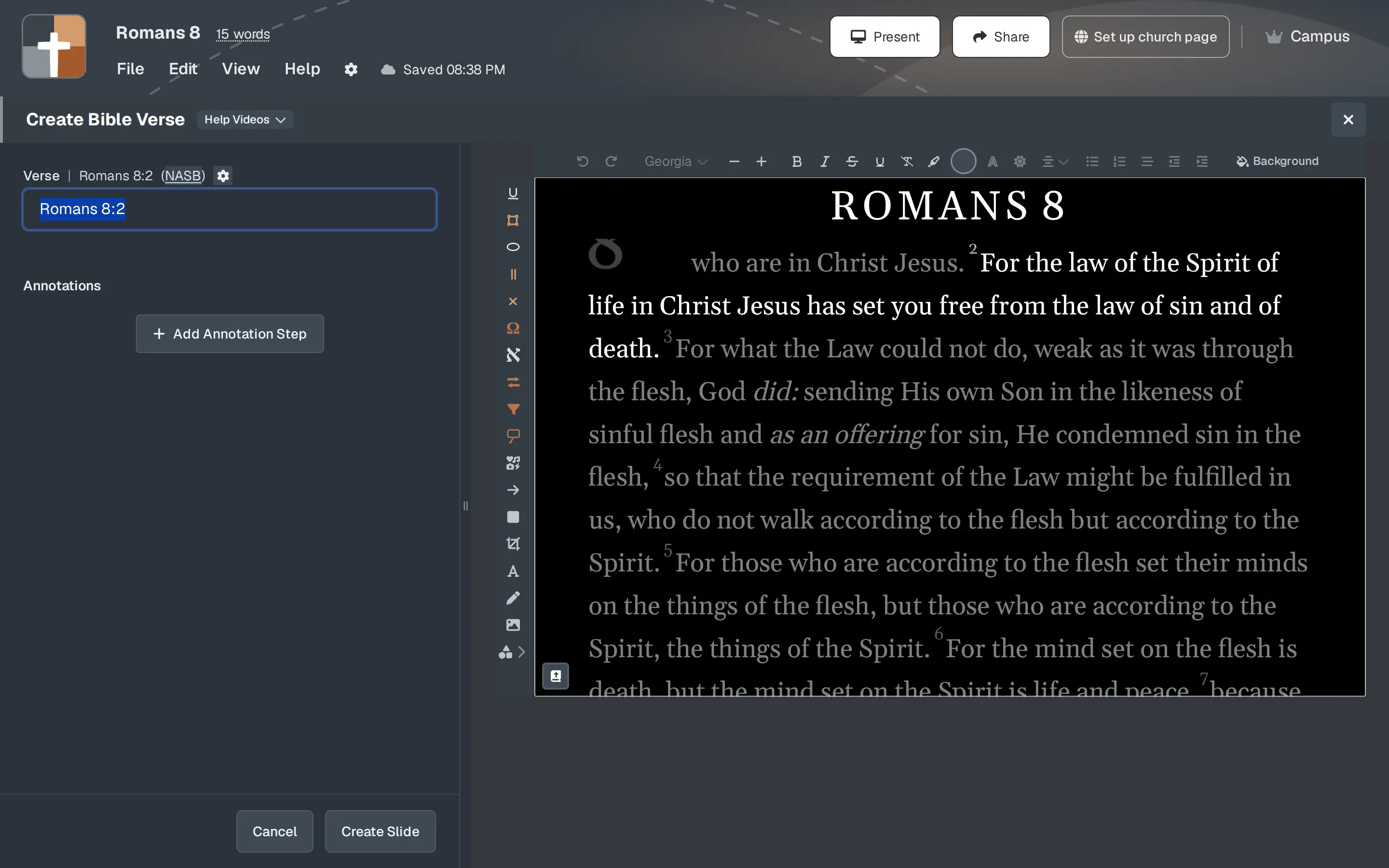
Interlinear in BibleSlides is that row of columns, on the Bible Verse slide you are already preaching. Each column is one Greek or Hebrew word. The column is as wide as that word. A long English gloss wraps inside the column, so the next word stays beside it. You say the one thing you came to say. Then you advance, and the paragraph has the wall again.
The columns answer which English words belong to which original word. Then the verse has the screen.
How to create a Bible Verse slide covers the reference, the translation, and a highlight. This article is the whole verse, word by word, for the minute the original language has to be visible.
When the columns help
| Moment | What belongs on the wall |
|---|---|
| One Greek or Hebrew word carries the sentence | Interlinear on that step of the Bible Verse slide. The room sees the word, the gloss, and the words beside it. |
| The pew Bible says that one word differently | Translation on the same toolbar. One English word, fanned out across the versions in the room. |
| A brief Greek or Hebrew note on a single word | Language (Ω) on the same toolbar. A callout on the English verse. A Definition slide is the lexicon entry you will linger on. |
| The grammar of the English sentence, as its own slide | Verse Analysis. Parts of speech you step through, beside the Bible Verse text. |
| How often the spelling appears in Scripture | The Word card in SnappyBible. |
| The room should simply read the passage | Leave Interlinear off. The paragraph is the slide. |
Leave the button off when the class is the congregation and a row of parsing codes would compete with the verse. Leave it off when the translation on the slide has no original-language lookup. Turn it on for the step where you will point at one word, and for the class that asked to see it.
Where the button lives

- In the sidebar, choose Bible Verse. The window title is Create Bible Verse. On a slide you are editing, the title is Edit Bible Verse. The field is Verse.
- The abbreviation after the reference is the translation. The hover note is Change Bible translation. That window is titled Bible translation.
- On the toolbar over the preview, the button is Interlinear. The mark beside the word is א. The hover note reads: “Show this verse as a color-coded interlinear — original word, transliteration, gloss, and parsing.”
- The preview replaces the paragraph with the columns. While they load, the line is Loading interlinear… If that verse has nothing to show, the line is No glosses for this verse.
5. Under the preview, four buttons start on: Transliteration, Gloss, Parsing, and Strong's. A dim button is off. Click it again and the line returns. 6. The next button names the large line. On a Greek verse it reads Greek first. On a Hebrew verse it reads Hebrew first. Click it and the label becomes English first: the gloss is the large line, and the original word sits under it, smaller. Click again and the original word is large. 7. Size is the slider beside those buttons. It runs from 60% to 160%, in steps of 5. 100% matches the verse text size. The percent sits at the right end of the slider. 8. Create Slide stores the columns on a new slide. Update Slide stores them on the slide you have open. Until you press that button, the columns are the preview.
Click the gloss under that word and type when the English you will say is the word in the pew Bible. The change is stored with the step. The projector does not open the field.
Click Interlinear again and that step returns to the English paragraph. The hover on the other verse tools, while the columns are up, reads Not available while Interlinear is on. Highlight, Language, Translation, Callout, and the bold, italic, underline, and color marks wait on a step that is still the paragraph.
Keep the paragraph, then show the word
Annotations is the list on the left. Add Annotation Step adds the next click.
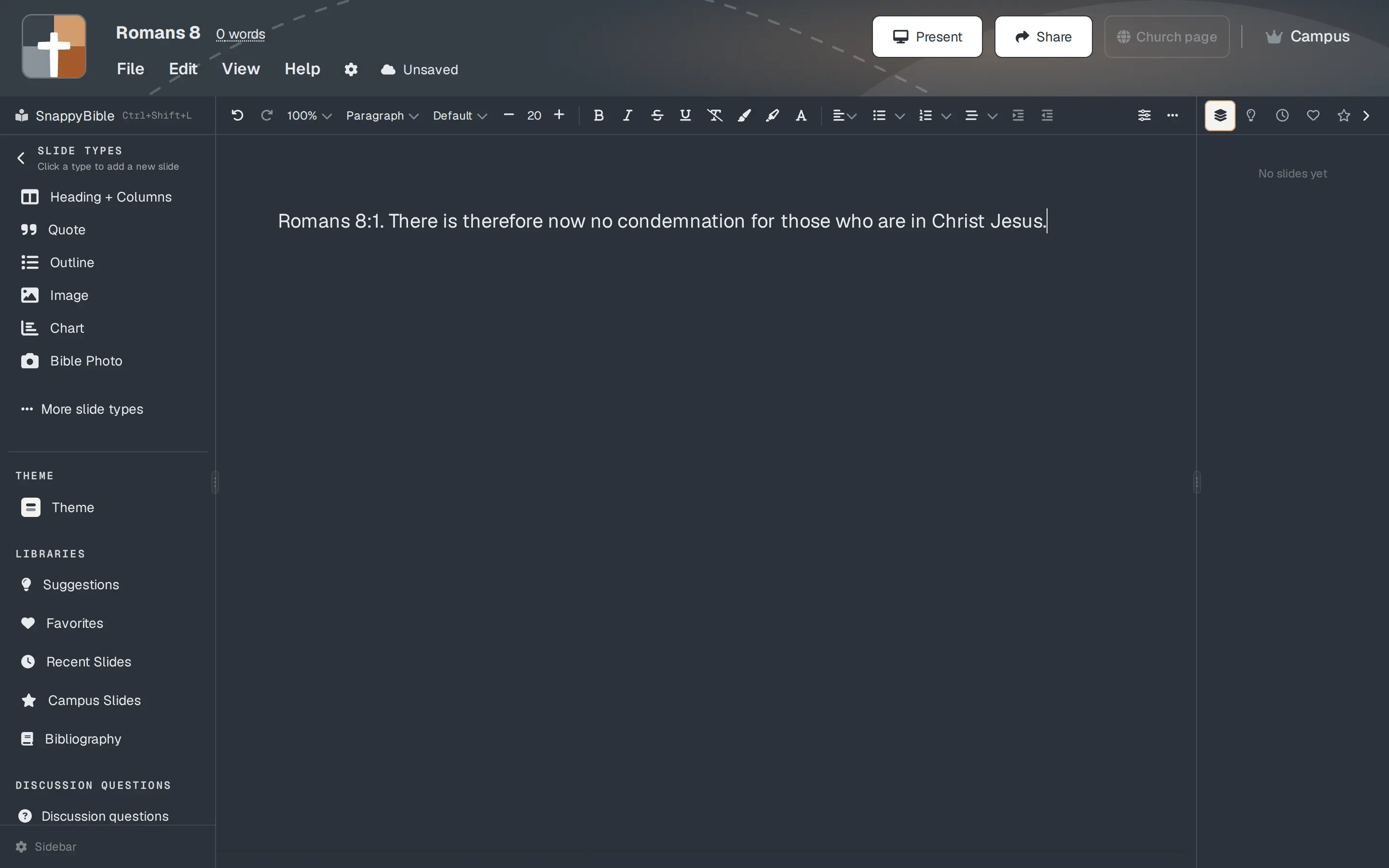
Turn Interlinear on after that step exists, with the new step selected. Create Slide or Update Slide writes the columns onto the step you have selected. Home stays the paragraph the room reads first. In the notes, and in the step menu at the lower left of the slide, the step that first brings in the columns reads 1: Interlinear. A later step uses the next number.
Add the step while Interlinear is already on, and the new step keeps the columns. Home keeps them too, when Home and the new step are created together. Select the step that should be the paragraph again, and click Interlinear so the English returns.
When the list has more than one step, Where steps live appears above it.
| Choice | What Sunday does |
|---|---|
| Separate slides | Each step becomes its own slide in the editor and on the tablet. Advance to the Interlinear slide when you will say the word. |
| same slide | The clicks stay on one slide. Advance on that slide with the step buttons. The editor and the tablet do not gain an extra slide. |
Separate slides is the choice already pressed.
A same-chapter range, while Interlinear is on and the step is not stored yet, puts verse numbers above the columns. The number you have selected is the verse on the grid. The others sit quieter. The chips cover the range up to eight verses, counting from the first verse. A longer range leaves the verses after that eighth chip off the grid. A range that crosses into the next chapter stays on the first verse, with no chips. Create Slide or Update Slide stores the verse you left selected. Open the slide again and the numbers are gone. The grid is that verse. To pick a different verse, click Interlinear to clear the step, click it again, and choose the other number.
Change the reference, and the selected step rebuilds the columns for the new verse. Transliteration, Gloss, Parsing, Strong's, Size, and English first stay as you set them.
What the room sees
The passage label at the top of the slide follows the verse on the grid.
Each column holds one original word. The column stays as wide as the word on the large line, with a small floor so a one-letter word can still hold a gloss underneath. Gloss, Parsing, and Strong's wrap inside that width. A long gloss does not open a hole that shoves the next word down the row. When the verse is longer than the wall, the columns wrap to the next band, with a wider gap between bands so each line of the verse still reads as its own row.
Hebrew runs right to left. Greek runs left to right.
The large word takes a color from its part of speech. Parsing names the form in a short line, such as aor act ind 3s, noun nom sg m, or Qal perf 3ms. A Hebrew word with a prefix can read conj + Qal seq impf 3ms. Strong's is the number, such as H3722. Gloss is the short English for that word. Where the gloss covers more than one piece, the pieces join with a middle dot, as in and · to · atone for or the · this · who. Transliteration is the romanization. A blank one is filled: λόγος reads logos, and שָׁלוֹם reads shalom.
The gloss is the English for the original word. It can differ from the sentence on the translation you are preaching. Edit it when the word you will say is the one in the pews. Leave it when the difference is the point.
The slide credits Data: STEPBible.org (CC BY 4.0). On a church-key ESV, that line sits with the ESV notice. Otherwise it sits in the corner, with the translation notice that slide already carries.
Christ's words in color colors the English verse view. The columns use the part-of-speech colors.
On the projector, the tablet, and the booth
The columns are stored on the step. The slideshow reads that step, so the projector and the booth URL match. Follow-along on a phone is that slideshow. The tablet shows the same step. In the editor, the notes under the slide show the saved columns, and so does the thumbnail on the step.
File → Export pictures the step as it renders: Export to PDF, Export to PowerPoint, Export to HTML, Export Offline Slideshow, and Export Slide Images.
Sunday shows the verse you stored. The verse numbers above the columns appear in the Bible Verse window before that step is stored. Click the gloss and type in that same window, including after you open the slide again. The projector does not offer either control.
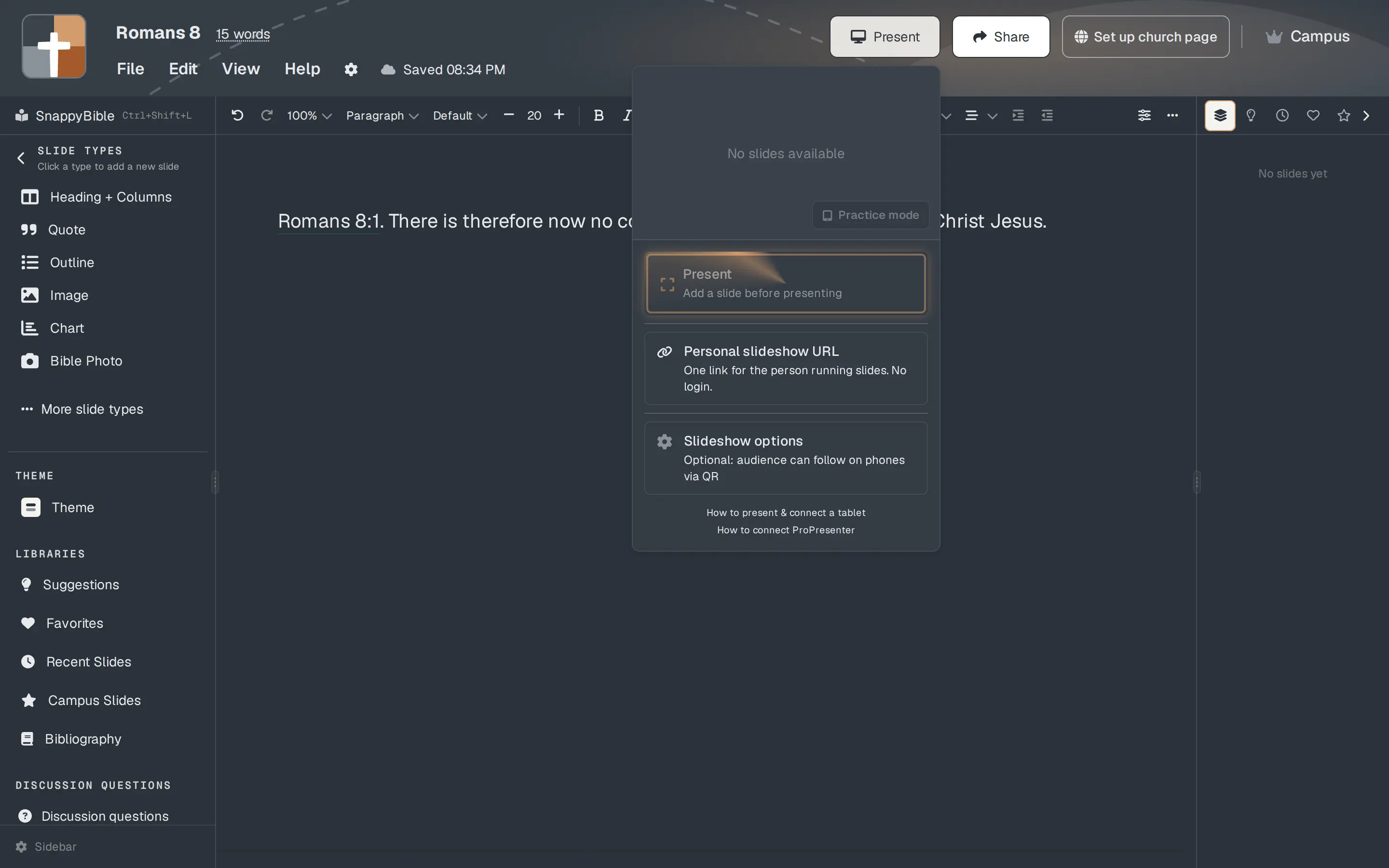
Advance to the Interlinear step when you will say the word. Say it in a sentence. Advance again. The next step, when you left it as the paragraph, is the verse the room was already reading.
| The room | What to do |
|---|---|
| The columns read from the back row | Leave Size at 100%, or move it once and stop. |
| A washed projector | Raise Size once, from the back row. If the parsing line still fails, turn Parsing and Strong's off. |
| A Sunday congregation | Leave Gloss and the original word. Turn Parsing and Strong's off unless you will read them aloud. |
| A class that asked for the form | Leave Parsing on. Turn Transliteration on when you will say the sound and the room does not read the letters. |
| The paragraph should lead | Home stays the English verse. The columns are the next step. |
Which translations
The button runs when the slide is ESV, NASB, NASB20, NKJV, KJV, ASV, YLT, or ORIG. ESV includes a church Crossway key. ORIG is the original-language text of the verse, and Interlinear still opens on it.
NASB20 runs. The notice does not name it. If the abbreviation on the slide is NASB95, switch to NASB. Both are the 1995 text. New accounts open a verse slide on NASB.
On another edition — NLT, NET, NIV, WEB, and the rest — the hover note reads: “Interlinear works with formal translations (ESV, NASB, NKJV, KJV, ASV, YLT, and ORIG). Switch the slide translation to use this tool.” Click the button and the window is titled Interlinear:
Color-coded interlinear is available for formal translations (ESV, NASB, NKJV, KJV, ASV, YLT, and ORIG), including church-key ESV. Switch the translation in the slide settings, then try again.
OK closes it. Switch the translation in Bible translation, then click Interlinear again.
On the fly opens a verse from the tablet without this button. The columns live on a Bible Verse slide in the deck.
Sunday-morning checklist
- Open Sunday’s Bible Verse slide. Confirm the abbreviation. ESV, NASB, NASB20, NKJV, KJV, ASV, YLT, or ORIG.
- Leave Home as the paragraph. Add Annotation Step, then Interlinear on that step.
- Turn off the lines you will not read. Set Greek first, Hebrew first, or English first. Move Size once if the back row needs it.
- Update Slide. Advance in practice. The Interlinear step shows the columns. The next step shows the paragraph.
- Open the same deck on the tablet, and on the booth URL if the house uses it. The columns should match the editor.
FAQ
Where is the button?
On a Bible Verse slide, the toolbar over the preview. The label is Interlinear. The mark is א.
Does this change the whole sermon?
It changes the step you have selected. Home can stay the English paragraph. The next Bible Verse slide does not inherit the columns.
The button opened a window titled Interlinear. What happened?
That translation has no original-language lookup. Switch to ESV, NASB, NASB20, NKJV, KJV, ASV, YLT, or ORIG, then try again. A church-key ESV is in that list. NASB95 is not; use NASB.
Will the tablet and the export match the editor?
The tablet, the slideshow, follow-along, the notes, and the slide-picture exports read the columns stored on that step.
Can I highlight a phrase while the columns are up?
The markup tools wait. The hover note is Not available while Interlinear is on. Put the highlight on the step that shows the paragraph.
Do the verse numbers show on the projector?
They show in the Bible Verse window, while Interlinear is on and the step is not stored yet. The projector shows the verse you stored.
Related guides
- How to create a Bible Verse slide
- When their Bible says it differently — compare one word on the verse slide
- When the outline isn’t in the text: Verse Analysis for expository preaching
- Pastor teaching tools that stay in the sermon — verse analysis & definitions
- How often does this word appear — the Word card for a sermon slide
- Let the room see who is speaking — Christ's words in color
See BibleSlides features
Notes and slides in one document, Bible Verse slides, stepped markup, Verse Analysis, 3D maps, BiblePlaces photos, and tablet presenter apps — built for pastors who teach Scripture.