Give the room three minutes — Timer slides for discussion, prayer, and transitions
Add a Timer slide in BibleSlides — Count Down or Count Up, minutes and seconds, an optional label — so the room can see a short clock for discussion, prayer, or a transition, then return to the text.
You ask the room to turn and talk, or to pray, or to greet someone before the next reading. You say “take a few minutes.” The back row is still deciding whether you meant two minutes or until you feel like moving on.
BibleSlides Timer is the slide for that beat. A short clock, in minutes and seconds, with a line under it if the room needs to know what the time is for. Leave it up while the room does the thing you asked, then advance. The Word takes the wall again.
A duration that only lives in your head is still private. If the congregation cannot see the minutes, you are asking them to guess when you will take the screen back.
Three clocks, three jobs
You may already use tablet timers and % left. Those live in the tablet header — clock, countdown, count-to-time, count-up, and document progress — so you can pace the message. The congregation never sees them. Start, Reset, and Dismiss belong to that private header. They do not run this slide.
Event Countdown is an audience slide tied to a calendar moment. The circles read DAYS, HOURS, MINUTES, and SECONDS until Easter, VBS, or the hour the service starts. It follows the clock on the device. You do not set a three-minute length.
Timer is the third job. The modal title is Timer. The window for a new slide is Create Timer. You set a duration the room can watch, or you let the clock count up from zero. It is not a date, and it is not your private pace tool.
| Need | Use |
|---|---|
| “How much of my message is left?” | Tablet timers and % left (private, in the presenter header) |
| “How long until Easter / VBS / 10:00?” | Event Countdown (a date and time on the wall) |
| “Give the room three minutes for this question” | Timer (a duration on a slide) |
Same family of clocks. Different people are supposed to look at them.
What the room sees
The digits are a large monospace clock, MM:SS, with at least two digits on each side (03:00, 00:45). There is no hours unit. Ninety minutes reads 90:00. An optional label sits under the clock in the theme’s body font.
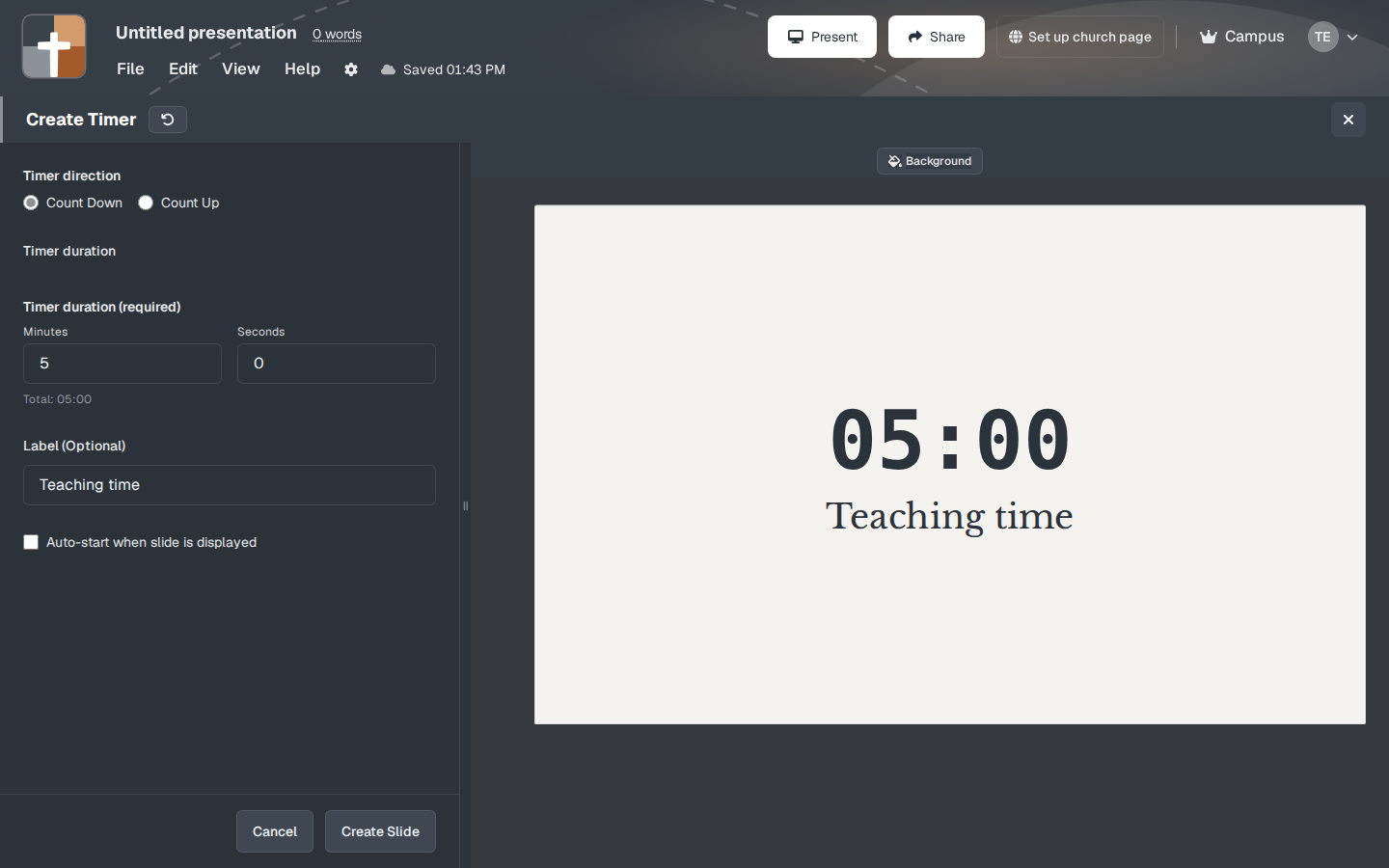
A new window previews 05:00 and the sample label Teaching time. That sample is what you replace. Count Down is selected. Auto-start when slide is displayed is off. The preview in the window holds still so you can read it. The digits move later, on the projector or on the current tablet slide, and only when auto-start is on.
Count Down starts at the duration you set. When it reaches zero it stops at 00:00. It does not chime, and it does not advance to the next slide. Build the next slide — the verse, the prayer you will lead, the point you are returning to — and move to it when you mean to.
Count Up starts at 00:00 and keeps adding one second. It does not stop at three minutes. Use it when the room should see elapsed time (“we have been in groups this long,” “this testimony has run this long”). When the room needs to see time running out, stay on Count Down.
Leave the slide and come back, with auto-start on, and the clock starts over. A countdown returns to the full duration. A count-up returns to 00:00. It is not a paused stopwatch.
In the notes, the slide sits still. The clock runs when that slide is the one on the house screen, or the current slide on the tablet, and Auto-start when slide is displayed is checked. The notes thumbnail does not burn the minutes down while you are still on the verse before it.
Where to add it
In the editor, the sidebar heading is SLIDE TYPES, with the hint “Click a type to add a new slide.” Timer is not in the default pinned row (Bible Verse, Bible Photo, maps, and the other pins). New accounts do not pin it. Open More slide types. That dialog reads: “Click on any slide type to open it. Use the pin button to add or remove slide types from the sidebar menu. Drag and drop to reorder.” The pin control is Pin to sidebar. The card name is Timer.
The default shortcut is Ctrl+Shift+T on Windows and Linux, Cmd+Shift+T on a Mac. That chord opens Timer when Timer is pinned. Until you pin it, use More slide types.
If you highlight a plain number in the notes, BibleSlides reads it as minutes (3 becomes three minutes). A time such as 5:00, or 1:23:45, is read as that length. The selection menu offers Create Timer Slide when Timer is still among your slide types. That insert is Count Down, auto-start off, and no label. Open the slide and name what the minutes are for before Sunday.
After the slide is in the deck, the window is Edit Timer and the button reads Update Slide.
The setup window
Timer direction — Count Down or Count Up. A new slide opens on Count Down.
Timer duration — the style control on that label sets the size and color of the digits. Leave the size alone and they are stored at 120% of the title size. The size control runs from 30% to 200%. Leave the color alone and the digits follow the theme heading color. The face stays monospace.
Timer duration (required) — Minutes and Seconds, shown for Count Down. Minutes run from 0 to 99. The hover note says “Set the number of minutes for the timer (0-99).” Seconds run from 0 to 59. The hover note says “Set the number of seconds for the timer (0-59).” Under the fields the window shows the total, for example Total: 05:00. If you try to create a countdown at 00:00, the window says “Please set a timer duration (minutes and/or seconds).”
Count Up hides Minutes and Seconds. A fresh window still has the five-minute sample behind that hide, so Create Slide is accepted, and the saved slide stores no duration. The room starts at 00:00. If those hidden fields are both zero, the same duration message appears. Switch back to Count Down, set a length, then return to Count Up if that was a mistake. Count up will not stop itself at the length you had typed.
Label (Optional) — the words under the clock. The placeholder reads “Enter timer label…” The sample label is Teaching time. Size starts at 100% of the body size, on the same 30% to 200% control. Leave the color alone and the line follows the theme text color. A clock with no label is a puzzle from the back row. “Discussion,” “Prayer,” “Talk with your neighbor,” or “Greeting” is enough.
Auto-start when slide is displayed — see the next section. The hover note says “Automatically start the countdown when the slide is displayed.” The checkbox does the same job for Count Up.
Background opens a window titled Background, with the line “Color, your images, or the photo library.” A quiet theme background is usually enough. A photo behind a clock is easy to overdo.
The header control Reset all settings to defaults restores the sample: five minutes, Teaching time, Count Down, auto-start off, digit size 120%, label size 100%. Create Slide saves the slide. Cancel closes the window.
Auto-start, and a clock with no Start button
The Timer slide has no Start control on the screen. Checking Auto-start when slide is displayed is how the clock runs. Leave it off and the room sees a still time: the full duration for Count Down, or 00:00 for Count Up, for as long as that slide is up. Clicking the slide does not start it. The tablet header Start button does not start it either. That button belongs to the private presenter timers.
Say the instructions on the slide before the timer. Put the question, the prayer prompt, or “stand and greet someone” on the previous slide. Advance onto the Timer slide with auto-start on, and the minutes begin when the room can already see what to do. A clock that starts while you are still giving the assignment feels like a surprise.
A few Sundays this actually helps
Discussion inside the sermon. Previous slide: the question, in a sentence the room can read. Timer: Count Down, 3 minutes, 0 seconds, label “Talk with the person next to you,” auto-start on. When it sits at 00:00, advance to the verse you are about to open. Do not narrate the digits. The label already said what the time is for.
A short prayer. Count Down, 2 minutes, label “Prayer,” auto-start on. You pray, or the room prays. At 00:00 you take the next slide. The slide will not close the prayer for you.
A greeting or a transition. Count Down, 4 minutes, label “Greeting.” Put it where the liturgy already has that pause. When the time is gone, advance into the reading. One clock. A second timer beside it teaches the room to watch the screen instead of the person in front of them.
A testimony or an open share, when elapsed time is the point. Count Up, label “Testimony,” auto-start on. The room sees how long this has run. You still decide when to advance. If you promised them three minutes, use Count Down instead. Count up will not honor a promise you did not type into a duration.
Speaker notes can still sit under the slide in the same document. The clock does not replace the sentence you will actually say.
A quiet workflow
- Decide the one duration the room needs to see. One clock. A wall of timers helps no one.
- Put the assignment on the slide before the timer, in words you will not still be explaining when the clock starts.
- Add Timer from More slide types, from the sidebar if you have pinned it, or with Ctrl+Shift+T (Cmd+Shift+T on a Mac) once it is pinned.
- Leave Count Down and set Minutes and Seconds, or choose Count Up when elapsed time is the point. Replace Teaching time with the label you will mean.
- Turn on Auto-start when slide is displayed if the clock should run the moment you land on it.
- On Sunday, advance to it when the room is ready, let it finish its job, then go back to the Bible verse slide.
If you only need to know whether you are long, leave this slide out and use the tablet header timers.
When to leave it out
- The passage on screen already carries the point — a clock beside the text splits the room’s eyes
- You need a date on the calendar — Event Countdown
- You need a private “done by 11:25” — that stays on the tablet
- You need one figure from the text, such as seventy times seven — Animated Number
- You wanted a chime, or a slide that advances itself at zero — Timer stops at
00:00and waits for you - You have not decided what the minutes are for — a clock with the sample label Teaching time will be believed, because it is on the screen
Timer is on the Free plan. It does not show a crown. It is not in the insert gate that keeps Bible photos, 3D maps, Family Tree, Ancient Units, and 3D models on Premium. New accounts include 30 days of Premium with no card. After that, Free still includes this slide type.
Free still limits a presentation to 7 slides and the account to 3 presentations, and a watermark is added to slides. A discussion clock is one of those seven, next to the verses. See the Free plan write-up.
BibleSlides can hold three minutes on the wall for the people you just asked to talk, pray, or wait. Then it should get out of the way so Christ’s Word has the screen.
FAQ
Will the clock start by itself?
Only when Auto-start when slide is displayed is checked, and only while that slide is the one on the projector or the current slide on the tablet. The create window and the notes preview hold still. There is no Start button on the Timer slide.
What if I leave the slide and come back?
With auto-start on, it starts over. Count Down returns to the full duration. Count Up returns to 00:00.
Does it advance, or make a sound, at zero?
No. Count Down sits at 00:00. Count Up keeps going. You advance when the next slide should have the wall.
Can I type 90 seconds?
Set Minutes to 1 and Seconds to 30, or Minutes to 0 and Seconds to 45. The total under the fields is the length the room will see, such as Total: 01:30. Minutes stop at 99. Seconds stop at 59.
Tablet and Free?
The tablet shows the same clock on the current slide. Adding Timer is included on Free, inside the 7-slide limit. It does not show a crown. The header timers are a different tool. See the tablet presenter guide.
Related guides
See BibleSlides features
Notes and slides in one document, Bible Verse slides, stepped markup, Verse Analysis, 3D maps, BiblePlaces photos, and tablet presenter apps — built for pastors who teach Scripture.