Polls, quizzes, and Q&A on the projector — Audience Interaction
Add an Audience Interaction slide in BibleSlides — Poll, Quiz, Rating, or Q&A — then let the room answer by phone QR while you open, close, and reveal from the tablet.
Teaching often needs a response, not only a verse on the wall. A show-of-hands poll drifts when the back row cannot see. A “any questions?” pause can stall. A quick check that people heard the point gets lost in a sea of blank faces.
BibleSlides Audience Interaction is the slide type for that beat: put a Poll, Quiz, Rating, or Q&A on the projector, show a Scan to respond QR, and run the room from the tablet — open and close responses, reveal a quiz answer, approve questions — while the Word stays the center of the hour.
Follow-along helps people read the deck. Audience Interaction helps them answer a question you chose for this sermon.
How this differs from Campus QR follow-along
You may already know congregation follow-along — phones track the live teaching slide so back rows and overflow can read along.
Audience Interaction uses the same phone-friendly habit (camera scan, no church app), but the job is different:
| Need | Use |
|---|---|
| “They can’t read the sanctuary screen” | Audience follow-along |
| “I need a poll / quiz / rating / live Q&A on this beat” | Audience Interaction (authored slide in the deck) |
| A verse or map that was not in the file | On the fly |
People already on the follow-along page can respond there too when an interaction slide is up. Guests who only need to vote can scan the slide’s own Scan to respond QR and land on the respond page for that document.
The pastor’s problem: feedback without a second app
What usually happens:
- You ask for a show of hands — half the room is unsure what the options were
- You try a Mentimeter-style tool — another login, another QR story, another thing to train volunteers
- You skip the check entirely — and never learn whether the room followed the argument
None of that matches a quiet Sunday workflow: one teaching document, one projector, one tablet.
What Audience Interaction is
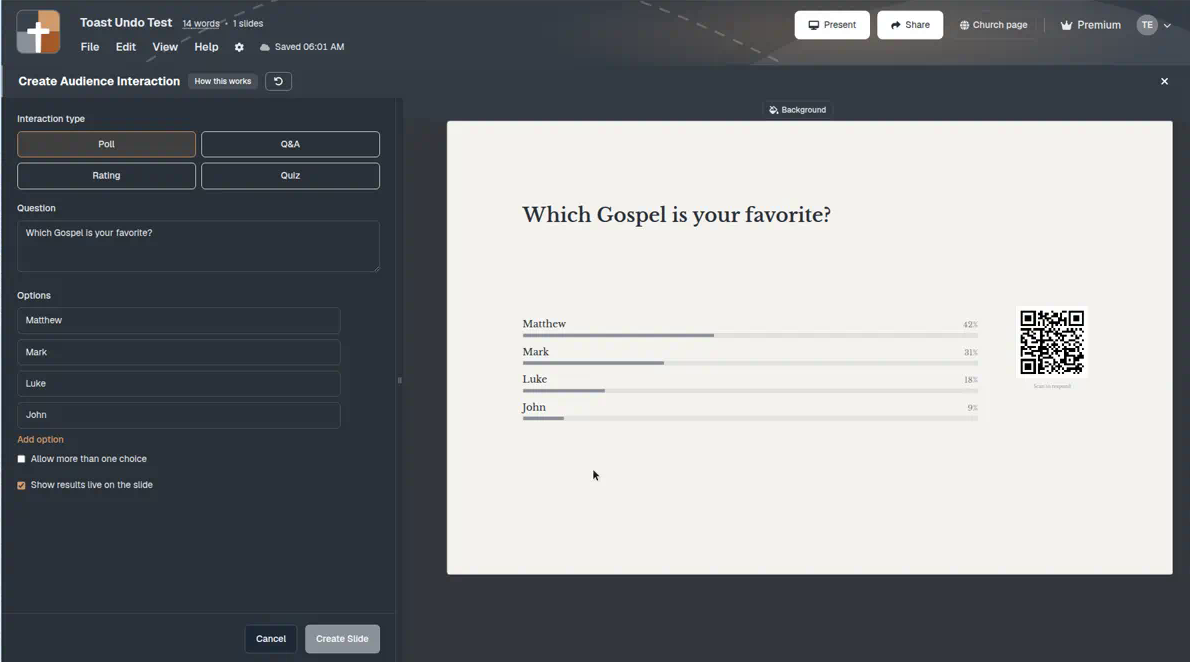
In the editor, add an Audience Interaction slide (slide library description: live poll, Q&A, rating, or quiz via QR code). Choose the kind, write the question, and — for Poll and Quiz — add at least two options.
| Kind | What the room does | What the projector shows |
|---|---|---|
| Poll | Pick one option (or multiple if you allow it) | Question + options; bars can fill live |
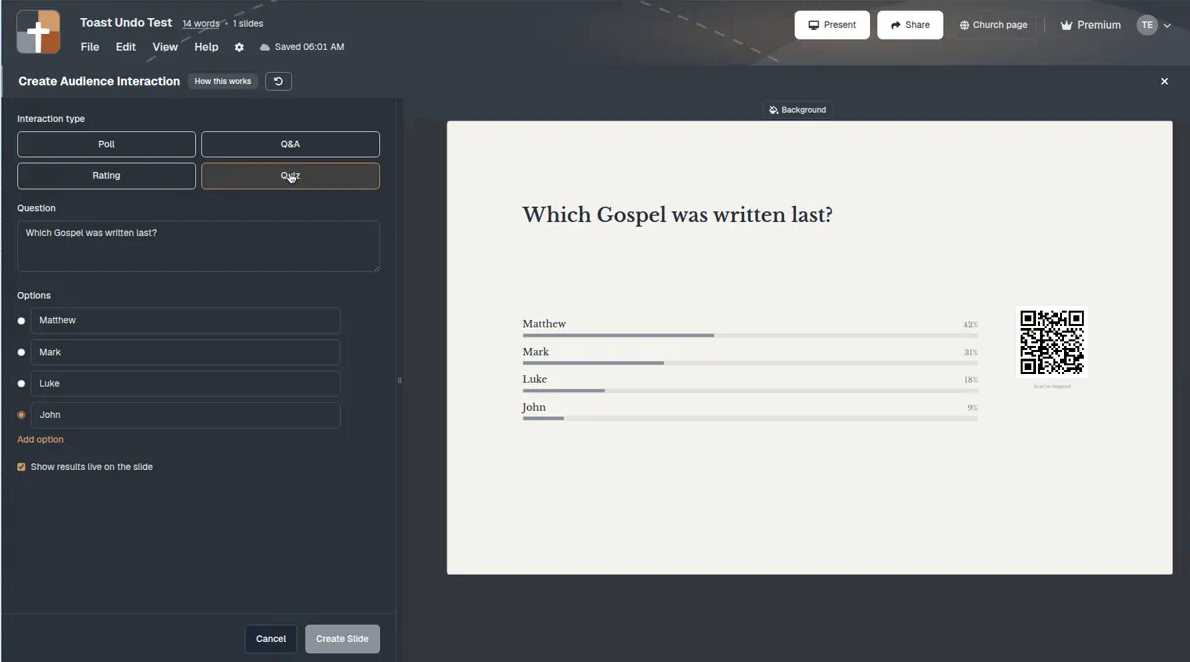
| Quiz | Pick an answer; you mark the correct option in prep | Same as poll until you Reveal the answer from the tablet |
| Rating | Score 1–5 or 1–10 | Running average as responses arrive |
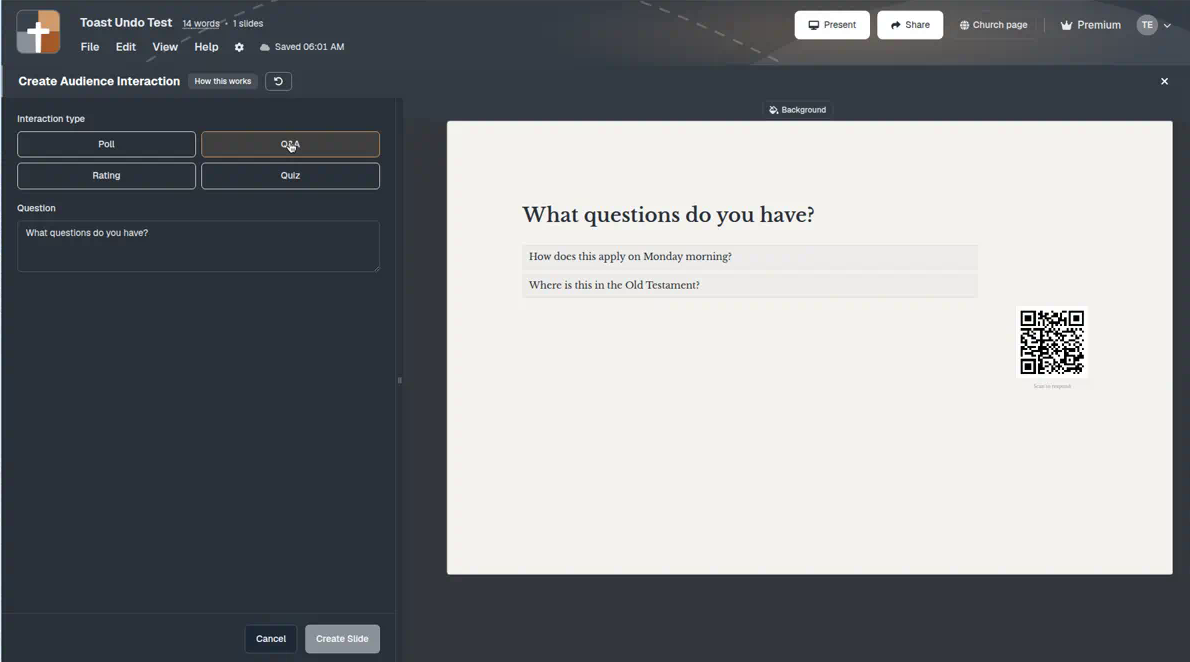
| Q&A | Type a question from the phone | Questions stay off the projector until you Approve them |
Defaults in the create modal use sample Gospel questions so you can see the shape immediately — replace them with this Sunday’s check.
Other controls that matter in the room:
- Show results live on the slide — poll and quiz bars update as people vote; turn off if you want silence until you are ready
- Allow multiple — polls only
- Background color / image — same theme tools as other slide types
How it works on Sunday
The in-app How this works walkthrough matches the flow:
- Set up the question in prep — Poll, Q&A, Rating, or Quiz; quizzes need a correct option marked
- Start Slideshow — the interaction slide shows a QR labeled Scan to respond (no app, no account for the audience)
- See answers live — responses update on the projector; ratings show a running average; Q&A waits for your approval
- Run it from the tablet — while this slide is up, the bar at the bottom is the control panel
Tablet controls (while the slide is live)
| Control | What it does |
|---|---|
| Open / Close | Start or stop accepting responses |
| Reveal / Hide answer | Quiz only — show or hide the correct option |
| Reset | Clear every response so you can run the beat again |
| Approve / dismiss | Q&A — approved questions appear on the slide |
Open responses when you are ready for the room to answer. Close them when you move on so late votes do not keep shifting the bars.
A quiet Sunday workflow
- In sermon prep, decide one beat that needs a response (not every outline point)
- Add Audience Interaction → pick Poll, Quiz, Rating, or Q&A → write the question and options
- Keep speaker notes under the slide in the same document
- On Sunday, advance to the slide; show the QR; Open responses from the tablet
- Teach from the result — then return to Bible verse slides for the argument of the text
If the room only needed to read along, prefer follow-along. Audience Interaction is for the moments you deliberately ask the sanctuary to answer.
When not to use Audience Interaction
- The verse on screen already carries the point — leave the poll closed
- You only need phones to track the deck — use follow-along
- You need a quick sketch, not a vote — use Board
- You are fishing for applause metrics — this tool serves teaching clarity, not vanity stats
BibleSlides remains a quiet servant: Scripture first, a brief interaction when it serves the Word, then out of the way.
Related guides
See BibleSlides features
Notes and slides in one document, Bible Verse slides, stepped markup, Verse Analysis, 3D maps, BiblePlaces photos, and tablet presenter apps — built for pastors who teach Scripture.