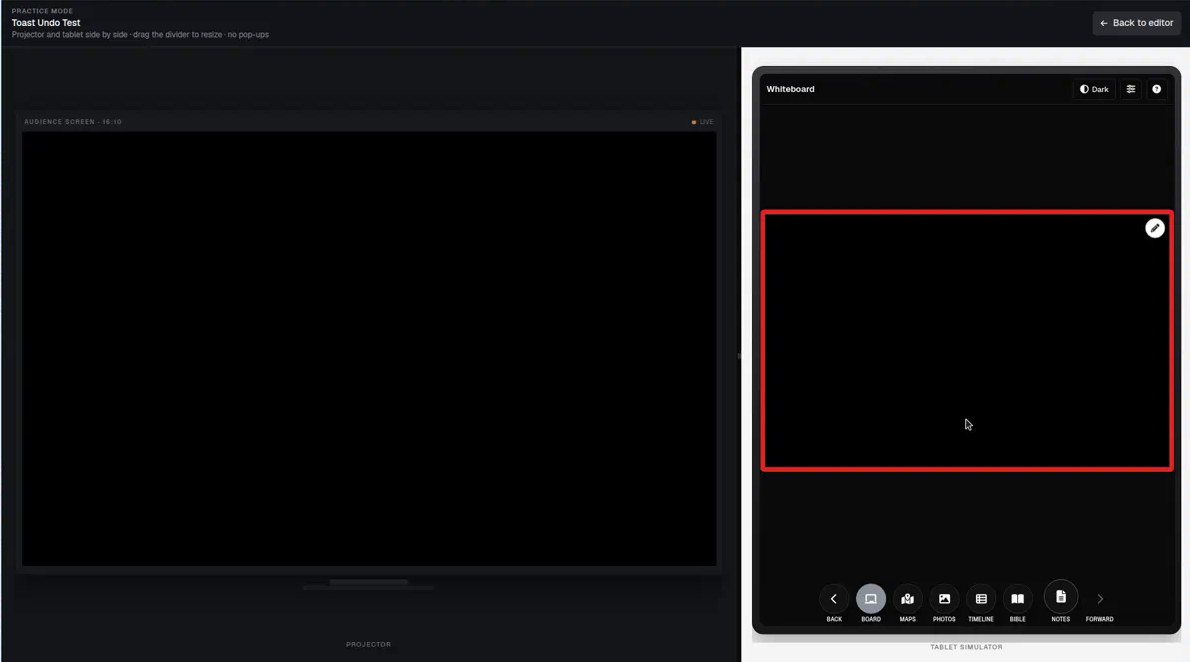
When a sketch serves better than a slide — Board from the tablet
Open Board from the tablet to sketch a diagram or outline on the projector. The ink is live and session-scoped — BibleSlides does not save it into the sermon document.
You already have verse slides. Then a question needs a triangle, an arrow, or three words in a box — and you do not have a slide for it. Rebuilding a diagram mid-sentence is a bad use of the room’s attention. A blank board is the older tool: write the structure, say the text, wipe it when you are done.
BibleSlides Board is that moment on the tablet. You doodle; the projector shows only the board and the ink. When the sketch has served the sentence, you leave. Nothing is written into Sunday’s document.
The sketch is for this room, this minute. The sermon file stays the sermon file.
The pastor’s problem: the argument needs a drawing
Prepared slides are still the backbone. Board is for the beat that a deck cannot politely hold:
| Moment | Why a slide is the wrong tool |
|---|---|
| A guest question that wants a quick outline | You are not authoring a new slide while they wait |
| “This clause hangs on that one” | An arrow is faster than a title card |
| A relationship you only saw while preaching | Diagram now; decide later whether it belongs in the series file |
| A list the room needs to see once | Three words on a black board, then back to the verse |
This is not a replacement for stepped annotations you planned on Friday. It is hospitality when a sketch serves the Word better than another click.
What Board is (and is not)
Board is the FAB label. Settings call the same tool On-the-fly Whiteboard. Either way it is an ephemeral tablet → projector overlay: a black or white surface you draw on, synced live to the house screen.
It is not:
- A slide type you insert in the editor
- Ink stored in the project, speaker notes, or export
- The same as Draw on slide, which marks a slide that already exists in the deck (advance & draw)
Session ink stays in memory for this tablet session. You can leave Board for Bible, photos, or notes and come back — the strokes are still there. They clear when you erase, or when you leave the document / end the session. Closing the overlay only hides the projector; it does not file the drawing.
If you need the diagram next week, rebuild it as a real slide after the service. Board is not your archive.
How to open Board
Board lives in the On the fly FAB cluster on the tablet — the same row as Bible, Photos, Maps, and Timeline.
Dedicated On the fly session (Start On the fly — Tablet + Projector):
- Start On the fly so the projector has the live session (black cover until you open a tool)
- On the tablet, tap Board
- The pen is already ready — draw
Prepared Sunday deck (normal tablet presenter on the project you studied):
- Connect the tablet to that project’s slideshow as usual
- Tap Board in the same FAB cluster
- Tap the pencil if you are not already in draw mode
- When you are done, tap Notes (or tap Board again) to return to the outline
You can hide the button in Display Settings under On-the-fly Whiteboard button if this venue never wants it. On-the-fly live modes follow your BibleSlides plan or active trial.
Dark board or white board
The default is a dark board (black). That reads like a sanctuary chalkboard and keeps the room from a sudden white flash.
| Control | What it does |
|---|---|
| Dark / Light in the Whiteboard header | Flip black ↔ white for this session |
| Dark board in Settings | Same choice, saved on this device (off = white) |
Pick one and stay there for the hour. Switching mid-sketch is possible; it is rarely kind to the back row.
Draw, erase, pens
Once draw mode is on:
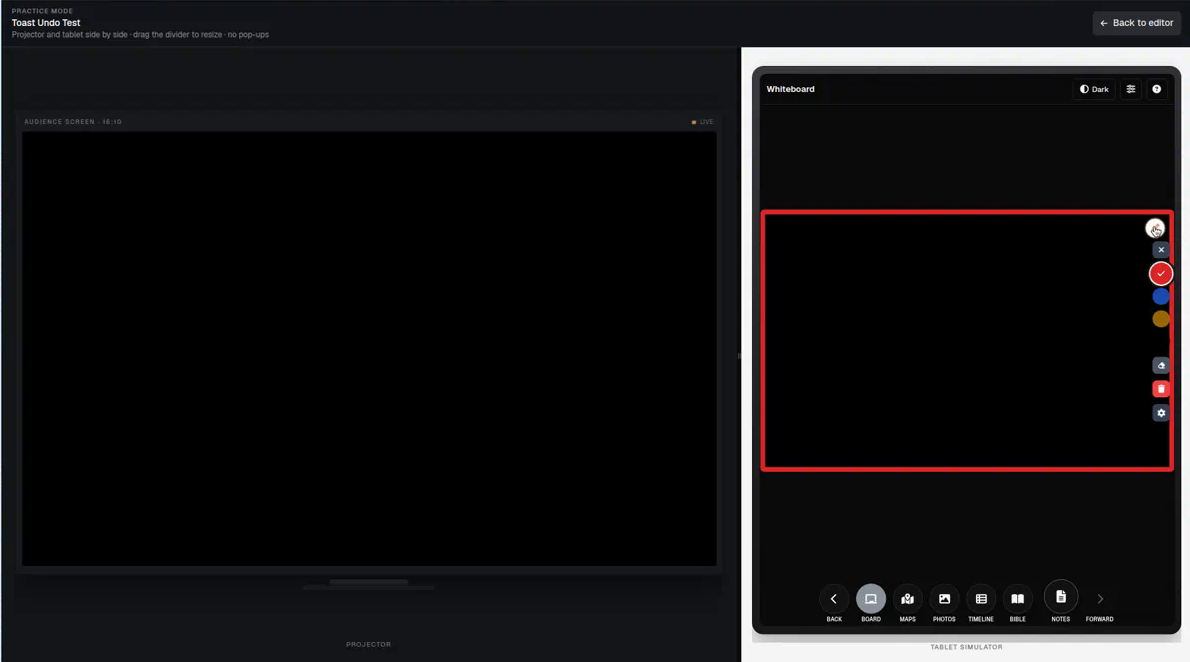
- Pen — color swatches and line width from Pen colors & width… (same Display Settings pens used elsewhere on the tablet)
- Eraser — rub out a stroke
- Erase (trash) — clear the whole board
- Pencil on the board corner — enter or leave draw mode
On a prepared deck, Settings also has Open in draw mode if you want the pen ready every time you tap Board. Dedicated On the fly already starts that way, so that toggle is hidden there.
The tablet shows a red frame around the board so you know what the projector is cropping. The room never sees that frame, the toolbar, or the FAB cluster.
| Shortcut | Action |
|---|---|
| d | Toggle draw |
| b | Toggle light / dark board |
| , | Settings |
| ? | Help |
| Esc | Leave draw, then leave Board (or tap Board / Notes) |
Most pulpits never need the keys. They are there if you rehearse on a laptop with a keyboard.
The projector stays clean
The sanctuary (and Campus follow-along phones, while Board is active) sees only the board color and your strokes. Pickers, settings, help, and the On the fly buttons stay on the tablet.
That is the same hospitality as On the fly Bible: the tool stays small so the room stays on what you are actually teaching.
When to leave
Board earns its keep in minutes, not movements.
- The sketch has named the relationship — tap Notes and keep preaching
- The next faithful move is a verse — tap Bible
- You only needed the board for Q&A — erase or just leave; the file is unchanged
Do not narrate the software. Draw the three words, say the text, close it.
Board vs the rest of the tablet
| Need | Use |
|---|---|
| Planned underline, dim, or callout on a verse slide | Annotations in the deck |
| Circle a word on a slide that is already up | Draw on slide |
| Verse / map / photo / chronology chart that was not in the file | On the fly |
| A diagram you did not author and will not keep | Board |
If the verse on screen is enough, leave Board closed. A blank board is not more spiritual than a prepared slide. It is simply faster when a sketch is the honest next move.
A quiet Sunday habit
- Prep the deck as you always do
- Know that Board sits with the other On the fly tools on the tablet
- When a sketch would serve the sentence, open it, draw lightly, speak the text
- Return to notes or Bible. Do not file the doodle. If it mattered, make a real slide on Monday.
BibleSlides remains a quiet servant: notes in your hand, a clean board on the projector when you need one, and a sermon document that is not cluttered with ink you never meant to keep.
Related guides
See BibleSlides features
Notes and slides in one document, Bible Verse slides, stepped markup, Verse Analysis, 3D maps, BiblePlaces photos, and tablet presenter apps — built for pastors who teach Scripture.