Let the room hold both sides — Heading + Columns
Heading + Columns in BibleSlides is a headline with two lists side by side. Leave Reveal points sequentially off when the room should see both sides at once. Turn it on and choose Columns, Both points, or Left → right. Separate slides puts each click in the editor and on the tablet. same slide keeps one slide: later lines stay quieter on the tablet, and the projector shows only what you have reached.
You have just read Galatians 5:19–23. The verse was on the screen. The sentence you are about to say has two sides: the works of the flesh, and the fruit of the Spirit. The third row can hold that contrast when both lists are on the wall. Then you come back to the text.
Heading + Columns in BibleSlides is that pair of lists under one headline. You type the two sides. The room reads the side you have reached.
A contrast that only lives in your margin is still private. If the congregation cannot see which words belong on the left and which words belong on the right, you are asking them to hold a comparison they cannot check.
The same shape shows up all year. Flesh and Spirit. The old self and the new self in Ephesians 4:22–24. Law and grace. The two builders in Matthew 7:24–27. The two ways in Psalm 1. What the text says beside what it does not say. Then, and now.
Which slide holds the contrast
| Moment | Slide |
|---|---|
| Read the passage | Bible Verse |
| One list the room should be able to repeat | Outline |
| What two truths share, and what stays distinct | Venn Diagram |
| A figure you draw yourself, including a two-column layout | Drawing |
| A headline and two lists, side by side | Heading + Columns |
Verse Analysis colors the parts of speech on the verse itself. Heading + Columns is the two lists in your own words. A book study keeps those lists in the same document as the notes.
Drawing has a Comparison layout when you want to place the boxes and the arrow yourself. Use Heading + Columns when the contrast is two lists you will type, not a diagram you will draw. A Venn Diagram is the overlap. This slide has no shared middle. The two columns stay apart.
Open the window
In the sidebar the section is SLIDE TYPES. The hint under it reads Click a type to add a new slide. Choose Heading + Columns. On a new account it sits in that list, between Drawing and Quote. The catalog line reads A headline with two columns of text.
The hover says Press, then the shortcut, which starts as Ctrl+Shift+1 (Cmd+Shift+1 on a Mac).
More slide types opens the full catalog when your list has been shortened. The dialog reads: Click on any slide type to open it. Use the pin button to add or remove slide types from the sidebar menu. Drag and drop to reorder.
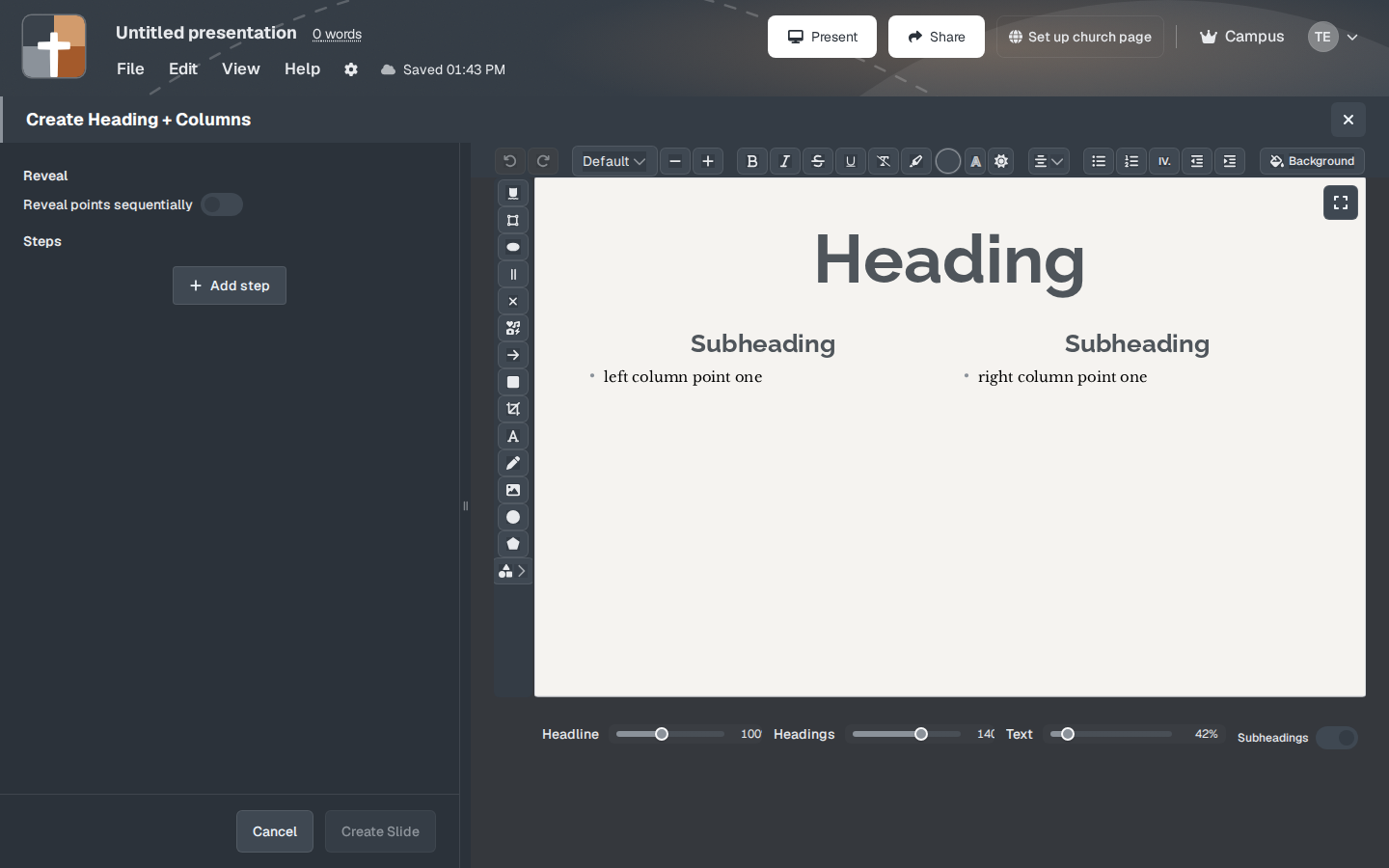
The window title is Create Heading + Columns. The preview starts with placeholder copy: Heading, a Subheading over each column, left column point one, and right column point one. Each point has a filled dot. Create Slide saves the slide into the deck. Cancel discards it.
What you type
On a computer you type on the preview. Click Heading and replace it. Click each Subheading. Click a point and replace it. One line is one point. Enter starts the next line in that column.
On a phone the fields are Heading, Left subheading, Left column, Right subheading, and Right column. The column fields say One point per line. Reveal and the step rows sit under Advanced.
The list starts as a Bulleted list. A top-level line uses a filled dot. Increase indent nests the next line under it, with an open dot and a slightly smaller size. One more indent uses a small square. Decrease indent brings the line back out. Numbered list counts the lines. Both columns use the same list. You cannot bullet the left and number the right. Click the list button that is already on and the marks come off, so the points are plain lines.
Under the preview, Headline, Headings, and Text set the size of the title, the two column titles, and the points. They start at 100%, 140%, and 42%. Subheadings shows or hides those column titles. Its hover reads Show or hide column subheadings. It starts on. Turn it off when the headline is enough and the two lists should sit under it with no small titles.
Alignment places the headline left, center, or right. Center is the start. The column titles stay centered. Background sets the slide background.
Create Slide needs words in at least one column. The untouched placeholders are not saved. A headline with both columns still empty stops with Please add content to at least one column.
Both sides at once, or one side at a time
Reveal points sequentially is off when you open the slide. The headline and both columns are on the screen together. Use that when the contrast only works if the room sees both sides at once: the two builders, law and grace as one picture, what the text says beside what it does not say.
Turn it on when you will finish one side, then bring in the other. Three choices appear under the switch.
| Choice | What the next click adds |
|---|---|
| Columns | The whole left column first, then the right column with it. This is where the choice starts. The step row reads 1: left column, then 2: right column. |
| Both points | The next line in both columns together. The row reads 1: point 1. |
| Left → right | Every line on the left, one click at a time, then every line on the right. The first row reads 1: left 1. The first line of the right column is right 1 on its own later row. |
The headline arrives with that first click. There is no frame that is only the headline.
A nested line arrives with the rest of its column when the choice is Columns. In Both points and Left → right, each line is its own click, including a line you nested with Increase indent.
Where points live appears once the switch is on.
| Choice | What Sunday does |
|---|---|
| Separate slides | Each click becomes its own slide in the editor and on the tablet. This is where the control starts. The line under it reads: Each point becomes its own slide in the editor and on tablet. The first slide is the headline with the first column, or with the first line. The next slide keeps that and adds what the next click reveals. |
| same slide | The clicks stay on one slide. The line under the control reads: Reveal points here with arrows. No extra slides in the editor or on tablet. |
On same slide, the projector shows only what you have reached. Lines still ahead stay off the house screen until you advance. In the editor and on the tablet, those later lines remain on the slide in a quieter color, so you can see what is coming while the room sees the side you are teaching.
You advance the clicks. The columns do not play on a timer.
Galatians 5, one side and then the other
| Place | Words |
|---|---|
| Heading | Galatians 5:19–23 |
| Left Subheading | Works of the flesh |
| Right Subheading | Fruit of the Spirit |
| Left column | sexual immorality, impurity, idolatry, enmity — the lines you will actually say |
| Right column | love, joy, peace, patience — the lines you will actually say |
Leave Reveal points sequentially off when both lists should be up while you read the verse again. The two builders and Psalm 1 are often that kind of moment. The room needs the pair, not a second click.
Turn the switch on and leave Columns when you will finish the flesh list, then bring in the fruit. The first click is the headline, Works of the flesh, and that whole list. The step row reads 1: left column. The next click keeps the left list and adds Fruit of the Spirit. The row reads 2: right column.
Choose Both points when each line on the left has a partner on the right. “What the text says” and “what it does not say” is that kind of pair: one line on each side, then the next pair. Choose Left → right when you will name every line on the left before the first line on the right, and each line should wait for its own click.
Leave Separate slides when each of those clicks is its own moment in the notes and on the tablet. Choose same slide when you want a single slide and the arrows.
Then return to the Bible Verse slide.
Saturday
- Stay in the passage. Insert Heading + Columns after the verse you will explain, or where the contrast is the point of the paragraph.
- Replace Heading, each Subheading, and the points with the words you will actually say. One line is one point. Nest a supporting line with Increase indent.
- Leave Reveal points sequentially off when the room should see both sides together.
- Turn it on to bring the contrast in. Columns brings the left list, then the right. Both points pairs the lines. Left → right finishes the left lines first.
- Under Where points live, Separate slides puts each click in the editor and on the tablet. same slide keeps one slide.
- Advance the clicks once in the editor, then the same order on the tablet. On same slide, the projector shows what you have reached, and the tablet keeps the later lines quieter.
FAQ
What does the first click show when reveal is on?
The headline together with the first column, or with the first line. Columns shows the whole left list. Both points shows the first line of each column. Left → right shows the first left line. The headline does not sit on the screen by itself.
Do the two columns have to use the same list?
Yes. Bulleted list, Numbered list, or plain lines applies to both columns.
Roman numeral list did nothing. What happened?
The IV. button is on the toolbar. This slide does not use it. Use Bulleted list or Numbered list.
Add step did not add a point. What happened?
A new point is a line you type on the preview. On a phone, type it in Left column or Right column. Add step is a frame for a mark on the columns you already wrote. With Reveal points sequentially off, the first Add step sets those frames to same slide. Where steps live then offers Separate slides or same slide. With same slide and reveal on, Add step adds another click that keeps the same points, so a mark can arrive on its own advance. With Separate slides and reveal on, Add step moves you to the next column or line you already typed. It does not invent a new line.
Who advances the columns?
You do. A Heading + Columns slide has no timer.
Create Slide will not save.
Type into at least one column. The placeholder words are not the slide. A headline with both columns still empty stops with Please add content to at least one column.
Related guides
See BibleSlides features
Notes and slides in one document, Bible Verse slides, stepped markup, Verse Analysis, 3D maps, BiblePlaces photos, and tablet presenter apps — built for pastors who teach Scripture.