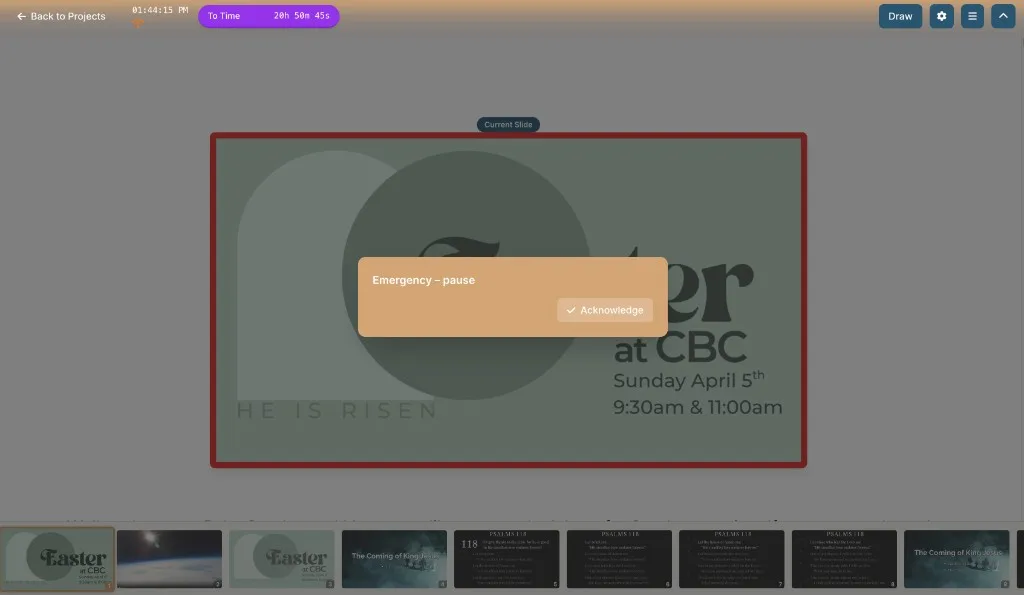
Security messages on the tablet — keep alerts off the house screen
Give your church security team a private link to message the speaker during the sermon. Presets and urgency levels land on the tablet — never on the projector — with Acknowledge so they know you saw it.
Sunday mornings carry more than a sermon outline. A child needs a parent. The service is running long. Something in the lobby needs a quiet pause. The last thing you want is a sticky note on the pulpit camera, a stage whisper that half the room hears, or a text that lights up a phone in the front row.
BibleSlides Security messaging is built for that gap: your security (or greeter / booth) team opens a private link, sends a short message, and it appears on your tablet — not on the house screen. You tap Acknowledge. They see that you saw it. The Word stays on the projector.
Tech alerts belong on the stage remote. Scripture belongs on the wall.
The pastor’s problem: interrupt without interrupting
What usually happens when security needs the speaker:
- Someone walks the aisle with a folded paper — every eye follows
- A phone buzzes on the podium — half the room wonders what just arrived
- AV flashes a cue on the confidence monitor that sits in camera view
- Nobody wants to “bother” you, so the message arrives five minutes too late
None of that matches a quiet Sunday: one teaching deck, one projector, one tablet in your hand.
What Security messaging is
In BibleSlides it is a per-document security team link, not a general chat app and not the site’s data-security policy page.
| Piece | Job |
|---|---|
| Security team link | One URL (/security?token=…) tied to this presentation |
| Portal | Phone or laptop page: presets, custom text, urgency |
| Tablet banner / overlay | Where the message lands for the speaker |
| Acknowledge | Clears the alert and tells the portal you saw it |
Landing copy puts it simply: Tech alerts appear on your tablet — not the main screen. Stream Deck’s Security Ack key exists for the same loop when you use BibleSlides Present.
Set it up once (then reuse the emails)
Open Options for the presentation and choose the Security tab (Security team).
- Generate link — create the portal token for this document (Copy when you need to paste it yourself)
- Security team emails — save the addresses you use every week (account-level; not only this one sermon)
- Send link to security team — emails them the portal URL for this document
You can Revoke a link when the hour is over or a phone changes hands. An invalid or revoked link shows Link invalid or revoked on the portal — ask the presenter for a new one.
Optional: prompt when the tablet loads
In tablet Display Settings, turn on send security link on load when you want BibleSlides to offer Send link to security team? after the deck opens — only if you have saved contacts, and only once per document per day. Default is off so rehearsal does not spam the team.
A common rhythm: generate and send before the welcome song; leave the portal open on a lobby phone or security tablet.
What security sends
The portal title is Message the speaker. No BibleSlides account is required for the team — only the link.
How intrusive (urgency):
| Level | What the speaker sees on the tablet |
|---|---|
| Subtle (banner) | Quiet banner across the tablet |
| Flashing (attention) | Banner that pulses so it is hard to miss |
| Emergency (full screen) | Full-screen overlay until you acknowledge |
Presets (one tap):
- 5 minutes left
- Please wrap up
- Check with staff
- Emergency – pause
Or type a custom message (up to 500 characters) and tap Send.
After send, the portal shows Sent — waiting for speaker to acknowledge, then Acknowledged by speaker once you clear it on the tablet. That closed loop matters more than another unread text thread.
What you see on stage (and what the room does not)
Messages ride the presentation connection to the tablet (and Stream Deck security state). The slideshow / house window is not the place for “Please wrap up.” Relays for drawing, live tools, timers, and security stay aimed at the stage remote — so a timing cue does not become a slide.
On the tablet:
- Banner or emergency overlay appears with the text
- Tap Acknowledge (or use Stream Deck Security Ack when that key is flashing)
- The alert clears; the portal marks it acknowledged
You keep teaching. Security knows the message landed. The sanctuary never saw the banner.
A quiet Sunday workflow
- Before service: Options → Security → generate link (if needed) → Send link to security team
- Confirm the lobby / security phone opens the portal and can send a test Subtle preset while you watch the tablet in Practice
- Preach from the tablet as usual — notes, advance, timers
- When a real cue arrives, acknowledge and adjust (wrap, pause, check with staff) without stopping the room for a stage conversation
- After service: Revoke the link if that token should not live on a volunteer phone overnight
Pair this with the rest of the stage stack when it helps: booth URL for AV on the house cable, tablet presenter for notes in your hand, Stream Deck when you want hardware Ack under a thumb.
When not to lean on Security messaging
- Ordinary sermon timing you already manage with tablet timers — do not turn security into a clock
- Content notes for yourself — keep those in speaker notes, not a security ping
- Public announcements the whole room should hear — put those on a slide or the worship software stack
- Anything that should interrupt the projector — this tool deliberately does not
BibleSlides stays a quiet servant: Scripture on the house screen, pastoral cues on the tablet, then out of the way.
Related guides
See BibleSlides features
Notes and slides in one document, Bible Verse slides, stepped markup, Verse Analysis, 3D maps, BiblePlaces photos, and tablet presenter apps — built for pastors who teach Scripture.