Share the sermon — Read only or Editor in the Campus library
In BibleSlides, Share → Add to Campus library asks for Campus access. Editor lets anyone on the campus plan change the shared sermon. Read only lets them open it and copy it into My Projects, then present that copy.
The associate is preaching the same series at the other site. Youth has Wednesday. You finished the sermon on Thursday. Email the file, and someone will change the original without meaning to. Keep it private, and they will rebuild it, and the room will hear two versions of a text you already worked through.
BibleSlides Campus library is the shelf for that sermon. Share → Add to Campus library asks how the team may use it. Editor means anyone on the campus plan can change the shared sermon. Read only means they can open it and copy it into their own projects. The sermon you finished stays the sermon you finished.
A series the church will preach in more than one room needs a shelf. The access you pick decides whether they edit your file or start from a copy.
Campus Slides is the other shelf: one starred slide, dropped into a deck each teacher is already writing. This article is the whole presentation.
One sermon for the campus plan
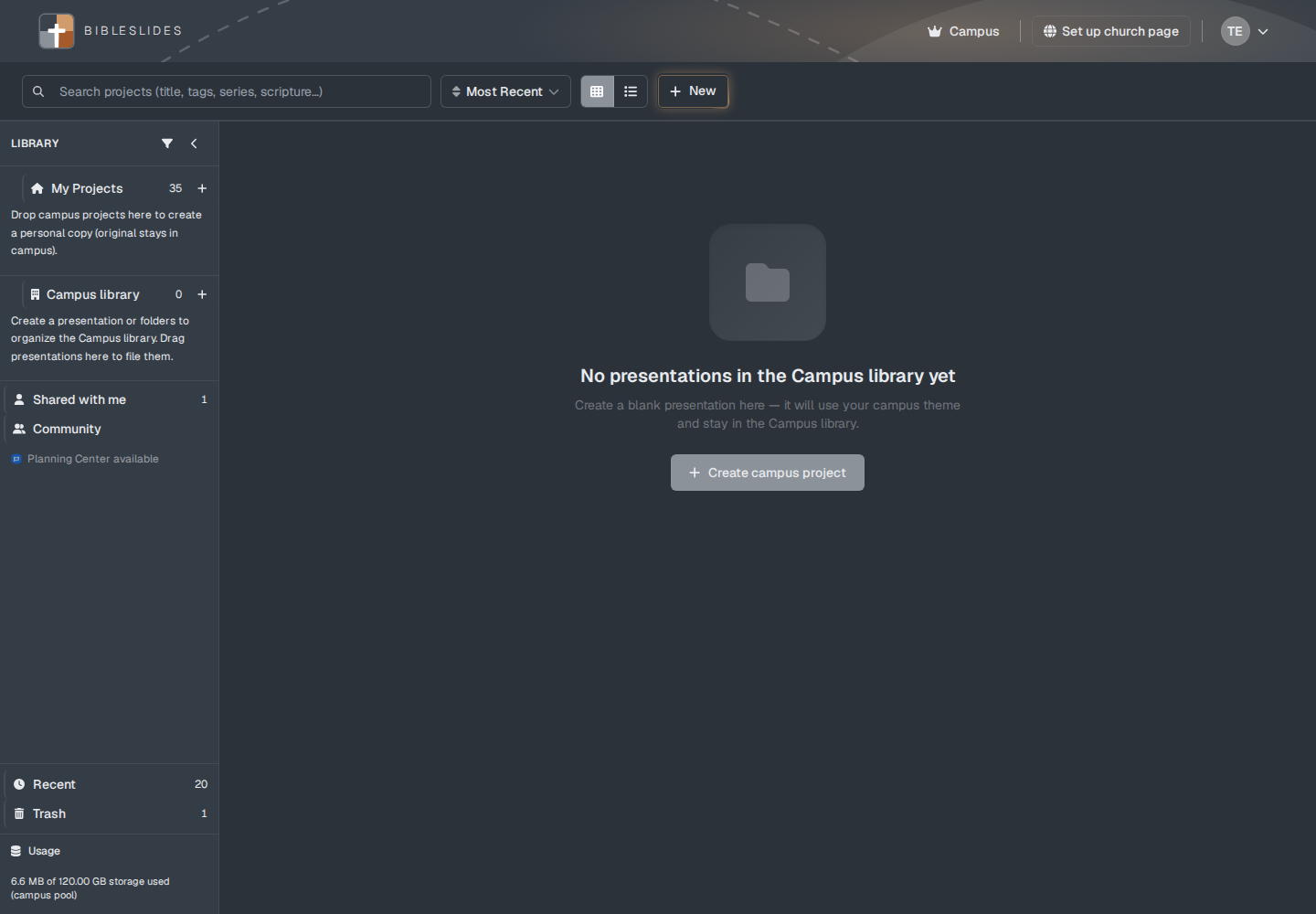
Campus library is on the projects page, under LIBRARY. The helper line is “Shared with everyone on your campus plan — not your public church page.” The public address for the congregation is still the church page.
The row shows for a Campus account and for a campus member. Free and Premium do not get it. If the plan is not active, the banner says “Campus library is locked because the campus subscription is not active. Projects stay here — they are not deleted.”
Only the owner of the presentation can put it on the shelf. Open Share, then Add to Campus library. The menu line is “Share this presentation with everyone on your campus.”
The question the window asks
The window title is Add to Campus library. The first line is the helper above. The next sentence is “Choose whether campus members can edit the original or only make their own copy.”
The label is Campus access. The window opens on the first choice.
| Choice | What the team can do |
|---|---|
| Editor — anyone on campus can edit | Campus members edit this shared sermon in the Campus library. |
| Read only — campus can view and copy | Campus members open it as read-only and can copy it into their own My Projects. |
Under Editor, the note reads “Campus members can edit this shared original in the Campus library.” Under Read only, it reads “Campus members open this as read-only and can copy it into their own My Projects.”
Then pick a place. Not in a folder leaves it outside a folder. Each folder name is listed under that. New folder asks for a Folder name, then Create. Cancel backs out. Add to Campus library puts the sermon on the shelf. While it runs, that button reads Adding...
The sermon leaves My Projects. It stays one file. When the campus has a theme, adding the sermon applies the theme saved under Campus admin → Theme.
A success toast reads “Added to Campus library.” When you chose read only, it reads “Added to Campus library as read only.”
You can also drag the sermon from My Projects onto Campus library, or onto a campus folder. The window title is the same Add to Campus library. One sermon says “Choose whether campus members can edit this presentation or only view and copy it.” Several sermons use the count in the line “Choose access for these 3 presentations.” The label is Campus access, with the same two choices. Under read only, the note is “Members open these as read-only and can copy them into My Projects.” Under editor, it is “Members can edit the shared originals in the Campus library.” The button is Add to library (Adding… while it runs). Cancel backs out. When you are looking at My Projects and the campus list is still empty, the sidebar says “Drop presentations here to add them to the Campus library.”
A blank deck you start inside the library is a different path. The empty line is “Create a blank presentation here — it will use your campus theme and stay in the Campus library.” The button is Create campus project (Creating… while it runs). That new sermon starts as Editor.
Sermons already on the shelf from before this choice existed stay Editor until the owner or a campus admin changes Campus access. They are not switched to read only on their own.
Editor, when you are writing it together
Choose Editor when two people are responsible for the same sermon. A co-teacher opens Campus library, opens the sermon, and edits the slides and the notes. There is one file. BibleSlides saves each person’s work. The next open has what was saved. If the sermon changed while you had it open, reload.
Anyone on the campus plan can edit it while access stays Editor. The owner can still edit it too. The choice you make for the team does not lock you out of your own sermon.
If someone else already has that sermon open, the window is Take over this presentation? The line names who has it open in the editor or the slideshow, and asks you to take over before you both change it. Take over continues (Taking over… while it runs). Go back leaves. One person should hold the sermon while they are changing it.
Use this when you will preach from the same deck: a co-teacher finishing the application, a campus admin correcting a verse reference before Sunday. For a series each site should adapt, use Read only. One saved edit on an Editor sermon is the sermon the rest of the team opens.
The owner, and any campus member while access is Editor, can Present that shared sermon and move the live session — the projector, and a tablet following the same deck.
Read only, when the sermon is finished
Choose Read only when the series is ready and another preacher needs a version for their own room. The owner still edits and presents the original. Read only is the access for everyone else on the campus plan.
A campus member opens the sermon from Campus library. In the list, the card shows View. In the grid, the corner mark reads READ. The editor does not let them change the slides. A banner across the top reads “This shared presentation is read-only. Make a copy to edit it in your projects.” The button on that banner is Make a copy. The window title is Enter File Name. File Name starts as the sermon title plus “ Copy”. Folder is where the copy should live. Confirm makes it (Copying... while it runs).
From the library, the card menu and Share both offer Copy to My Projects. The line under it on Share is “Create your own private copy of this presentation.” The button reads Copying… while it runs. The copy opens in the editor. Its title is “Copy of ” plus the sermon title. The toast is “Copied to My Projects.” The library sermon stays where it was.
You can also drag the campus sermon onto My Projects, or onto a personal folder. The sidebar under My Projects says “Drop campus projects here to create a personal copy (original stays in campus).” The toast is “Copied to My Projects. The campus original was left in place.”
Present stays on the read-only sermon, so a campus member can open the slides. Moving the live session stays with the owner, and with campus members while access is Editor. A read-only member can watch that live presentation. They cannot take the remote. For their own service, they Present the copy in My Projects.
The same limit applies when you invite one person who is not using the campus shelf. Share → Invite to collaborate. The menu line is “Invite as Editor or Read only — read-only people can make their own copy.” The label is Permission. The choices are Editor and Read only. A read-only collaborator can watch the live presentation and cannot drive it. They use Make a copy for a version they can change.
Changing it later
The owner of the sermon, and a campus admin, can change Campus access after it is shared.
On the Campus library card menu, the label is Campus access. The choices there are the short names Editor and Read only. The toast is “Campus access set to read only.” or “Campus access set to editor.”
Share uses the same label and the long names from the add window. Switching to read only says “Campus access set to read only. Members can still make a personal copy.” Switching to editor says “Campus access set to editor. Members can edit this presentation.” A campus admin who does not own the sermon sees “As a campus admin you can change access for any library presentation.”
Taking it off the shelf belongs to those same people. On Share, Remove from Campus library reads “Move this presentation back to its owner's private projects.” Delete reads “Move this presentation to Trash.” The card menu includes Delete for the owner and for a campus admin. Other campus members can open the sermon and copy it. They do not get those controls.
A week with two rooms
- Finish the sermon you mean the other room to start from.
- Share → Add to Campus library. Set Campus access to Read only — campus can view and copy. File it, or leave Not in a folder. Add to Campus library.
- The campus pastor opens Campus library, sees View, and chooses Copy to My Projects.
- They edit the copy for that room — a different illustration, a shorter closing, the translation that congregation reads. The library sermon stays as you shared it.
- Sunday, they Present the copy. You Present the original.
- When a co-teacher should keep writing the same file, set Campus access to Editor — anyone on campus can edit, and agree who saves last.
For one map or one timeline the church already trusts, star the slide. That is Campus Slides. For the sermon itself, use the library and pick the access on purpose.
FAQ
Who can add a sermon?
The owner. Share → Add to Campus library, or drag it from My Projects onto Campus library.
Who can switch Editor and Read only?
The owner, or a campus admin, from the card menu or from Share. Both say Campus access.
Will a copy change the library sermon?
Copy to My Projects and Make a copy make a private sermon. The campus original stays in the Campus library.
What about sermons already in the library?
They remain Editor until someone changes Campus access.
Which plan includes the library?
Campus. See Free, Premium, and Campus.
Related guides
The projects page and the empty-library line are also in the Help Center: Campus library.
See BibleSlides features
Notes and slides in one document, Bible Verse slides, stepped markup, Verse Analysis, 3D maps, BiblePlaces photos, and tablet presenter apps — built for pastors who teach Scripture.