Star it once — Campus Slides for a church teaching team
Campus Slides in BibleSlides lets one teacher star a slide for the campus plan. The rest of the team searches it, files it in folders, and drops a copy into their own deck.
The associate already built the route. Youth rebuilt it for Wednesday. The women’s study rebuilt it again, because nobody could find the file. Sunday night, someone traces the same path in a new deck.
A church with more than one person teaching does this all year. The Romans Road, drawn once. The kings of Israel and Judah, in order. Abraham’s household. The giving slide, in the church’s own words. Each is useful the second time. Rebuilding them steals the afternoon the text should have had.
BibleSlides Campus Slides is the shelf for that second time. One person on the campus plan stars a slide. Everyone else on that plan can find it, file it, and drop a copy into the deck they are already writing.
A map that only lives in one pastor’s file is still private. The next teacher will draw it again, a little differently, and the room will learn two versions of the same road.
One slide for the team, one deck for Sunday
Campus Slides lives in the editor. Under the sidebar heading LIBRARIES, the row is Campus Slides. The tooltip reads “Campus assets: slides shared with your campus.” Open it and the window title is Campus Slides.
That row is one slide. A finished sermon is a different shelf.
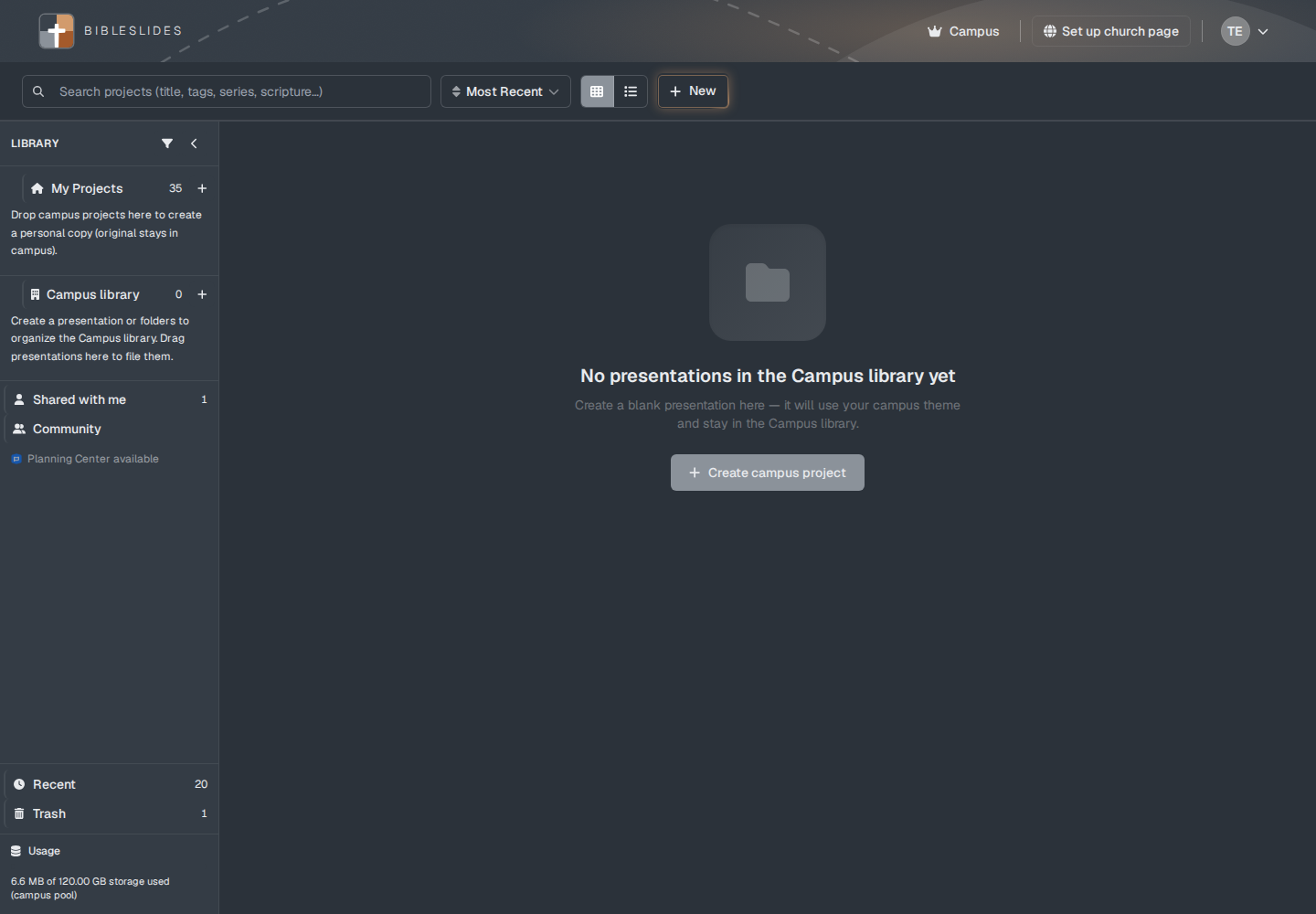
On the projects page, Campus library holds whole presentations. The helper line is “Shared with everyone on your campus plan — not your public church page.” Share → Add to Campus library puts the deck there. The menu line is “Share this presentation with everyone on your campus.” Inside that library, a new deck uses the line “Create a blank presentation here — it will use your campus theme and stay in the Campus library.” The button is Create campus project.
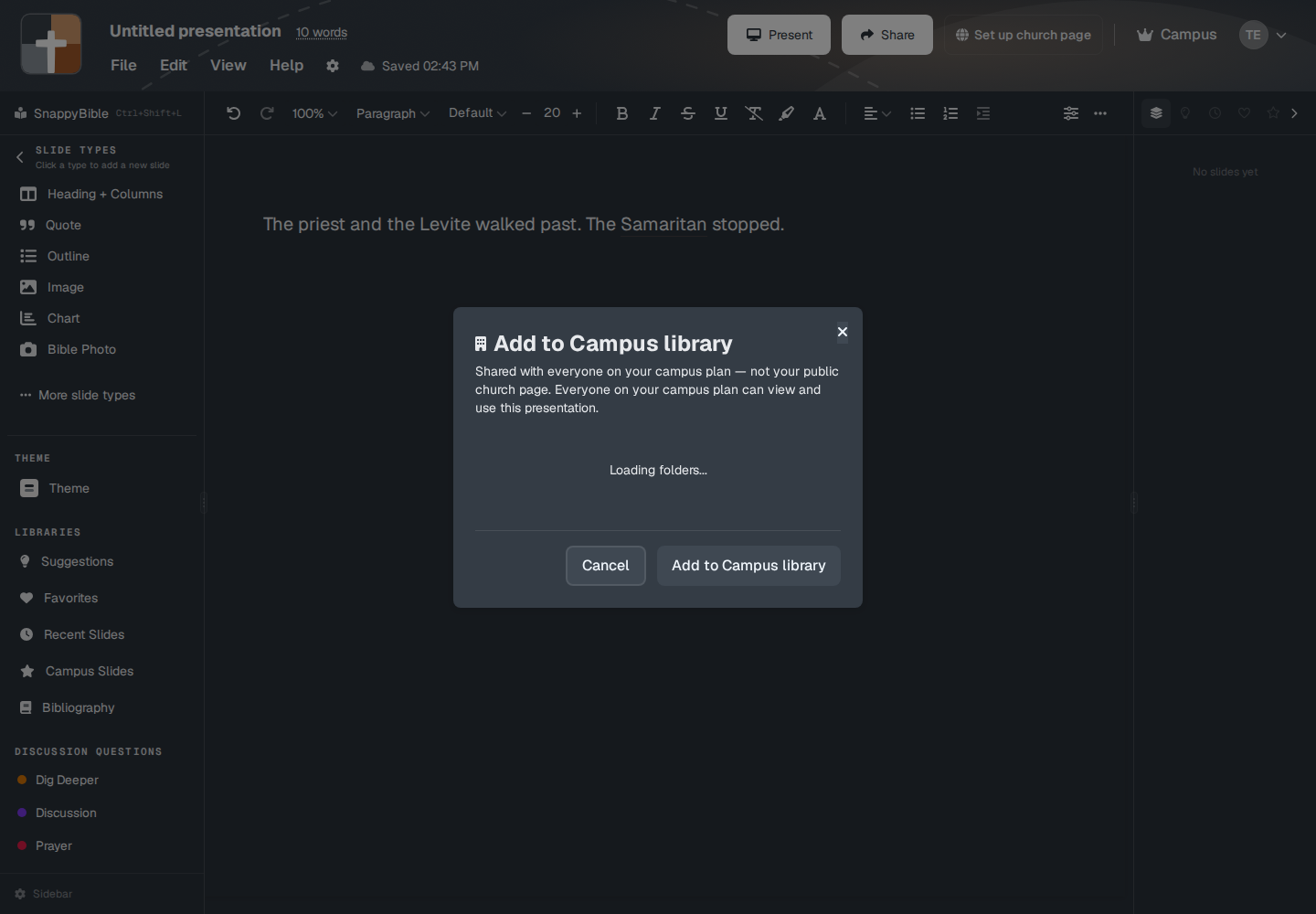
Use the projects library when the team should open the same sermon. Use Campus Slides when each teacher is writing their own message and only needs the visual the church already trusts. Favorites stays personal — the heart tooltip is “Save this slide to your personal favorites for quick access across projects.” The church page is the public address for the congregation.
Who sees the row
Campus Slides shows for a Campus account and for a campus member on that plan. Free and Premium do not get the row.
The Campus card on Subscription Plans opens on 5 seats at $49 per month. The other choice is 30 seats at $199 per month. The feature list on that card includes Campus assets library. A campus member uses the church’s seats. Any email address can hold one. Campus admin is where members are added and removed.
Everyone on that plan shares one shelf: senior pastor, associate, youth, small-group leaders, women’s and men’s Bible study, and a teacher at another site on the same plan. A second subscription is a second shelf.
If the plan is no longer active, the editor hides the row. Slides already shared are kept.
Star the slide
Build the slide in a normal presentation until you would hand it to a colleague. Then share that version.
On the root slide in the editor — a step that belongs under another slide does not get this menu — open the corner control titled “Slide actions: favorites, campus, tag to verse.” The button is the heart. Inside the menu, the campus row is a star and the word Campus. The tooltip is “Add this slide to your organization campus library so staff can find and reuse it.”
Any teacher on the campus plan can do that. The row changes to Added to campus after the copy is stored. The new copy lands at Root until a campus admin files it.
The stored copy is the slide at that moment, with the sharer’s name on the card (“by” and the name). Edits you make afterward stay in your deck. Star again when the shelf should carry the newer version, and have an admin remove the older card. Tag to verse, on the same menu, only links a slide to a Bible reference. Starring does not publish the sermon.
Find it and put it in this week’s deck
The LIBRARIES row opens the full window. The slide list beside the notes has a Campus Slides tab for a quicker insert while you are already writing.
In the window, search is Search slides... All contributors lists email addresses. Sort by Date, Person, or Type. The button beside that list is titled Newest first, or Oldest first after you flip it. A new window opens on Date, newest first.
Search matches the type name — 3D Bible Maps, Timelines, Family Tree, Definition, Bible Verse — and the contributor’s name or email. It does not read the words on the slide. “Romans” will miss a map whose type is 3D Bible Maps. Put “Romans Road” on the folder, and people browse there. A miss says No matching slides and “Try a different search term.” During a search the folders hide, and matches come from the whole shelf.
An empty shelf says No campus slides yet and “Click the star icon on any slide to share it with your campus.” Loading says “Loading campus slides...” The breadcrumb starts at Root. Cards show a preview, the type name, and “by” plus the person who shared it. Use Slide copies the slide in at the cursor and closes the window. Sunday edits on that copy stay in your document.
On the tab, search says Search campus. The hint is “Drag onto the canvas to insert.” The card button is Add slide (Adding… while it runs). An empty tab says No campus slides yet and “Star a slide to share it with your campus, then drag it onto the canvas.” File and remove in the window. Insert from either place.
Folders, and who should keep them
Any teacher on the plan can star a slide. Filing belongs to a campus admin. The plan owner is one. Others are added under Campus admin → Admins. Only an admin sees New Folder, Rename, Delete folder, Move to folder, and Remove from campus slides.
New Folder asks for a Folder name, then Create or Cancel. Enter creates it. Escape backs out. Create one from inside a folder and it nests there. Rename is the pencil. Delete folder sends that folder’s slides back to Root and moves inner folders up to Root. The slides stay. Move to folder opens Move to: with Root and each folder name. Remove from campus slides shows the banner “Removed from campus slides.” Undo restores the card, folder included, for about five seconds.
On a small staff the curator is usually the admin who already keeps the member list. They keep the shelf readable. Teachers star. The admin files.
| Folder | What lands there |
|---|---|
| Maps | A route or a region the church teaches more than once |
| Timelines | Kings, Paul, the life of Christ, the nativity chart |
| Family | Abraham, David, the line Matthew opens with |
| Words | A definition the team has agreed how to say |
| Announcements | Giving, a midweek gathering, the church’s own wording |
Leave Root for what was starred this week and not filed yet. If Root is a pile, search cannot see the title painted on the map. Five folders, named for the teaching, will outlast a system nobody else can guess.
What is worth starring
Star the slide the next teacher would otherwise rebuild, once it is readable from the back row.
A route. 3D Bible Maps holds the path, the stops, and the steps you reveal. A Romans Road the church actually uses — the places, or a drawn path the room can follow — goes on the shelf. The next series starts from that copy and edits for the passage in front of them.
A chronology. Timelines includes Period of the Kings, Timeline of Paul, Life of Christ, and Nativity Chronology. Star the kings chart after you have checked the events against the text. A second site and a Wednesday class can both start there.
A household. Family Tree is Abraham’s line, or David’s, or the names in Matthew 1. Frame the people you will say out loud, then star that framing. The next teacher still chooses where to linger.
A word the church says the same way. A Definition slide for grace, covenant, or justification can live in Words when the gloss is a church decision. A diagram that only serves this paragraph stays in that sermon.
An announcement in the church’s voice. Giving, a class, a night of prayer. The usual types are Heading + Text, Image, or Powerpoint Draw, and the card shows that name. Use the words already on the website and the bulletin. Change the date in this week’s deck.
Teaching starter still builds verse slides and outline points from the passage. Campus Slides is where you reach for the visual the church has already made. Planning Center still holds the service plan. The shared slide drops into the deck that plan will point at. One job, a type name a teammate can recognize, and nothing that expires on Saturday.
Theme and watermark
Campus admin → Theme is the shared look for campus-library presentations. After you save, the page says “Campus theme saved (colors, fonts, and background). Campus library decks default to this theme.” Create campus project starts a deck on that theme.
A starred slide does not store that theme. Use Slide and Add slide put the slide’s content into the open document. A text color you set on a timeline travels with the copy. A Powerpoint Draw canvas keeps the shapes and colors you drew, which is how a giving slide arrives already looking like the church. Where the slide has no color of its own, the open presentation’s theme draws it — including the campus theme, when the deck was created in the campus library.
Campus admin → Watermark is the mark on output, not a color inside the slide. The heading is Slide watermark: an optional logo or mark on slideshow output for every campus member, on all slide types, including Bible app overlays. The checkbox is Show watermark on all campus slideshow output. Saving says “Watermark saved. It will appear on slideshow output for all campus members.” Set it once. A slide from Campus Slides picks it up when a campus member presents, along with the rest of that deck.
When to leave it off the shelf
- The application that names this Sunday’s story, this retreat, or a point only this preacher will make.
- A plain Bible Verse slide. The next deck can set its own text and translation. Unmarked verse cards are harder to search than they are to rebuild.
- A slide you are still moving around. The half-built route becomes the one people trust.
- A slide only you need. Use Favorites.
- A whole sermon. Add to Campus library shares the document. Starring every slide fills Root and leaves your notes behind.
The shelf is for what the church will say again. The sermon is for what this text is saying now.
A week with more than one teacher
- Pick one visual more than one teacher will need.
- Build it until the back row can read it. For the church’s colors from the start, create the deck with Create campus project.
- Open Slide actions and choose Campus.
- The campus admin uses Move to folder. If this copy replaces an older card, they use Remove from campus slides, and Undo if that was a mistake.
- The next teacher opens Campus Slides in their own document and chooses Add slide, drags the card, or chooses Use Slide.
- They edit the copy for this passage. The shelf keeps the original.
- Sunday — or midweek — present that deck from the tablet, or publish it to the booth URL if AV runs the house screen. The small-group leader uses the same shelf for a shorter document.
The tablet
The iPad and Android apps present. Speaker notes and slide control live there. Build and edit in the web editor.
Those apps can list campus-library presentations. Their campus services load those decks and folders. They do not load Campus Slides, so you cannot star a slide from the presenting app. After Use Slide has put a copy into a deck, the tablet presents that deck like any other.
FAQ
Who can star a slide, and who can file it?
Anyone on the campus plan can choose Campus. New shares land at Root. A campus admin makes folders and uses Remove from campus slides. Undo on the banner restores the card for about five seconds.
Will Sunday edits change the shared slide?
Starring stores a copy. Inserting stores another copy in your document. Star again when the shelf should carry a newer version, and have an admin remove the card the team should stop using.
Which plan includes it?
Campus opens on 5 seats at $49 per month, or 30 seats at $199 per month, and the row is on that plan. See Free, Premium, and Campus.
Related guides
The field labels and the empty-shelf line are also in the Help Center: Favorites and libraries (the Campus Slides section) and Campus library (whole presentations on the projects page).
- Draw Bible map routes with nodes, arrows, and stepped reveals
- Timelines for Paul, kings, and the life of Christ
- Family Tree for Abraham, David, and Jesus
- Verse analysis and definition slides
- Teaching starter for a Sunday deck
- BibleSlides and Planning Center
- Booth URL when AV runs the house screen
- Sermon slides on a tablet
See BibleSlides features
Notes and slides in one document, Bible Verse slides, stepped markup, Verse Analysis, 3D maps, BiblePlaces photos, and tablet presenter apps — built for pastors who teach Scripture.