Preach when the Wi‑Fi drops — offline tablet sermon slides
Make Sunday’s deck available offline, open it from Projects without a network, and tap Use offline on the tablet when projector sync stalls — so notes and slides stay with you.
Church Wi‑Fi fails at the worst moment: welcome song finished, tablet in hand, projector waiting. The room still needs Scripture on the screen and your notes under each slide. BibleSlides is built so a cached sermon deck can keep serving when the network doesn’t.
Offline tools should be quiet insurance. The text stays first; connectivity is a servant, not the sermon.
What “offline” means here
BibleSlides cloud sync is excellent when the building cooperates. Offline is for the other Sundays:
| Situation | What you need |
|---|---|
| Sanctuary Wi‑Fi dies mid-message | Keep reading notes and advancing the deck you already opened |
| Prep at home, present in a dead zone | Open the same project without waiting on Firebase |
| Booth laptop online, tablet on flaky guest Wi‑Fi | Stop reconnect thrash so the tablet stays responsive |
This is not a second product. It’s the same sermon document — notes interleaved with slides — stored on the device so Sunday isn’t held hostage by a router.
Before Sunday: Make available offline
On Projects, open the project card menu and choose Make available offline.
- Toast: Project available offline on this device.
- Badge: Available offline
- To free space later: Remove offline availability
Pin the decks you will actually preach. Recently opened projects can also auto-cache (a short recent list), but an explicit pin is the Friday habit that prevents Saturday panic.
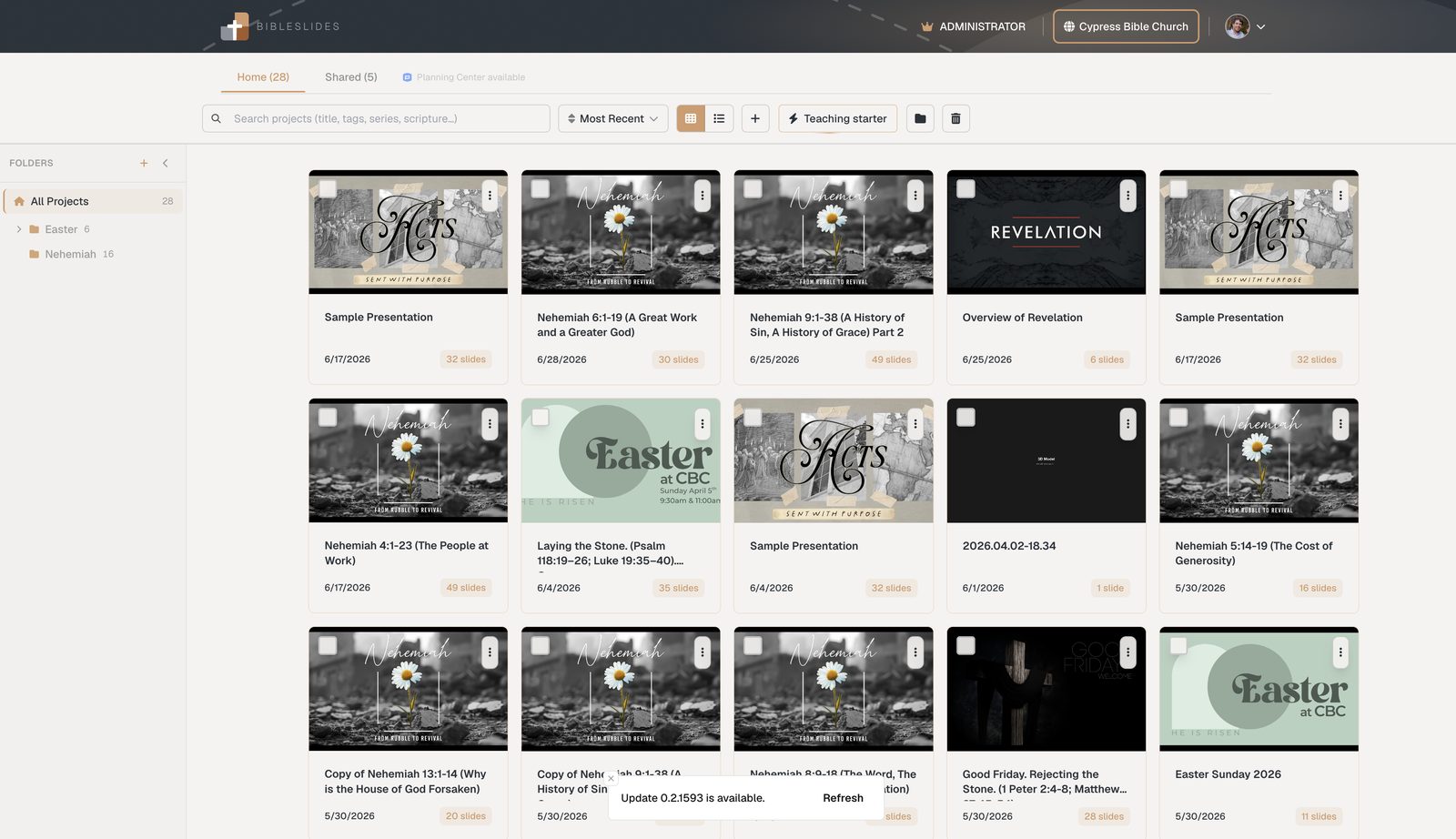
If you are already disconnected, BibleSlides will ask you to connect first to download a new pin — you can’t fetch what the device never stored. Pin while you still have signal.
Open the deck with no network
When the browser reports offline, Projects can list cached documents from this device (IndexedDB snapshots), even before auth finishes hydrating. Open Sunday’s pinned project the same way you always do.
That matters for pastors who finish notes Friday night, then walk into a basement classroom or outdoor service where guest Wi‑Fi is ornamental.
Soft caps keep storage sane (pinned decks and auto-cached recent opens). Treat pins like printed outlines: keep this week’s series, retire last month’s.
On the tablet: Use offline when sync stalls
The tablet presenter watches projector/Firebase sync. If connection drops:
- The Wi‑Fi indicator pulses (about 45 seconds) so you notice without a modal
- After about two minutes without reconnect, a prompt offers offline viewing:
“Can't reach the projector sync service. Want to keep viewing this presentation offline?” - Tap Use offline
Use offline pauses projector sync reconnect thrash so the tablet stays usable. Connection Status then reads Viewing Offline: you can keep reading the presentation like a PDF — notes and slides already on the device — until you Retry connection when the network returns.
Important pastoral nuance: offline tablet mode keeps you oriented in the deck. Live booth sync and remote slide push need the network again. Pair offline tablet notes with a booth that already has the slideshow running, or reconnect when Wi‑Fi returns.
Edit offline, then resolve conflicts calmly
If you edit while disconnected, changes queue locally (Pending / Syncing badges). When both you and the cloud changed the same project, Sync conflict offers:
| Choice | Result |
|---|---|
| Keep my offline version | Uploads your device copy (overwrites cloud) |
| Keep cloud version | Loads the live cloud copy |
| Save mine as a copy | Keeps both — your work becomes … (offline copy) |
You decide after the service, not mid-illustration. The tool waits.
Optional: single-file offline slideshow HTML
For venues that need a self-contained projector file (no Firebase, no font CDN), BibleSlides can build a one-file offline slideshow HTML — embedded slide images, keyboard/click advance, fullscreen. Filename pattern: your-title-offline-slideshow.html.
Use that when a media volunteer must open something in any browser with zero network — not as a replacement for the tablet notes experience. Don’t confuse it with PowerPoint import; import brings decks in, offline HTML export is a separate present path.
Friday checklist (five minutes)
- Finish Sunday’s project in the editor
- On Projects → Make available offline for that deck (and next week’s if you’re ahead)
- Open it once on the preaching tablet while Wi‑Fi still works
- Know where Use offline / Retry connection live in Connection Status
- If the booth needs a no-network file, export the offline slideshow HTML ahead of time
For everyday tablet advance, timers, and large-type notes, see sermon slides on a tablet and tablet timers & % left. For rehearsal before people arrive, use practice mode.
Why this serves the room
Offline presenting is hospitality to the preacher and the congregation: fewer “sorry, loading…” moments, fewer USB stick archaeology sessions, and a tablet that still shows the verse you’re explaining when the guest network gives up.
BibleSlides stays a quiet servant — Scripture on screen, notes under the slides, and a cached copy ready when the building’s Wi‑Fi isn’t.
Related guides
See BibleSlides features
Notes and slides in one document, Bible Verse slides, stepped markup, Verse Analysis, 3D maps, BiblePlaces photos, and tablet presenter apps — built for pastors who teach Scripture.