Let the room read the prayer — Text Only slides
Text Only in BibleSlides is a paragraph with no headline. Use it for a prayer, a benediction line, or a short reading that should not compete with a title. The whole paragraph is on the screen at once. Add step is a mark you advance. A long reading stays in the notes.
You have finished the passage. The verse was just on the screen. The next thing the room should see is a prayer, a benediction, or a short reading you will say together. A title above those words is another line the back row has to sort out. The words themselves are the slide.
Text Only in BibleSlides is body text with no headline. You type the paragraph. The room reads it. Then you come back to the text.
The slide is a window onto the words you will say. Put up the sentence the room should read, and leave the rest of the prayer in your notes.
Which slide holds the words
| Moment | Slide |
|---|---|
| Read the passage, with the reference | Bible Verse |
| One list the room should be able to repeat | Outline |
| A line that needs the name under it | Quote |
| A headline and two lists, side by side | Heading + Columns |
| A paragraph, a prayer, or a short reading, with no title above it | Text Only |
Verse Analysis colors the parts of speech on the verse itself. Text Only is the paragraph in the words you will say. A book study keeps that paragraph in the same document as the notes.
When the words are the passage you are teaching, keep them on a Bible Verse slide so the reference and the translation stay with the text. Text Only is the prayer or the short reading, when a headline would compete.
Open the window
In the sidebar the section is SLIDE TYPES. The hint under it reads Click a type to add a new slide. Choose Text Only. On a new account it sits in that list, between Video and 3D Models.
The hover says Press, then the shortcut, which starts as Ctrl+Shift+0 (Cmd+Shift+0 on a Mac).
More slide types opens the full catalog when your list has been shortened. The dialog reads: Click on any slide type to open it. Use the pin button to add or remove slide types from the sidebar menu. Drag and drop to reorder.
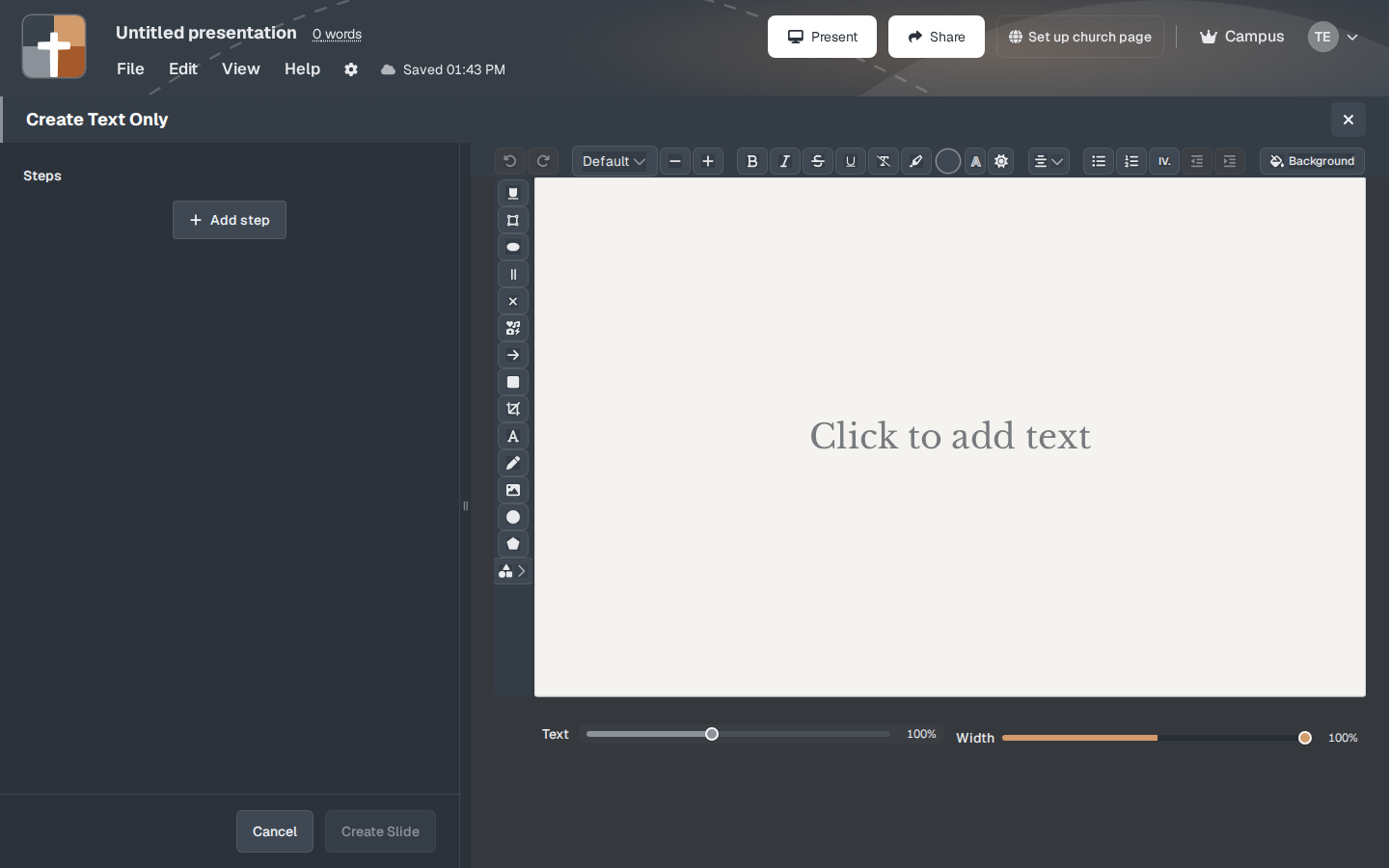
The window title is Create Text Only. The preview is the text block. Until you type, it reads Click to add text.
Steps is the list on the left. Add step adds a frame for a mark you will advance while you teach. With no steps, the paragraph is the slide.
Under the preview, Text sets how large the words are. It starts at 100%. Width sets how much of the slide the block uses. It starts at 100%, and it runs from 50% to 100% in steps of 5. Narrow it when a full-width paragraph feels too wide for the room.
Background sets the slide background.
Create Slide adds the slide once the block has words. Until then the button stays unavailable. The placeholder Click to add text is not the slide. Cancel leaves the deck as it was.
On a phone the field is Text, and the placeholder reads Body text. Steps and Add step sit under Advanced.
What you type
On a computer you click the preview and replace Click to add text. On a phone you type in Text. Whatever is in that block is what the room reads.
The alignment control starts on Align center and Align middle. Align left, Align right, and Justify set the lines. Align top and Align bottom move the block. A prayer that should sit in the middle of the wall can stay where it starts. A short line you want in the upper part of the frame uses Align top.
The list buttons start off, so the paragraph is plain text. Bulleted list, Numbered list, and Multilevel list / sermon outline (I, A, 1) turn the lines into a list. Increase indent and Decrease indent nest a line once a list is on. A list of points the room should repeat belongs on an Outline slide, which has a heading. Leave the list buttons off when the words are a prayer or a reading.
The next time you open the window, Text size, Width, alignment, and the list choice come back as you last left them.
The whole paragraph, then a mark if you need one
The whole paragraph is on the screen together. This window has no Reveal points sequentially switch. With no steps, you advance when you are ready for the next slide.
Add step is for a mark on the paragraph you already wrote: a focus box, an arrow, a scribble, or a step label. The words stay. The mark is what the next click brings in. The first row reads 1: step.
Where steps live appears once a step is on the list.
| Choice | What Sunday does |
|---|---|
| Separate slides | Each step becomes its own slide in the editor and on the tablet. This is where the control starts. The line under it reads: Each step becomes its own slide in the editor and on tablet. |
| same slide | The clicks stay on one slide. The line under it reads: Advance on one slide with buttons. No extra slides in the editor or on tablet. |
After you save the slide, that choice is what the window opens with the next time.
A prayer usually needs none of this. The paragraph is the slide. Add a step when you will point at one line, then leave the mark and return to the words.
The blessing, with no title above it
You have taught the passage. You will close by speaking the blessing. The slide is the words, in the wording you will actually say:
The Lord bless thee, and keep thee. The Lord make his face shine upon thee, and be gracious unto thee. The Lord lift up his countenance upon thee, and give thee peace.
There is no headline that says Benediction. The room is already in the blessing. When this line is the passage you are opening, put it on a Bible Verse slide so the reference stays with the text. Text Only is the moment the blessing is the prayer, and a title would compete.
A longer pastoral prayer stays in the notes, in the same document. The slide holds the line you want spoken aloud.
Saturday
- Stay in the passage. Insert Text Only where the room should read a paragraph, a prayer, or a short reading.
- Replace Click to add text with the words you will actually say. Leave the list buttons off unless the lines are a list.
- Leave Text and Width at 100% unless the back row needs larger type, or a full-width paragraph is too wide.
- Leave Steps empty when the whole paragraph should be up at once.
- Add step only for a mark you will advance. Separate slides puts each click in the editor and on the tablet. same slide keeps one slide.
- Read the block as if you were in the back row. Keep on the slide the line you will say aloud. The rest of the prayer belongs in the notes.
- Then return to the Bible Verse slide.
FAQ
Is the whole paragraph on the screen together?
Yes. Text Only has no Reveal points sequentially switch. One line per click, under a heading, is an Outline slide.
Create Slide stays unavailable. What happened?
The block is still empty. Click to add text is the prompt, not the slide. Type the prayer, then Create Slide can save it.
Add step left the words unchanged. What happened?
A new sentence is a line you type on the preview. On a phone, type it in Text. Add step adds a frame for a mark on the paragraph you already wrote. The row reads 1: step.
The line needs a name under it.
That is a Quote slide. Text Only is the paragraph with no second line for an author.
The words are the passage.
Use a Bible Verse slide when the reference and the translation should sit with the text. Use Text Only when the sentence is a prayer or a short reading and a headline would compete.
Who advances the slide?
You do. A Text Only slide has no timer.
Plans
Text Only is on every plan, including Free. It does not show a crown. It is outside the insert gate that keeps Bible photos, 3D maps, Family Tree, Ancient Units, and 3D models on Premium. New accounts include 30 days of Premium with no card. After that, Free still includes this slide type.
Free still limits a presentation to 7 slides and the account to 3 presentations, and a watermark is added to slides. A prayer is one of those seven, next to the verses. See the Free plan write-up.
BibleSlides can hold one paragraph on the wall — the prayer, the blessing, the short reading — and then get out of the way so Christ’s Word has the screen again.
Related guides
See BibleSlides features
Notes and slides in one document, Bible Verse slides, stepped markup, Verse Analysis, 3D maps, BiblePlaces photos, and tablet presenter apps — built for pastors who teach Scripture.