Help Center · Slide Types
Text Only
Body text with no headline, plus size, width, and steps.
Text Only is a slide of body text with no headline. Use it for a paragraph of explanation, a prayer, or a short reading that should not compete with a title.
Where to find it
Under Slide types in the left sidebar, or in More slide types. New accounts pin Text Only. The window title is Create Text Only.
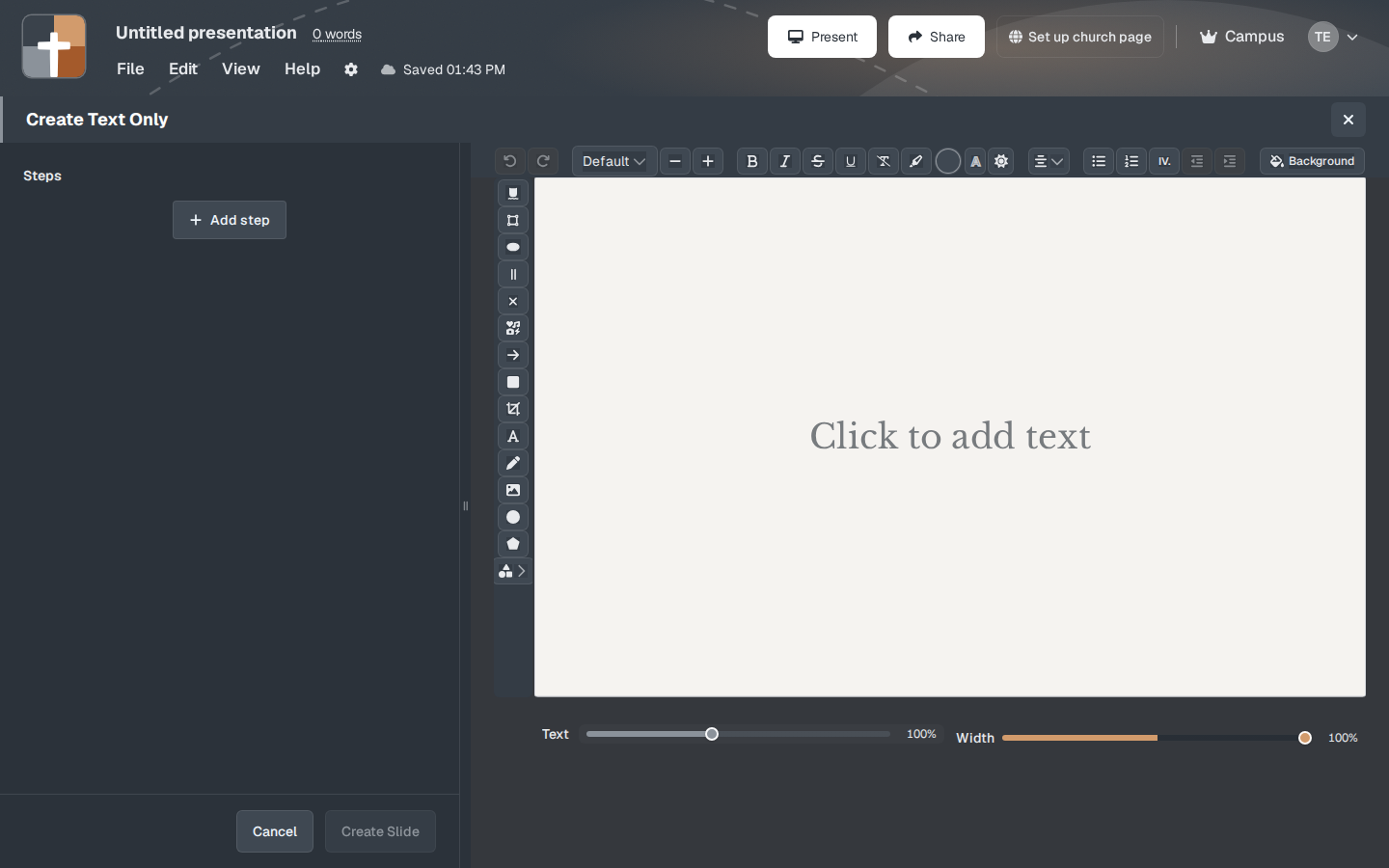
The setup window
The preview is the text block itself. Around it:
- Steps and Add step — extra frames on this slide (a focus, an arrow, a scribble, a label) that you advance while you teach.
- Text — how large the words are. A new slide starts at 100%.
- Width — how much of the slide the text block uses, also starting at 100%. Narrow it when a full-width paragraph feels too wide for the room.
- Background — the slide background.
- Create Slide adds it. Cancel does not.
Click the preview text and replace it before you create the slide. Whatever is in that block is what the room reads.
While you present
If you added steps, each advance shows the next mark instead of jumping to another slide. With no steps, the whole paragraph is on screen at once. Keep the paragraph short enough to read from the back row. A long reading belongs in your notes, with only the line you want spoken aloud on the slide.
Plans
Text Only is on every plan, including Free. Free still means 7 slides per presentation, 3 presentations, and a watermark on the slideshow. A new account’s 30 days of Premium come first.