Help Center · Slide Types
3D Models
Biblical places and artifacts you can turn on the slide.
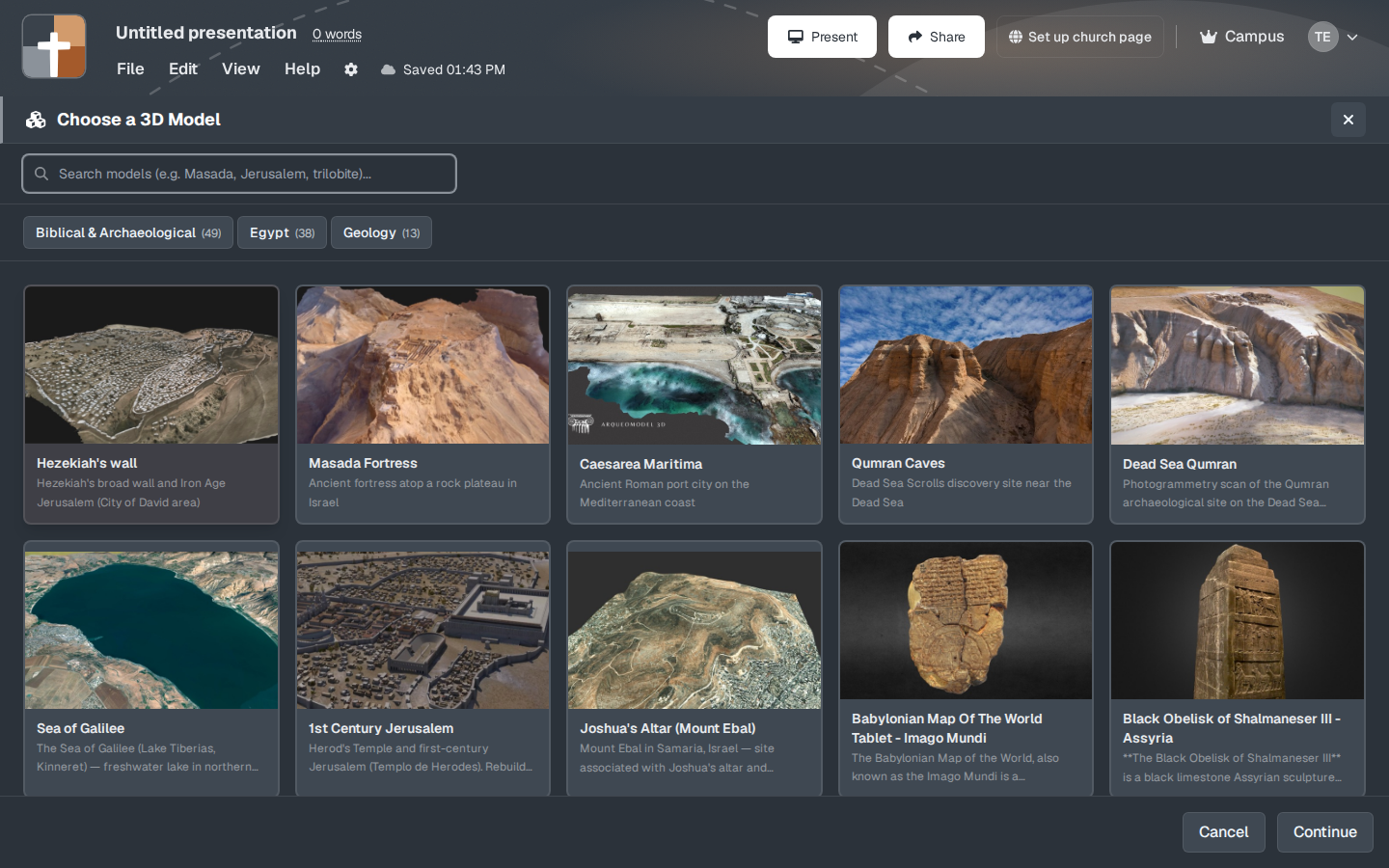
3D Models puts a place or an artifact on the slide so you can turn it. The first screen is a catalog, not a file upload. The heading is Choose a 3D Model.
Where to find it
Pinned for new accounts, at the end of the default pin list. On Free, a crown shows.
The setup window
The catalog is grouped. The counts on the tabs when this window was opened:
- Biblical & Archaeological (49) — includes Hezekiah's wall, Masada Fortress, Caesarea Maritima, Qumran Caves, the Sea of Galilee, 1st Century Jerusalem (Herod's Temple), Joshua's Altar (Mount Ebal), and others.
- Egypt (38)
- Geology (13)
Each card has a name and a short description. Click the model you want, then set the view. Create Slide adds it. On Free the button says Upgrade to Add.
In the notes, an unselected 3D slide stays a still picture. The live model runs when that slide is the one you are on. That keeps a long sermon from starting a model on every page.
While you present
Pick the model that matches the sentence you are about to say. Masada is the wrong picture for a sermon that is only in Jerusalem, even if the model is beautiful. Turn it once so the room sees the shape, then leave it still while you teach. A model that keeps spinning becomes the sermon.
Plans
3D Models cannot be added on Free. Premium, Campus, and the 30-day trial can. This is one of the five crowned types, with Bible Photo, 3D Bible Maps, Family Tree, and Ancient Units.