Help Center · Presenting on Sunday
Present and practice mode
The Present button, and rehearsing without going live.
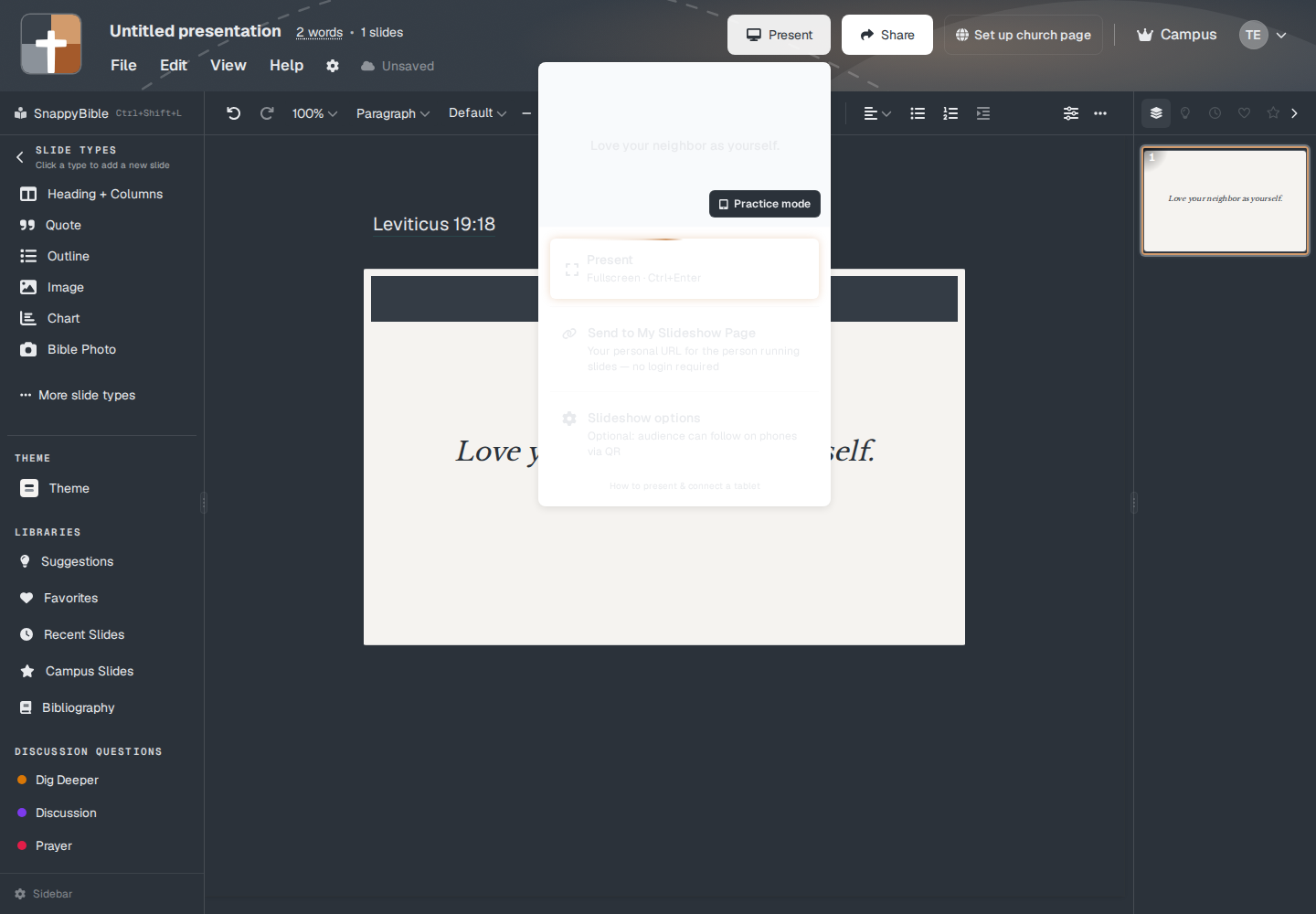
Present is the dark button in the header. Ctrl+Enter (Cmd+Enter on a Mac) does the same thing. It opens a menu, not the projector by itself.
If the deck is empty
The preview says No slides available. Present and Practice stay off. The reason is Add a slide before presenting. A slideshow that is opened anyway says This presentation has no slides. Add a slide first. See Getting started.
An empty deck can still open the tablet for on-the-fly tools. That path does not put a slide on the projector.
Practice mode
The button on the preview is Practice mode. The tooltip is “Practice mode — same tab · projector + tablet simulator.”
Practice stays in this browser tab and opens /practice. The header reads Practice mode and Back to editor. The hint under it is “Projector and tablet side by side · arrow keys, Space, or Enter advance · drag the divider to resize.”
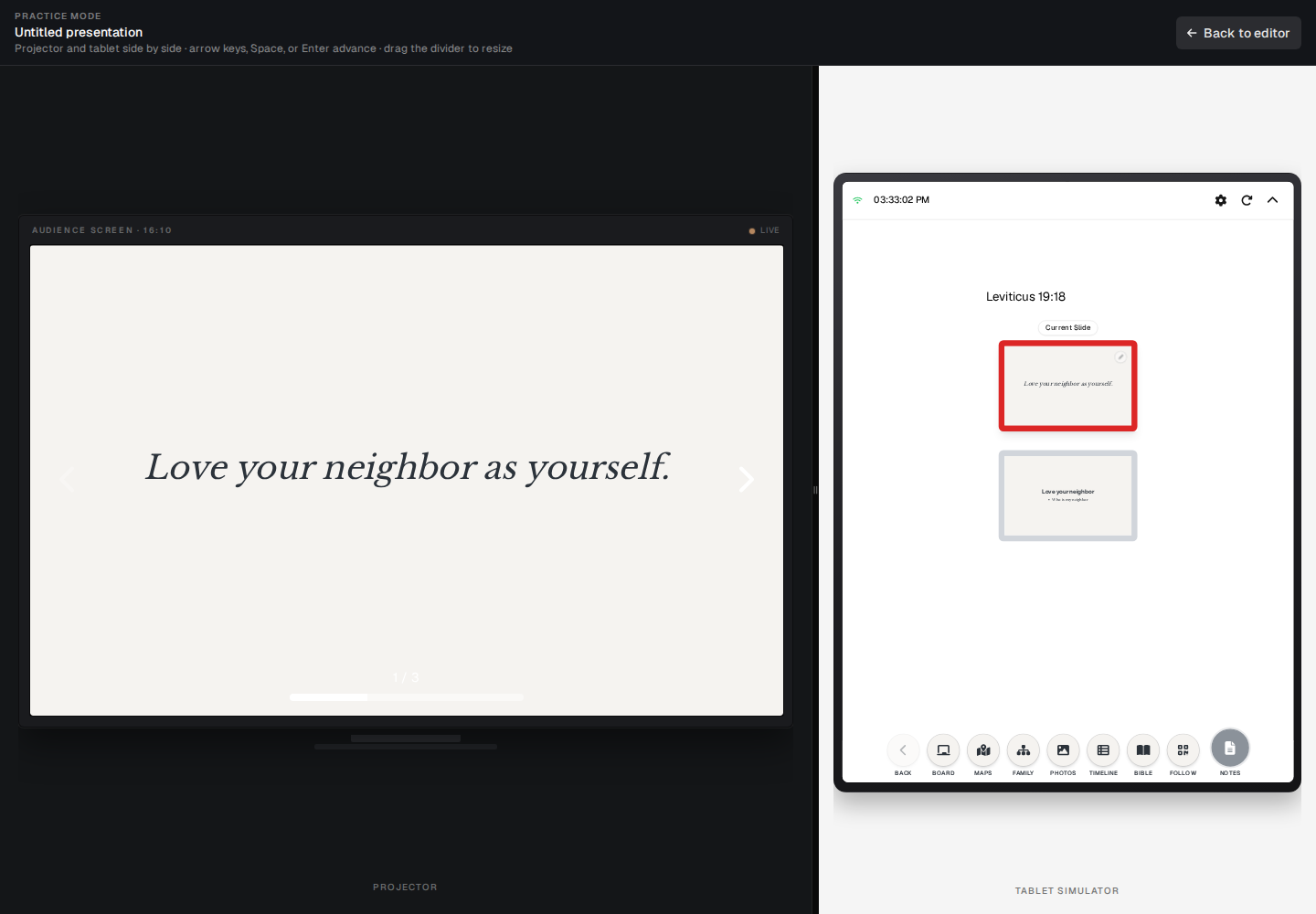
You have to save before practice. If the deck has never been written, the toast is “Save your presentation before practicing.”
Practice is the rehearsal. It does not publish the booth URL and it does not require the sanctuary computer.
Present
The primary row is Present. The description is Fullscreen and the shortcut. That opens a new window named for the slideshow, at /slideshow, and shows Connect a tablet first.
If that window is already open, the message is Slideshow Already Open, with Focus Slideshow Window.
From the projects page, the projector icon on a card opens the slideshow without that connect splash.
The other rows
- Send to My Slideshow Page — Campus. See Booth URL.
- Slideshow options — the description is one of “Audience follow-along is on,” “Optional: audience can follow on phones via QR,” or “Audience follow-along is a Campus plan feature.”
- How to present & connect a tablet — a link to the longer walkthrough.
The watermark
On Free, after the trial, the slideshow shows the logo watermark. Practice follows the same rule. The trial can show TRIAL instead. See Exports and watermarks.
Plans
Present and Practice are on every plan. What you can put on the slide is not. Follow-along inside Slideshow options is Campus, plus the 30-day trial.