Help Center · Building a Presentation
Reorder slides
Move slides without rebuilding the deck.
You can move a slide in three places. None of them is a keyboard shortcut. Ctrl+D duplicates the selected slide. It does not move it.
In the notes
Drag the slide block up or down in the notes. A line shows where it will land. On the slide itself, the arrows are Move slide up and Move slide down. On a step slide those read Move step slide up and Move step slide down.
The minimap
View → Show Minimap opens the filmstrip on the right (the row then reads Hide Minimap). Each row has a grip. The label is Drag to reorder. You can also drop a row back into the notes.
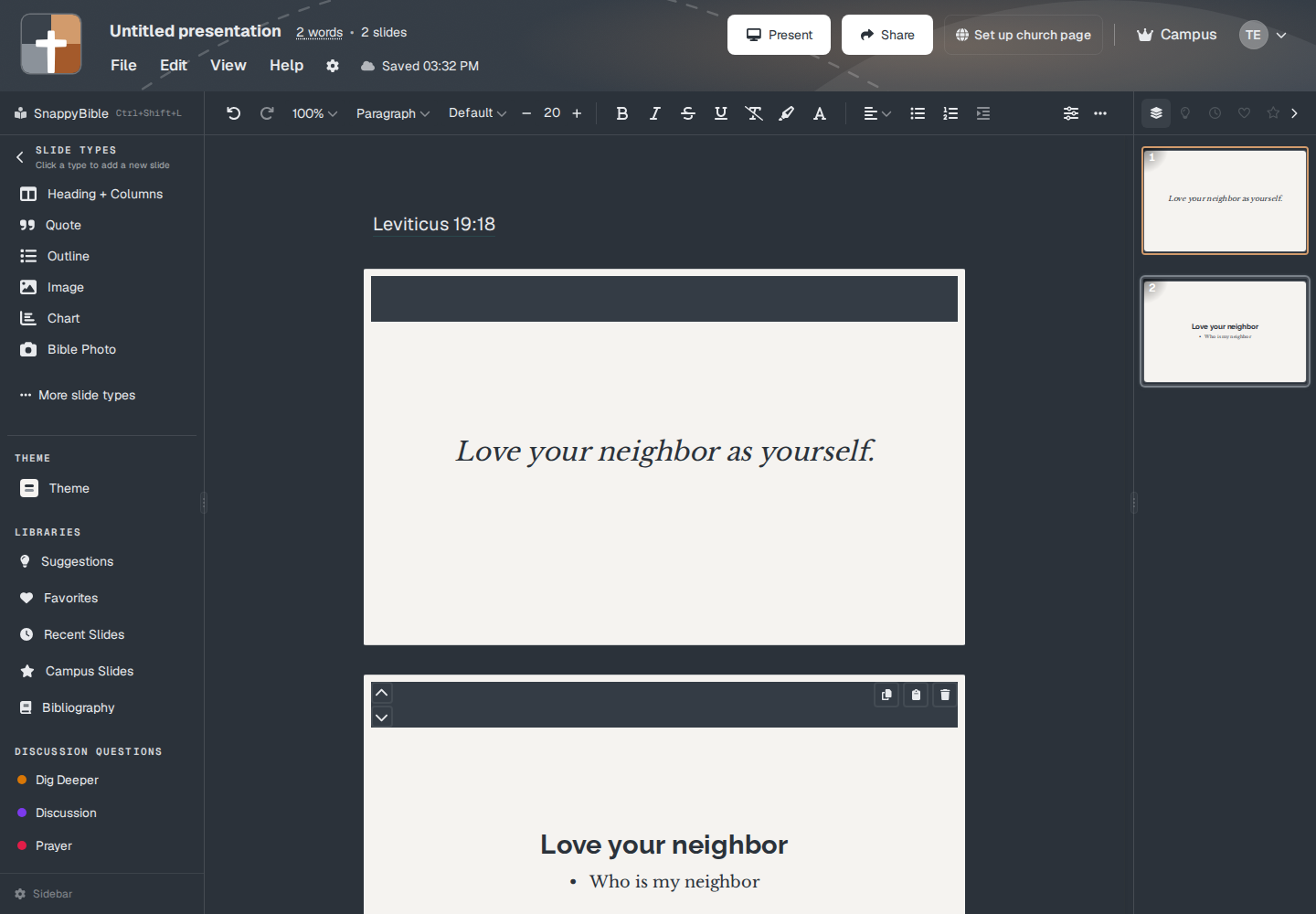
With two slides in the deck, the filmstrip lists both. Drag either row.
On a phone or tablet browser
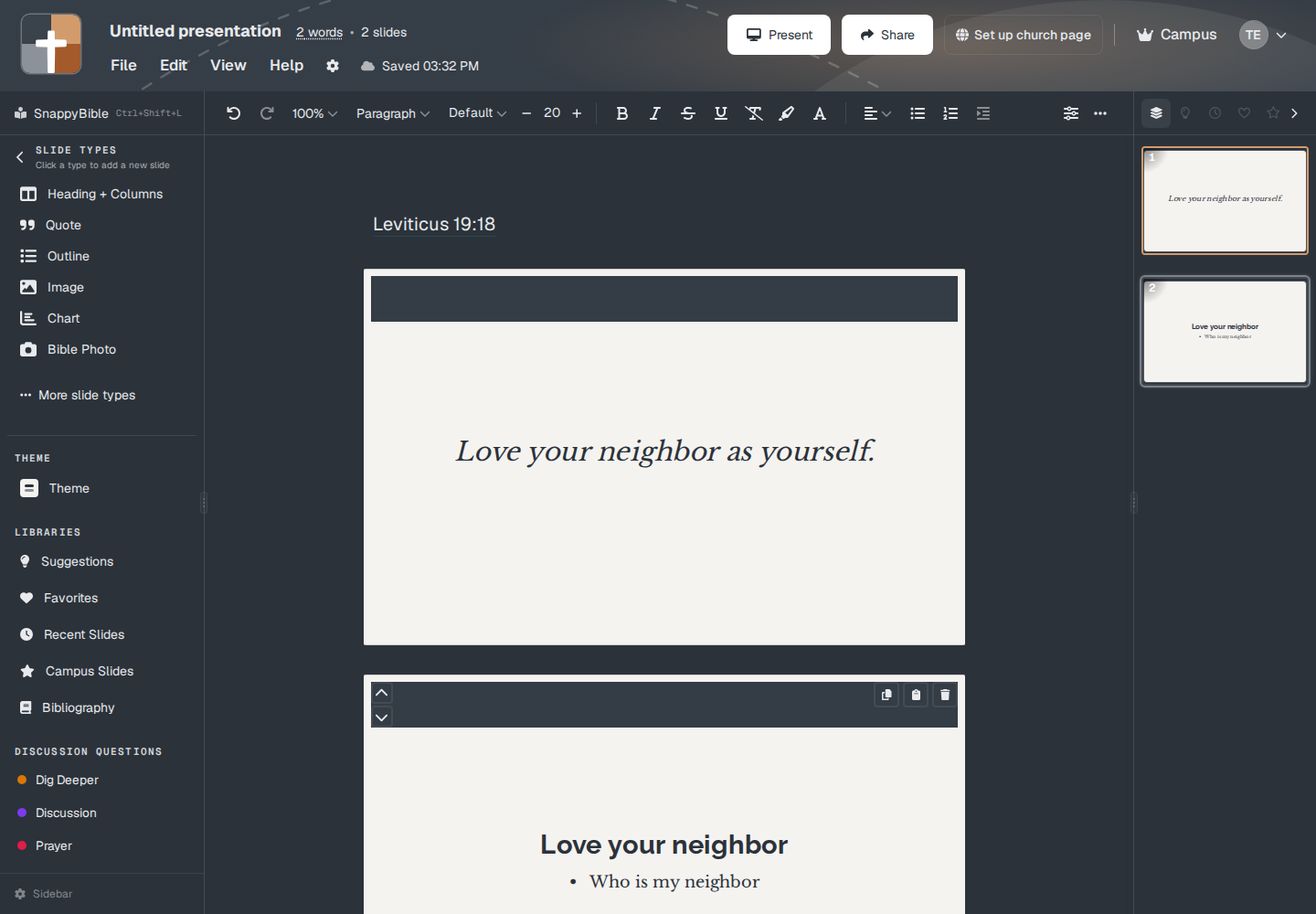
The same arrows are larger, and the drag handle stays available when the device prefers touch.
Plans
Reordering is on every plan. It does not change the slide count.