Help Center · Account & Plans
Your profile
Name, email, and the account menu.
The round picture at the right of the header opens the account menu. On the projects page it lists your email, then:
- My Profile
- Plans & billing
- Campus admin — only when this account can manage a campus
- Refer a Friend
- Presenting apps
- Logout
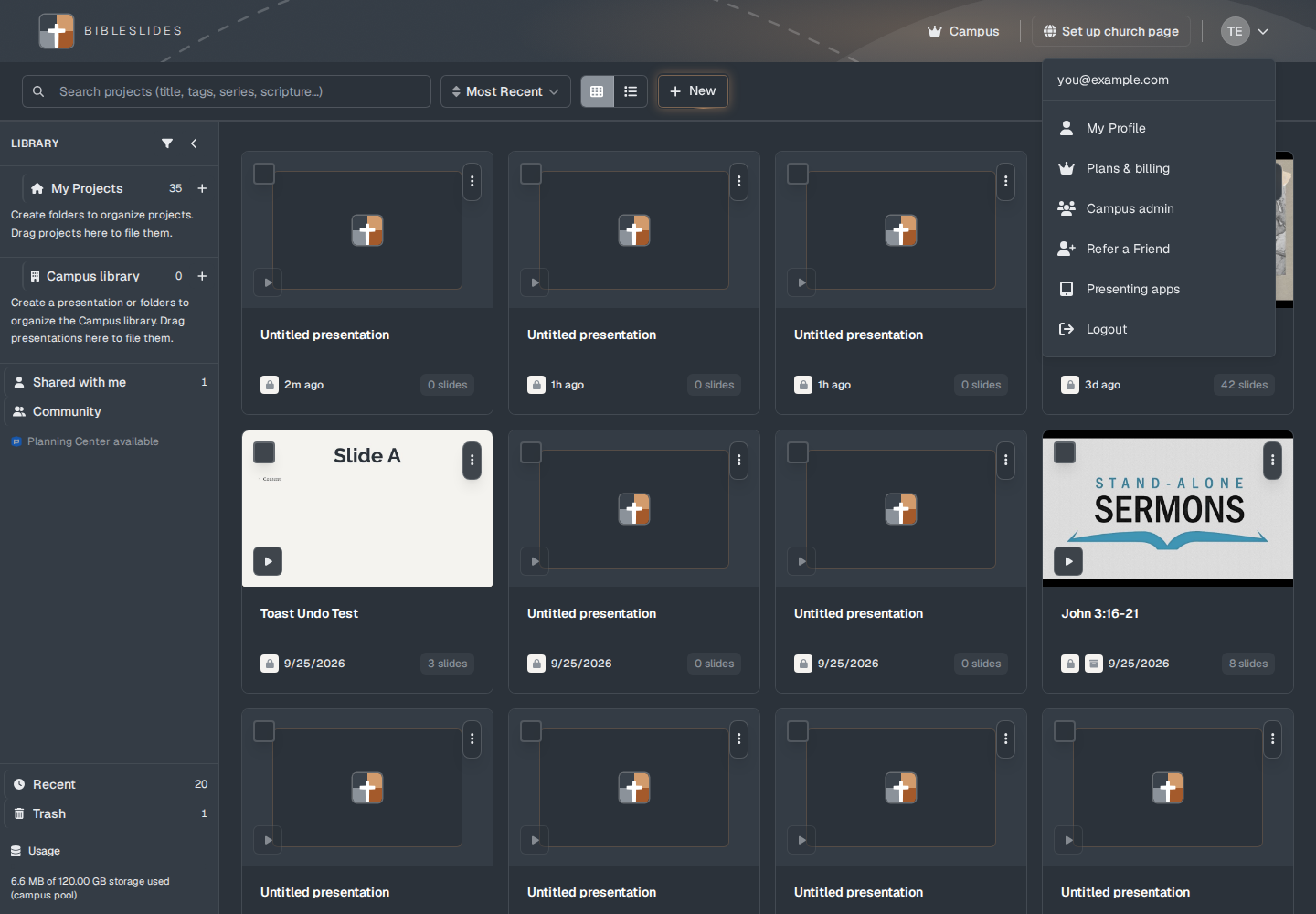
Settings is not in this menu. In the editor, Settings in the top bar opens options (layout, preferences, slideshow, security).
My Profile
The window is titled My Profile.
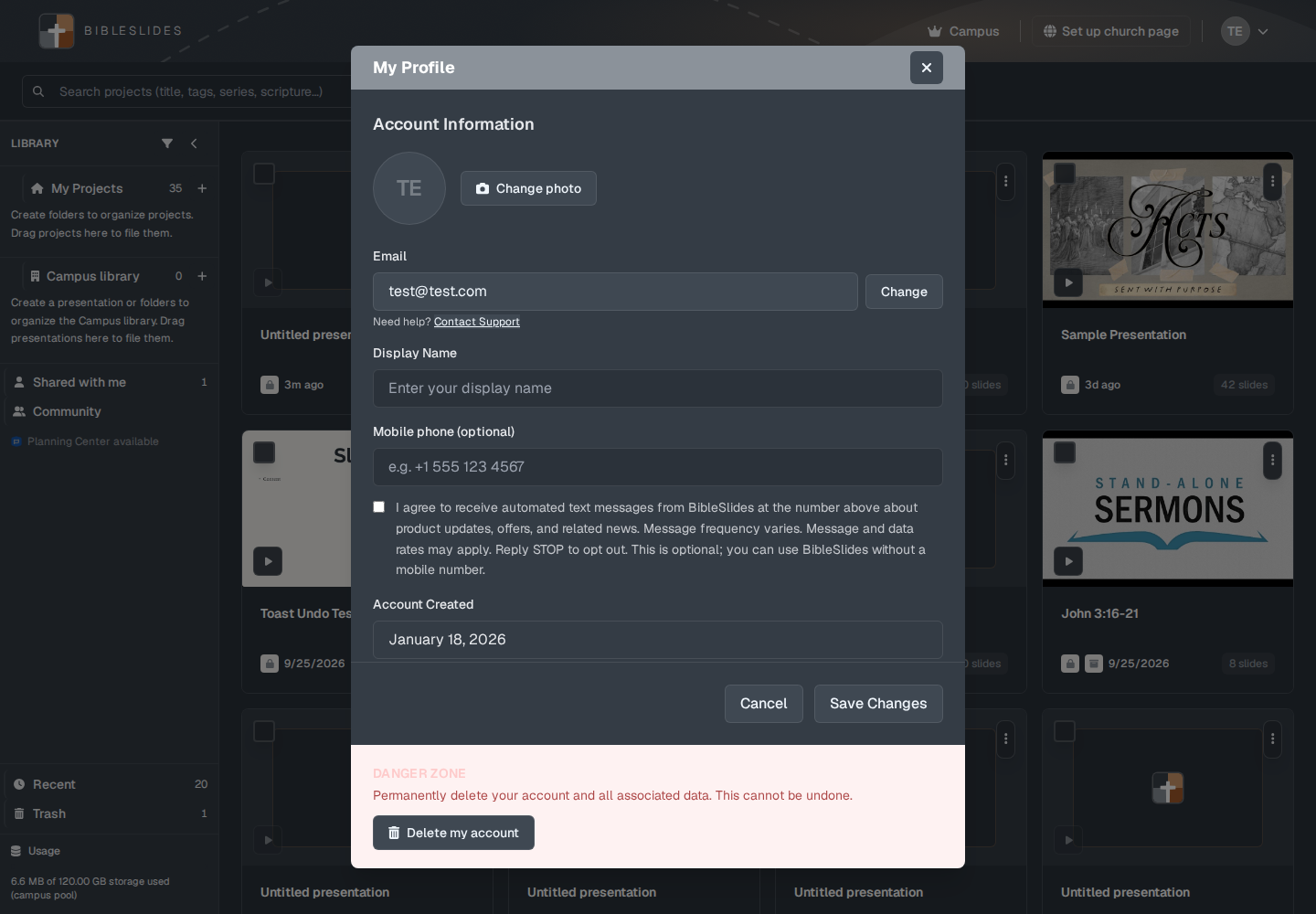
- Change photo, Use Google photo, and Remove photo sit with the picture. While a photo uploads, the button reads Uploading….
- Email is shown and cannot be typed into. Change opens a smaller window: New Email Address and Confirm Password (“Enter your password to confirm”). If you signed in with Google or Apple, change goes through support instead of a password.
- Display Name is the name on the account. Saving shows “Profile updated successfully!”
- Integrations — Planning Center. See Planning Center.
- Church webpage username — the public address, shaped like
bibleslides.app/public/user/your-name. That page is the church page, not the campus library.
There is no password field on this window. On the sign-in page, Forgot password? sends a reset. See Can’t sign in.
The plan line
Under the name, the profile states the plan. A campus account with complimentary access can read Lifetime membership and “Complimentary access from BibleSlides.” A normal paid plan reads like “Campus Plan” or “Premium Plan.” A trial reads Free trial and how many days are left. See The 30-day trial.
Plans & billing opens Subscription Plans. The Campus (or Premium or Free) badge in the header opens the same window. See Free, Premium, and Campus.
Logout
Logout signs you out and returns to the front page. The deck you had open is not deleted.