Help Center · Integrations
ProPresenter
Send the booth URL to another presentation program.
BibleSlides does not install a ProPresenter plugin and it does not log into ProPresenter. The connection is the booth URL. ProPresenter shows that web page as the fill of a shape.
Present → Send to My Slideshow Page. Under How to use it, open ProPresenter. The steps in the window are:
- Open the Slide Editor on the slide where you want the webpage.
- Add a Shape (e.g. a rectangle) and scale it to cover the slide.
- In the right inspector, set Shape Fill Type to Web.
- Paste this URL. ProPresenter renders the live webpage as the slide background.
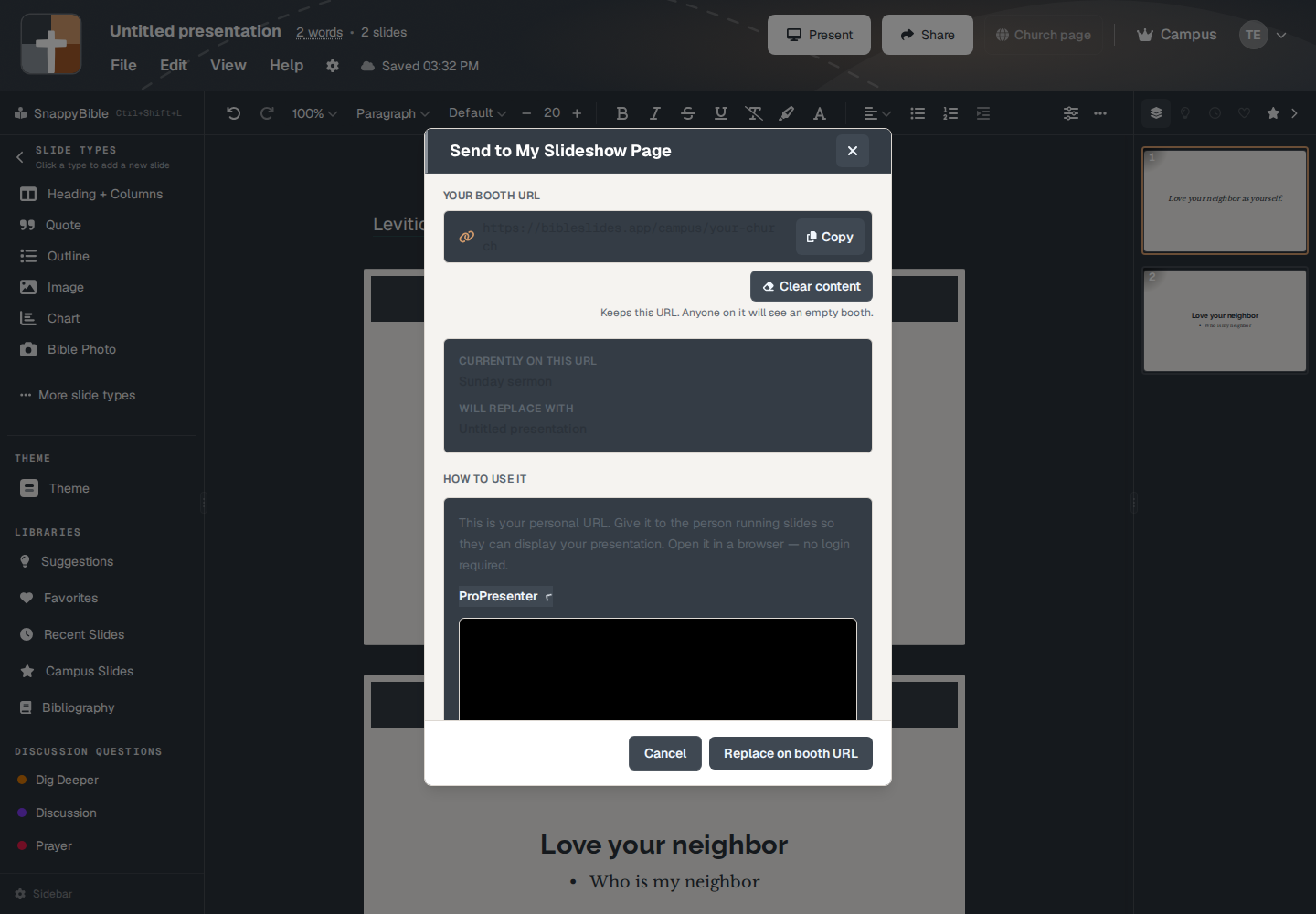
A short video sits above those steps, and Full written guide opens the longer article.
Publish the deck onto the booth URL first (Publish on booth URL or Replace on booth URL). An empty booth shows a blank page in ProPresenter. The URL itself stays the same next week. You replace the content, not the address.
The person running ProPresenter does not need a BibleSlides login. They need the URL.
Plans
The booth URL command is on the Present menu for Campus and campus members. Free and Premium do not get Send to My Slideshow Page. If the church presents from ProPresenter, the account that publishes the booth is the campus plan.