Help Center · Getting Started
Themes and fonts
Pick a look for the whole presentation.
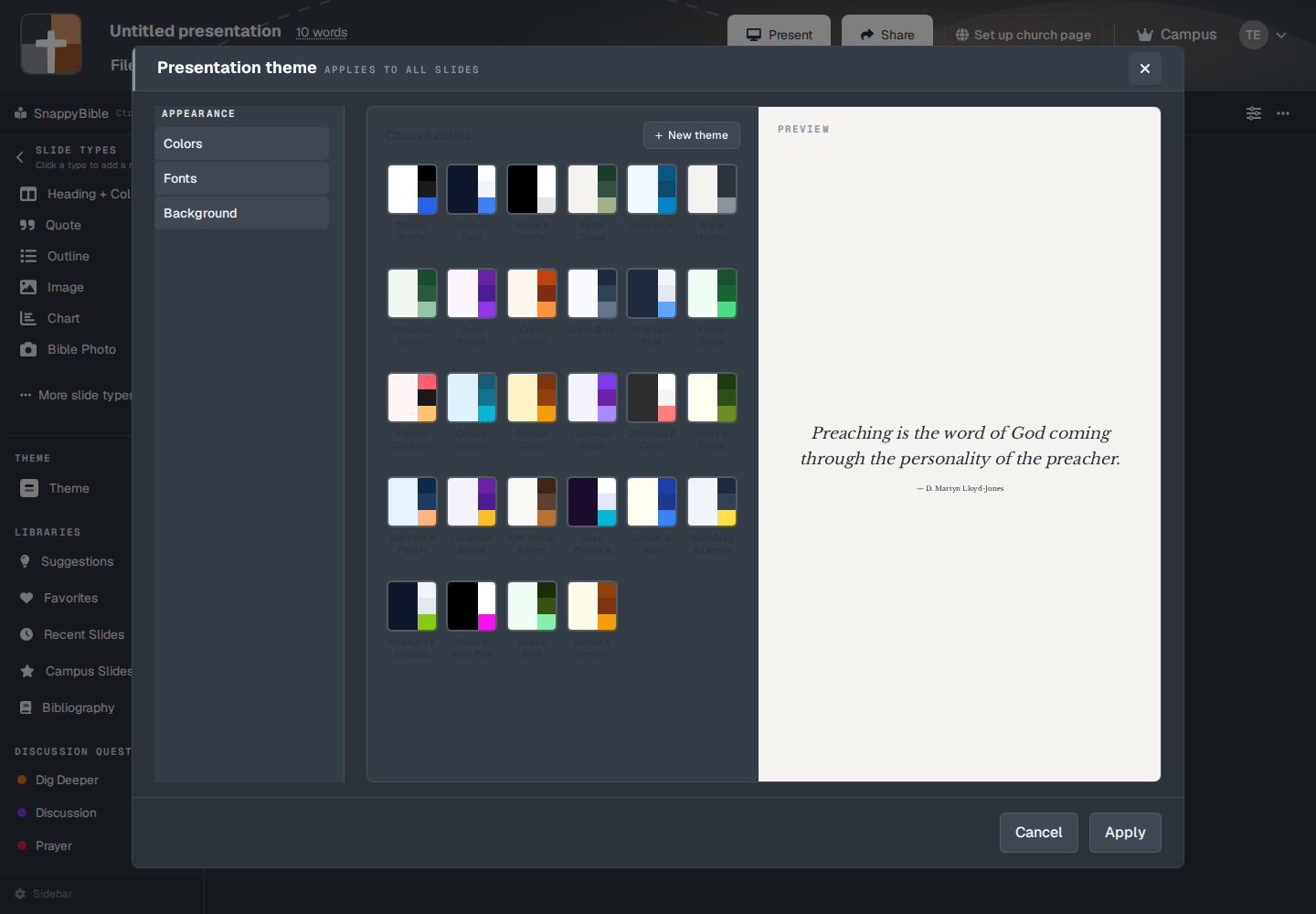
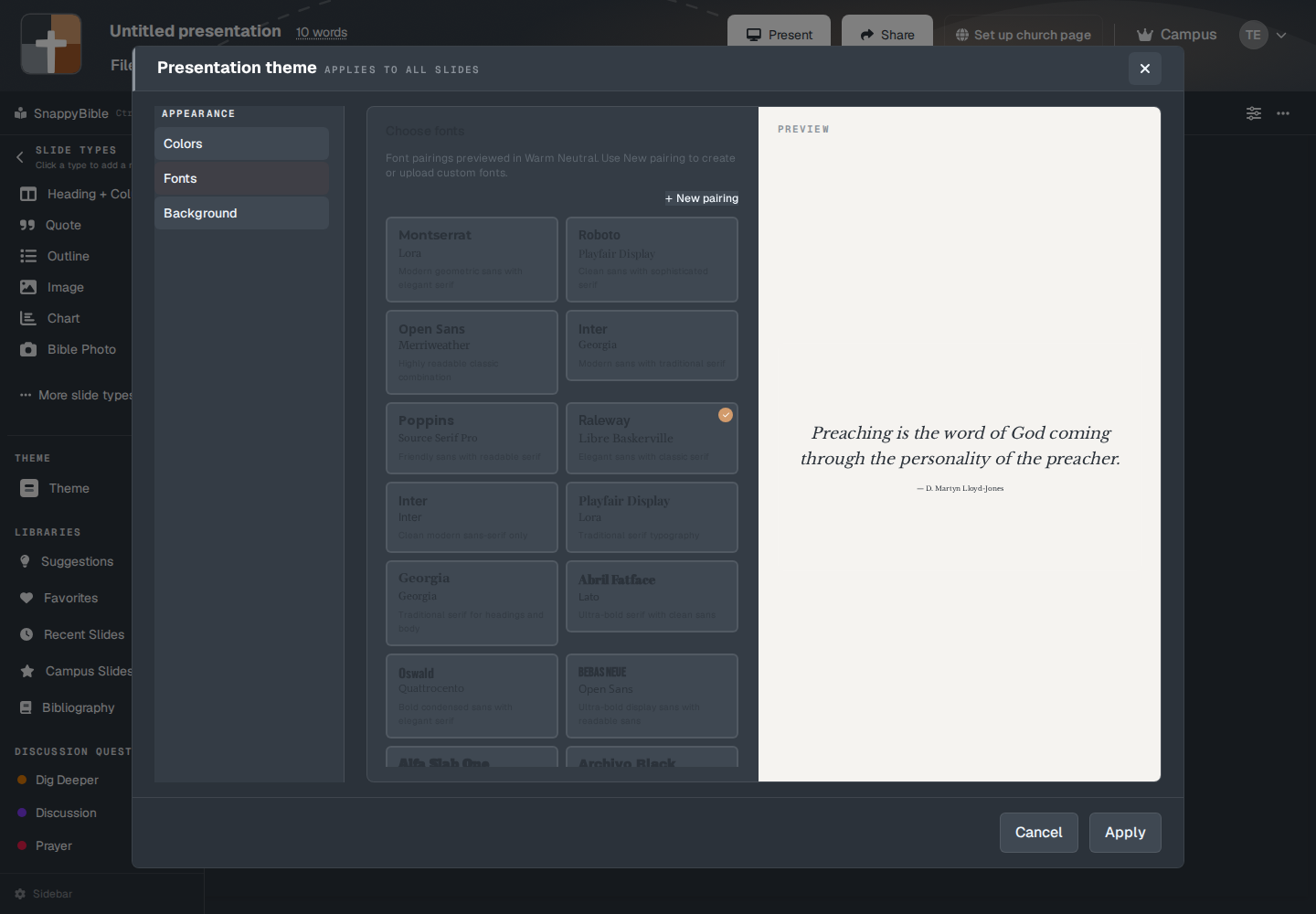
Theme in the sidebar opens Presentation theme. The badge on the title says the choice applies to all slides. You can also reach the same steps from Teaching starter with Change theme.
The steps under Appearance are Colors, Fonts, and Background. The footer is Cancel and Apply. Nothing changes on the deck until you apply.
Colors
The heading is Choose colors.
- New theme — “Create custom theme.”
- Campus theme — “Set by your campus admin,” when the church has one.
- My themes — themes you saved.
- Built-in themes — the themes that ship with BibleSlides.
Delete asks Delete "{name}"? before it removes a theme you made.
Fonts
Choose fonts. The line under it previews the pairings in the theme you have selected. New pairing is “Create custom font pairing.”
Background
The background step is a photo grid and the other backdrop choices for the whole deck. A single slide can still set its own background inside that slide’s setup window. The theme background is the default.
Plans
Free can save 3 custom themes and 2 custom font pairings. At the cap, the toast is “You've reached the limit of 3 custom themes on the free plan. Upgrade to create unlimited custom themes!” The font-pairing toast is the same shape, with 2 as the number.
Premium, Campus, and the 30-day trial are unlimited for both.
Built-in themes are on the Free card as “All predefined themes.” There is a premium-themes flag in the plan checks, and the theme window does not lock built-in themes behind it. If you can see the theme, you can apply it.