Help Center · Slide Types
Bible Photo
Search Bible places photos by keyword or verse.
Bible Photo is a picture from the Bible photographs in BibleSlides — a place, a detail, a landscape — tied to a keyword or a verse. It is not the same as the Image slide, which is a picture you bring yourself.
Where to find it
Pinned second for new accounts, right after Bible Verse. On Free, a crown shows. The first screen is Choose a photo.
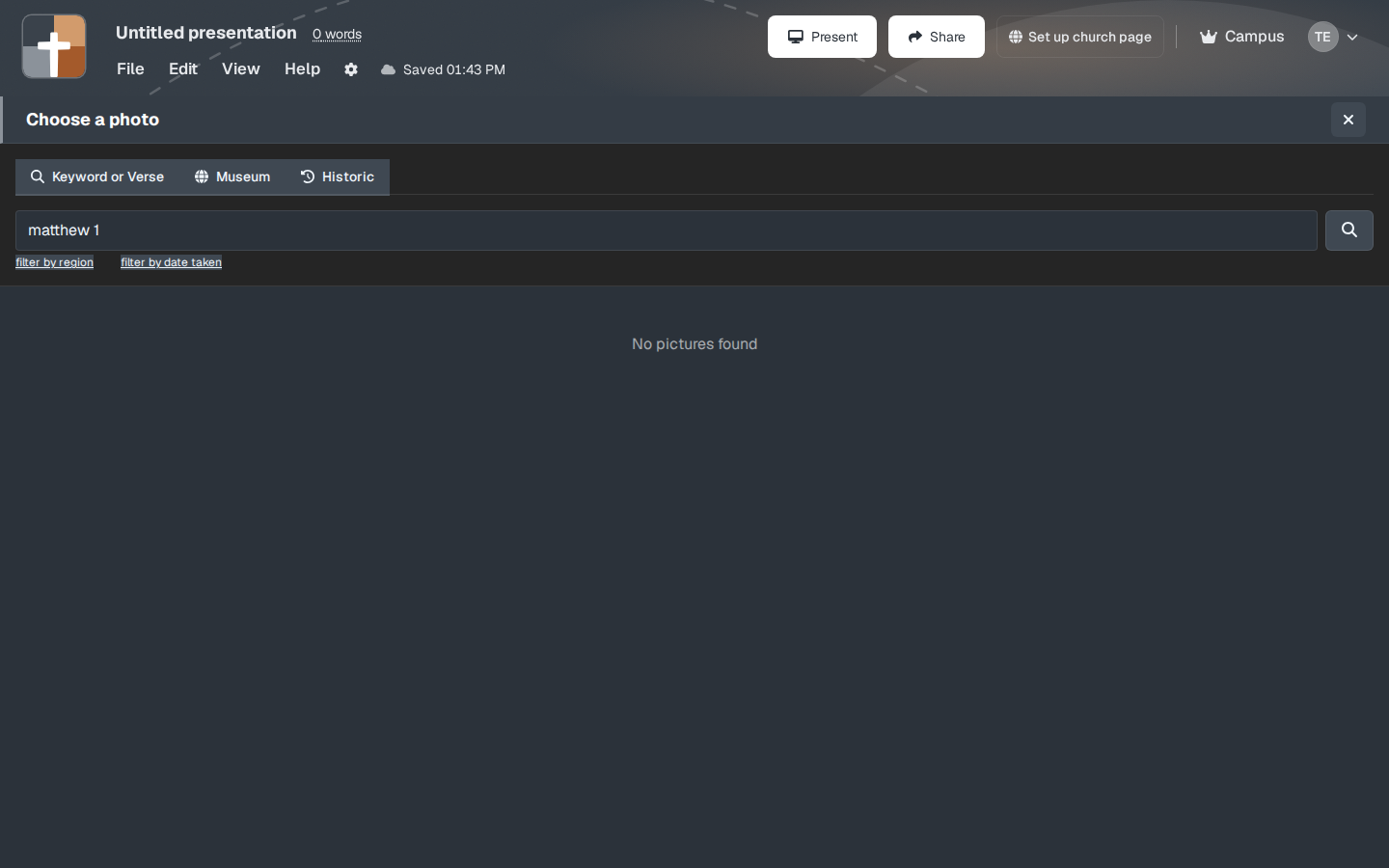
The setup window
The top of the chooser has:
- Keyword or Verse — find a photo by a word or a passage.
- Museum — objects in museum collections. That is where museum pictures live. There is no separate Museum slide in the list. See Museum.
- Historic — older photographs and historic views.
- filter by region
- filter by date taken
If nothing is typed yet, the pane can say No pictures found. Type a place or a verse before you decide the library is empty.
After you choose a photo, you can add a reference, a short description, and steps (a focus, an arrow, a label) the same way an Image slide does. Create Slide adds it. On Free the button says Upgrade to Add.
While you present
One photograph, one sentence about why it is on the screen. Steps are for “notice the gate, then the wall,” not for a second sermon in captions. Credit and the description belong where the photo window puts them. Do not crop the credit off to make the picture larger.
Plans
Bible Photo is blocked on Free. The marketing line says Bible photos require Premium, and the editor matches that: crown, then Upgrade to Add. Premium, Campus, and the 30-day trial can add one. Image upload on a normal Image slide is a separate paid limit. This slide’s lock is the photo library itself.