Help Center · Building a Presentation
Import PowerPoint
Bring an existing deck in.
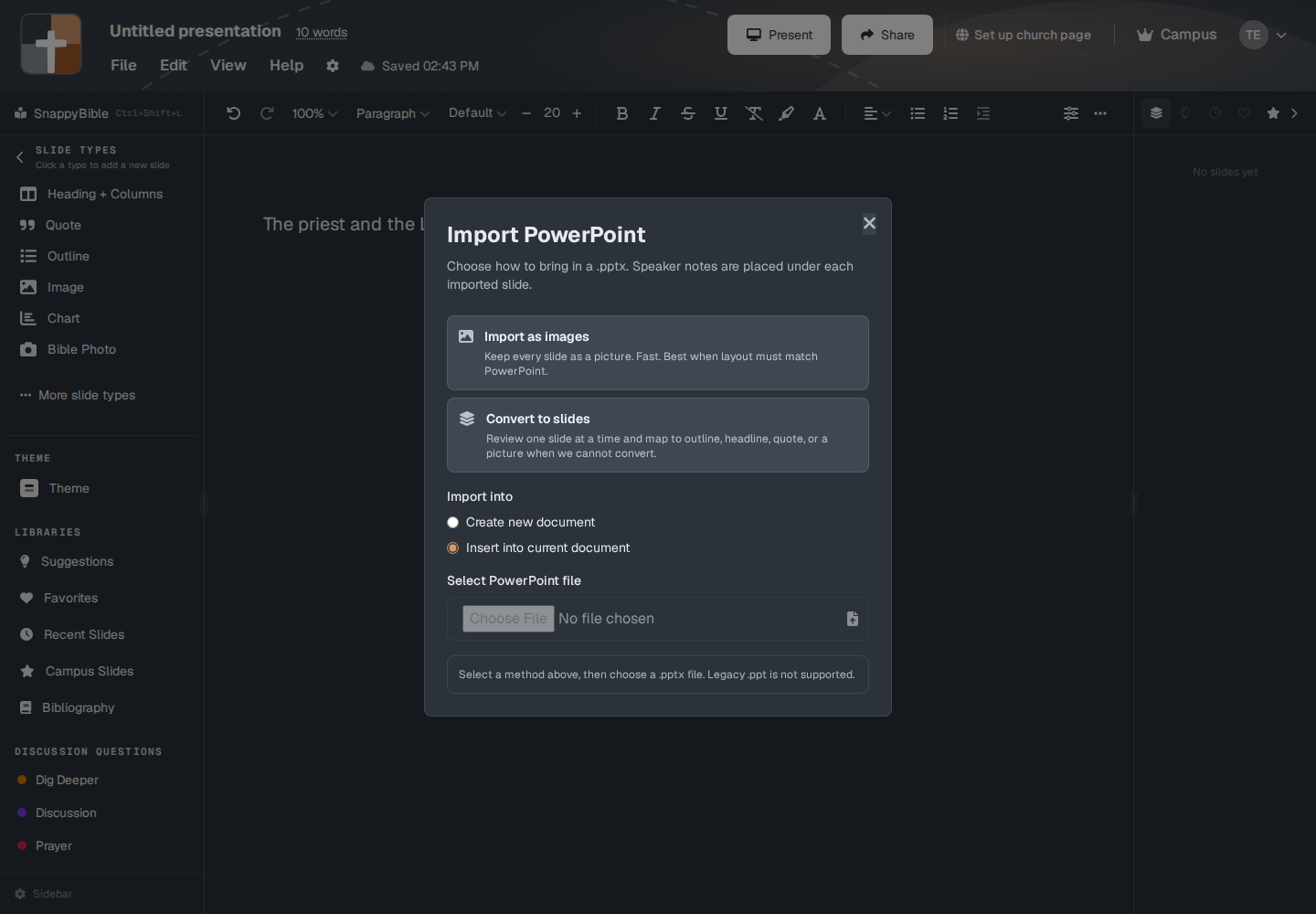
File → Import → Import PowerPoint opens a window with that title. The subtitle is “Choose how to bring in a .pptx. Speaker notes are placed under each imported slide.”
The two ways
- Import as images — “Keep every slide as a picture. Fast. Best when layout must match PowerPoint.” Each slide becomes an image slide. The speaker notes land under it.
- Convert to slides — “Review one slide at a time and map to outline, headline, quote, or a picture when we cannot convert.” You approve each slide. The buttons on that review are Approve, Skip, and Use picture.
Import into is Create new document or Insert into current document. Insert stays disabled until a presentation is open. The hint is “(open a presentation first).”
Select PowerPoint file accepts a .pptx. The footer says Legacy .ppt is not supported.
Limits and errors
The file can be up to 100 MB. You will see a plain error if it is not:
- “Legacy .ppt files are not supported…”
- “Please select a .pptx PowerPoint file.”
- “This PowerPoint file is empty.”
- “This PowerPoint file has no slides to import.”
- “too large (maximum 100MB)”
- “Could not read this PowerPoint file…”
- “A PowerPoint import is already running.”
While images import, a toast can read “Imported 12 slides.” Convert mode reports progress as it walks the deck.
Plans
On Free, after the trial, the toast is “PowerPoint import is a premium feature. Please upgrade to import your presentations.” Premium, Campus, and the signup trial can import. Exporting back out to PowerPoint is the same kind of gate. See Exports and watermarks.