Help Center · Getting Started
Teaching starter
Build a weekend teaching flow from a passage.
Teaching starter builds a short deck from one passage: the verse on the slide, and room in the notes for what you will say. You can start it from New on the projects page, or from File → New → Teaching starter wizard in the editor.
The New presentation card reads Teaching starter — “A short deck from this Sunday’s passage — verse on screen, room for your notes.”
The passage step
The window title is Teaching starter. The eyebrow is the same words. The headline is “What’s this Sunday’s passage?” The subhead is “We’ll build a short deck around it — verse on screen, room for your notes.”
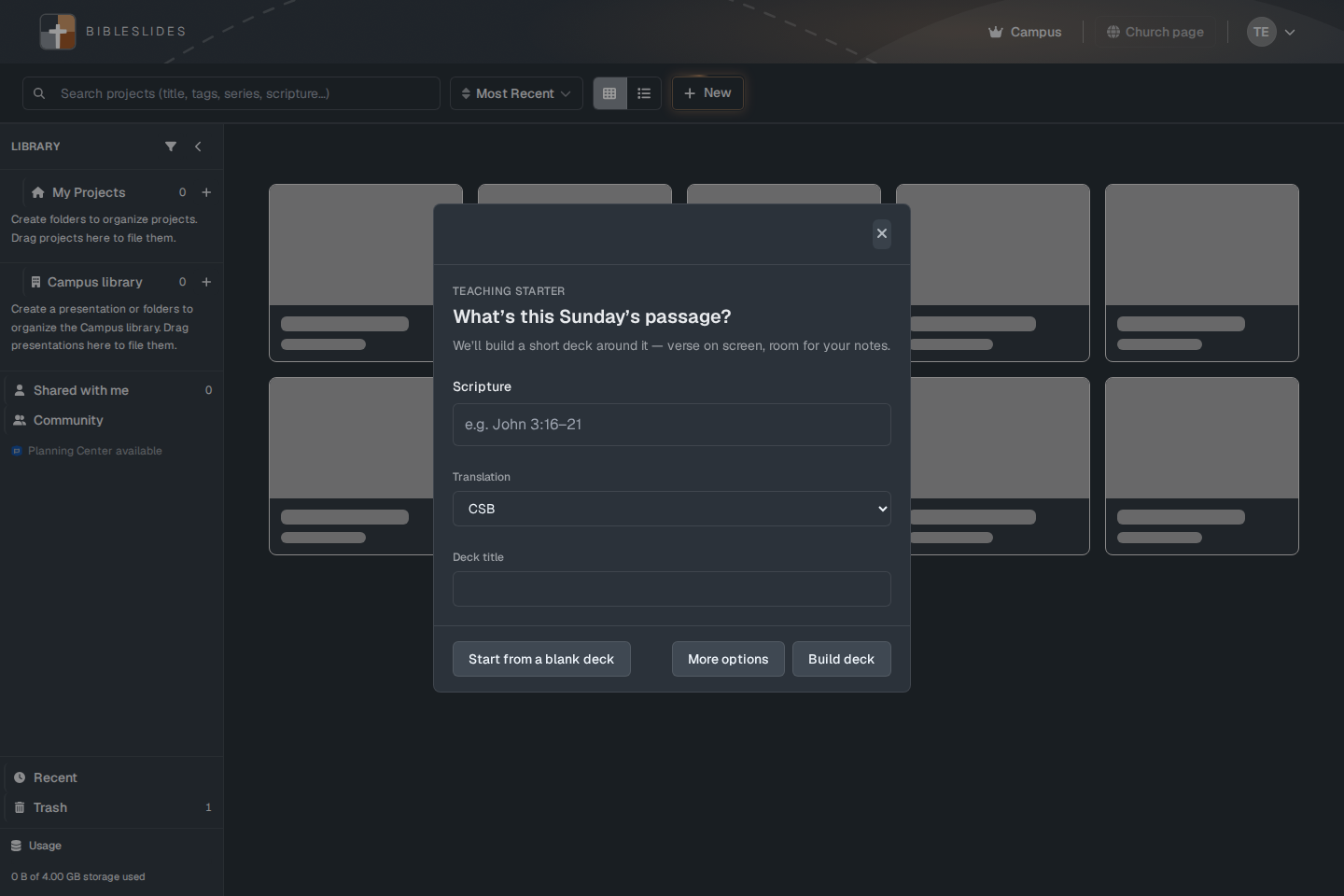
- Scripture — the placeholder is “e.g. John 3:16–21”. A range such as John 3:16-21 is accepted. If the reference cannot be read, the window says so, for example “Enter a scripture reference (for example, John 3:16–21).” When the passage parses, a line tells you how many verse slides will be created.
- Translation — a dropdown. The list opened here included ESV, NKJV, NASB, NASB20, CSB, WEB, CEB, and KJV. This is the starter’s translation list. A Bible Verse slide you add later uses the translations on the verse window, which is a different control. ESV is in this starter list.
- Deck title — the name of the presentation. It can follow the passage.
- Start from a blank deck — leaves the wizard and opens an empty presentation instead.
- More options — opening slides, closing slides, and the theme. You can skip this.
- Build deck — creates the presentation.
More options is optional. The subhead on that step is “Optional. You can change these later in the editor.” It has Opening slides, Closing slides, and Change theme. Change theme uses the same Colors, Fonts, and Background steps as Themes and fonts. Closing can be No closing slides. Add a tile with Add slide. The pickers are titled Add an opening slide and Add a closing slide.
If the campus plan includes Planning Center, this step can also offer a service to attach. That block is hidden when the account cannot use Planning Center.
While the deck is built, the window reads Building your deck….
After it opens
You land in the editor on that deck. A tip can offer Got it and Start slideshow. The verse slides are already in the notes. Edit them the same way as any Bible Verse slide. Add an outline or a map beside them if the sermon needs it.
File → Teaching starter wizard is disabled when you are offline. The tooltip is Requires internet.
Plans
Teaching starter creates a real presentation. On Free, after the trial, it counts toward the 3 presentations and the deck still stops at 7 slides. If you are already at 3, the page will say you have reached the limit of 3 presentations on the free plan. Premium and Campus are not capped that way.
The verse slides themselves are on the Free plan. Bible Photo, 3D Bible Maps, Family Tree, Ancient Units, and 3D Models are not, if the starter tries to add one of those.