Help Center · Getting Started
Autosave
What the Saved line in the header means.
You do not have to hunt for a Save button before you leave the chair. The line in the header is the save state. On a deck that has been written, it reads Saved and a time, such as Saved 02:38 PM. The time is the clock in 12-hour form (hour and minute).
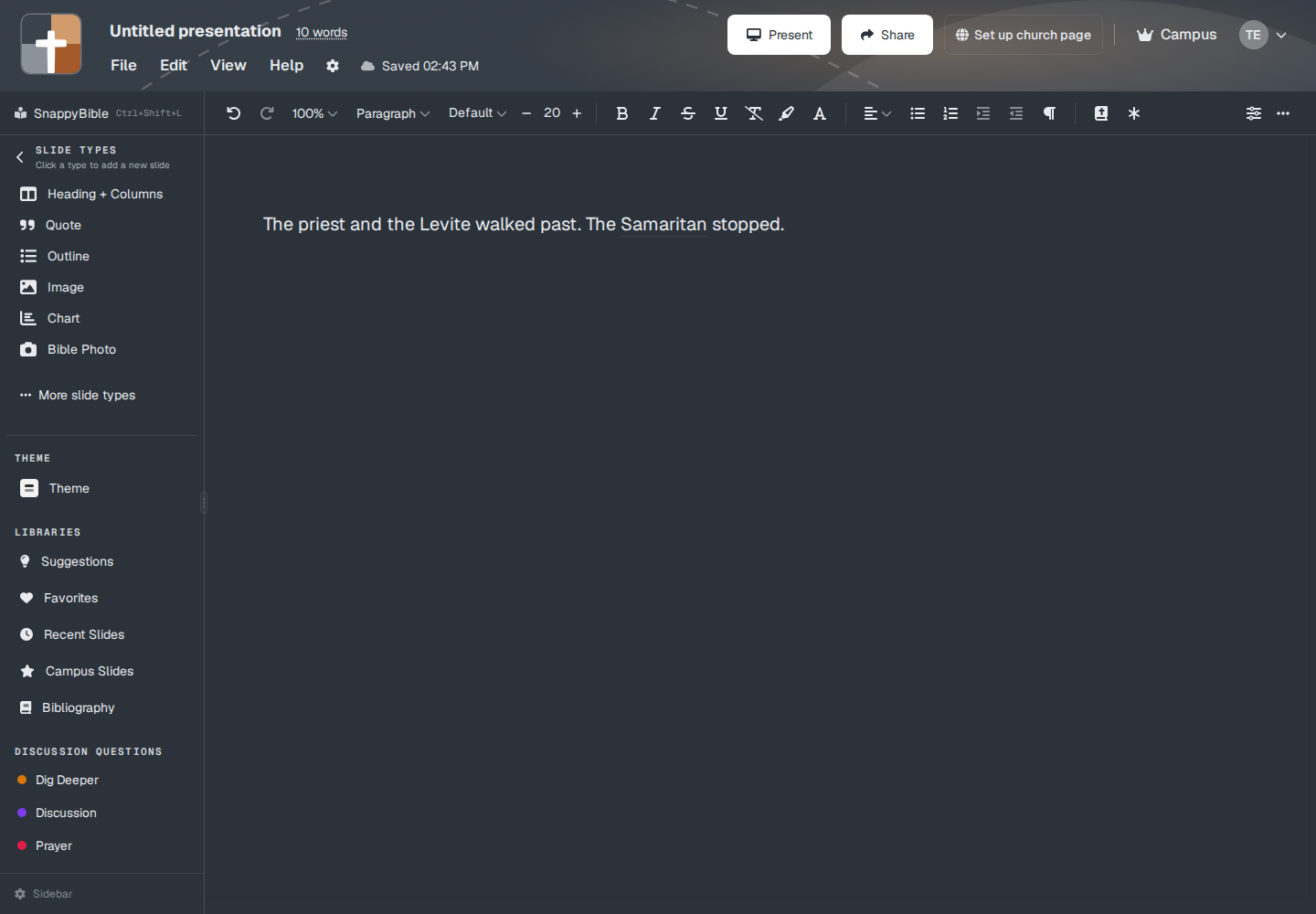
What each line means
The chip next to Help uses these words:
- Saving... — a write is in progress.
- Saved — the deck matches what is stored. On a wide screen the time follows, or the word recently.
- Unsaved — click it. The tooltip is Click to save.
- Unsaved — sync issue — the write did not finish cleanly.
- Save failed — Retry — click to try again.
- Sync conflict — Reload or Saved elsewhere — Reload — the deck was also saved from another place. Reload before you keep typing, or you can overwrite the other copy.
- Offline — saved locally — you are editing without a connection. The tooltip is “Editing offline — changes sync when you reconnect.”
- Saved locally — will sync — the change is on this computer and waiting for the network.
File → Save (Ctrl+S, or Cmd+S on a Mac) writes immediately. Autosave does not remove that command.
The sample deck
If you are still on the locked sample, the pill in the title area can read Sample or Sample — not saved. That deck is for looking. See The sample presentation.
Offline
File → Make available offline keeps a copy on this device so you can open the deck when the building Wi-Fi fails. That is a different step from the save line. See Presenting offline.
Plans
Autosave is on every plan. Free, Premium, and Campus all write the deck to the account. The save line does not change with the plan.