Help Center · Presenting on Sunday
On the fly
Bible, maps, photos, timeline, and the board during the sermon.
On the fly is what you open during the sermon when the passage, the map, or the whiteboard was not in the deck. You build the deck on the computer. These tools are for the presenting screen and the tablet.
While you are still writing
SnappyBible in the sidebar (Ctrl+Shift+L) looks up a passage next to the notes. That is the editor dock, not the projector.
On the tablet and in practice
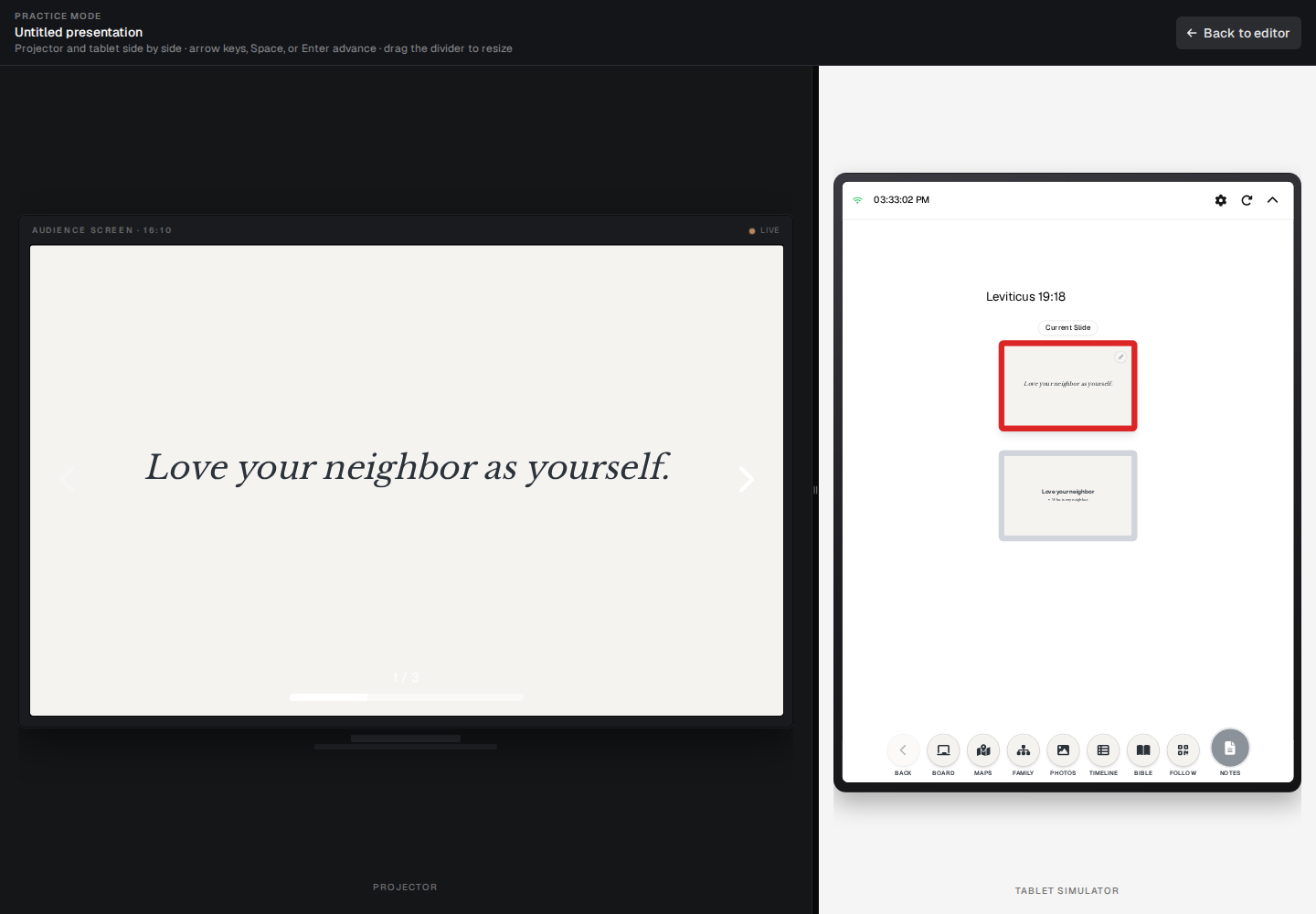
The buttons along the bottom are:
- Board — On-the-fly Whiteboard
- Maps — On-the-fly Maps
- Family — On-the-fly Family Tree
- Photos — On-the-fly Photos
- Timeline — On-the-fly Timeline
- Bible — On-the-fly Bible
- Follow
- Notes
Practice mode shows the same tablet beside the projector, so you can press them in rehearsal. See Present and practice mode.
Display settings can hide a button you do not want on stage. The labels are On-the-fly Bible button, On-the-fly Maps button, On-the-fly Family Tree button, On-the-fly Photos button, On-the-fly Timeline button, and On-the-fly Whiteboard button.
From the projects page, the tablet icon’s tooltip is “Tablet — control on this computer: notes, On-the-fly Bible, maps, and photos.” If the browser blocks the window, the message is “Allow pop-ups to open Tablet (control).”
Plans
On Free, after the trial, SnappyBible and these tools are off. A crown shows, and the tooltip is like “Upgrade to use On-the-fly Bible.” The paid check is the same one as live Bible. The signup trial includes them.
If a slideshow is opened on the fly without that access, the line is “On the fly is available on paid plans.”
Follow-along on that bar is Campus, plus the trial. See Follow along for the room.