Help Center · Slide Types
Timer
A count-down or count-up clock you can start when the slide appears.
Timer is a clock on the slide: count down for a discussion, or count up for a testimony. It is not the same tool as Event Countdown, which counts toward a calendar date.
Where to find it
Timer is in More slide types unless you pin it. New accounts do not pin it. The window is Create Timer.
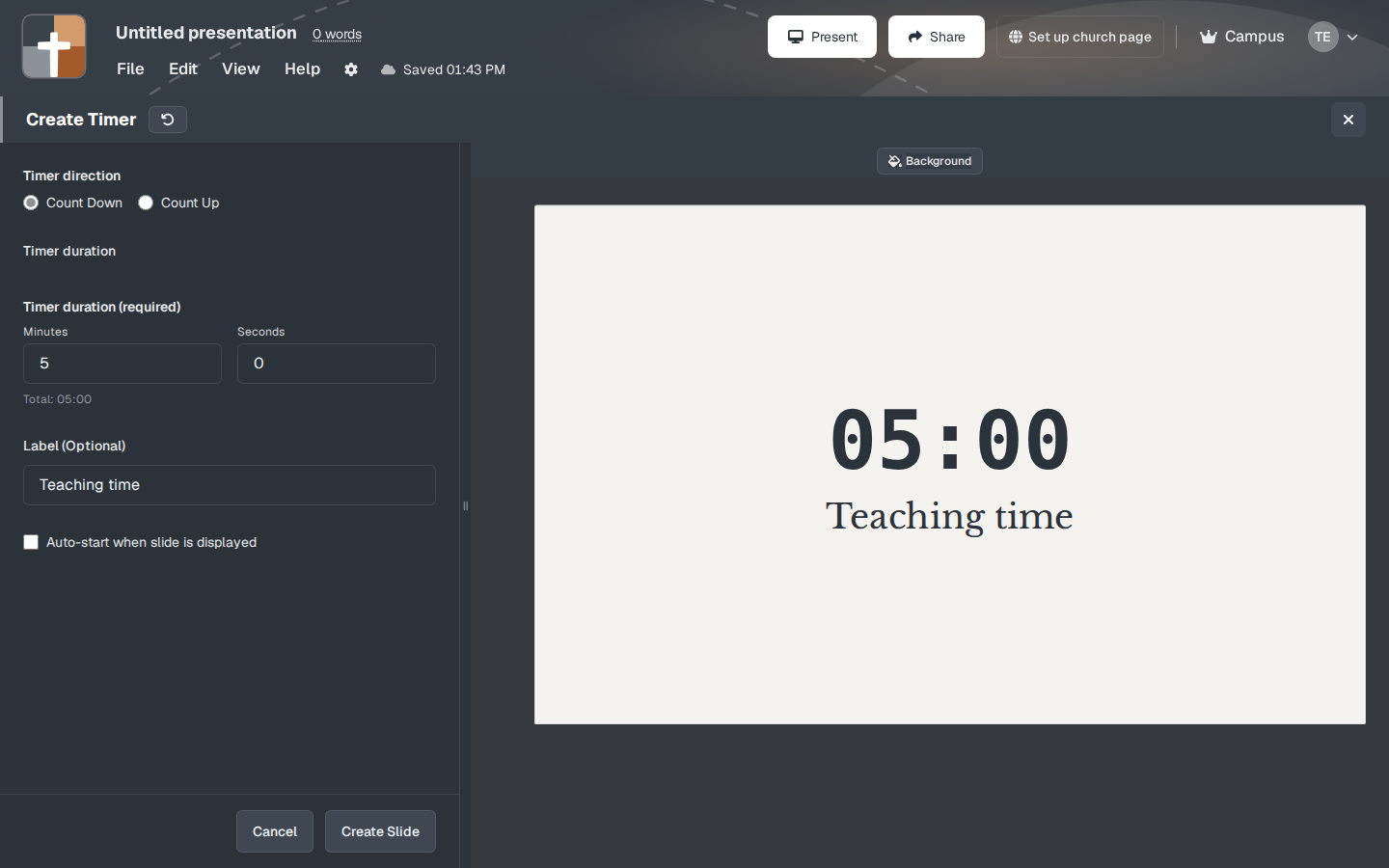
The setup window
- Timer direction — Count Down or Count Up.
- Timer duration — the size of the digits. A new timer starts at 120%.
- Minutes and Seconds — required. The window shows the total, for example Total: 05:00.
- Label — optional words under the clock. The sample label is Teaching time.
- Auto-start when slide is displayed — the clock runs as soon as you land on the slide. Leave it off if you want to start it yourself.
- Background, then Create Slide or Cancel.
The preview shows the clock at 05:00 with the label beneath it. Change the minutes before you create the slide if five minutes is not what you mean.
While you present
Say what the timer is for before it starts, especially with auto-start on. A clock that begins while you are still giving instructions feels like a surprise. Count up when you are keeping time (“we have been in groups this long”). Count down when the room needs to see time running out.
Plans
Timer is on the Free plan. It is not one of the slides that show a crown. Free limits still apply: 7 slides, 3 presentations, and a watermark after the 30-day trial.