Help Center · Sharing & Teams
Church page
The public church site, separate from the campus library.
The church page is the public site for the congregation. It is not the campus library. The library is inside BibleSlides for people on the campus plan. The church page is a link you can give to anyone, shaped like bibleslides.app/public/user/your-name.
The header button depends on whether the page exists yet.
- Set up church page — first-time setup.
- Church page — the page exists, or the account cannot create one and the button explains why.
- Open church page — jump to the live page.
First-time setup
Set up church page opens “Set up your organization page.” The line under the title is “A step-by-step walkthrough for first-time setup.” It shows a step count, such as Step 1 of 6.
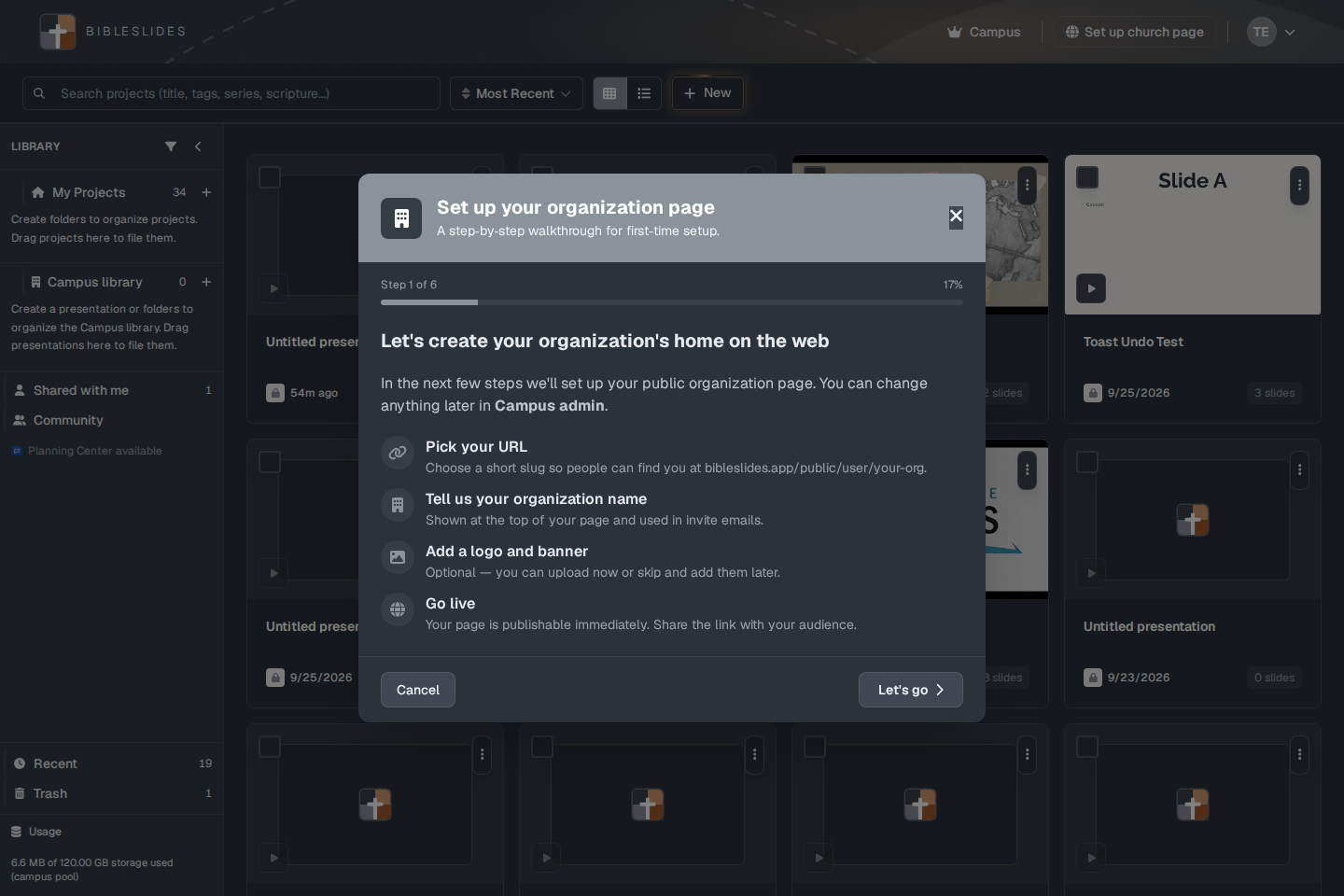
The first screen says “Let's create your organization's home on the web” and “In the next few steps we'll set up your public organization page. You can change anything later in Campus admin.” The steps it names are:
- Pick your URL — “Choose a short slug so people can find you at bibleslides.app/public/user/your-org.”
- Tell us your organization name — “Shown at the top of your page and used in invite emails.”
- Add a logo and banner — optional.
- Go live — “Your page is publishable immediately. Share the link with your audience.”
Cancel closes the wizard and publishes nothing. Let's go starts the steps.
Later, Website & appearance on the page settings has Style my BibleSlides page (“Walk through appearance setup”) and Add to my website for an embed. The embed help points at the integration guide.
Putting a sermon on it
On a project, Publish to church page posts that presentation for visitors to watch, read, and download. The publish step can ask for a video: connect the campus YouTube channel or paste a link. See YouTube.
My Profile shows Church webpage username once a slug exists.
Plans
Creating and moderating the church page is Campus, and it requires a campus admin. The feature check is campus-tier admin, not every campus member.
Publishing onto a page that already exists is allowed for Premium (monthly or annual) and for campus members when an admin has invited them. The empty-state lines are plain:
- Free: “Church pages are included with a Campus plan. You can also ask a campus admin to invite you to publish to their page.”
- Trial: the trial includes the editor. It does not include creating a church page.
- Premium that is not Campus: “A public church page is a Campus feature. Your current plan can publish after a campus admin invites you.”
The campus library helper says the library is “not your public church page.” Keep those two straight on a Sunday when someone asks for “the church’s slides.”