Help Center · Getting Started
Keyboard shortcuts
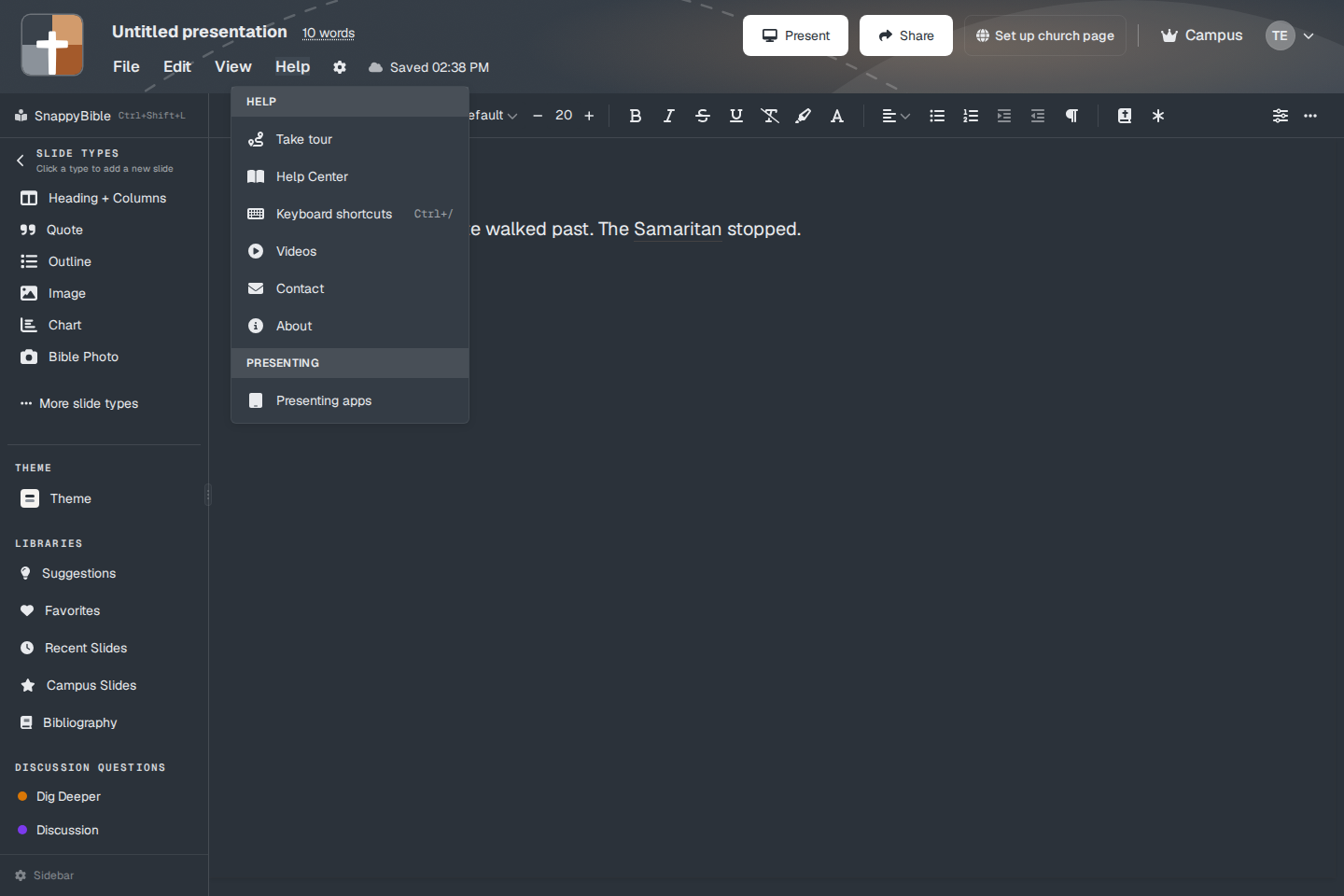
The shortcut list under Help.
Help → Keyboard shortcuts opens the window titled Keyboard Shortcuts. The same window opens with Ctrl+/ (Cmd+/ on a Mac). The menu row shows that shortcut beside the name.
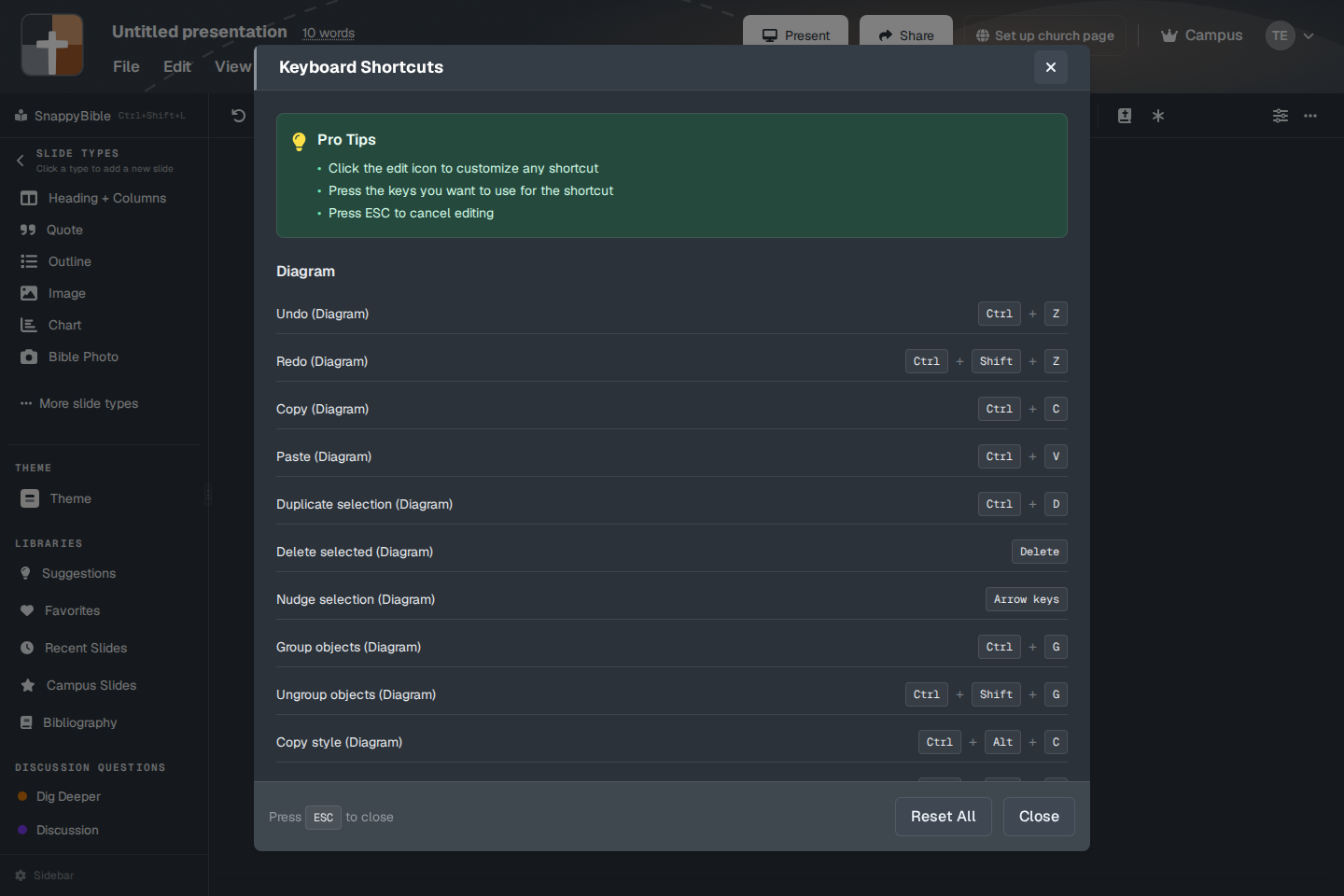
The window is a list you can change. The pro tips at the top say:
- Click the edit icon to customize any shortcut.
- Press the keys you want to use for the shortcut.
- Press ESC to cancel editing.
While you are editing a row, the field reads Press keys..., with Save, Cancel, and Reset. The footer is Press ESC to close, Reset All, and Close. Reset All asks “Reset all shortcuts to defaults?”
On a Mac the lists show Cmd where this article says Ctrl.
General
- Save current presentation — Ctrl+S
- New presentation — Ctrl+N
- Open presentation — Ctrl+O
- Find and replace — Ctrl+F
- Keyboard shortcuts — Ctrl+/
- Present — Ctrl+Enter
- Open SnappyBible — Ctrl+Shift+L
While you present
These move the slideshow, not the notes. See Keys while you present.
- Next slide — Right arrow, and also Space, Enter, and Page Down
- Previous slide — Left arrow, and also Page Up
- First slide — Home
- Last slide — End
In the notes
Undo Ctrl+Z. Redo Ctrl+Shift+Z. Bold Ctrl+B, Italic Ctrl+I, Underline Ctrl+U, Strikethrough Ctrl+Shift+S. Superscript Ctrl+Shift+=. Quote Ctrl+Shift+B. Bullet list Ctrl+.. Numbered list Ctrl+Shift+7. Indent Tab. Outdent Shift+Tab. Hanging indent Ctrl+Alt+H.
Copy Ctrl+C, Paste Ctrl+V, Paste without formatting Ctrl+Shift+V, Cut Ctrl+X. Select all Ctrl+A. Delete is the Delete key. Duplicate slide Ctrl+D.
Insert link Ctrl+K. Insert image Ctrl+Shift+I. Insert table Ctrl+Shift+Q. Insert into notes Ctrl+Shift+X. Insert footnote Ctrl+Shift+N. Clear formatting Ctrl+\.
Normal paragraph Ctrl+Alt+0. Heading 1, 2, and 3 are Ctrl+Alt+1, Ctrl+Alt+2, and Ctrl+Alt+3.
Find and replace is also Ctrl+H.
Two experimental rows are in the list: uppercase the word or selection (Ctrl+Shift+U) and highlight the sentence (Ctrl+Y).
Diagram
These apply on a Powerpoint Draw canvas, not in the notes. Undo and Redo match the notes keys. Copy, Paste, and Duplicate match too. Delete removes the selection. Arrow keys nudge. Group is Ctrl+G. Ungroup is Ctrl+Shift+G. Copy style is Ctrl+Alt+C. Paste style is Ctrl+Alt+V.
Add a slide type
These open that type’s setup window:
- Text Only — Ctrl+Shift+0
- Heading + Columns — Ctrl+Shift+1
- Quote — Ctrl+Shift+3
- Animated Number — Ctrl+Shift+4
- Outline — Ctrl+Shift+5
- Image — Ctrl+Shift+6
- Video — Ctrl+Shift+8
- Diagram (Powerpoint Draw) — Ctrl+Shift+9
- Timer — Ctrl+Shift+T
- Venn Diagram — Ctrl+Shift+K
- Verse Analysis — Ctrl+Shift+A
- Chart — Ctrl+Shift+R
- Event Countdown — Ctrl+Shift+E
- 3D Bible Maps — Ctrl+Shift+M
- 3D Models — Ctrl+Shift+J
- Bible Photo — Ctrl+Shift+F
- Bible Verse — Ctrl+Shift+C
- Timelines — Ctrl+Shift+O
A type with a crown still follows the plan. The shortcut opens the window. It does not bypass Upgrade to Add.
Plans
The shortcut list is on every plan. Customizing a key does not require Premium.