Help Center · Audience Interaction
Reading the results
What you see on the slide while people respond.
For a poll or a rating, Settings → Slide settings has Show results live on the slide. Turn it on and the projector fills the bars as answers come in. Leave it off if you want to talk before the room sees the split. Ratings show a running average. Q&A stays off the projector until you approve a question.
How this works is four steps. Next moves ahead. The first step is what the screenshot shows.
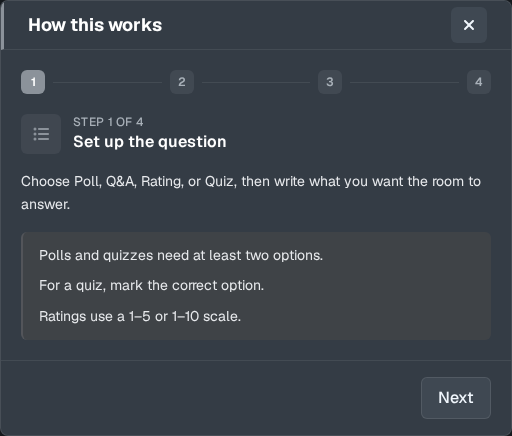
- Set up the question — “Choose Poll, Q&A, Rating, or Quiz, then write what you want the room to answer.” Polls and quizzes need at least two options. For a quiz, mark the correct option. Ratings use a 1–5 or 1–10 scale.
- Present the QR code — “Start Slideshow. This slide shows a QR code labeled “Scan to respond.” People open it with their phone camera — no app or account.” Anyone in the room can vote, rate, or send a question. People already on the follow-along page can respond there too.
- See answers live — “Responses update on the projector as they come in.” This step names Show results live on the slide.
- Run it from the tablet — “While this slide is up on a tablet, the bar at the bottom is your control panel.” Open or close responses. Reveal the quiz answer, or reset. Approve or dismiss incoming Q&A. Approved questions appear on the slide. Audience members can upvote a question once. Require name from questioners is the Q&A name switch.
On the tablet
The presenter overlay is where you run it:
- A poll or rating shows a count: “1 response” or “4 responses.”
- A quiz shows “3 joined · 2 submitted,” then a countdown, and Complete when it is done. The buttons are End quiz (or Closed), Reveal (then Hide answer), and Reset. A poll uses Open and Close instead of End quiz.
- Q&A gives you approve and dismiss. Only what you approve is on the slide.
Open starts accepting answers. Close stops. Reveal on a quiz shows the key after you are ready. End quiz finishes it. The quiz also ends on its own: “Completes 30 seconds after every joined student finishes, or when time runs out.”
On the phone
People are on /respond/, not on /follow/. Follow-along does not collect a number. If the phone is on the follow-along page, they are watching the slide, not answering. See Follow along for the room.
Plans
Live results are part of the Audience Interaction slide. That slide is available on Free, inside the slide cap. You do not need Campus to read a poll. You need Campus, or the signup trial, for the follow-along QR.