Help Center · Presenting on Sunday
Fullscreen
Fill the editor or the projector, then come back.
There are two fullscreens. One is the editor. One is the slideshow you send to the projector.
The editor
View → Fullscreen asks the browser to fill the screen with the editor. The row switches to Exit Fullscreen. This does not start the presentation. It only hides the browser chrome so the notes are larger.
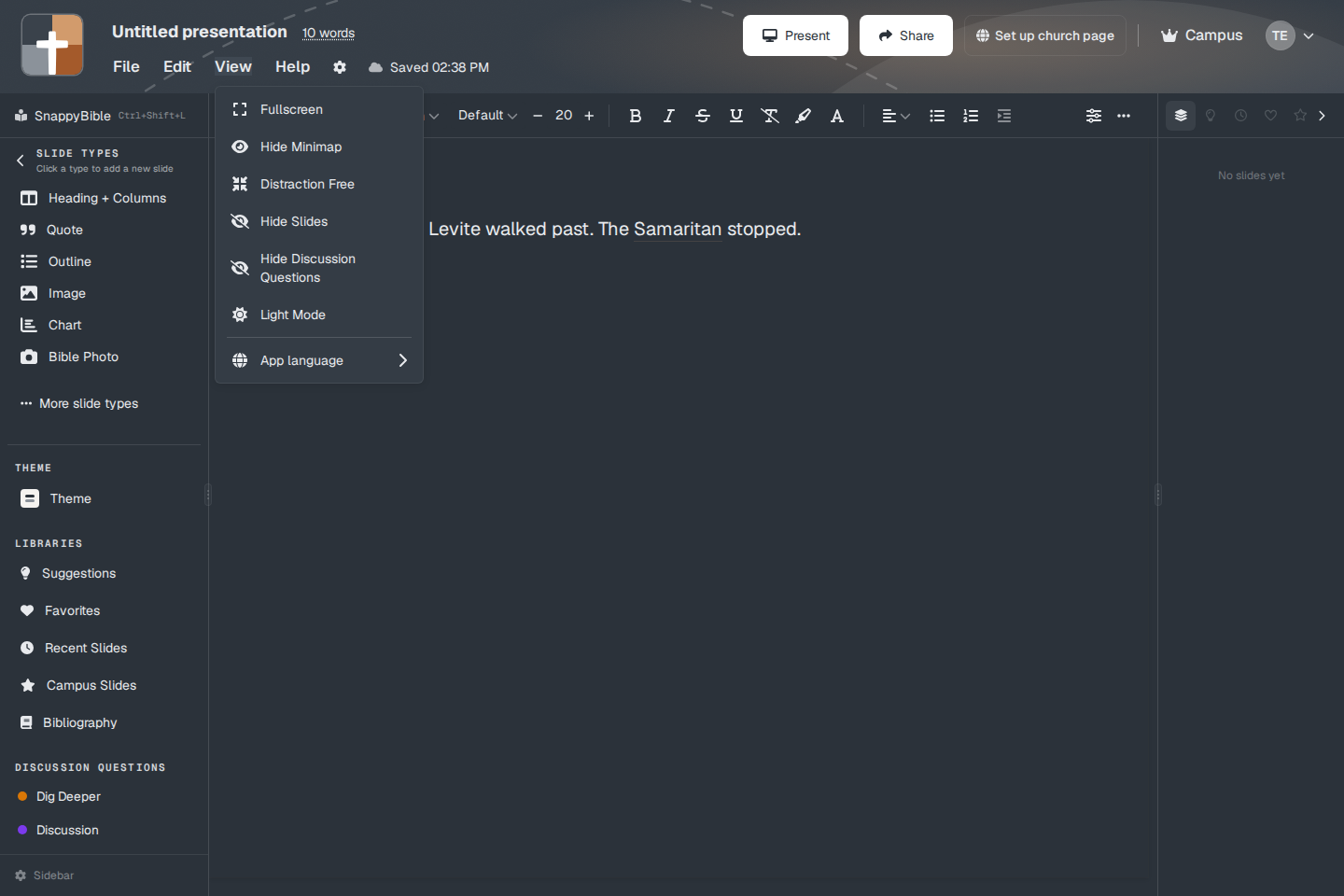
The rest of that menu is Show Minimap or Hide Minimap, Distraction Free, Show Slides or Hide Slides, Show Discussion Questions or Hide Discussion Questions, Light Mode or Dark Mode, and App language.
The projector
Present opens the slideshow in its own window. The Present row in that menu says Fullscreen and the shortcut (Ctrl+Enter, or Cmd+Enter on a Mac). See Present and practice mode.
In the slideshow, f toggles fullscreen. The help overlay (press ?) lists it as toggle fullscreen. The first key you press can also ask the browser to go fullscreen.
Leave with Escape. Escape ends Present and returns you to the editor for that deck, or to the projects page if the deck has no id. It is not View → Exit Fullscreen. That View command only exists in the editor window. If the browser leaves fullscreen on its own, Present can end as well.
Practice mode stays in the same tab. Back to editor leaves it. See Keys while you present.
Plans
Fullscreen is on every plan. The free watermark, if the account is on Free, still shows on the slideshow. Fullscreen does not remove it.