Help Center · Tablet & Remote
Presenting offline
Make a deck available when the building Wi-Fi fails.
File → Make available offline downloads this presentation onto the computer you are using. The same row switches to Remove offline availability after the pin, and to Updating offline… while it works.
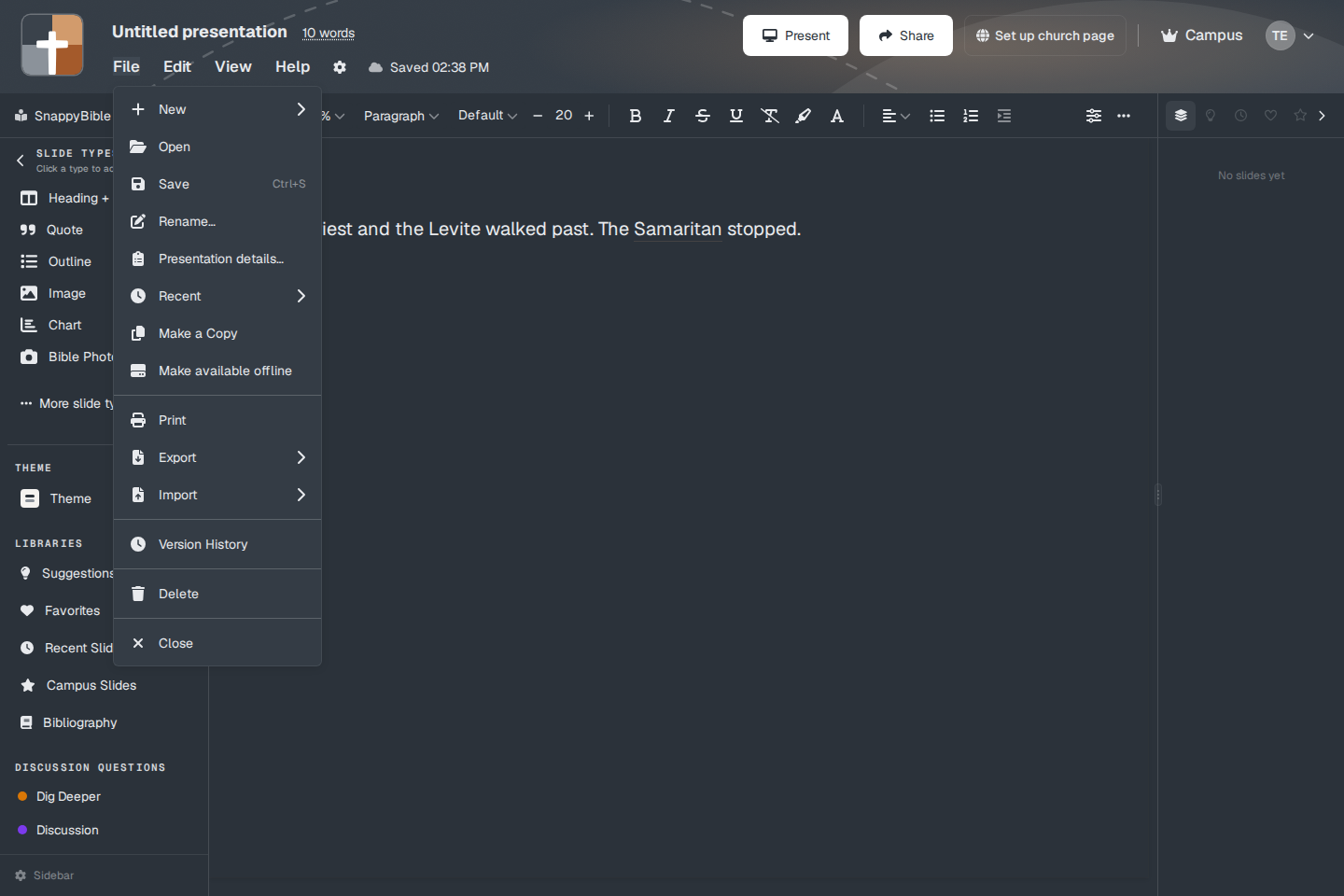
The tooltip before you pin is “Download this project so you can edit without internet.” If you are already offline and this deck was never pinned, the row is disabled and the tooltip is “Requires internet to download for offline use.” Removing the pin says “Remove offline copy from this device.”
What gets stored
The pin saves the presentation, its images, the Bible chapters the slides need, and custom fonts used by the deck. When it finishes, the toast is “Project available offline on this device.” If some files could not be stored, the toast says what was skipped.
You can then open and edit that deck without a connection. Edits wait on the computer. The header can read Offline — saved locally or Saved locally — will sync. When the network returns, they upload. See Autosave.
What still needs the network
A new place lookup, a YouTube video, a large video, and a 3D model that was not already stored can still fail offline. A map can show the area that was saved. It cannot fetch a new region.
Export Offline Slideshow under File → Export is a different command. That one builds a single file for a browser and it is a premium export. See Exports and watermarks.
Tablet
An offline slideshow file cannot pair a tablet. The line in the product is “Offline files cannot pair a tablet.” Live tablet control uses the network so the tablet and the projector stay on the same slide. Pinning the deck on the presenting computer is what keeps the projector side up when Wi-Fi drops.
Plans
Make available offline is on every plan, including Free. The pin is not a paid feature. Free decks are smaller, which is the only practical difference.