Help Center · Tablet & Remote
Connect a tablet
Pair a second screen to this presentation.
Present opens the slideshow window and, when the deck is ready, a window titled View Speaker Notes and Control Slides.
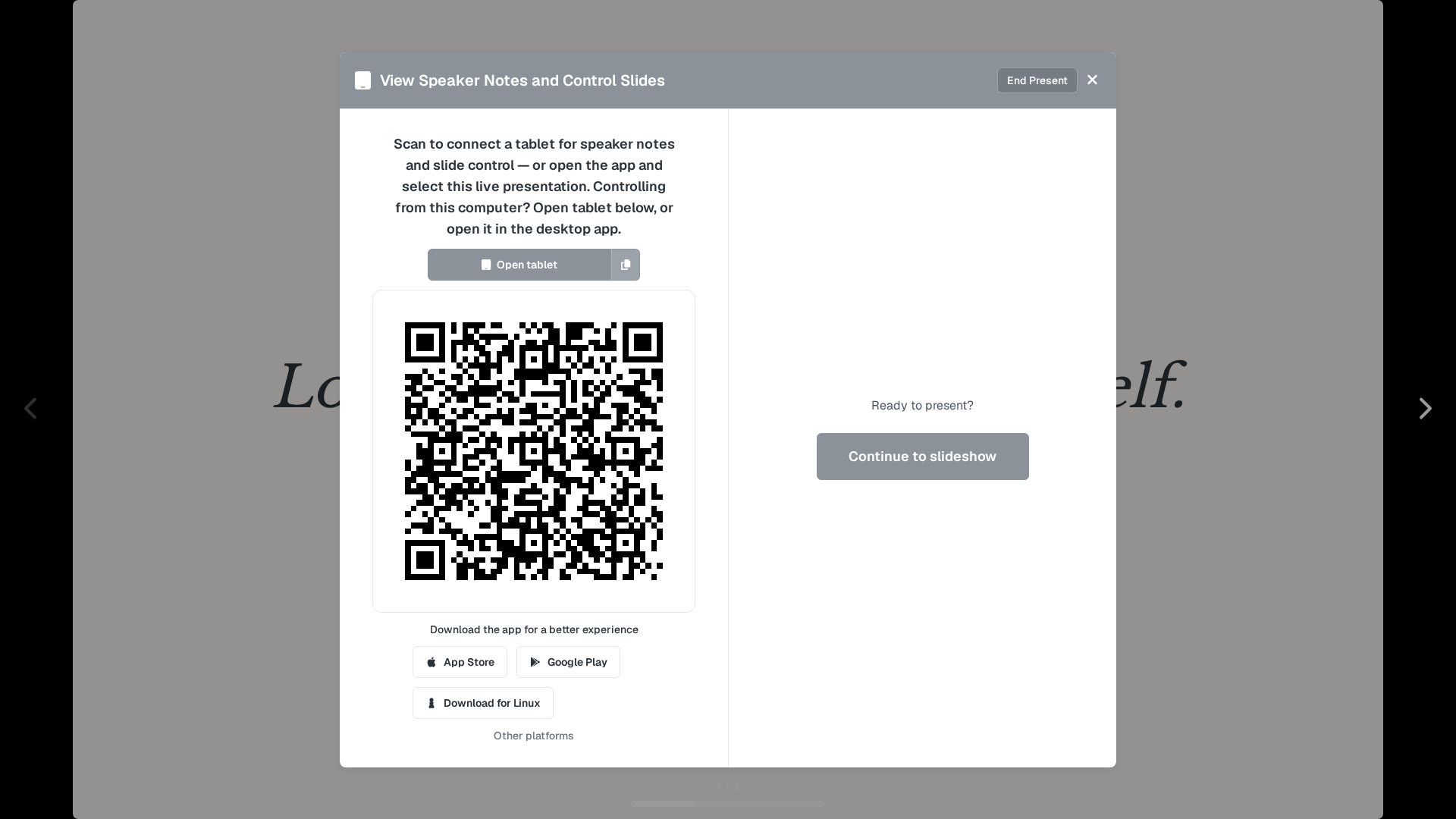
The body says: “Scan to connect a tablet for speaker notes and slide control — or open the app and select this live presentation. Controlling from this computer? Open tablet below, or open it in the desktop app.”
- Open tablet — opens the tablet view on this computer, in a window named for the tablet.
- The icon beside Open tablet is titled Copy tablet link. The address is
/tabletplus this presentation. After you copy, the name becomes Copied tablet link. - The QR code is that same address. There is no 6-digit code for the tablet. A 6-digit code is only for Stream Deck.
- Download the app for a better experience — the same downloads as Tablet apps.
- Continue to slideshow — closes the splash and shows the slide. The right side says Ready to present?
- End Present — leaves the slideshow.
The splash closes on its own when a tablet connects. Escape dismisses the splash and does not end Present, unless you use End Present.
From the editor, opening the tablet directly skips this splash and goes to /tablet.
A view-only share link has its own copy of this idea, titled Connect Tablet to Presentation, with Connect Tablet via QR Code and “Scan with your tablet or phone to connect and view speaker notes.”
The network
The tablet and the projector stay in step through BibleSlides, not through a cable. Both need a connection to the internet. They do not have to be on a private church network beyond that, but a guest network that blocks the connection will look like a tablet that never pairs. See Tablet won’t connect.
An exported offline file cannot pair. The line is “Offline files cannot pair a tablet.” Pinning the deck for offline editing is separate. See Presenting offline.
Plans
Connecting a tablet is on every plan. The tools on the tablet still follow the plan. On-the-fly Bible, maps, photos, timeline, and the board need Premium, Campus, or the trial.