Help Center · Troubleshooting
Can’t sign in
Email, Google, Apple, and a session that will not restore.
The sign-in window is titled Welcome back. The line under it is “Good to see you again — your decks are waiting.” Create account is the other tab.
Continue with Google and Continue with Apple are the first two buttons. Or continue with email opens Email address, Password, Forgot password?, and Sign in.
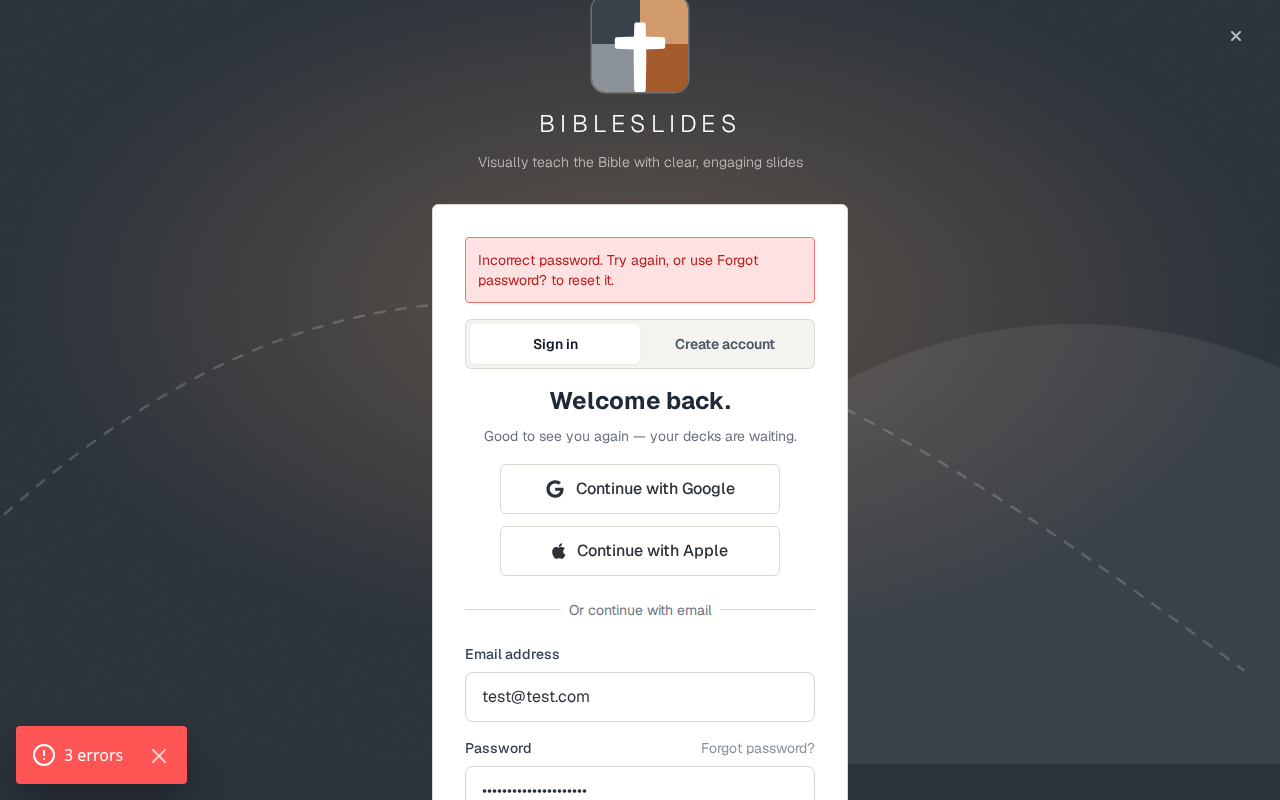
The messages
- “Incorrect password. Try again, or use Forgot password? to reset it.”
- “This email is registered with Google or Apple. Use the button below to sign in — no password needed.”
- “No account found with this email. Create one below.”
- On the create-account tab, if the email exists: “An account with this email already exists. Sign in with Google or Apple instead.”
Forgot password? sends a reset to that email. There is no password field in My Profile. Change the password from the email, then sign in.
A new email account has to verify before it can sign in. The note is “After you verify your email, sign in below — your email and password stay filled in for you.” If you skip the email, sign-in stops and asks you to verify. Some accounts are exempt from that check. A normal signup is not.
A code after the password
If the account has a second step, the window asks “Please enter the verification code.” A text step says “Verification code sent to your phone.” A wrong code says “Invalid verification code. Please try again.”
“Session could not be restored”
The projects page can say “Session could not be restored after login.” The password was accepted. The account then could not read its library, usually because the database rules do not allow that user. Signing out and in again does not fix a permissions block. The person who runs the Firebase project has to grant that account.
Plans
Sign-in is the same window on every plan. A failed password is not a plan problem. After you are in, the header badge is the plan. See Free, Premium, and Campus.