Help Center · Slide Types
Video
YouTube, your uploads, or the built-in video libraries.
Video plays a clip on the slide. You start on the setup window, then open a picker when you need a clip.
Where to find it
Pinned for new accounts. Opening Video lands on Create Video. That is the setup window. Until a clip is chosen, it says “No video selected — choose a tab above.”
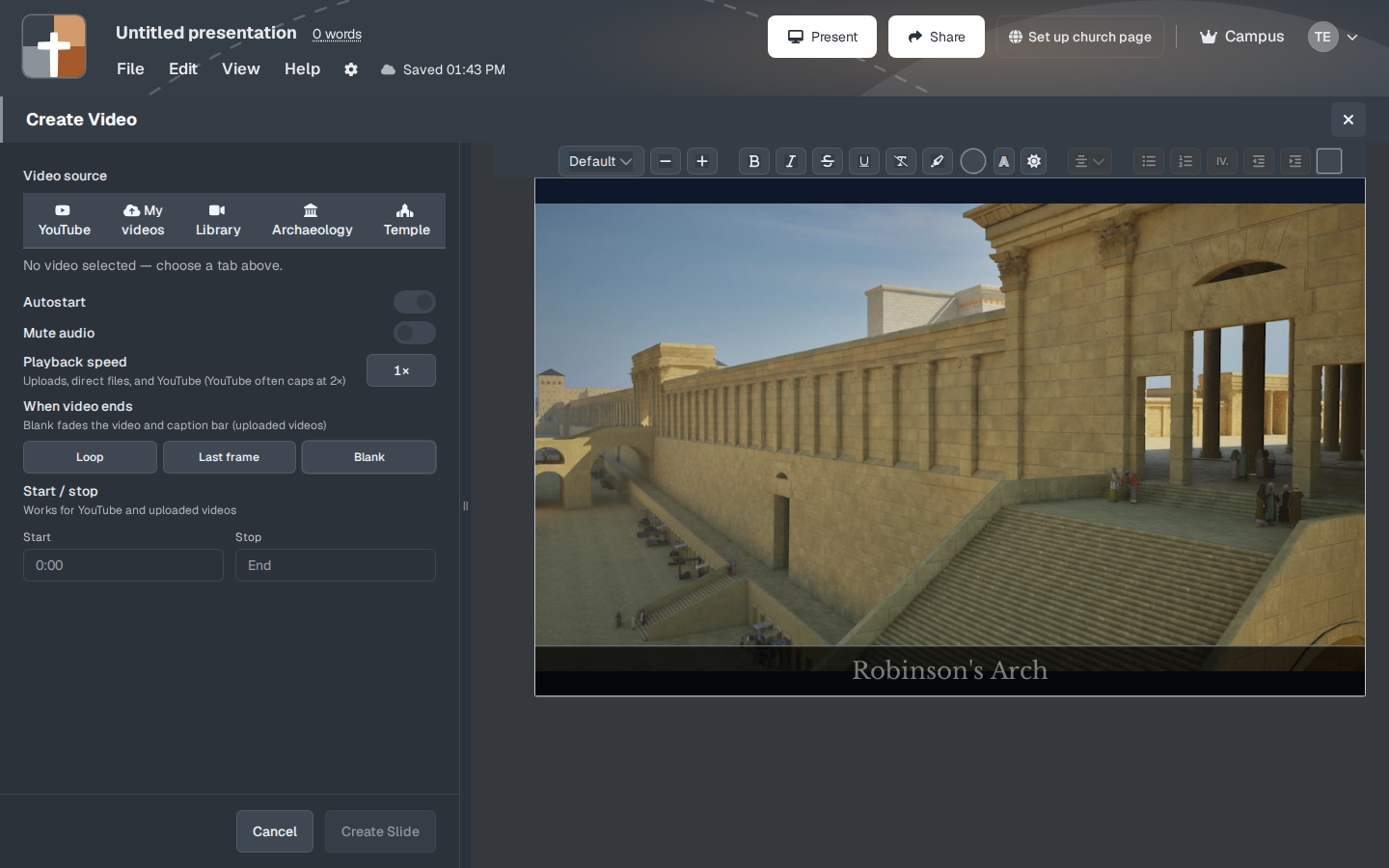
Video source lists five tabs: YouTube, My videos, Library, Archaeology, and Temple. Choosing a tab opens a second window titled Choose a video. Continue there comes back to Create Video. On a new slide, Close on that picker closes the whole window. When you are changing a video that is already on a slide, Close returns to Create Video. Create Slide stays off until a video is selected. Cancel on the setup closes it.
There is no channel tab. Browsing the church’s YouTube uploads is the Campus connection in File → Presentation details, on Video & audio. See YouTube.
The five tabs
YouTube — the field says “Search YouTube or paste a URL…”. The line under it is “Search for videos, or paste a YouTube / Vimeo / embed URL and press Enter.” Curated clips are under Archaeology and Temple. Your files are under My videos.
My videos — “Click or drag to upload video.” The file types are MP4, M4V, and WebM. Empty, it says “No uploads yet. Upload a file above.”
Library — stock video from Pexels, not a Bible collection. The field says “Search stock video (e.g. nature, worship)…”. The credit line is “Videos provided by Pexels.”
Archaeology — Joel Kramer’s Expedition Bible films, played from YouTube. The line names Joel Kramer and Expedition Bible, and says they are tagged to Bible passages. Search is “Search by title or Bible reference…”. These clips use the same paid and trial gate as any other YouTube address.
Temple — Jeremy Park / Bible Scenes films of Herod’s Temple Mount. The credit is Jeremy Park, Bible Scenes, and CC BY 4.0. The files are MP4s hosted by BibleSlides. They are not YouTube, so the YouTube gate does not block them. The collection heading is Herod's Temple Mount.
Playback
A new slide starts with Autostart on and When video ends set to Blank. If this presentation already saved Video settings, those replace the defaults, including Autostart. If it has no saved end setting, the last end setting you used on a Video slide is used. Otherwise When video ends stays Blank.
- Autostart — the clip starts when the slide appears.
- Mute audio — picture without sound.
- Playback speed — the button cycles 0.5×, 0.75×, 1×, 1.25×, 1.5×, 2×, 2.5×, and 3×. It is shown for uploads, direct files, and YouTube. The note is “Uploads, direct files, and YouTube (YouTube often caps at 2×).” A Vimeo-style embed hides the button and plays the full clip. There is no speed control on that embed.
- When video ends — Loop (“Replay from the start”), Last frame (“Stop on the last frame”), or Blank (“Fade to black (including caption bar) and hold”). The note under the label is “Blank fades the video and caption bar (uploaded videos).” The fade runs in the native player: uploads and direct video files, including Library and Temple MP4s. YouTube and Vimeo-style embeds do not fade.
- Start / stop — “Works for YouTube and uploaded videos.” The placeholders are 0:00 and End. Clear start / stop appears after you set one.
Plans
Searching or pasting YouTube is allowed on monthly, annual, Campus, and the 30-day trial. The trial is treated as annual for this check. Free cannot. The toast is “Adding a YouTube video slide is a premium feature. Upgrade to add it to your presentation.” Archaeology clips hit that same toast. Temple clips do not.
Uploading your own file uses the media upload rule. On Free, after the trial, the toast is “Uploading your own images and videos is a premium feature. Upgrade to add them to your slides.”
The church channel list is Campus only (the campus owner and a campus member). It is not a tab on this slide. See YouTube and Free, Premium, and Campus.