Help Center · Getting Started
The projects page
My Projects, folders, search, and the New button.
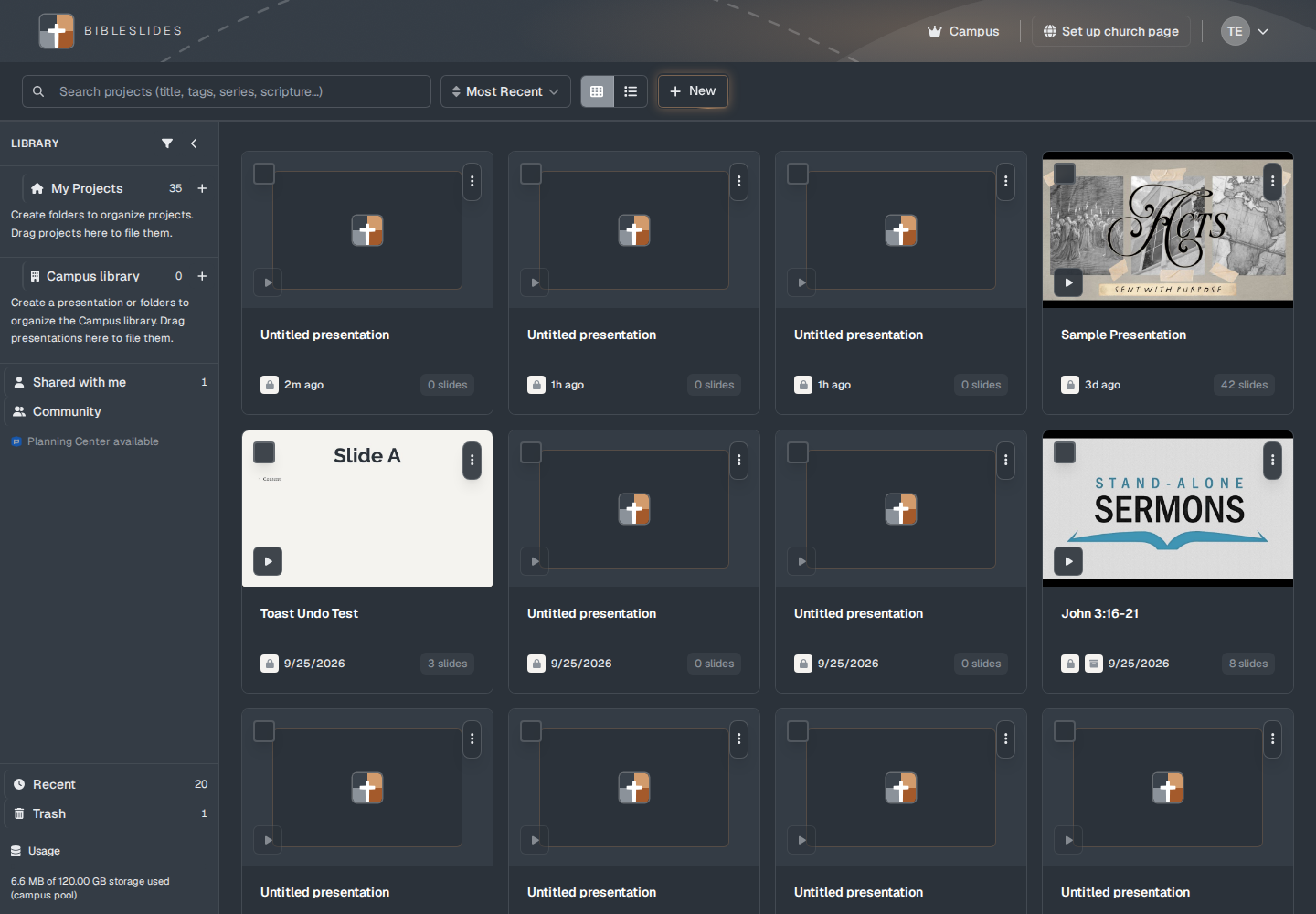
After you sign in, BibleSlides opens your library. The collection is My Projects. A project is a presentation. The header has a search box, a sort control that starts on Most Recent, and New.
The left side
The panel is labeled Library.
- My Projects — your decks. A number next to the name is how many are in this list.
- Under that, the empty hint reads: “Create folders to organize projects. Drag projects here to file them.” The plus beside My Projects is New folder (that is the tooltip and the accessible name). Drag a card onto a folder to file it.
- Campus library — decks shared with the campus plan. A separate article covers who sees them.
- Shared with me — decks someone invited you to. The empty line is “Nothing shared with you yet.”
- Community — public decks other people have listed. See Private and public.
- Planning Center available — upcoming services, when the campus connection is on. See Planning Center.
- Recent — presentations you have updated, newest first.
- Trash — decks you deleted. They are not gone until the trash is emptied.
Each card
A card shows the title, when it was last touched (for example “3d ago” or a date), and how many slides it has. A brand-new account can also show Sample Presentation. That card is for looking around. Work you want to keep belongs in a deck you create. See The sample presentation.
The search box placeholder is “Search projects (title, tags, series, scripture…).” On a phone it shortens to “Search…”. The tooltip is Search (⌘K or / on a Mac, Ctrl+K or / otherwise). If nothing matches, the page says No presentations found.
New
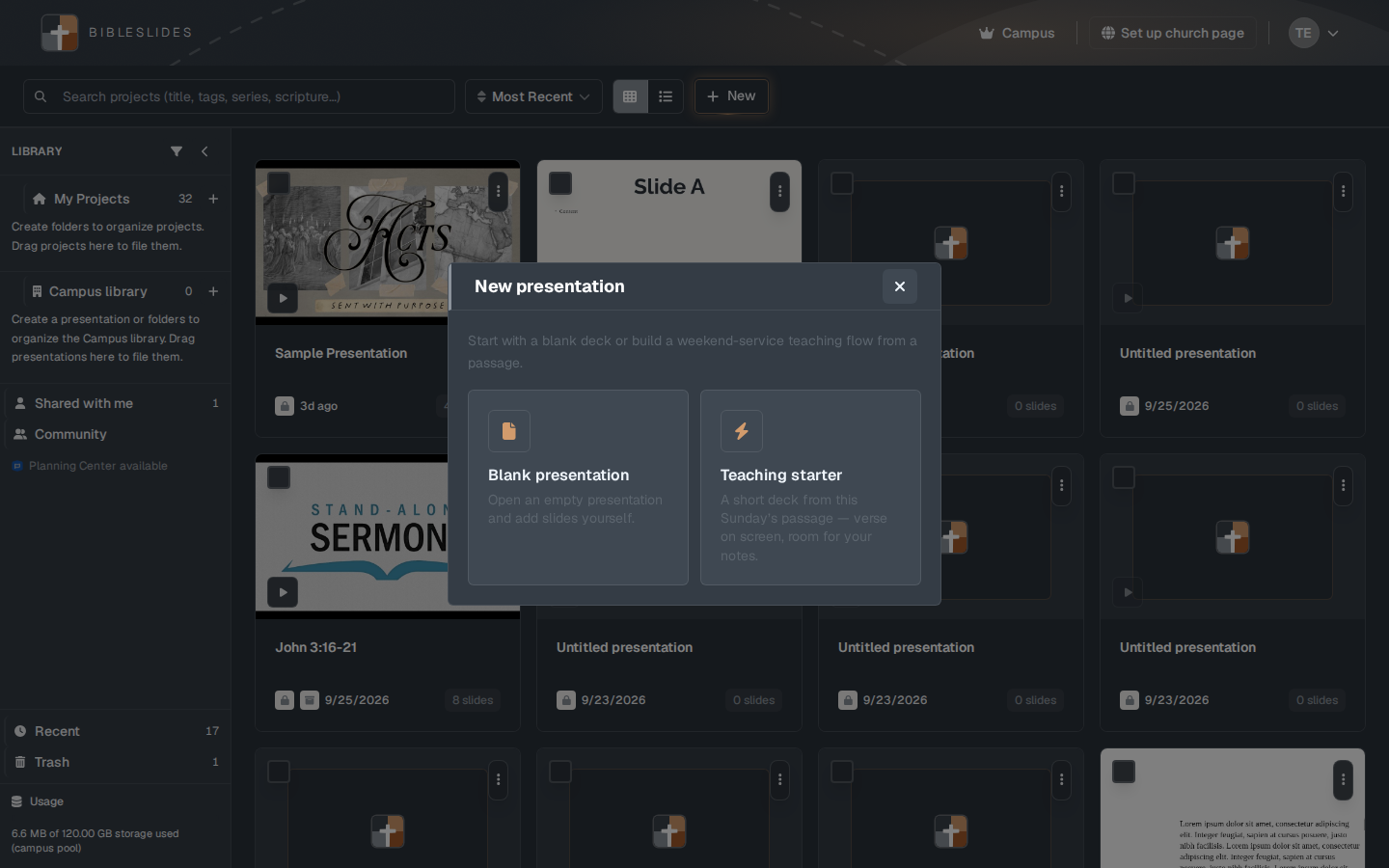
New opens a window titled New presentation. The line under the title is “Start with a blank deck or build a weekend-service teaching flow from a passage.”
- Blank presentation — “Open an empty presentation and add slides yourself.” This opens the editor on an untitled deck. See The editor.
- Teaching starter — “A short deck from this Sunday’s passage — verse on screen, room for your notes.” See Teaching starter.
Usage
The bottom of the library panel is Usage. On a campus account it can read like “6.6 MB of 120.00 GB storage used (campus pool).” A personal account shows a 4 GB cap and, on Free, a presentations line such as “2 of 3 presentations used.” See Storage.
Plans
Free, after the trial, can keep 3 presentations. The sample deck does not count toward that 3. Premium and Campus do not have that cap. The header badge on this page is the plan name (Campus, Premium, or Free). Click it to open Subscription Plans. See Free, Premium, and Campus.