Help Center · Sharing & Teams
Private and public
Who can find a presentation in the community.
A new presentation is private. People find it when you send a link, invite them, or put it in the campus library. Community on the projects page is the list of decks their owners have made public.
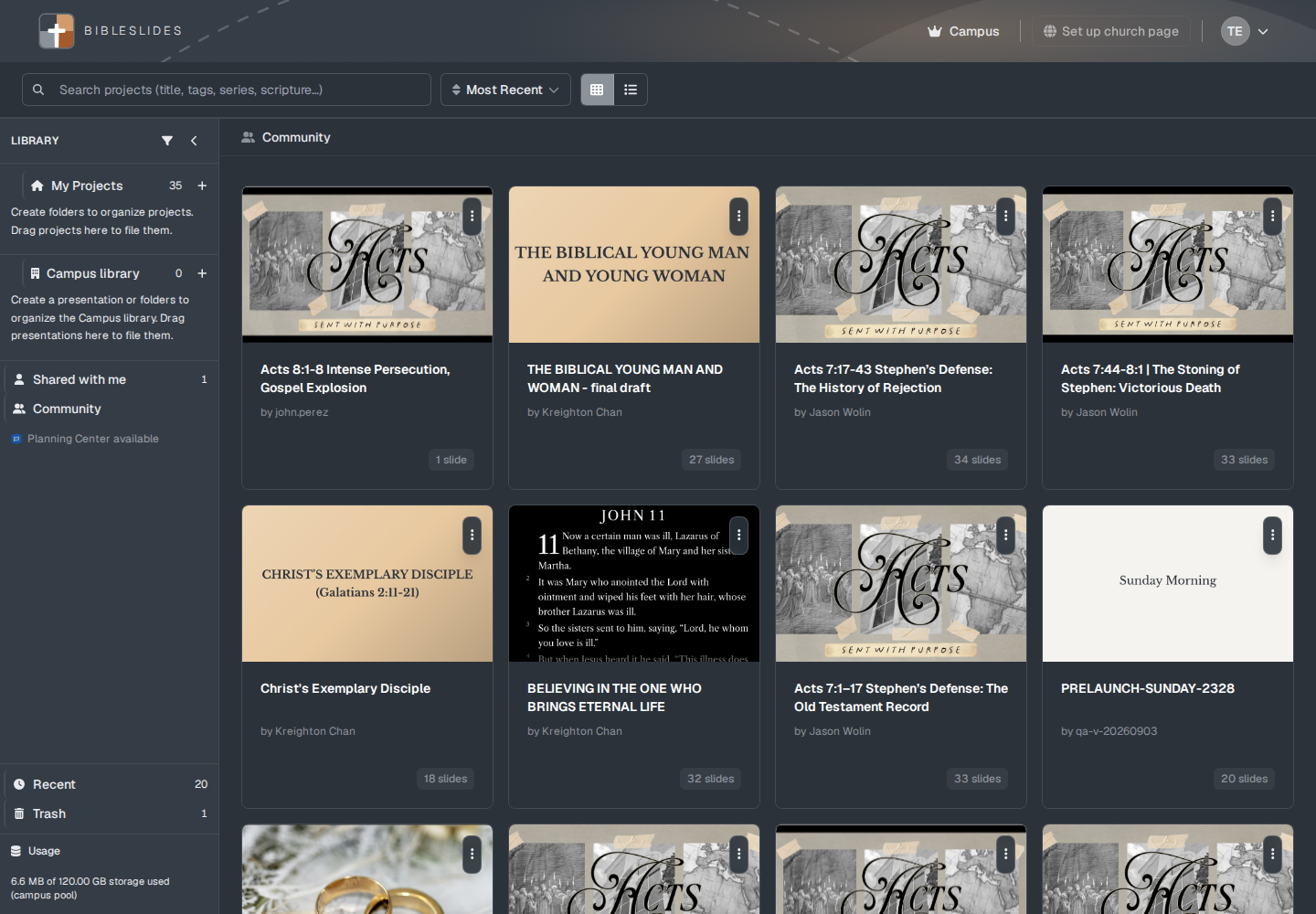
Empty, it says “No public community projects available yet.” A search with no hit says “No community projects match your search.” If the list cannot load: “Could not load community projects. Try again later.”
Opening a community deck gives you a copy to work from. The card action is Open Copy. You are not editing the other person’s original.
Make public
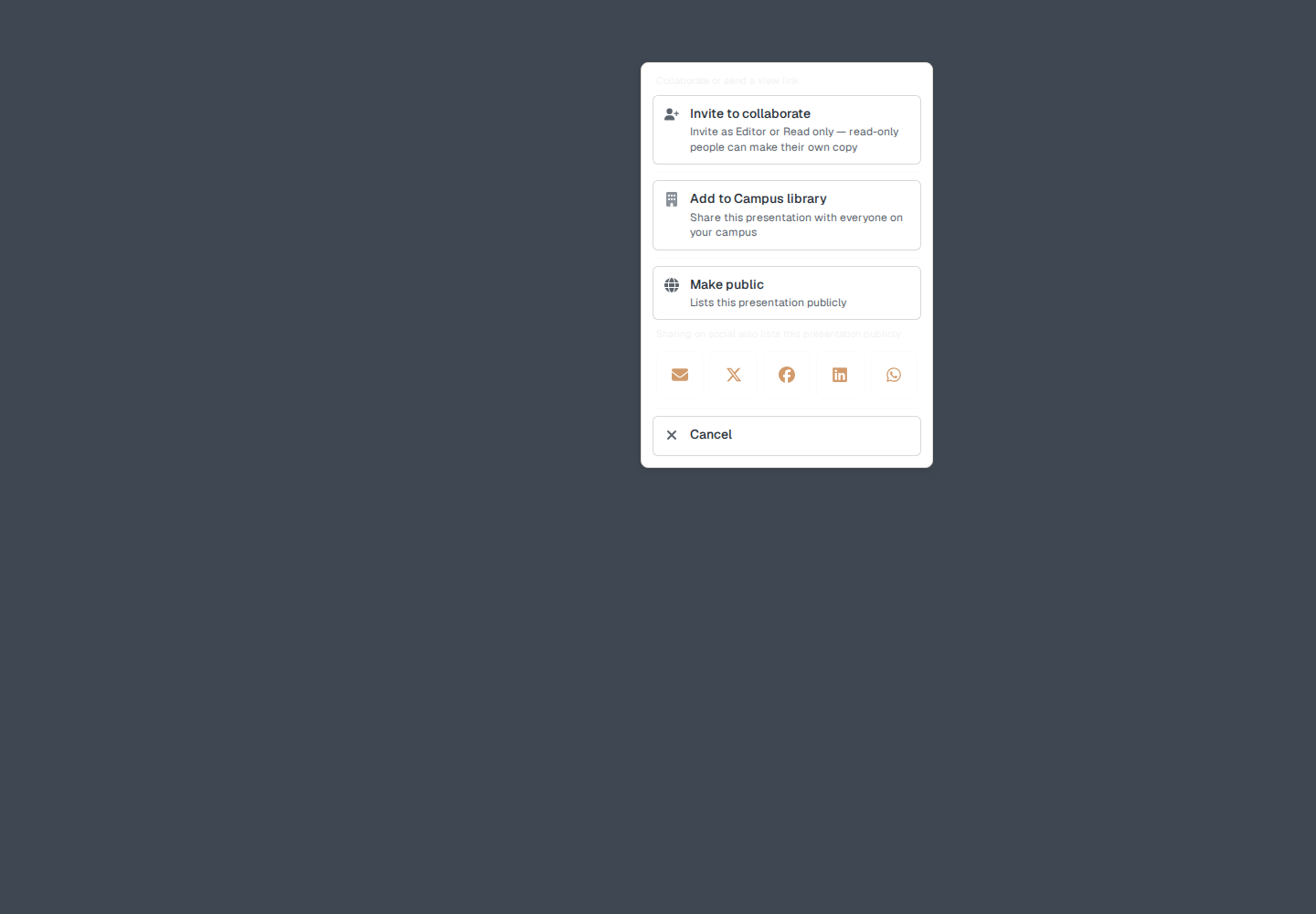
The owner uses Make public on the project card or in Share. The confirm window is “Make this presentation public?” and “This lists the presentation publicly. Anyone can find and view it.”
Make private removes it from public listings. The card badge is Public or Private. The tooltips are “Public — click to make private” and “Private — click to make public.”
There is no second switch named “publish to community.” Make public is that switch.
Sharing to social also lists the presentation publicly. The hint is “Sharing on social also lists this presentation publicly,” and “Lists this presentation publicly.”
On your own public deck you can Feature in Showcase or Remove from Showcase. That is your showcase, not a ranking of the whole community.
What public does not do
Public does not put the deck on the church page. That is Publish to church page. See Church page.
Public does not add it to the campus library. That is Add to Campus library.
A public viewer gets the slideshow, not your editor, unless you also invite them.
Plans
Making a deck public is available to the owner. It is not a Campus-only switch. The Free watermark still applies when a Free account presents that deck.