Help Center · Presenting on Sunday
Keys while you present
Move, go back, and leave the slideshow.
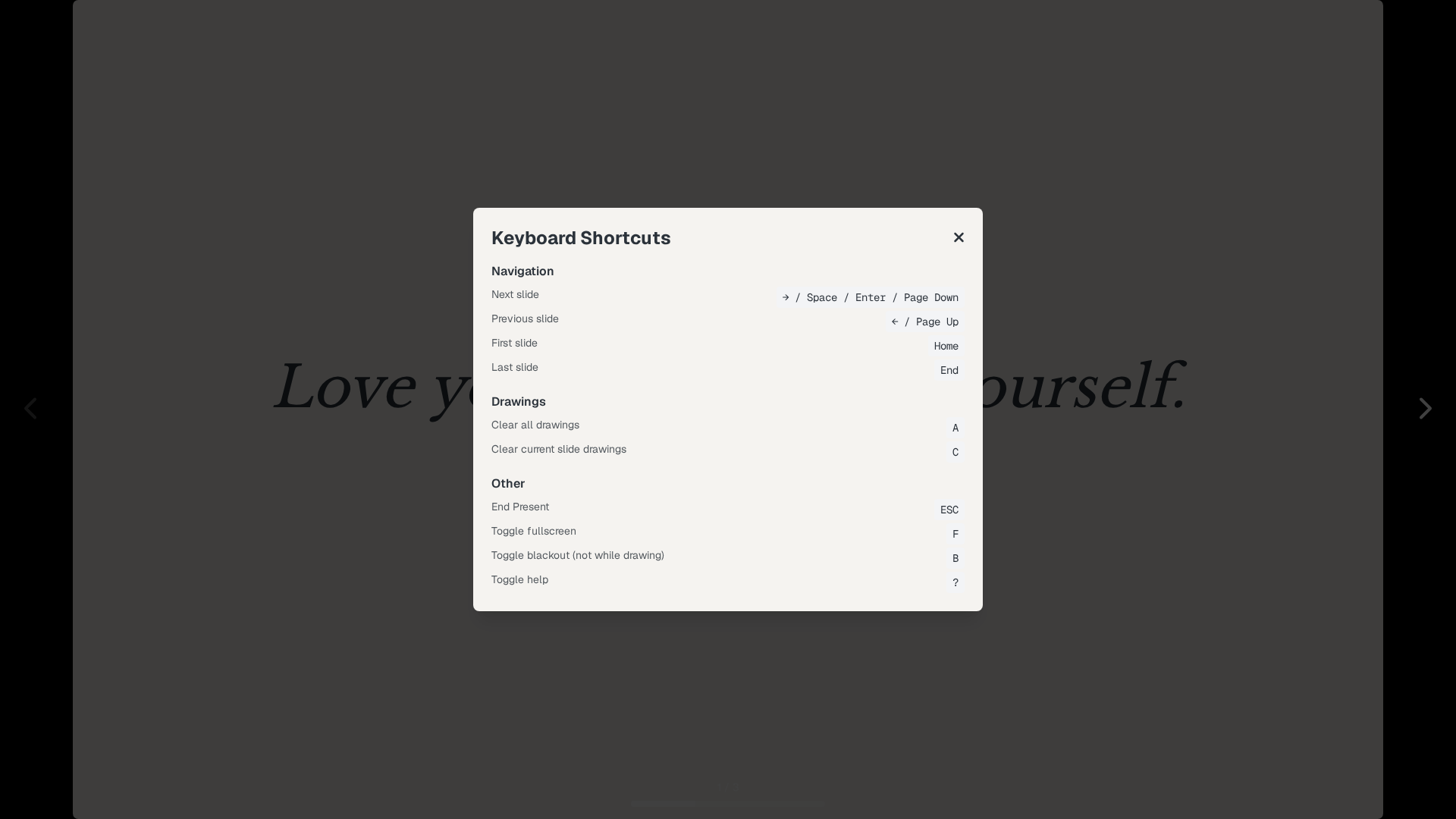
The editor shortcuts and the slideshow shortcuts are different lists. Help → Keyboard shortcuts is the editor list, and it includes the present keys. Inside the slideshow, press ? for the overlay titled Keyboard Shortcuts.
Move
- Next slide — Right arrow, Space, Enter, or Page Down
- Previous slide — Left arrow or Page Up
- First slide — Home
- Last slide — End
A click on the slide background also advances, unless the click landed on a control. Mouse-wheel advance is optional, in slideshow options.
If the slide has steps, the next key reveals the next step before it leaves the slide. See Steps and reveals.
The screen
- f — fullscreen
- b — blackout, when you are not drawing
- ? — this help overlay
- Escape — close help, blackout, or the pen first. If none of those are open, Escape ends Present.
End Present in the connect window is the same exit. You return to the editor for this deck.
The pen
When drawing is on, r, g, b, y, and k are red, green, blue, yellow, and black. b is blue in that mode, not blackout. a clears all drawings. c clears the current slide. Delete or Backspace removes the last stroke.
The projector does not show a pen bar to the room. See Drawing and annotations.
Plans
These keys are the same on every plan.