Help Center · Tablet & Remote
Stream Deck
Advance slides from a button box.
Stream Deck is a button box on the desk, not a row in the Help menu. BibleSlides does not install it for you. There is a plugin, and a page in the app that pairs your account.
Open /streamdeck while you are signed in. The page is titled Stream Deck cloud pair.
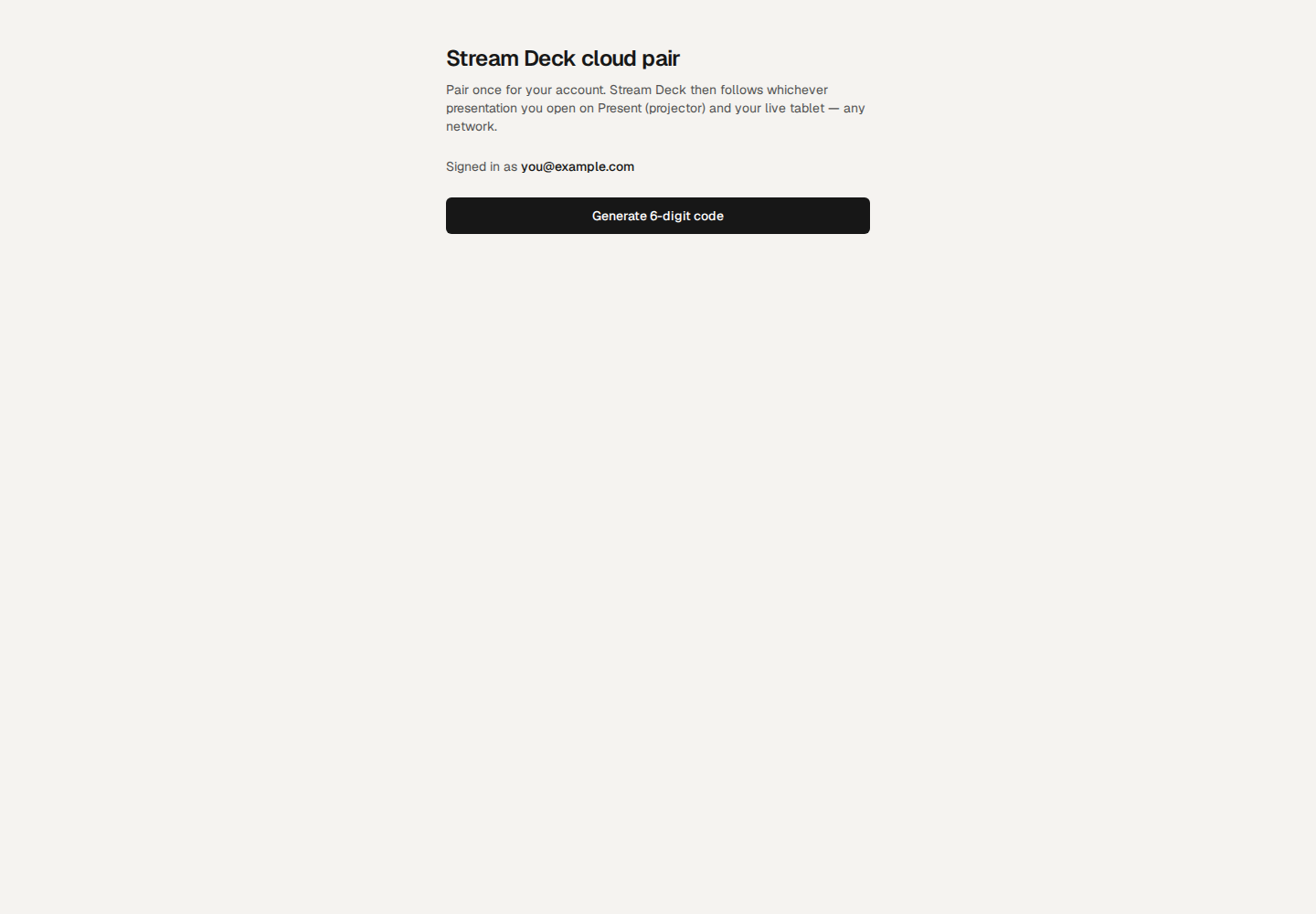
The line under the title: “Pair once for your account. Stream Deck then follows whichever presentation you open on Present (projector) and your live tablet — any network.”
It shows Signed in as your email. Generate 6-digit code makes a code. In the Stream Deck app, open BibleSlides Present → Cloud Link, paste the code, and save. That code is not the tablet QR. The tablet has no 6-digit code. See Connect a tablet.
If the Stream Deck is on the same Mac as Present
The plugin can also talk to Present on that Mac over a local connection, without the cloud code. The cloud pair is the one that works when the button box and the projector are not the same computer.
What the buttons do
The plugin category is BibleSlides Present. The actions are next and previous, a draw toggle, pen colors, countdown and count-up timers, a clock, a security acknowledgment, and the live tools: Bible, Maps, Photos, Timeline, Board, Follow, and Notes. One action opens Projects.
Prebuilt layouts exist for the Mini, Neo, MK.2, Plus, XL, Pedal, Mobile, and Galleon. Those layouts live in the plugin, not in the editor.
Plans
The pair page is available when you are signed in. The buttons drive whatever Present is allowed to do on your plan. A Free account still cannot open on-the-fly Bible from a button if the plan blocks it.