Help Center · Slide Types
Bible Verse
Scripture on the slide, with annotations and steps.
Bible Verse puts scripture on the slide: the reference, the translation, and the text, with room to mark words and to reveal the passage in steps. In the product this type is named Bible Verse. It is the one new accounts pin first.
Where to find it
Slide types → Bible Verse, or More slide types. The window is Create Bible Verse. A link in the header, Help Videos, points at “How to Create a Bible Slide (Verse, Map, Photo).”
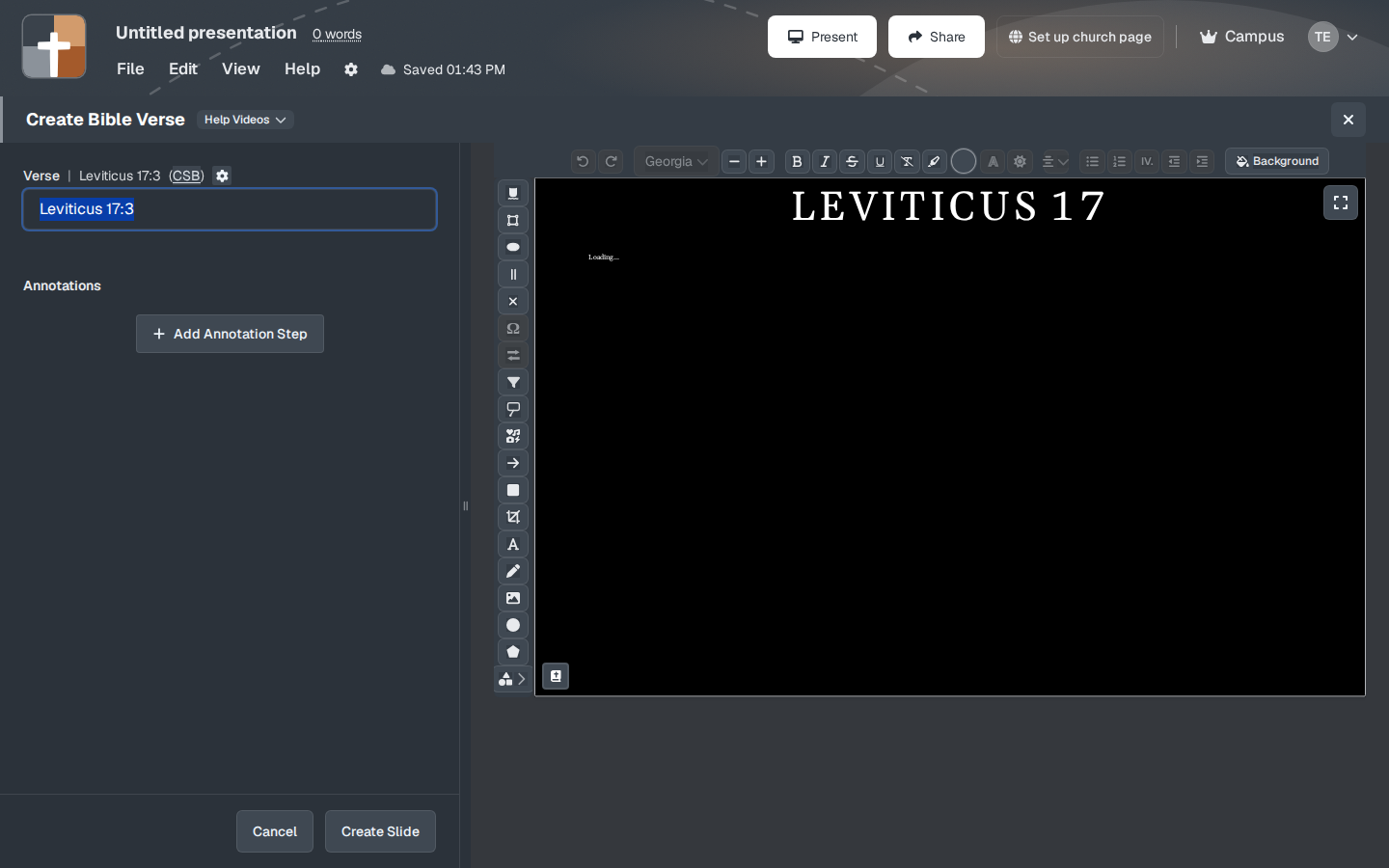
The setup window
- Verse — the reference. The window shows it as a passage such as Leviticus 17:3, with the translation in parentheses, for example (CSB). Click the reference to change the passage. The chapter text loads beside it. You may see Loading… until the text arrives.
- The translation is part of that reference control. English options come from the translations on your account. ESV is not offered for a new slide. A deck that already used ESV can still show it from the older ESV text shipped with the app.
- Annotations and Add Annotation Step — mark a word or a phrase, then make that mark its own step. You can walk a verse without putting a new slide in the deck for every highlight.
- The font control shows the current face. In the window captured here it was Georgia.
- Background.
- The Ω control is the original-language tool. It adds a callout for a Greek or Hebrew word. It does not turn the slide into a full lexicon. A full word study is the Definition slide.
- Create Slide adds the passage. Cancel closes the window.
Set the reference before you annotate. Marks follow the words. If you change the passage after you have highlighted, check the marks again.
While you present
A verse slide can be the whole reading, or the line you will stay on. If the chapter is still loading when you open the window, wait until the words are visible before you click Create Slide. An empty verse with a reference and no text is a hard thing to discover on the projector.
The words on the slide carry their own language. The menus stay in the app language you chose under View.
Plans
Bible Verse is on the Free plan. It does not show a crown. Bible Photo, 3D Bible Maps, and 3D Models do. SnappyBible, the quick scripture dock (Ctrl+Shift+L in the sidebar), is paid: Free sees a crown on it and cannot use it. After the 30-day trial, Free is 7 slides, 3 presentations, and a watermark.