Help Center · Building a Presentation
Find and replace
Edit → Find and replace across the presentation.
Edit → Find and replace opens a window with that title. Ctrl+F and Ctrl+H do the same thing (Cmd on a Mac).
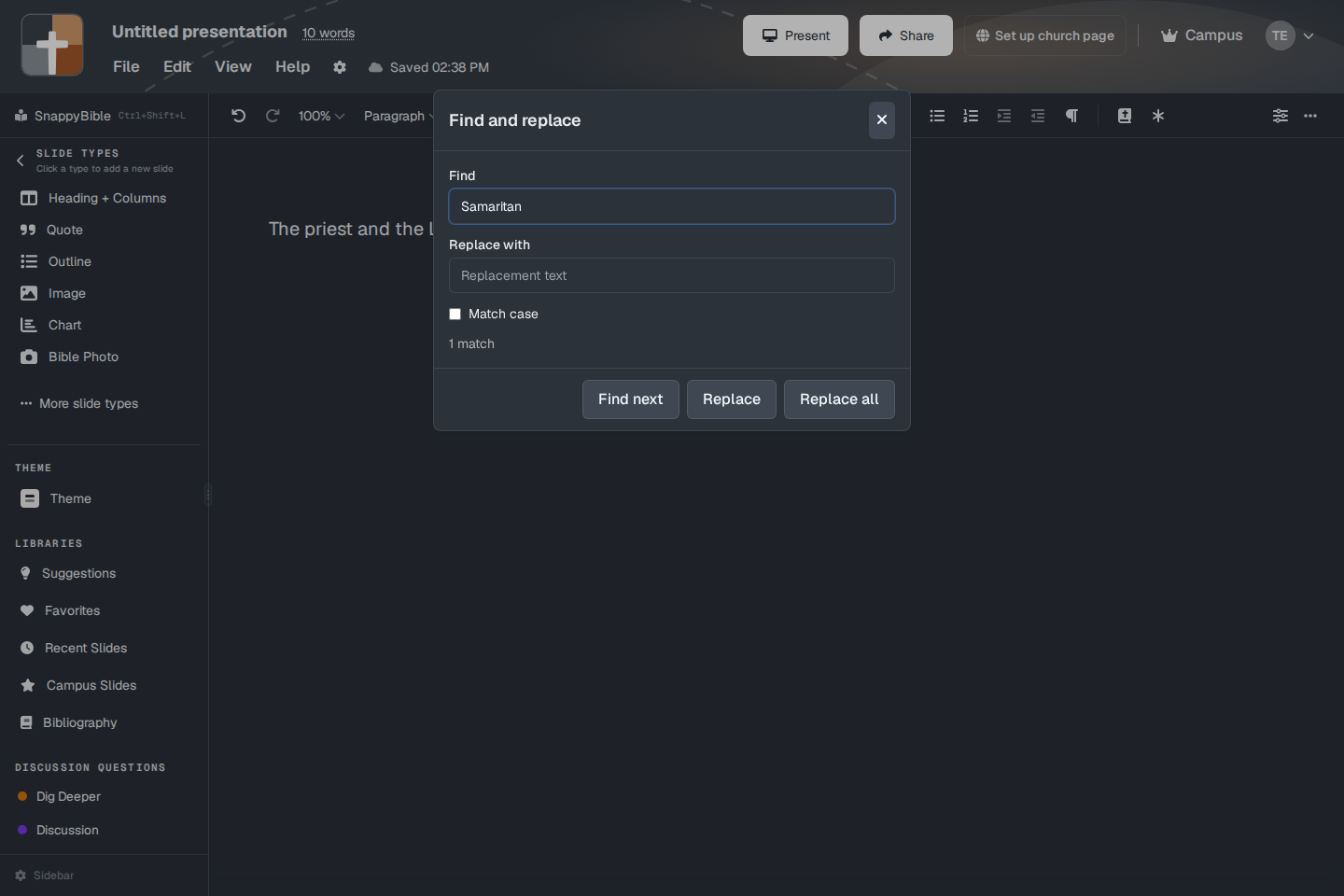
The window
- Find — the placeholder is “Search in document.”
- Replace with — the placeholder is “Replacement text.”
- Match case — a checkbox. There is no “whole word” option, and there is no switch for notes versus slides. The search walks the text of the document you are editing.
- Find next — moves to the next hit.
- Replace — replaces the selected hit. If nothing is selected, the window says “Select a match to replace.”
- Replace all — replaces every hit.
The count under the fields reads 1 match, 3 matches, or No matches found. An empty Find box says “Enter text to find.” After a replace, it says Replaced. or “Replaced 4 matches.”
What it will not find
It searches the written document. It does not open every slide’s setup window and rewrite a chart title that lives only inside that window. If a word is on the slide as part of the document text, it is in the search. If you need a different passage on a verse slide, open that slide and change the reference.
Plans
Find and replace is on every plan.