Help Center · Troubleshooting
Tablet won’t connect
The code, the network, and Presenting apps.
The tablet does not use a 6-digit code. That code is Stream Deck. The tablet uses the QR code or the link on View Speaker Notes and Control Slides, which opens after Present.
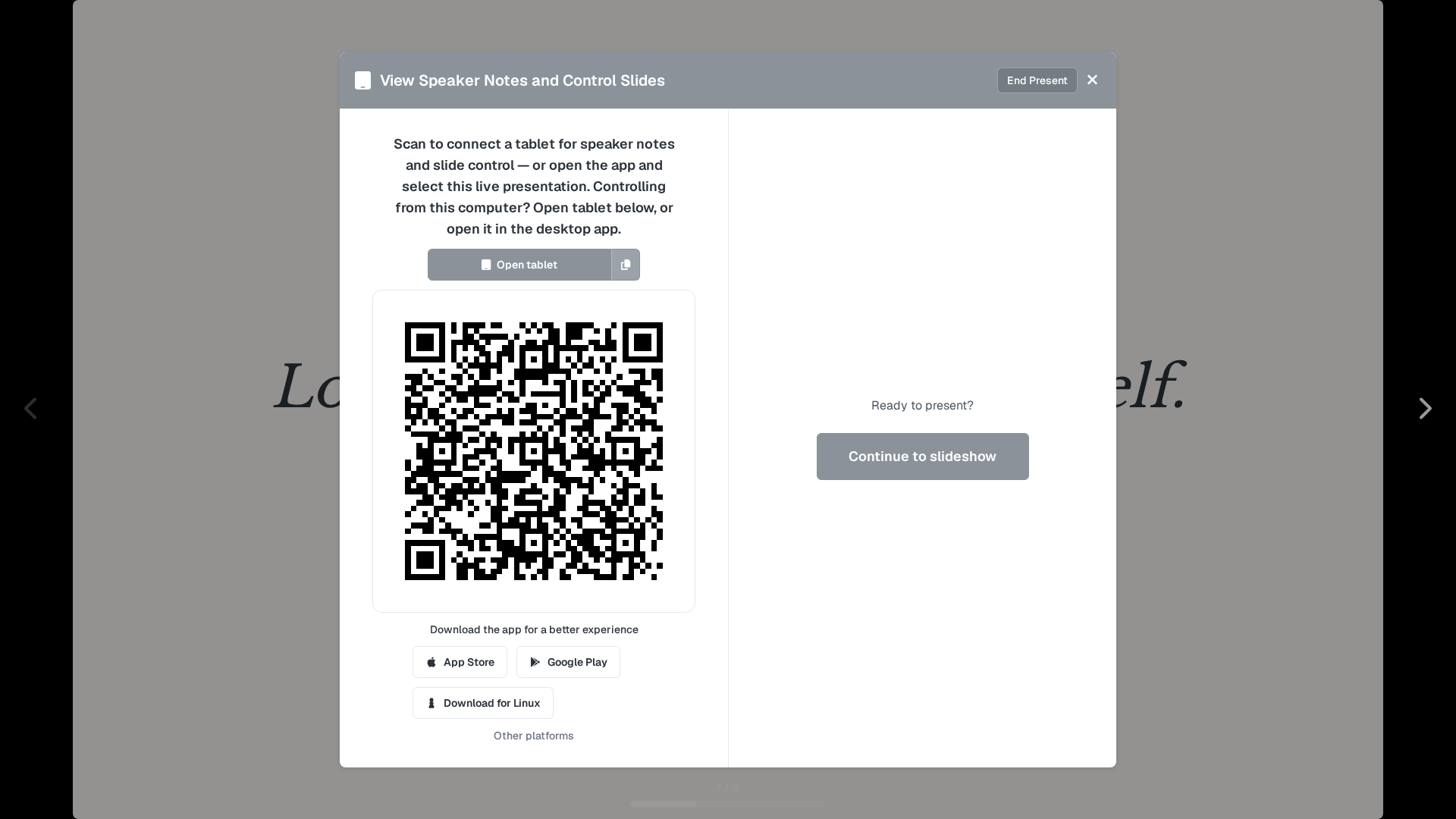
If the QR does nothing
- The phone or tablet needs a connection. The link is
yoursite/tablet?presentationId=…. A device that cannot open BibleSlides cannot pair. - Copy tablet link and send that address if the camera will not read the code. The button reads Copied tablet link, or “Failed to copy link. Please try again.”
- Open tablet on the presenting computer opens the control view there. If the browser blocks the window: “Pop-up blocked. Allow pop-ups for this site, or copy the link instead.” The projects-page tablet icon says “Allow pop-ups to open Tablet (control).”
- The splash closes when a tablet actually connects. If it stays up, the tablet has not reached this presentation. Continue to slideshow still shows the slide on the projector. You can present without the tablet.
- An offline slideshow file cannot pair. “Offline files cannot pair a tablet.” Use the live Present window, or pin the deck for editing and accept that the tablet will not join that file. See Presenting offline.
The app
Download the app for a better experience on that same window, or Help → Presenting apps. The apps are iPad, Android, Mac, Windows, and Linux. They present. They do not replace the editor. See Tablet apps.
Sign in to the app with the same account. Then open the live presentation, or scan the code. Android Google sign-in fails if the install was not registered with the right SHA-1. That is a setup step for the person who published the Android app.
Plans
Pairing is not a paid feature. If the tablet connects and a button on it shows a crown, the pair worked and the plan does not include that tool. See On the fly.