Help Center · Sharing & Teams
Share a presentation
The Share button and who can open the deck.
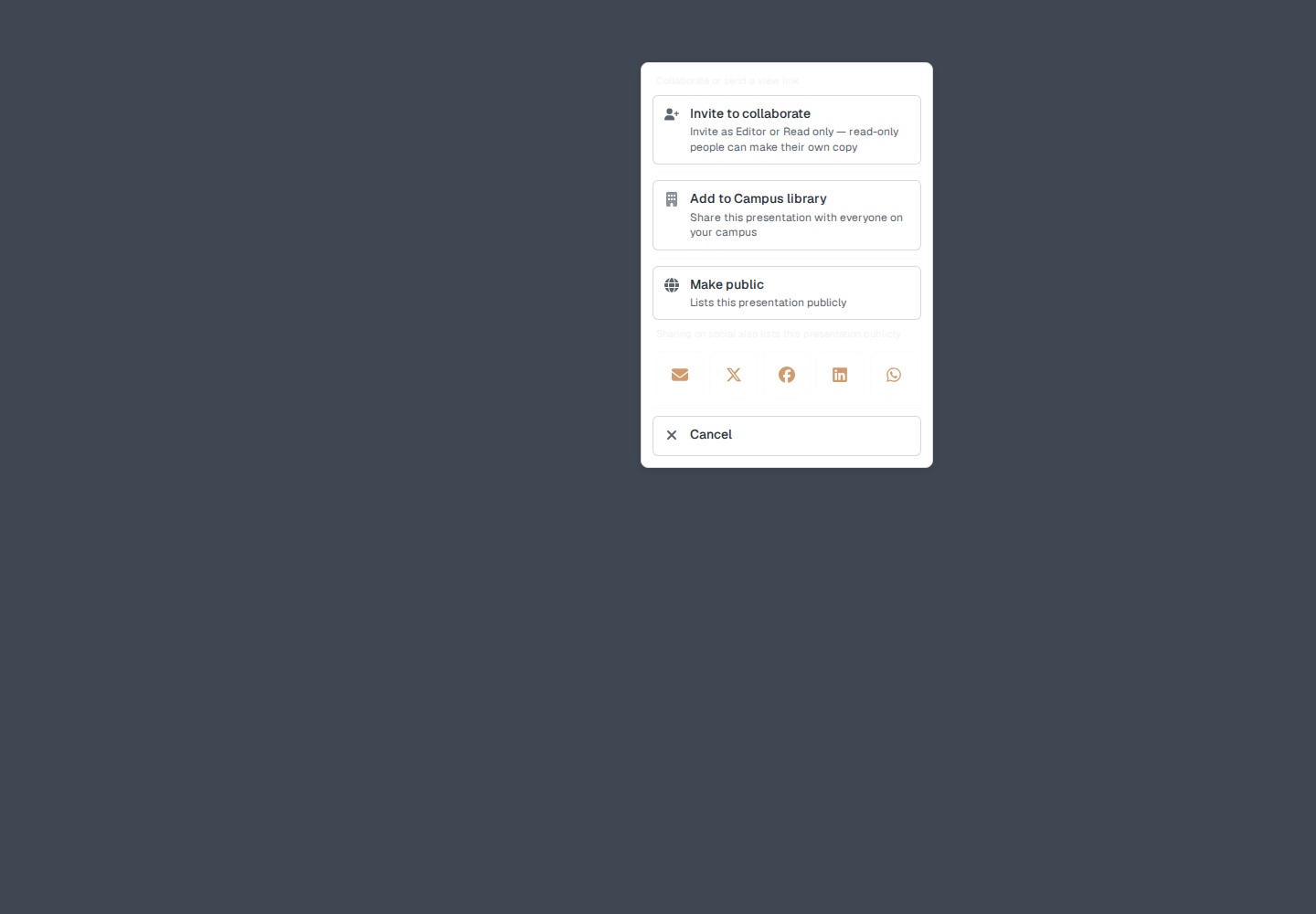
Share is next to Present. The hint under the menu is “Collaborate or send a view link.”
In the editor, that menu lists Invite to collaborate, Add to Campus library (on a Campus plan, when you own the deck), and Make public. It does not list View link. The hint still says “view link.” The button for the watch link is on the project card.
View link
On the projects page, open the card menu (the vertical dots) and choose Share. That menu includes View link — “Send a watch link — they do not need an account.”
The window is Share Presentation Link. The body says: “Share the slideshow only. Recipients can view the slideshow and connect a tablet. They do not get your document or editor.”
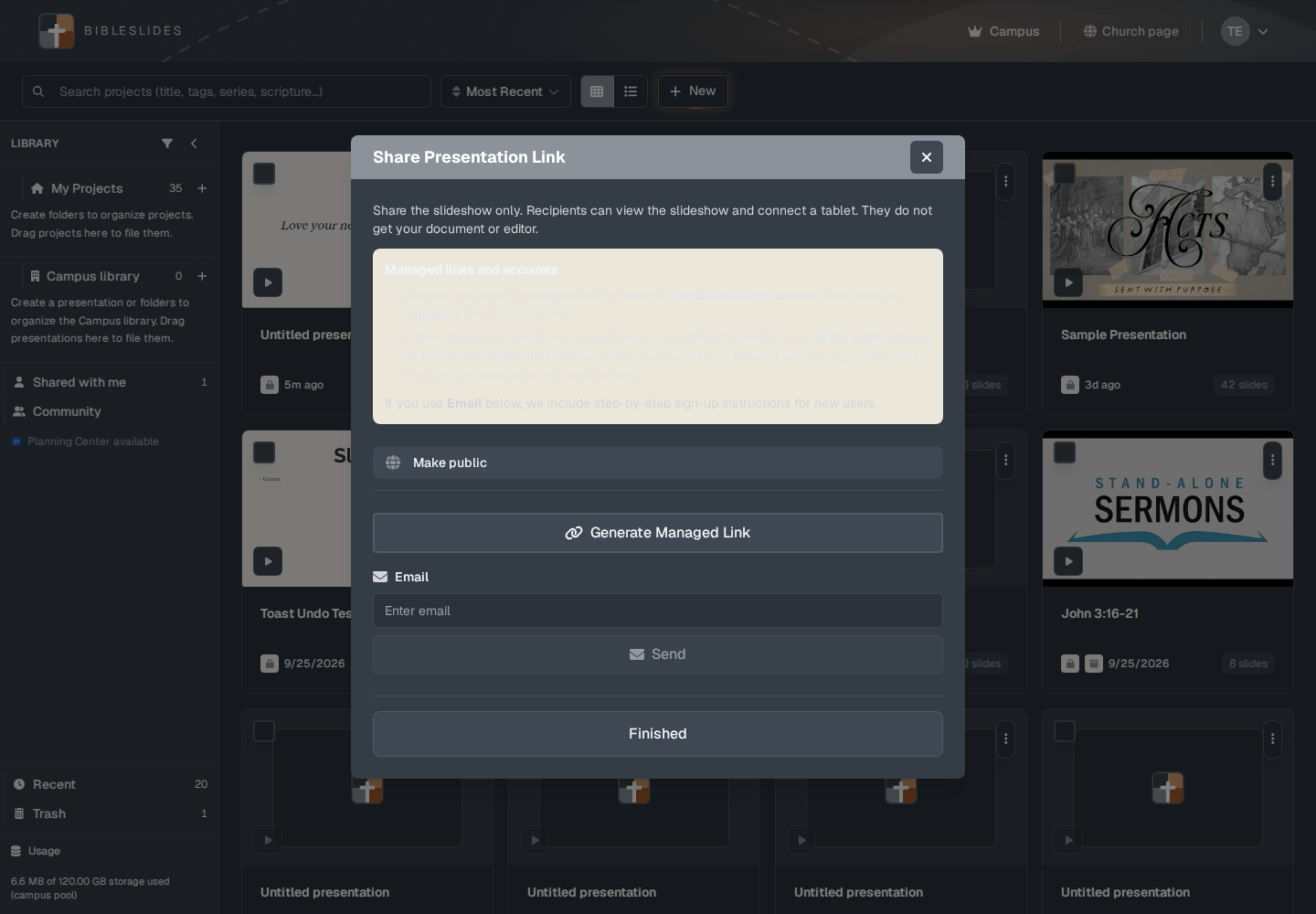
On a private deck the section is Managed links and accounts. People can open a managed link with a free BibleSlides account, signed in. Generate Managed Link (or Generate New Managed Link) creates one. Manage Links lists them. Email with Enter email and Send sends one. Finished closes the window.
Generating a managed link on Free opens the upgrade window. Premium, Campus, and the trial can create them.
While the deck is public, the label is Public Share Link, the button is Share Link (then Copied!), and the note is “Managed links are hidden while this presentation is public.”
Invite to collaborate
Invite to collaborate — “Invite as Editor or Read only — read-only people can make their own copy.”
The window is Invite to Collaborate. The description says they get the project in their Shared folder. Editors can change slides. Read-only people can view and Make a copy. “Changes sync when each person saves — reload if the project was updated elsewhere.”
- Email Address — “Enter email address.”
- Permission — Editor or Read only.
- Invite — while it sends, Sharing...
- People with access: — or “No one has been invited yet.”
Only the owner sees the full management. Everyone else sees “Only the owner can manage who has access to this project.”
Those decks show up for the other person under Shared with me. That is not the campus library. See Campus library.
Public
The owner can Make public or Make private from this menu. Making it public lists the presentation so other people can find it. See Private and public.
On Campus, the same menu can say Add to Campus library or Remove from Campus library.
Plans
A view link to the slideshow is the ordinary share. Managed links that require a signed-in account are a premium feature. Inviting an editor does not require the other person to be on Campus. The deck they receive follows their own plan when they try to add a locked slide type.