Help Center · Building a Presentation
Notes beside the slide
Write the sermon in the notes and keep the slide in view.
The notes and the slide share one page. You write on the left. The slide the room will see stays on the right. There is not a second “notes only” window. A slide you add is a block in the notes, and the selected block is the large preview.
Writing
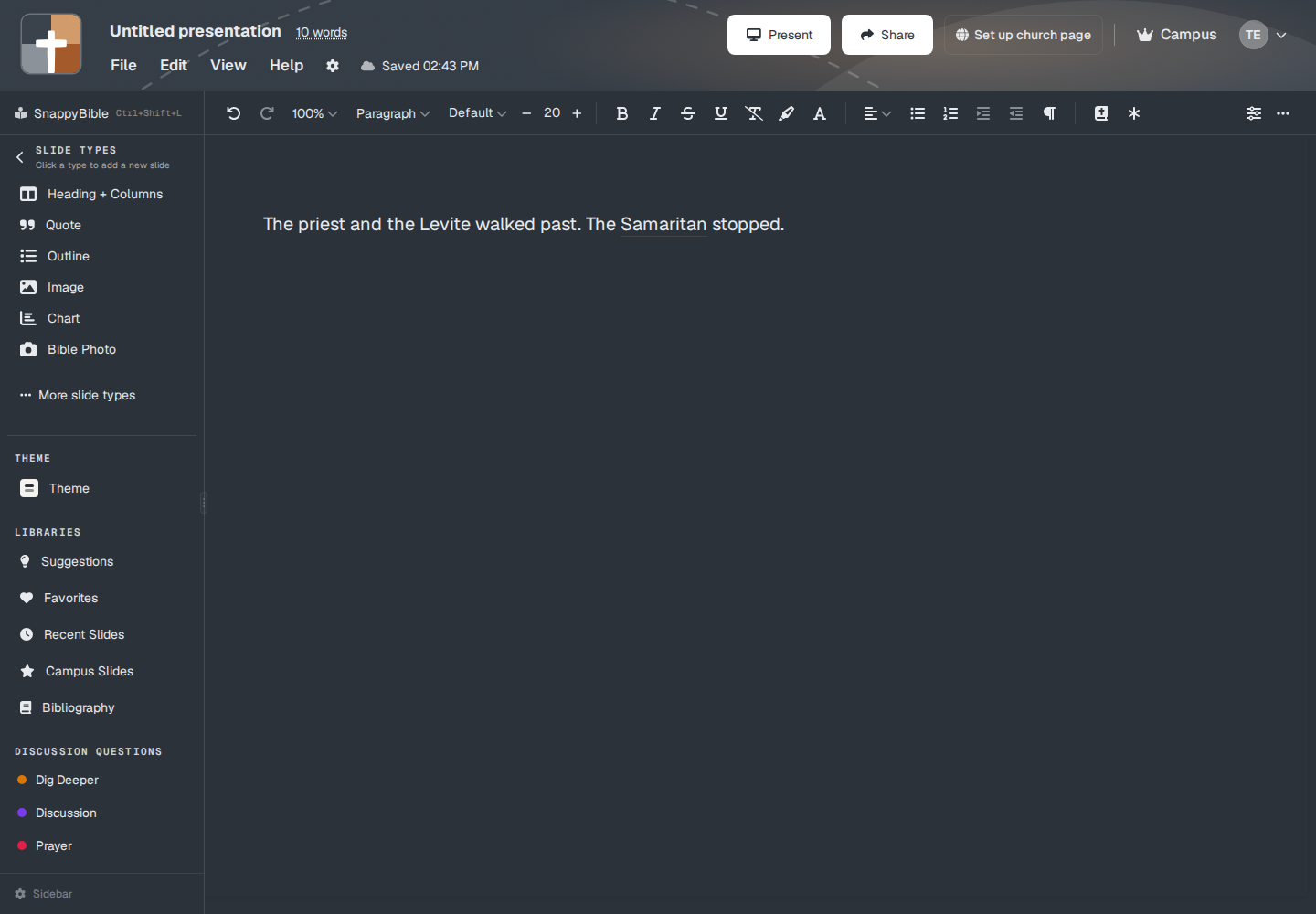
Click in the notes and type. The style menu above the notes starts on Paragraph. The other styles are Heading 1, Heading 2, and Heading 3. The font row starts on Default.
The toolbar also has Undo, Redo, Bold, Italic, Underline, Strikethrough, Highlight Color, Text Color, alignment (Align Left, Align Center, Align Right), Bullet List, indent, Quote, and More formatting. Insert commands are Insert into notes, Insert footnote, Insert Image, Insert Table, and Insert Link.
Select a word and a small bar appears for the same kind of formatting, plus shortcuts that turn the selection into a slide (a verse, a definition, and similar).
You can hide a toolbar icon. The customizer says “Untick to hide an icon from the toolbar.”
Where a slide sits
Click a name under Slide types, or open More slide types. The new slide lands in the notes at the cursor, and the right-hand panel shows it. Use Slide in Favorites or Recent Slides does the same.
Under a slide that has steps, the notes can show a row of small step previews. Those previews are the step list. They are not colored chips. Right-click one for Delete step. The room does not see this row. See Steps and reveals.
What the room sees
Present shows the slide, not the sermon paragraph you typed beside it. The notes stay on your screen and on the tablet. See Connect a tablet.
View → Hide Slides puts the notes alone. View → Distraction Free clears more of the chrome. Show Slides brings the preview back.
Plans
Writing notes is on every plan. The slide you insert still follows that type’s plan. Free, after the trial, stops at 7 slides. The notes themselves are not capped by that number.